
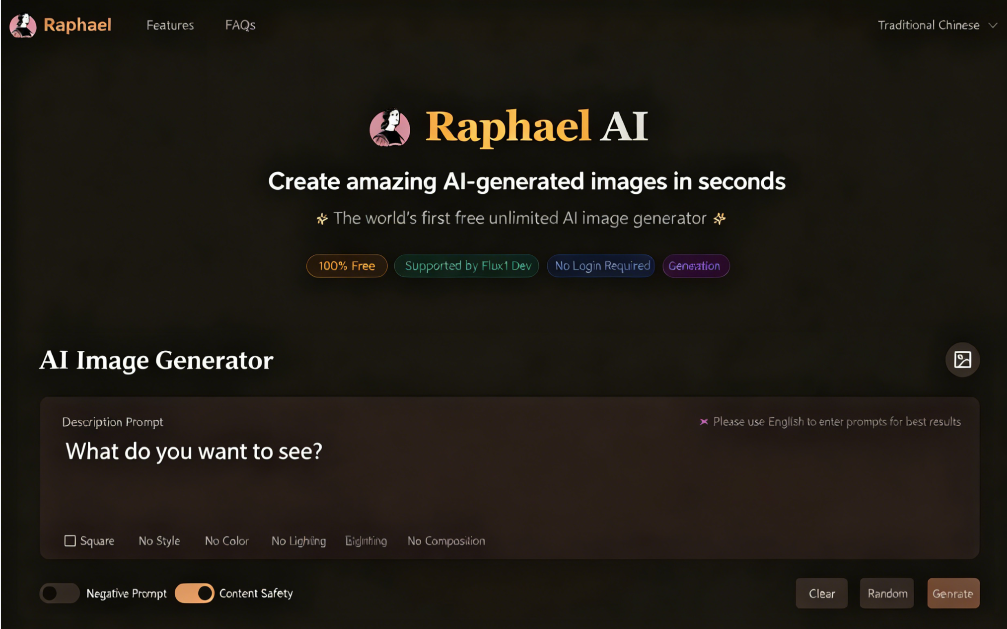
The Free Resources Network Community has previously introduced numerous AI drawing tools and image-to-image generators. Some users may still find them complicated, especially the preparatory steps. Is there an AI image generator that can be used directly upon opening the website?
Next up is “Raphael AI,” a recently popular AI image generation service that claims to be the world's first free, unlimited AI image generator! It utilizes the FLUX.1-Dev model, which isn't entirely uncommon. However, Raphael AI significantly lowers the learning curve. You can use it without any registration or account login, and it's completely free with virtually no restrictions.
With Raphael AI, users can rapidly create stunning image content in seconds. Before generation, you can customize image shape, style, color, lighting, or composition. It also supports adding reference images and generating similar content based on prompts.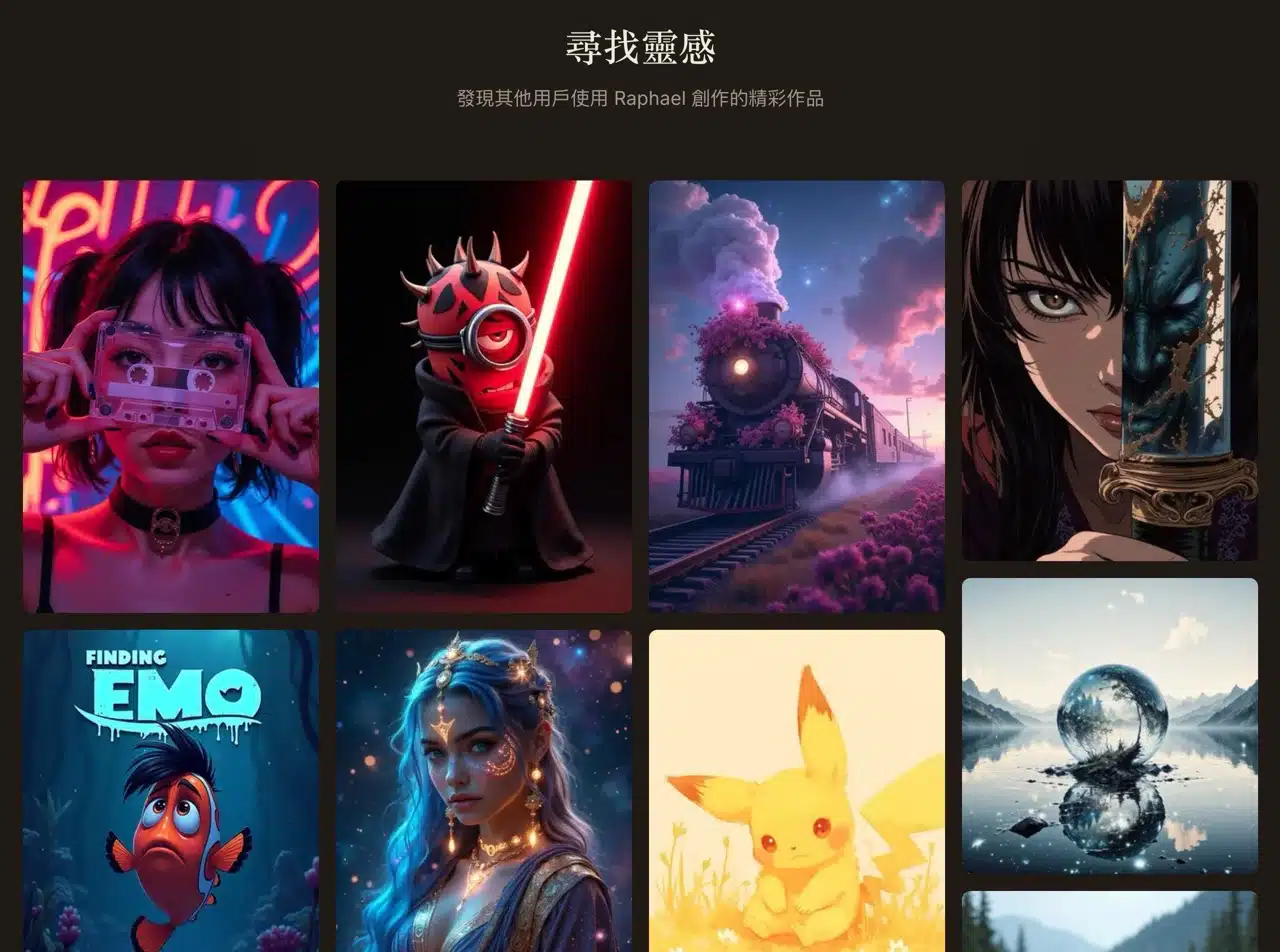
The Raphael AI homepage showcases numerous curated works, all generated by AI. Selecting one quickly imports its prompt. This tool demonstrates exceptional text comprehension, accurately interpreting complex prompts—though it currently supports English prompts only. We recommend using translation tools or AI services (like ChatGPT) to convert image prompts into English for optimal results.
Notably, Raphael AI offers robust privacy protection. All user prompts and generated images are never stored on servers, and no personal information is required (no registration needed). Generated images can be used for both personal and commercial purposes. Interested users should definitely give it a try!
Raphael AI Tutorial
1. Enter a prompt.
Open Raphael AI and type your description prompt directly below the image generator. Use English for best results. The “Add Image” feature in the top-right corner allows you to upload reference images for the AI to use alongside your description prompt to generate similar images.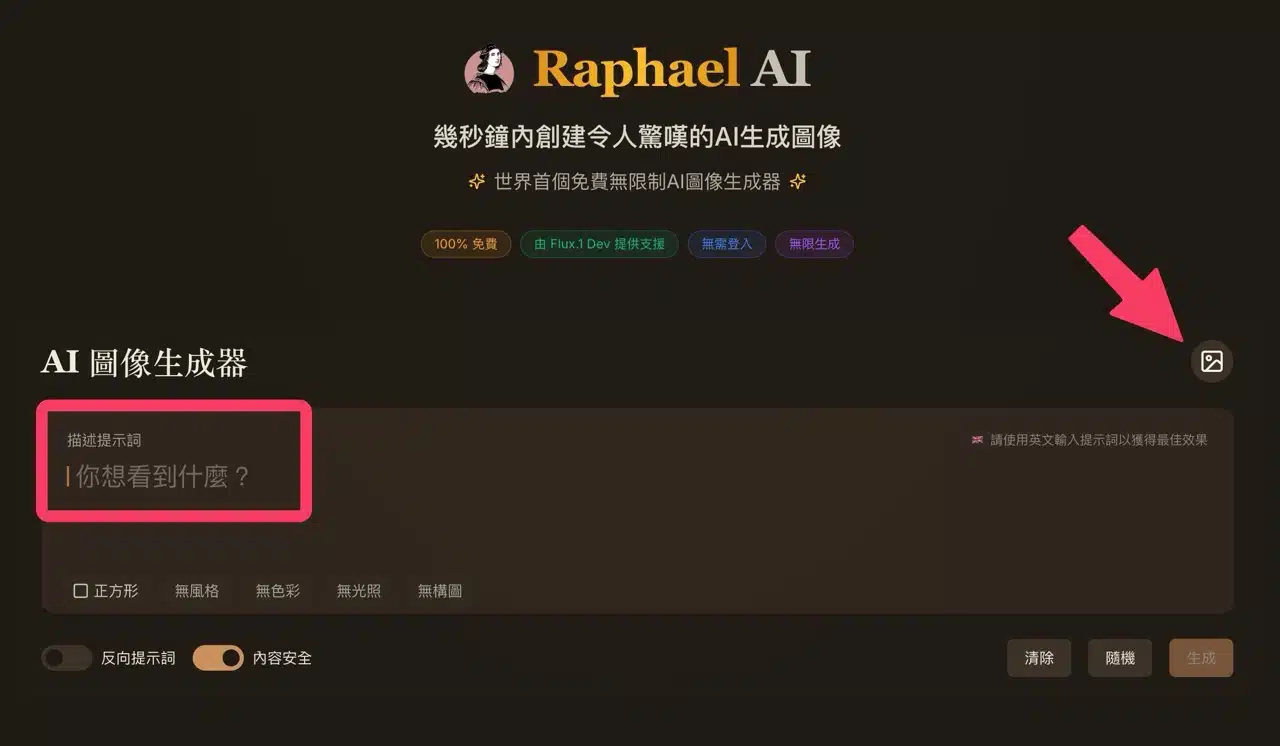
2. Set image shape.
Below Raphael AI, a row of settings lets you adjust the generated image's shape (square, landscape, or portrait).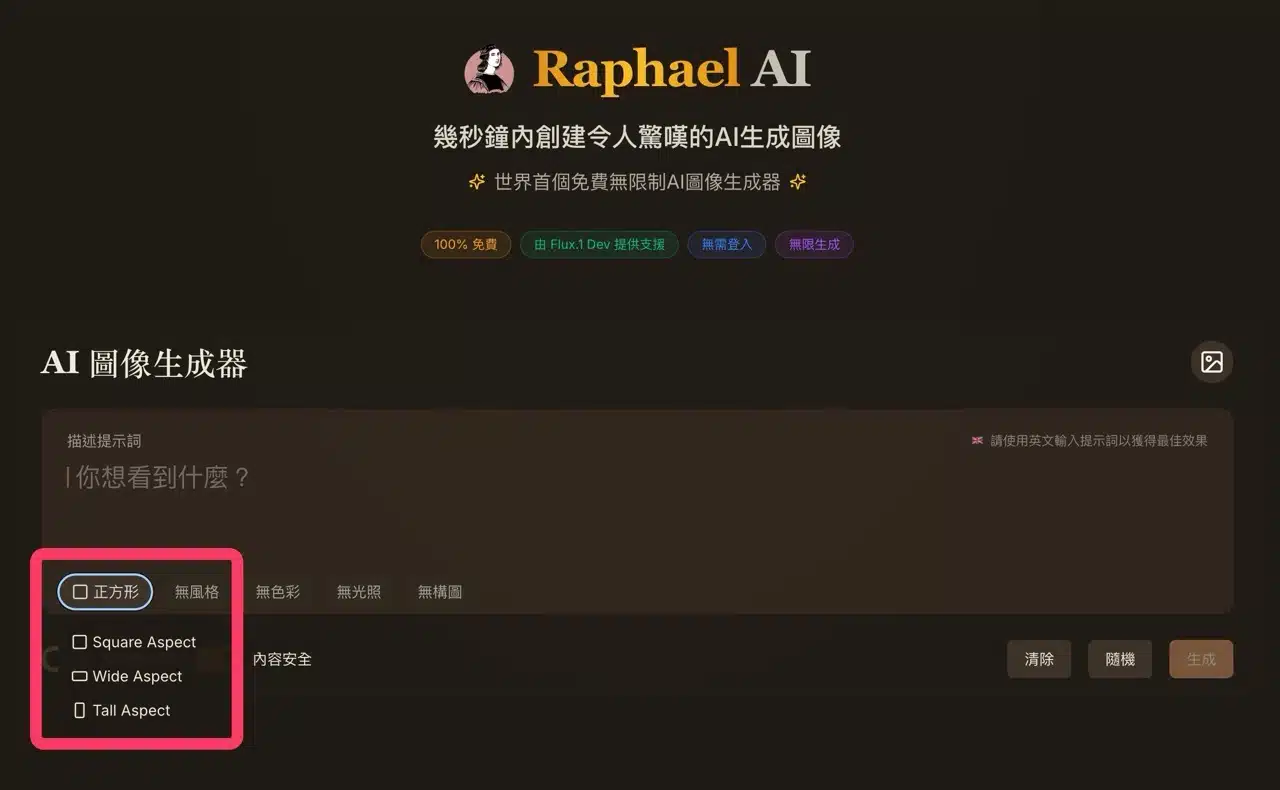
3. Adjust style, color, lighting, and other options.
You can also preset the generated image's style, color palette, lighting, composition, and more. Note: These options may lack complete Chinese translations, but they're generally intuitive.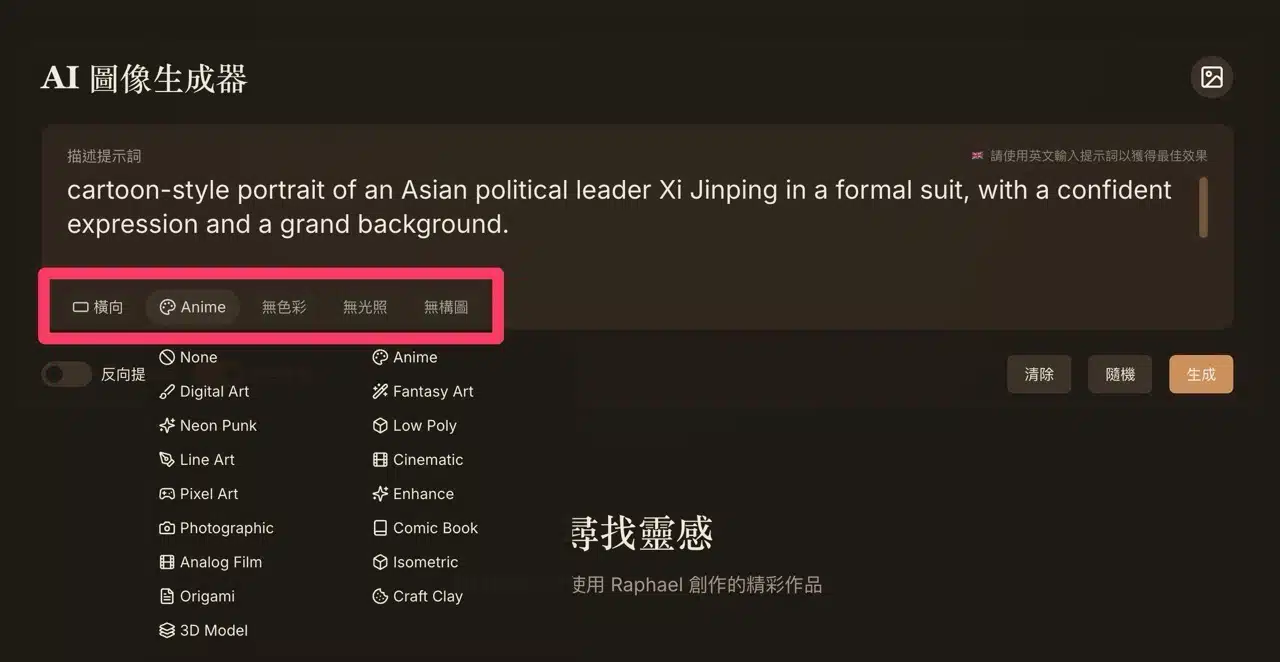
4. Generate images.
Clicking “Generate” produces four images each time. Users can select the desired image to download.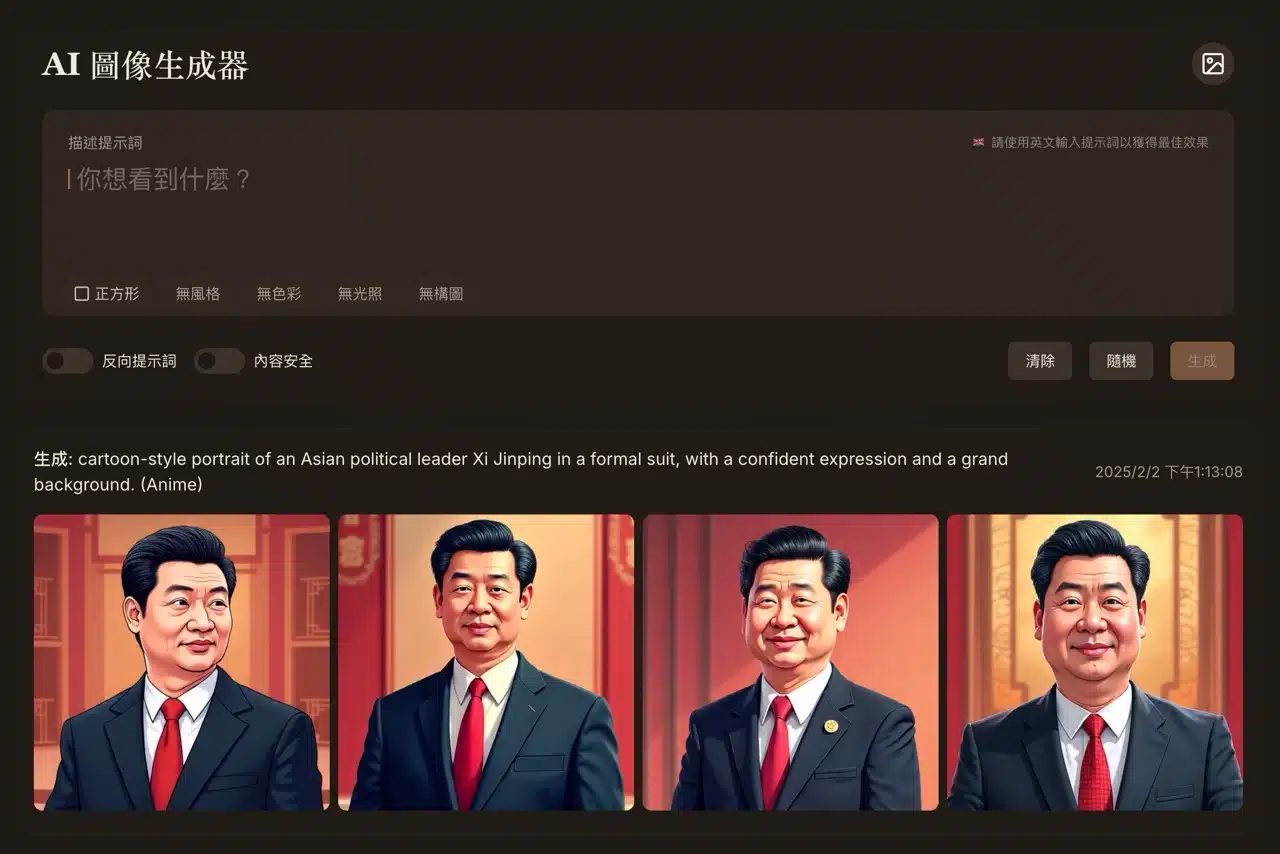
5.Reference Image Feature (Advanced Application). APP Recommendation
As mentioned earlier, Raphael AI incorporates a “Reference Image” function, allowing users to provide reference images to the AI model during generation.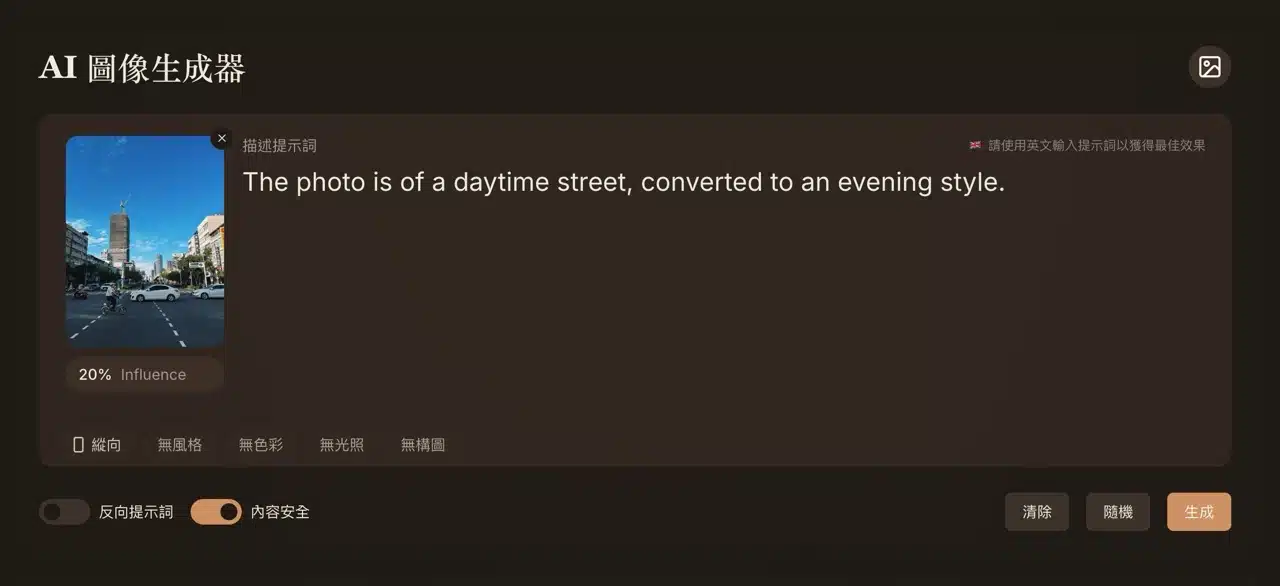
Adjust the reference image's influence value (default: 20%). This setting controls how much the uploaded reference image impacts the final output, helping users generate results that better match their needs.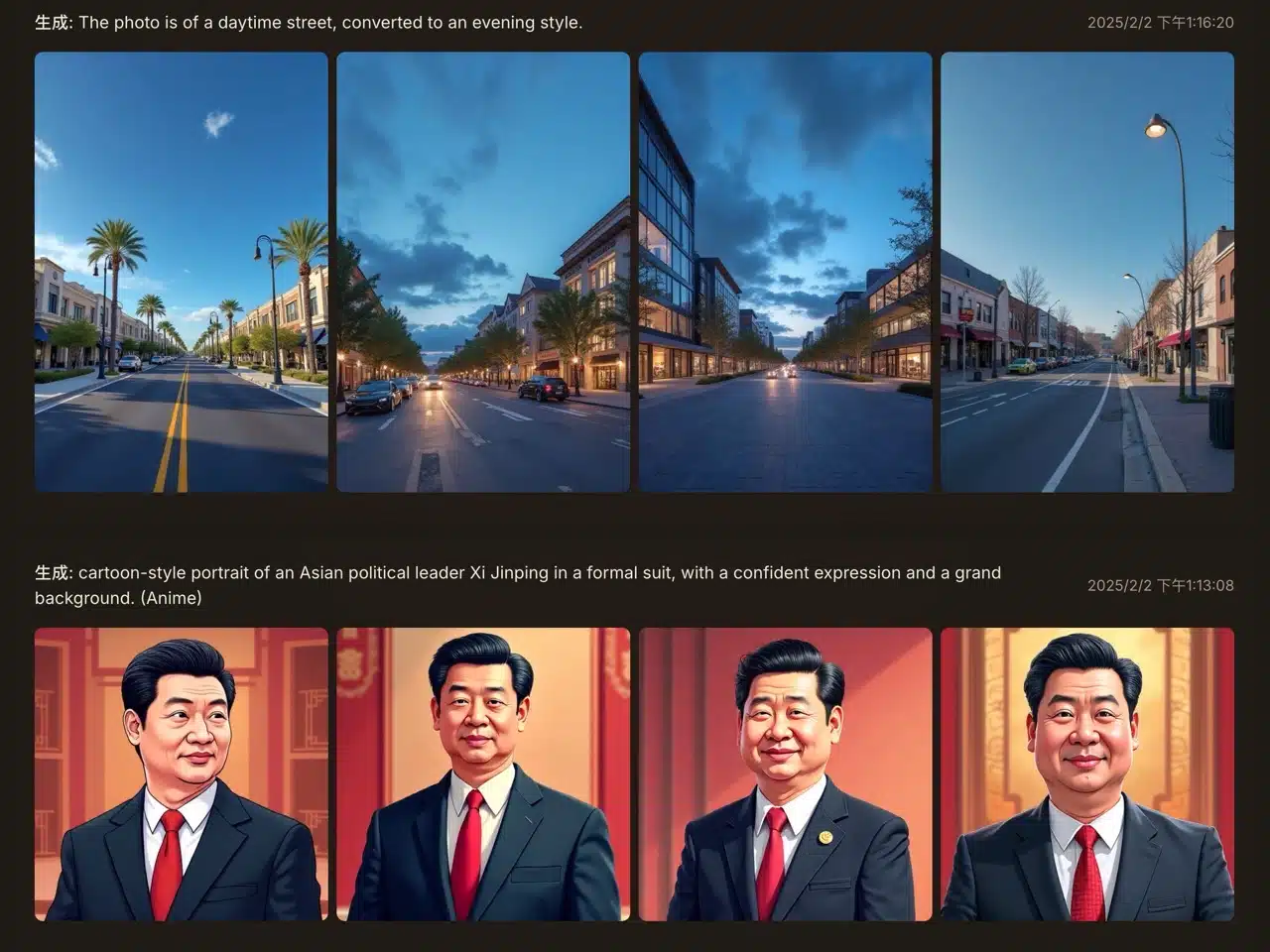
6. Fine-tune and optimize.
Raphael AI generates four image results each time. After opening an image, remember to click the “Refine” function in the top-right corner. This enhances photo quality by applying AI-driven optimization and refinement to image details.
Simply put, the generated previews serve only as previews. Use the Refine feature before final download to make the image closer to your desired outcome. This design also helps conserve resource consumption.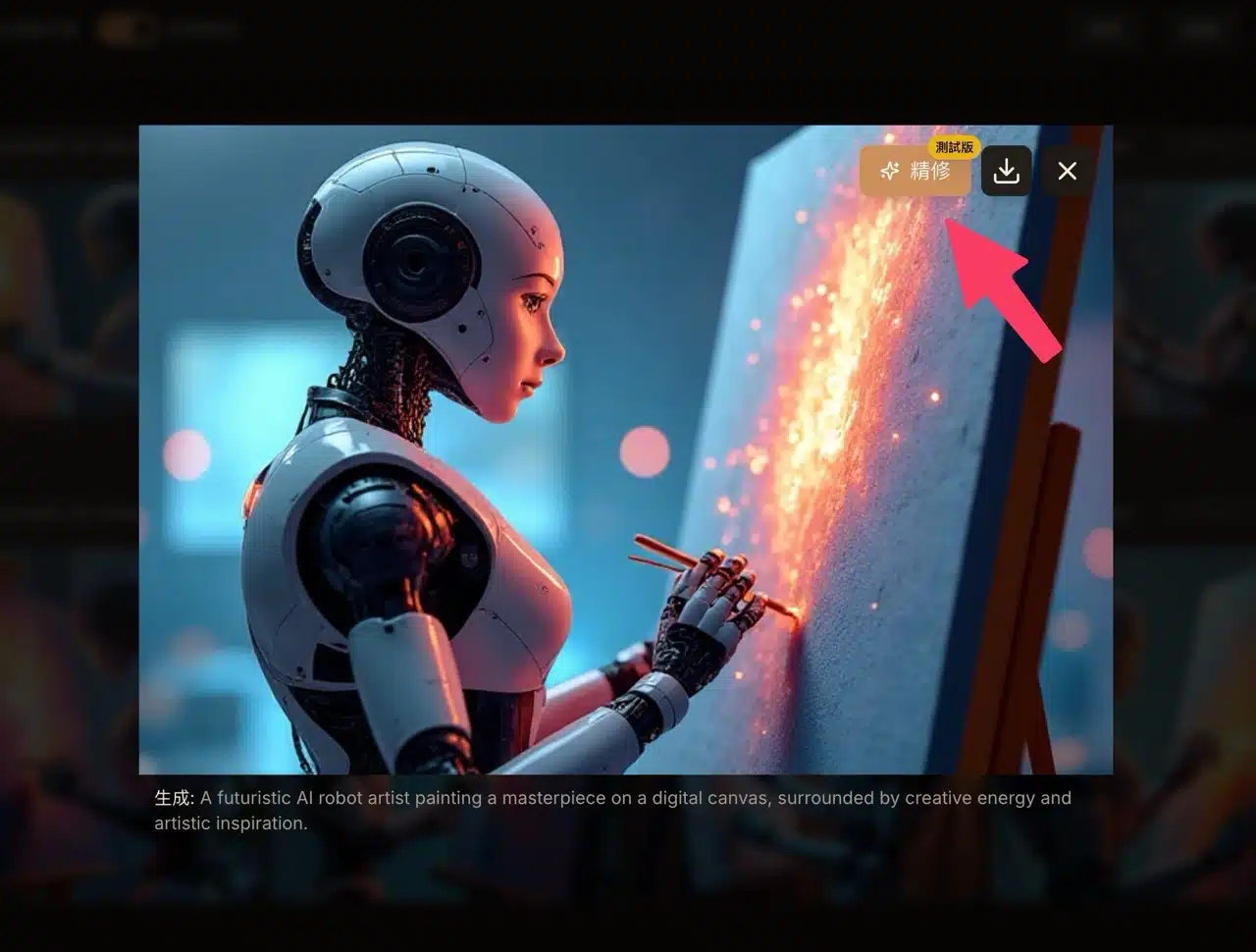
After refinement, click “Download” in the top-right corner to save the AI-generated image.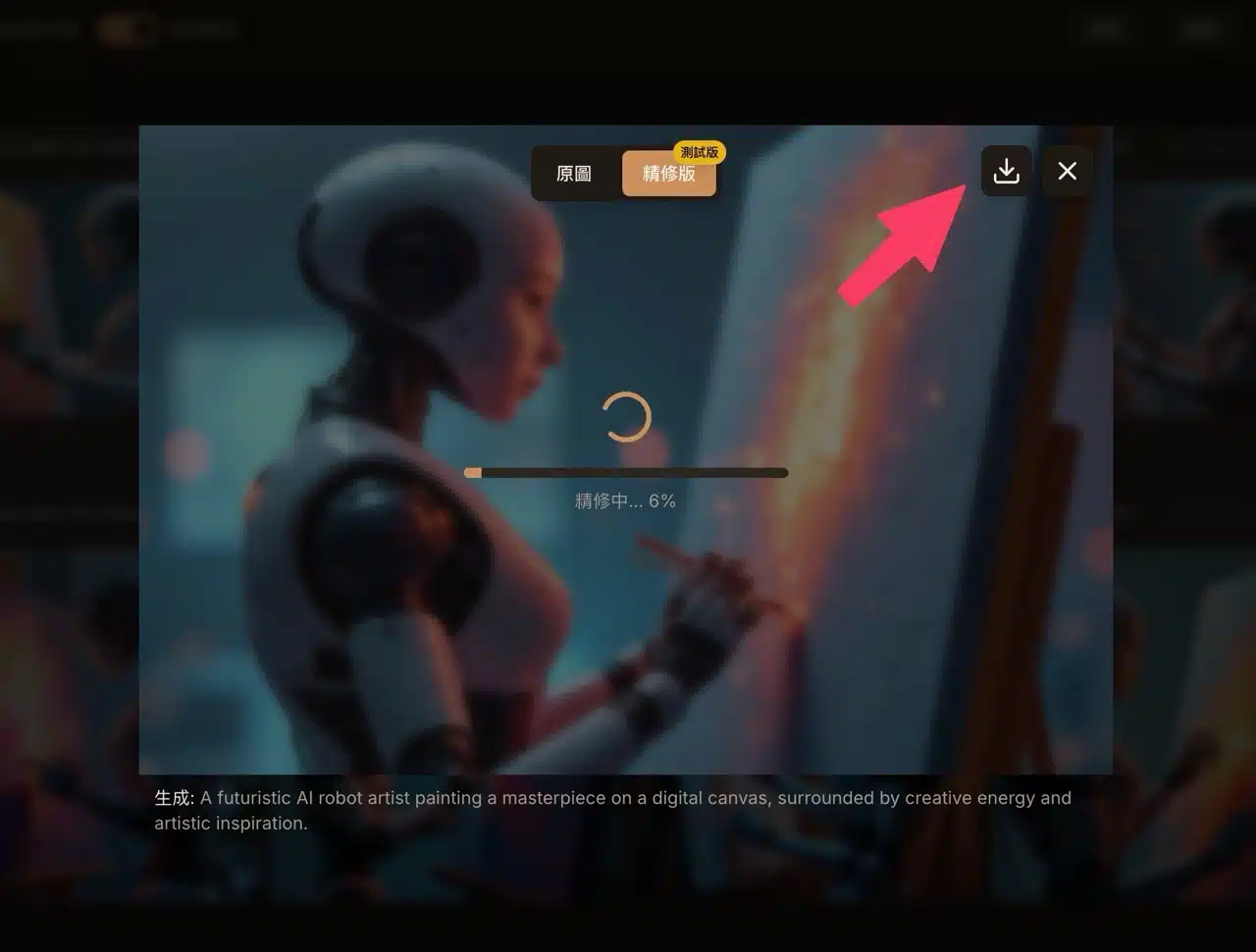
Conclusion: A free AI drawing tool worth bookmarking!
All images generated using Raphael AI can be used for personal or commercial purposes. This service has no usage restrictions, requires no registration or account login, and has no hidden fees—it's truly incredibly useful! We recommend everyone bookmark Raphael AI right away. Generate images anytime you need them in the future—not only will you save money, but you won't have to worry about copyright issues either!