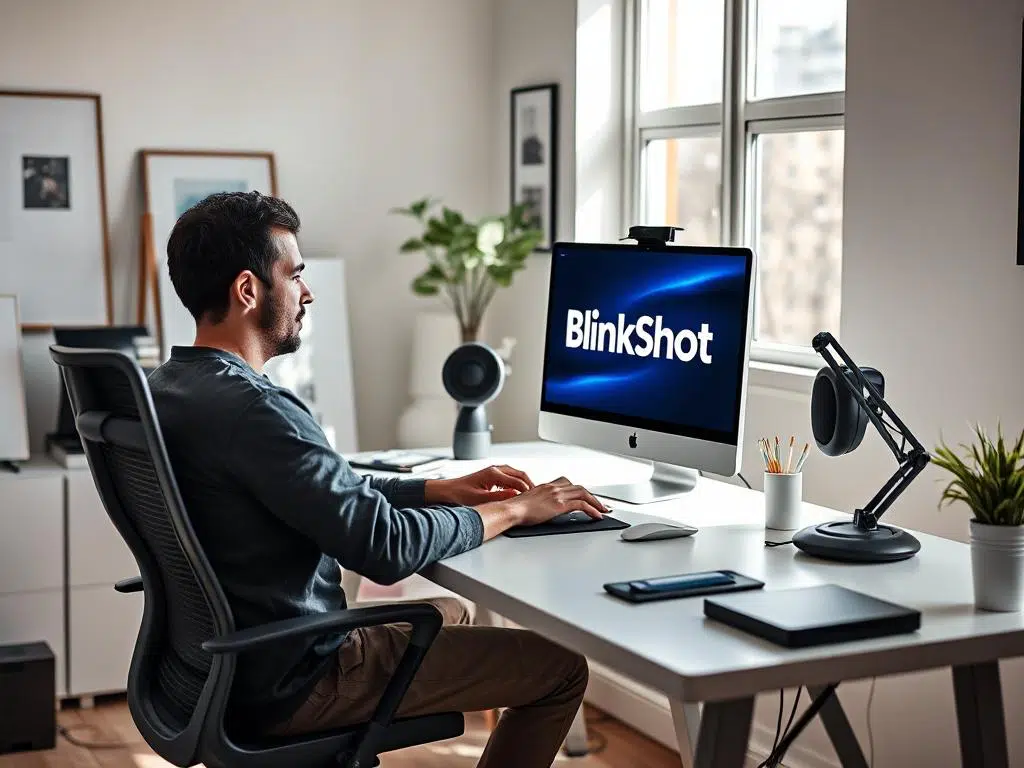
BlinkShot is a free service that instantly generates images using AI technology. This open-source project leverages the AI-accelerated cloud service “Together AI” and the image generation model FLUX. Its defining feature is the ability to produce diverse images based on input prompts within milliseconds, with output quality that holds its own. The featured image in this article was generated using BlinkShot. Interested users are welcome to give it a try.
However, BlinkShot currently only supports English prompts. If you're lacking inspiration, you can directly ask an AI service to generate prompts for you (e.g., using ChatGPT or similar services). Another approach is using image-to-text AI tools like Image to Prompt, AI Describe Pictures, or AnimeGenius. These can swiftly convert uploaded images into English descriptions. After minor tweaks, you can then use other AI generation services to create similar images.
BlinkShot currently imposes no limits on the number of images generated. It features a “Together API Key” field for configuring API credentials, though restrictions may be introduced in the future. Until then, all generated image assets remain free to download and use. AI-generated images generally carry no copyright restrictions, making them suitable for both personal and commercial applications.
How to generate images with BlinkShot?
1. Enter descriptive keywords for the image you want to generate.
After launching BlinkShot, simply type in your prompt to instantly generate an image. The process is incredibly fast. If you continue adding additional adjectives or descriptive terms during generation, the image updates in real time. Compared to other AI image generators of its kind, it's truly powerful!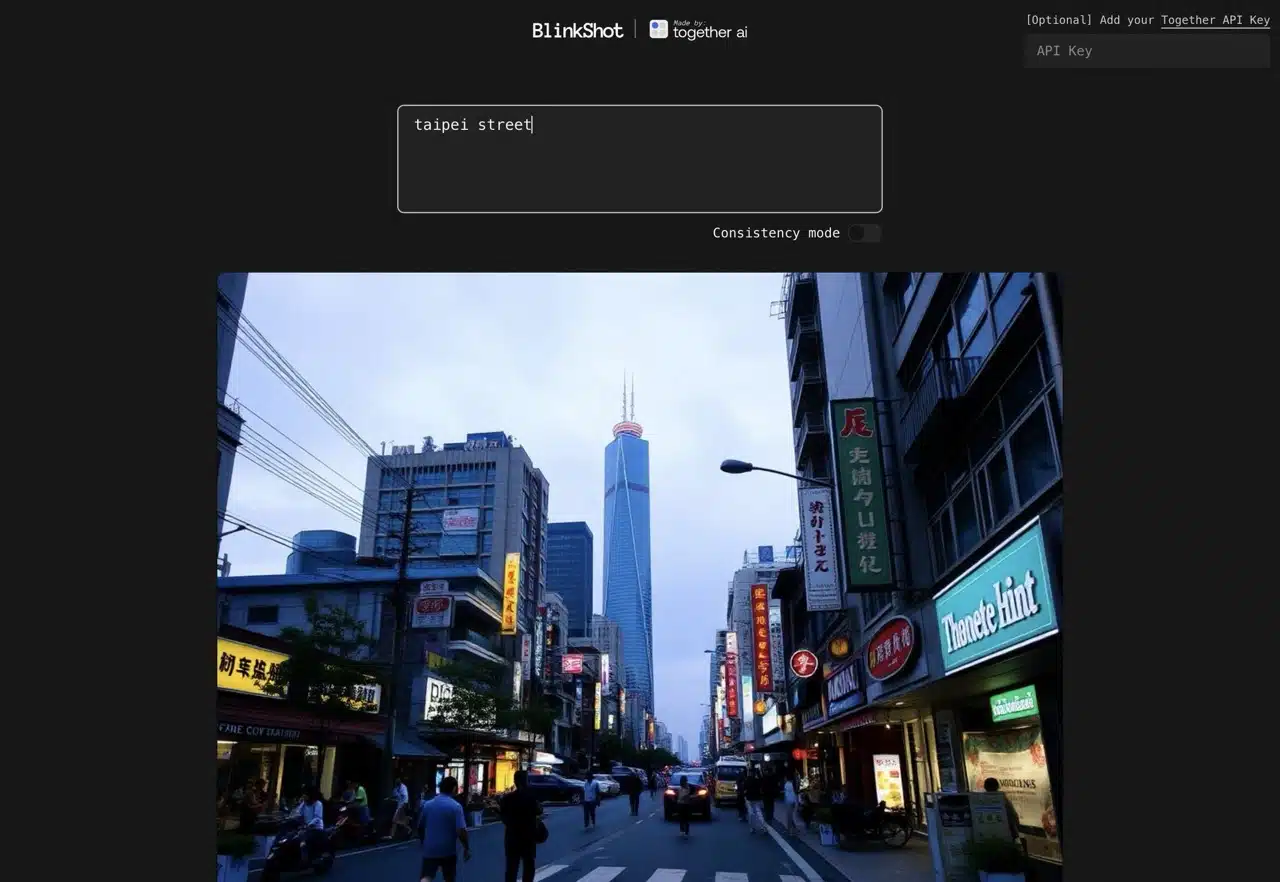
2. View generated image history below.
Images created with BlinkShot appear highly realistic and can be customized to various styles and aesthetics based on user preferences. The more detailed your description, the more precise and refined the results.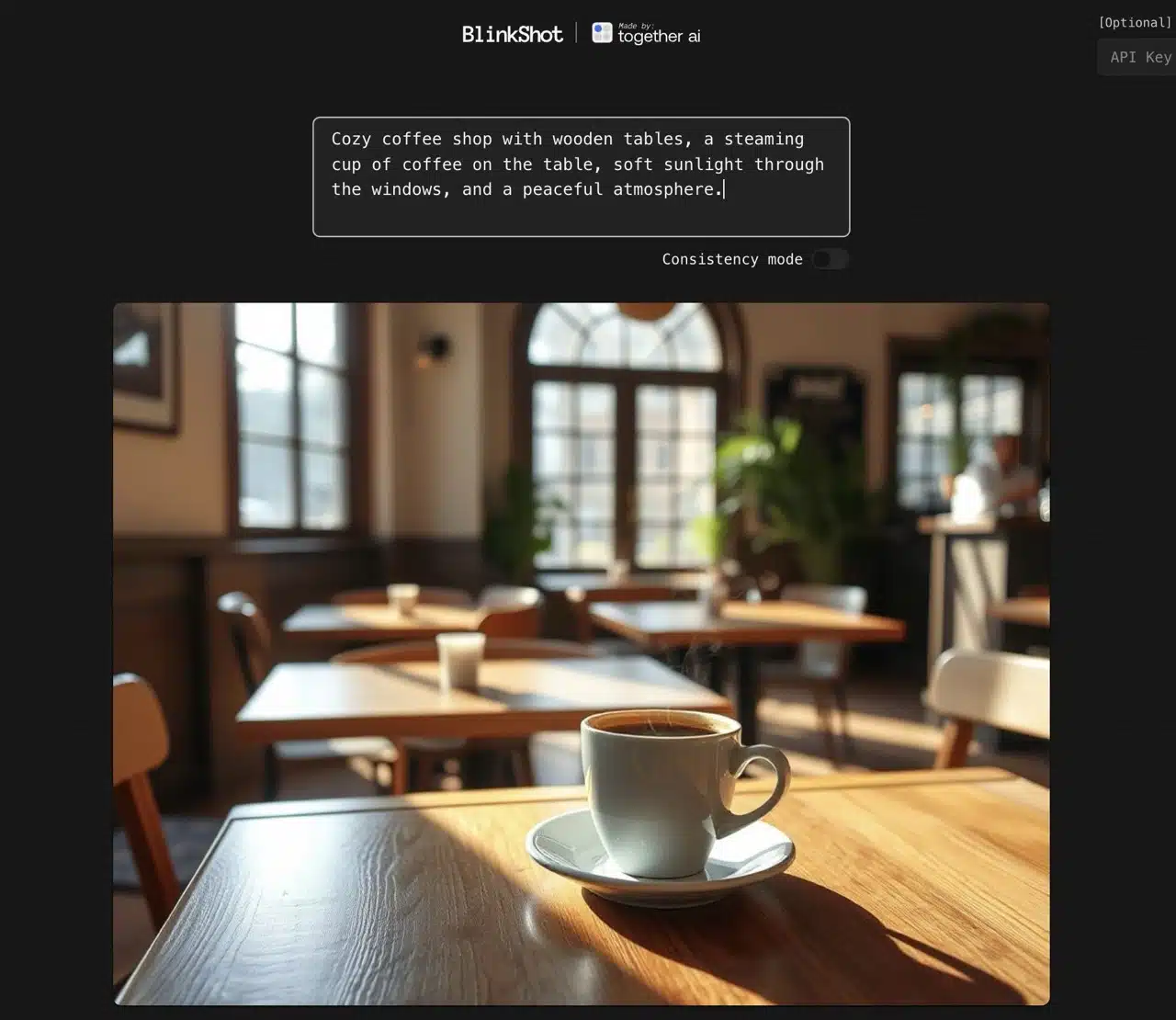 Previously generated images are displayed in the history below, allowing you to switch back and review them anytime.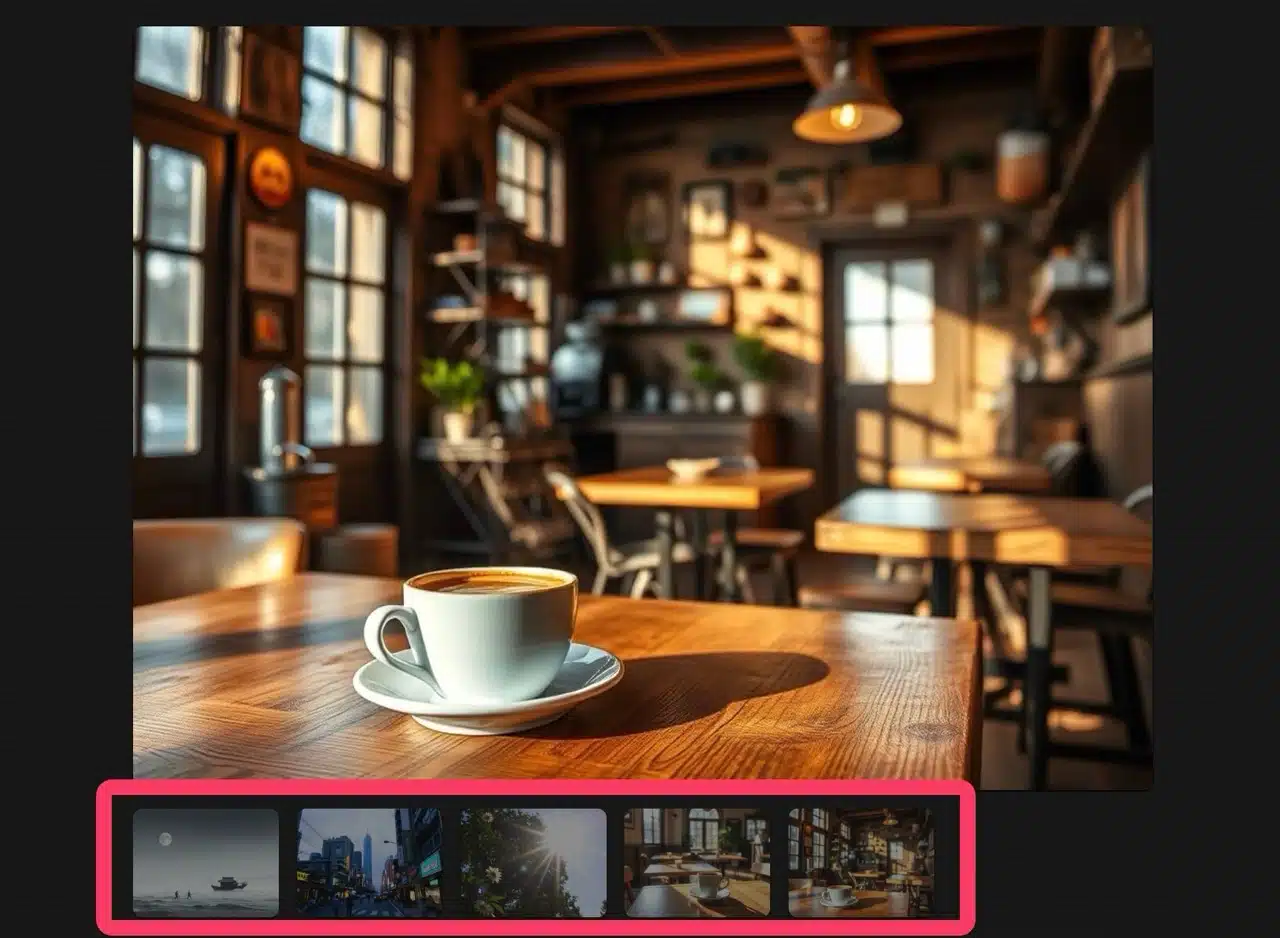
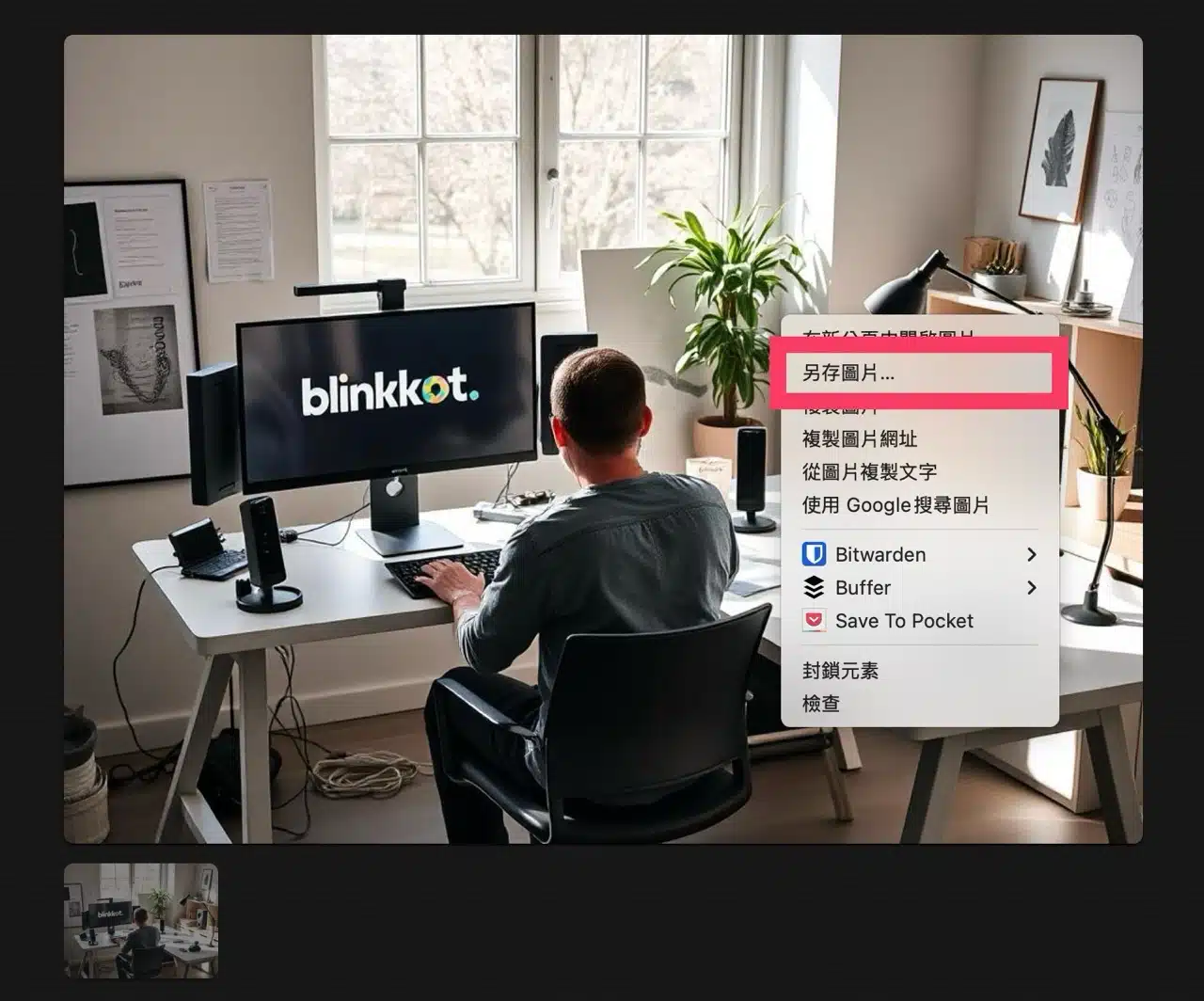
3. Right-click on an image to download and save it.
Simply right-click on the image, select “Save Image As,” and save it for use.
BlinkShot will add a download button in the future for easier image retrieval.