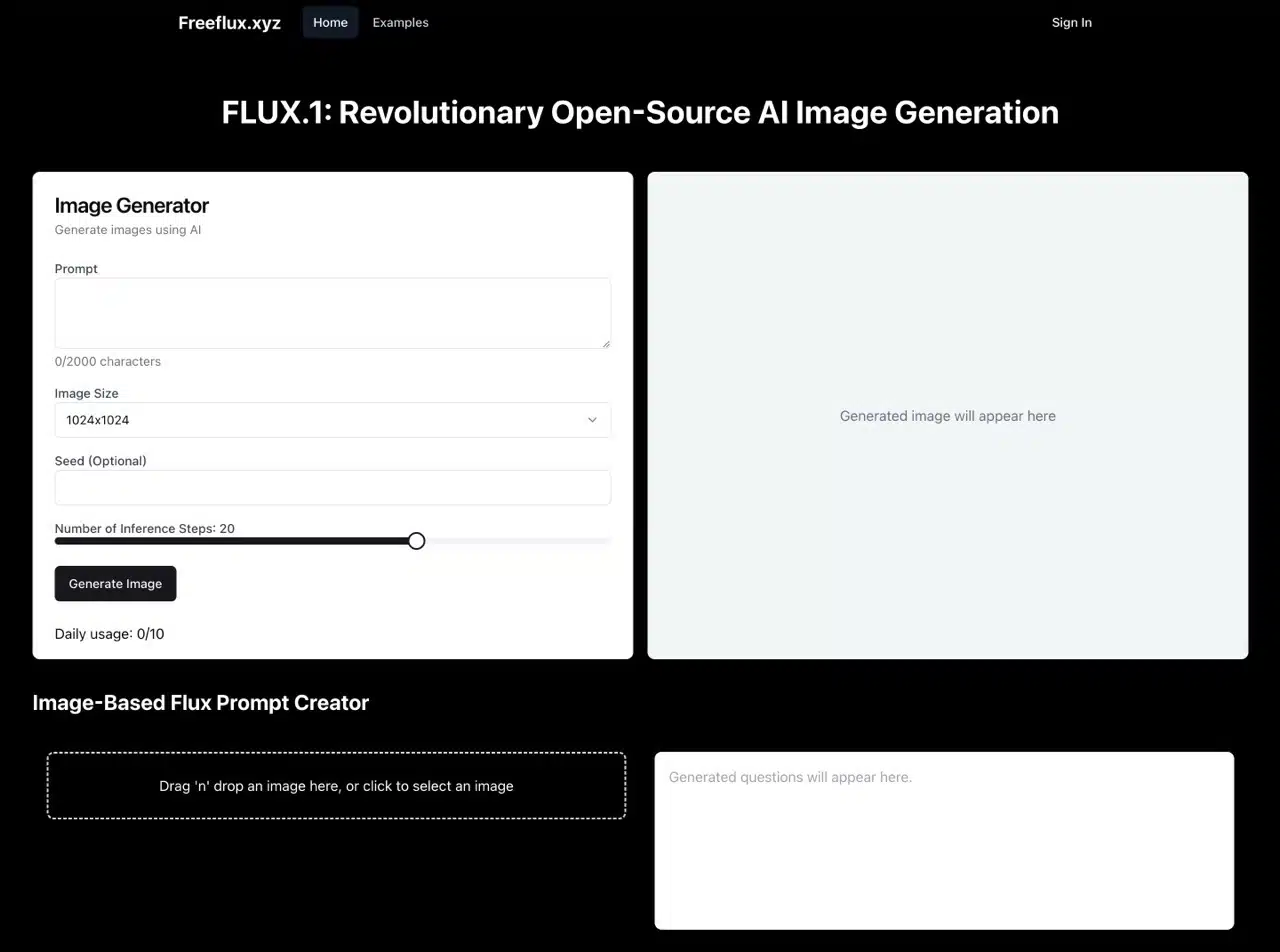
FreeFlux is an image generator powered by the FLUX.1 AI image generation model. Its key features include no registration required—simply enter your image prompt to quickly receive relevant results. You can also pre-select image dimensions, set the Seed, and configure the number of inference steps (default is 20; increasing this value improves image quality but extends generation time). Its advantage lies in simplifying FLUX.1 image creation, enabling rapid production of diverse image types through powerful AI technology.
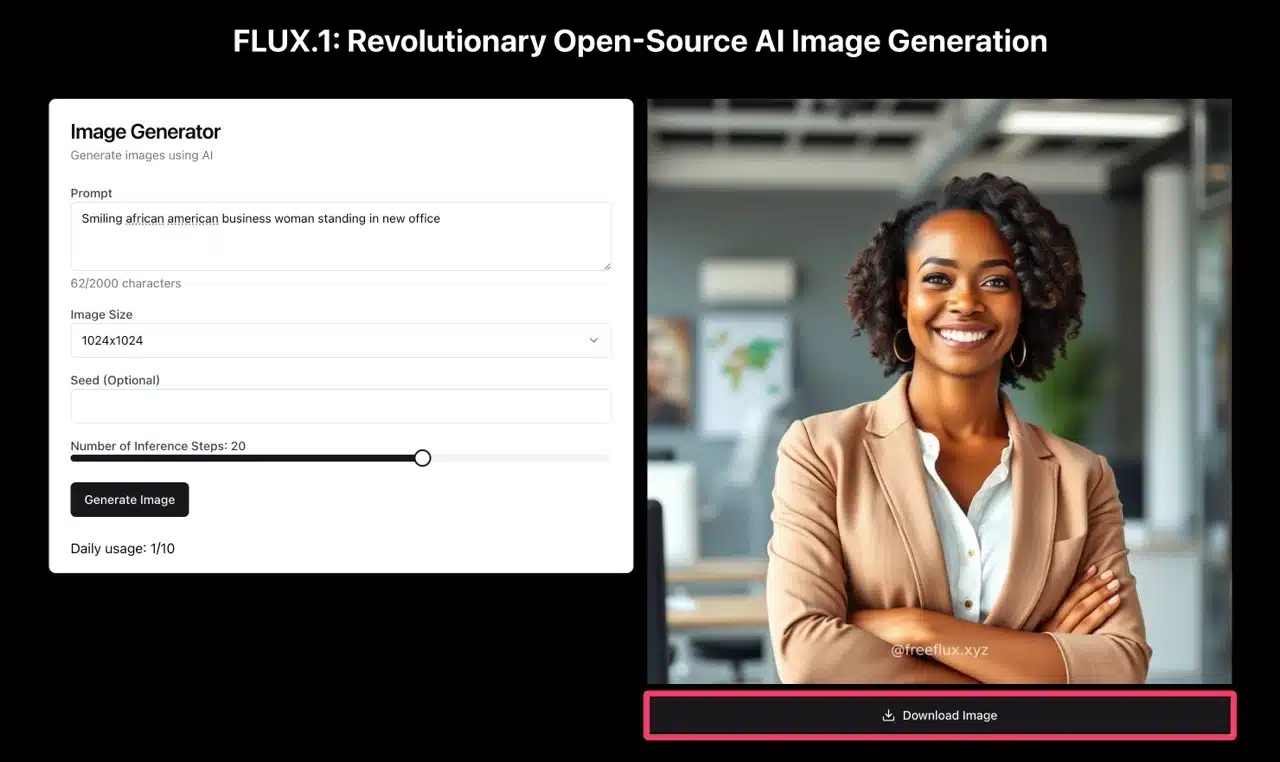
Note that FreeFlux imposes a daily limit of 10 generated images. Exceeding this limit disables further usage. Generated images carry a small watermark beneath them, though it's barely noticeable and may not affect usage. Those needing images can give it a try.
For those seeking more powerful models to generate complex, detailed images, I recommend upgrading directly to FLUX.1 AI's paid tier and selecting advanced image generation models. I've covered this in detail in my article “FLUX.1 AI Image Generation Models: The Next-Gen Tool Outperforming Midjourney and DALL·E.”
Additionally, FreeFlux offers an image-to-text feature where you can upload an image and generate a prompt for FLUX.1 to create a new image.
Usage Guide
STEP 1
Open the FreeFlux image generator. Start by entering your image prompt (English only) in the “Prompt” field at the top left. The prompt must not exceed 2000 characters.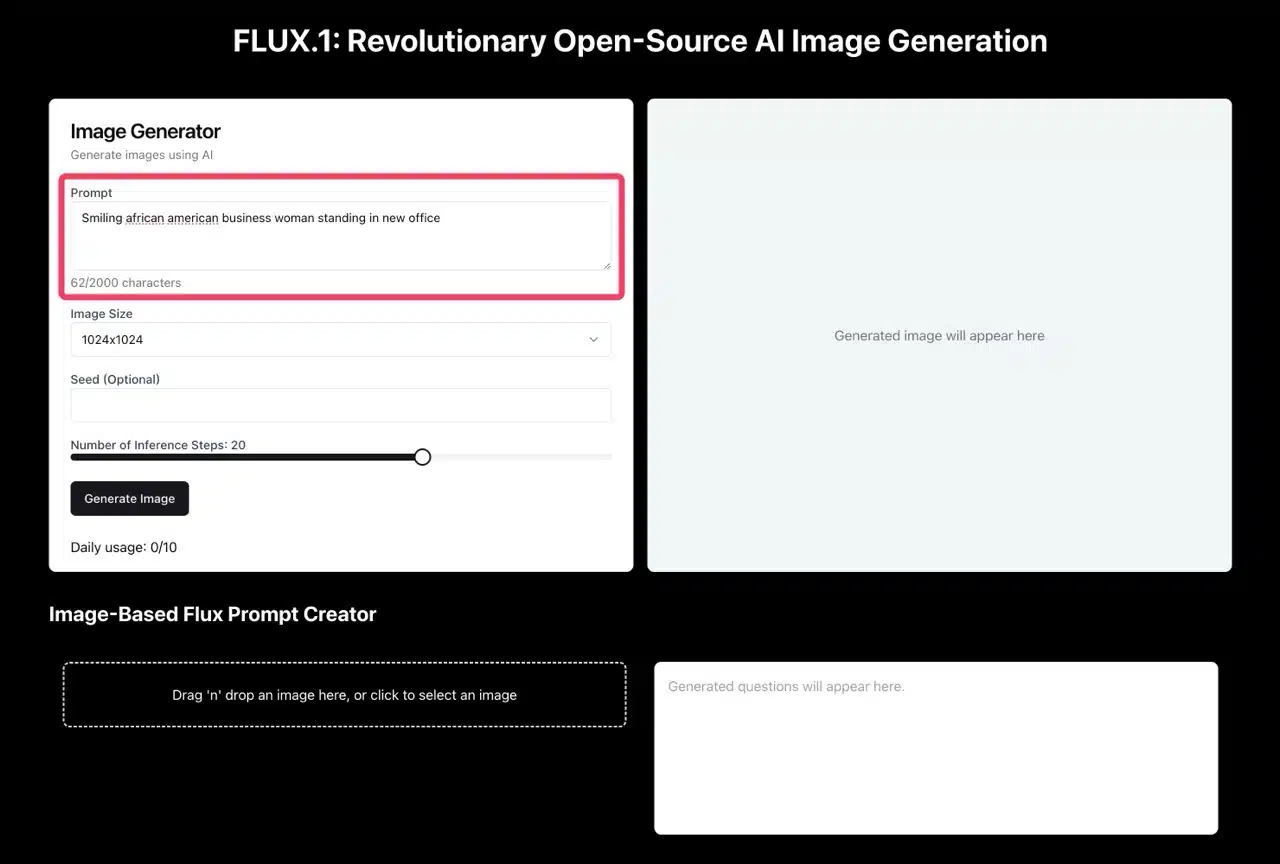 Next, select the image size from the Image Size menu. Available options include 1024×1024, 512×1024, 768×512, 768×1024, 1024×576, and 576×1024. These correspond to square, portrait, and landscape formats respectively.
FreeFlux also allows users to set a “Seed” and the number of inference steps generated (optional).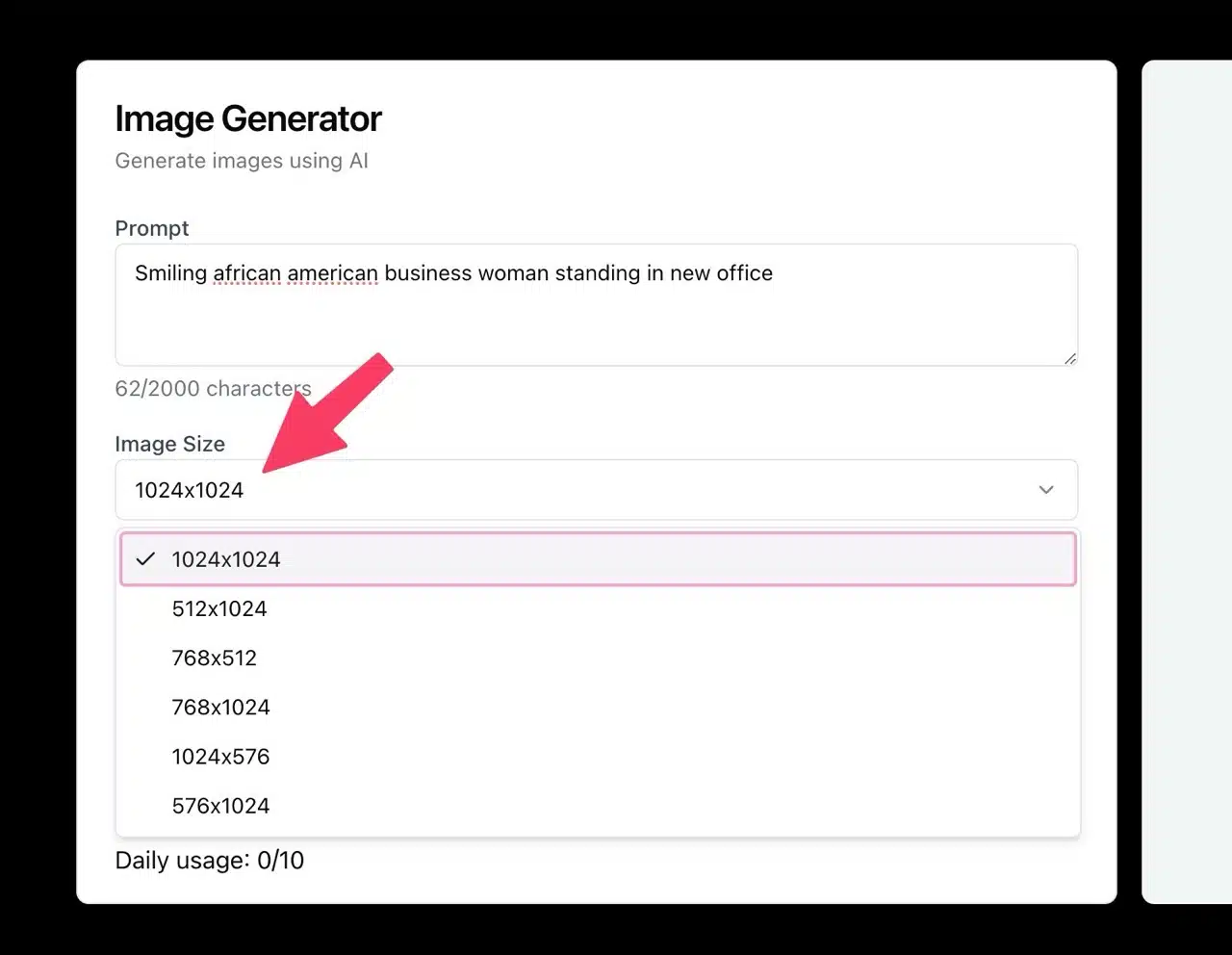
STEP 2
Once everything is ready, click “Generate Image” in the bottom-left corner to start generating the image. This process takes only a few seconds. Note that you can generate only 10 images per day, even with a registered account. Paid plans to increase this limit should become available in the future.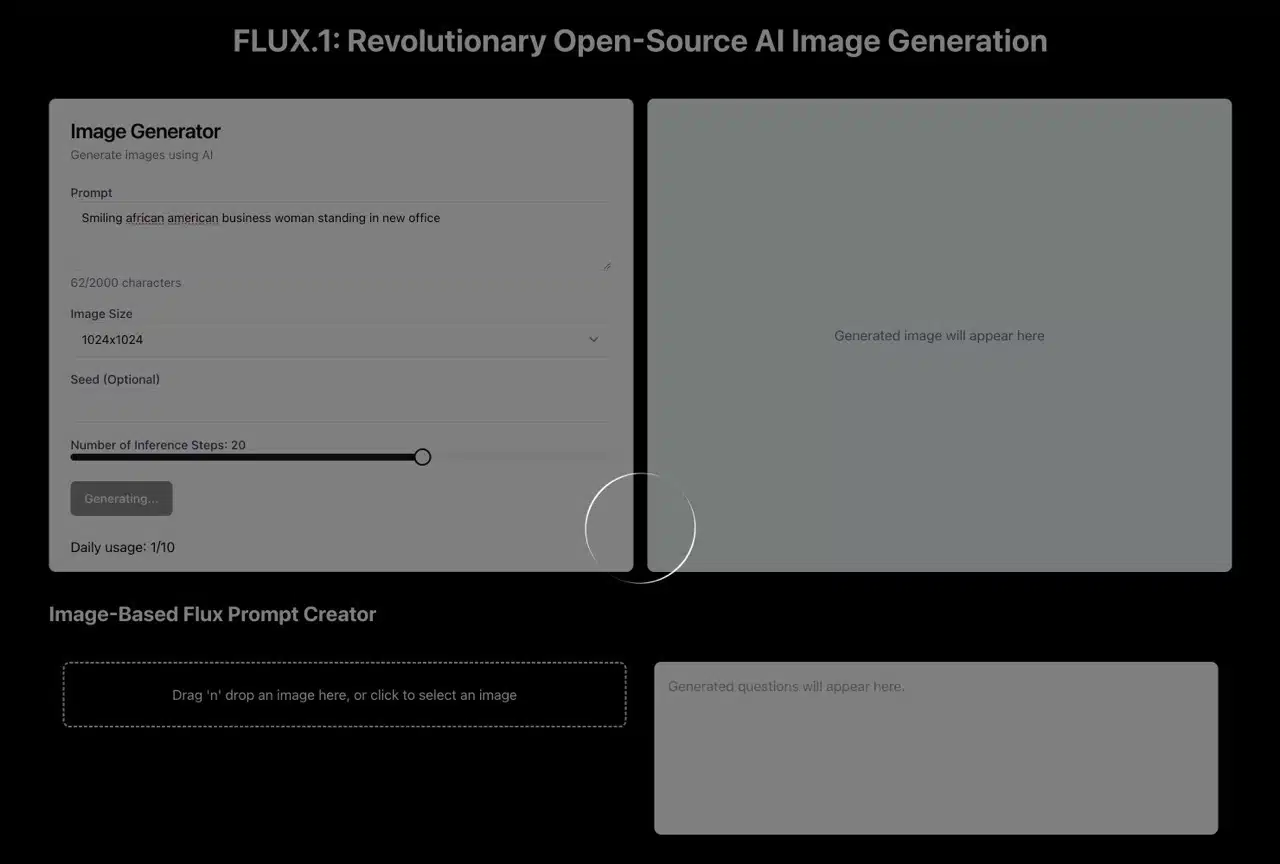
AI-generated images appear on the right side, one at a time. Each image displays a small watermark below it. Occasionally, an error message may appear; clicking the button multiple times usually resolves this.
Click “Download Image” beneath the image to save it in JPG format.