Everyone now knows AI image generators are incredibly useful—just input a prompt, and the AI generates an image. Some operate by generating images from existing pictures, which is comparatively more convenient. Using AI to create images also allows for fine-tuning based on specific needs, even adding text, with almost no need for image editors. Plus, there's no need to worry about copyright issues. Compared to searching for free stock images in libraries, AI image tools offer greater flexibility and reduce the likelihood of “image collisions” with others.
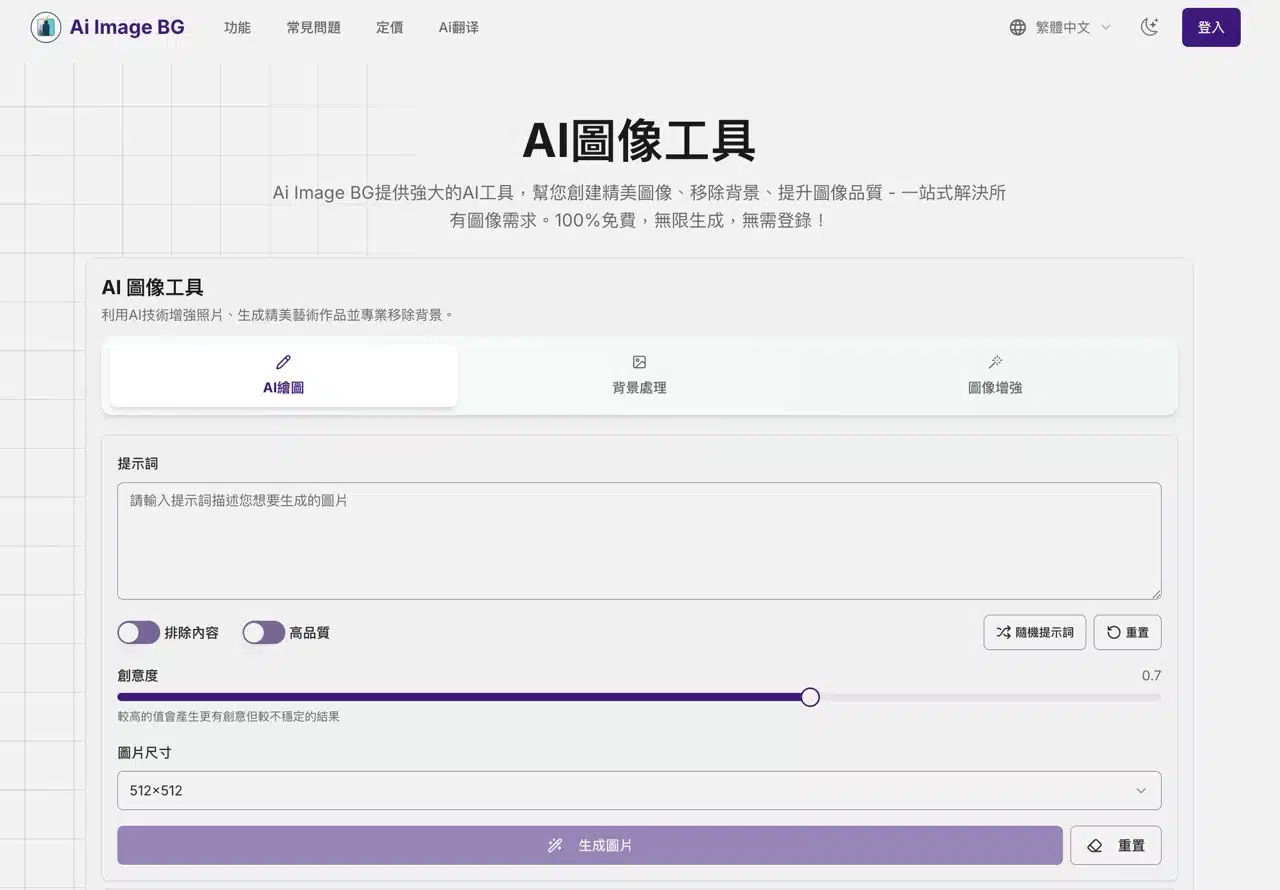
This article introduces “Ai Image BG,” a powerful AI image tool offering three core functions: AI drawing, background processing (automatic background removal), and image enhancement. After entering a prompt, selecting image dimensions, and choosing creativity level, it rapidly generates images—four at a time—with impressive speed. No registration or payment is required for use. However, the free plan has generation quotas, excludes the quick generation feature, and may include watermarks.
The background processing tool corresponds to the auto-background removal feature. Upload an image to use AI to remove the background and convert it to transparent. This functionality is available on many services; refer to the article “Online Background Removal Tools: 39 Free Online Tools Recommended with Tutorials.” The image enhancement tool improves image quality, repairs blurry images, and enhances details. Try it to make your images more appealing.
Note that the free plan of Ai Image BG imposes a maximum image size limit of 4K (3840×2160). Images exceeding this size cannot be processed correctly and require a paid subscription to continue. The Premium and Ultimate plans start at $12 per month.
User Guide
1. Using the AI Drawing Feature
Open the Ai Image BG website and select the AI Image Tool function. AI Image Generation will create images based on the prompts you input. This service supports Chinese prompts. The “Exclude Content” and “High Quality” options below are enabled by default. Adjust the “Creativity” value (default 0.7). Higher values produce more creative results (though they may be less stable).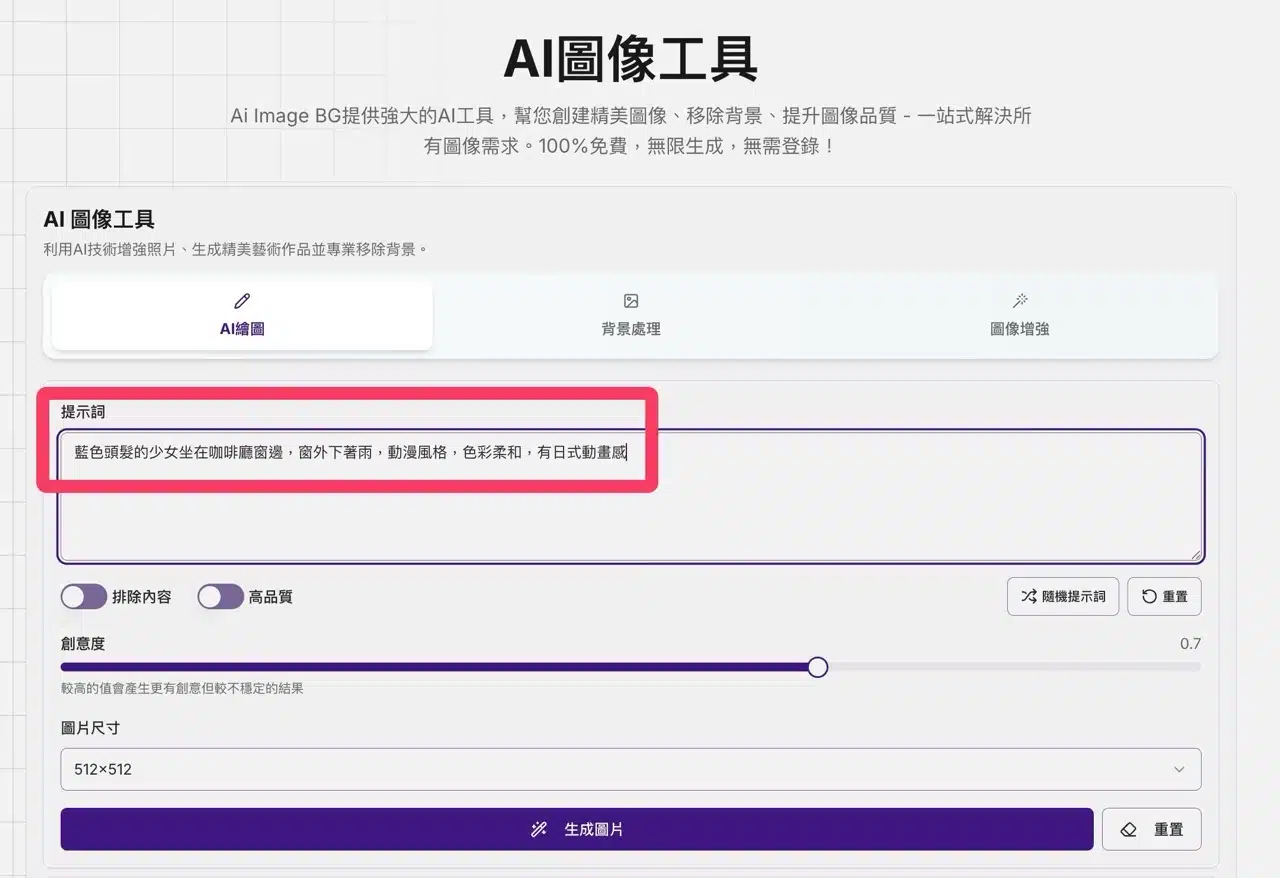
Before generating images, pre-set the “Image Size” to choose between square, portrait, or landscape (horizontal) formats.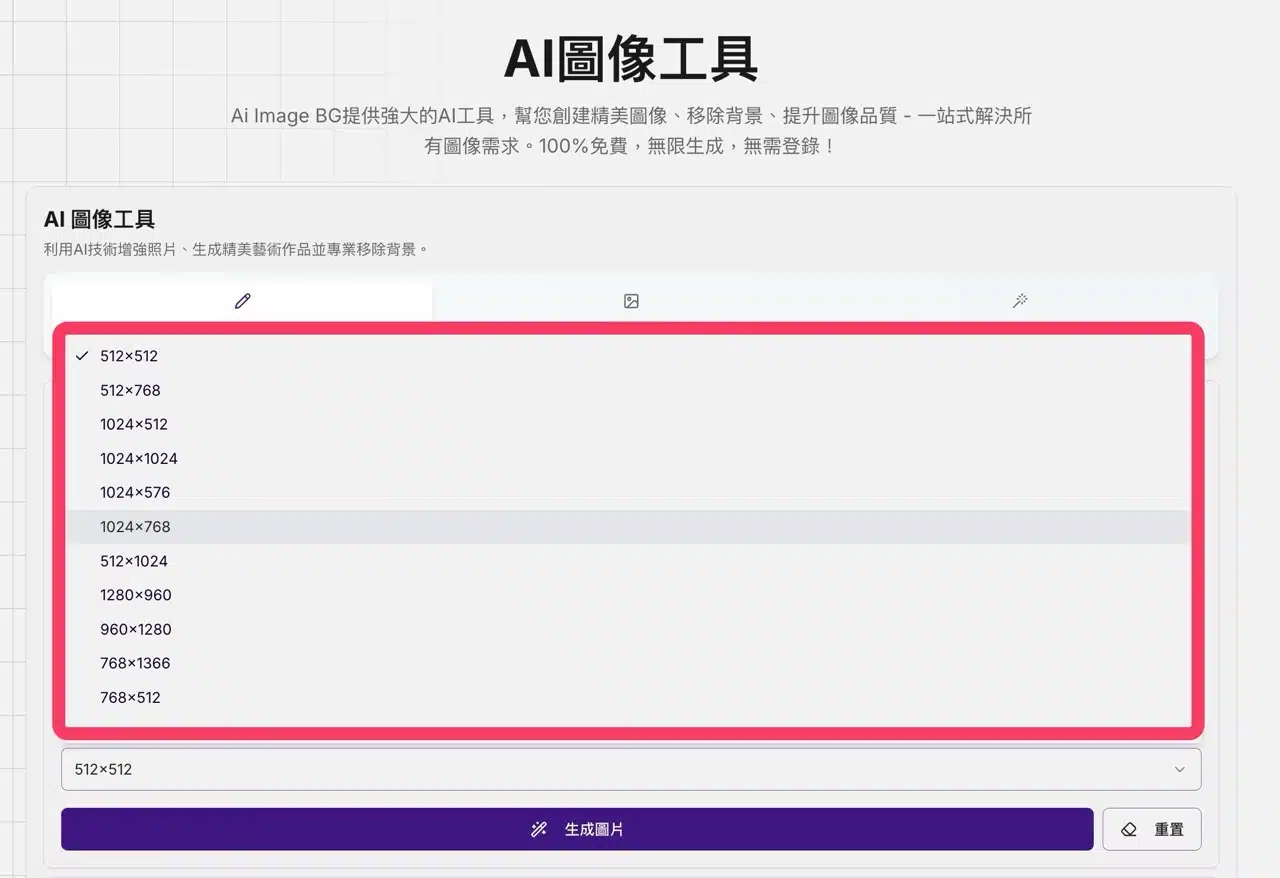
2. Generate and Download Images
After clicking “Generate Image,” four image results will appear within seconds. While paid users enjoy faster generation speeds, the free version's processing time is still reasonably quick. Click the “Download” button in the bottom-right corner of any image to save it.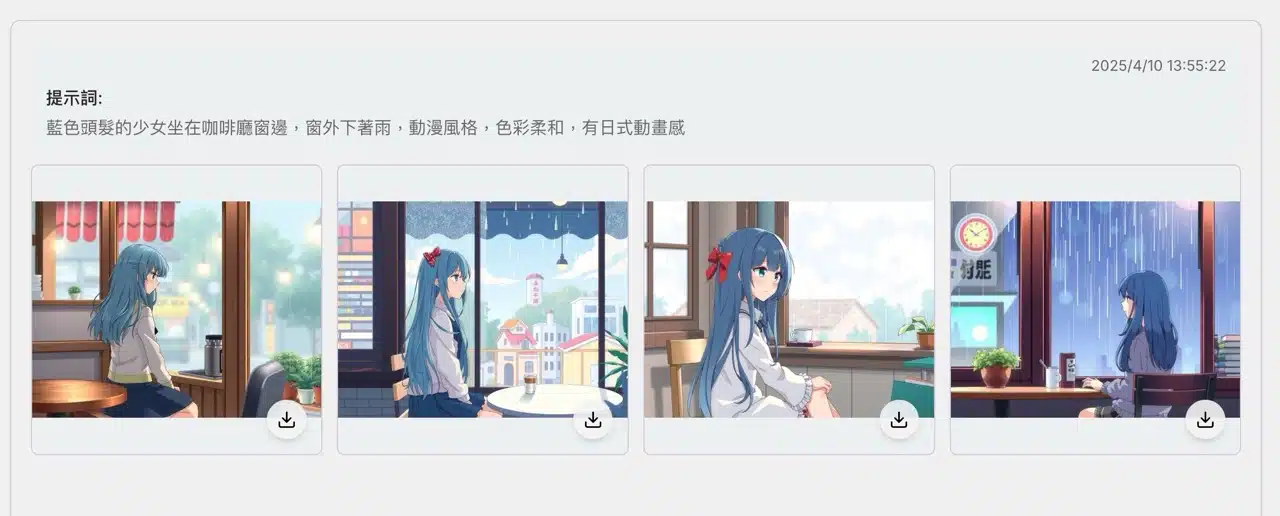
3. Background Processing to Remove Image Backgrounds
Click the AI Image Toolbar at the top to switch to the “Background Processing” tool. This feature assists users with AI-powered automatic background removal. Simply click the “Select File” button on the left, choose the image whose background you wish to process, then press “Remove Background” to obtain the result.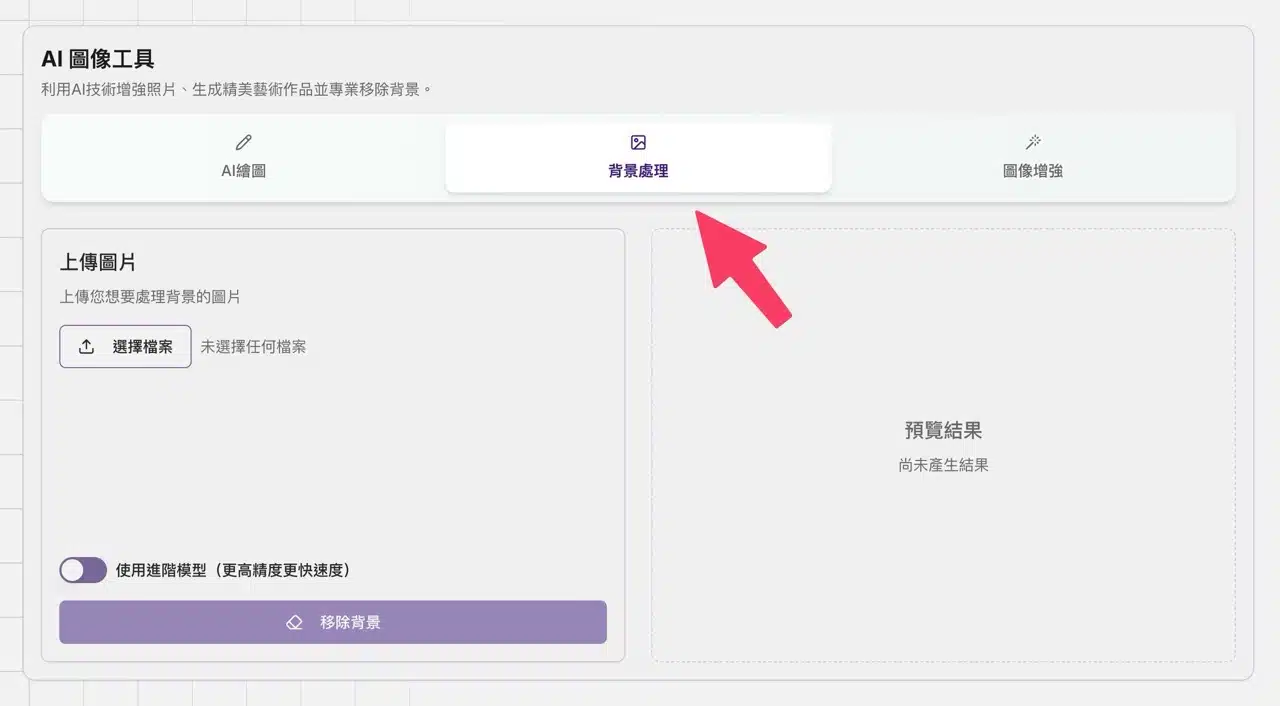
Ai Image BG's automatic background removal performs exceptionally well. It defaults to Advanced Mode, offering higher accuracy and faster processing speeds.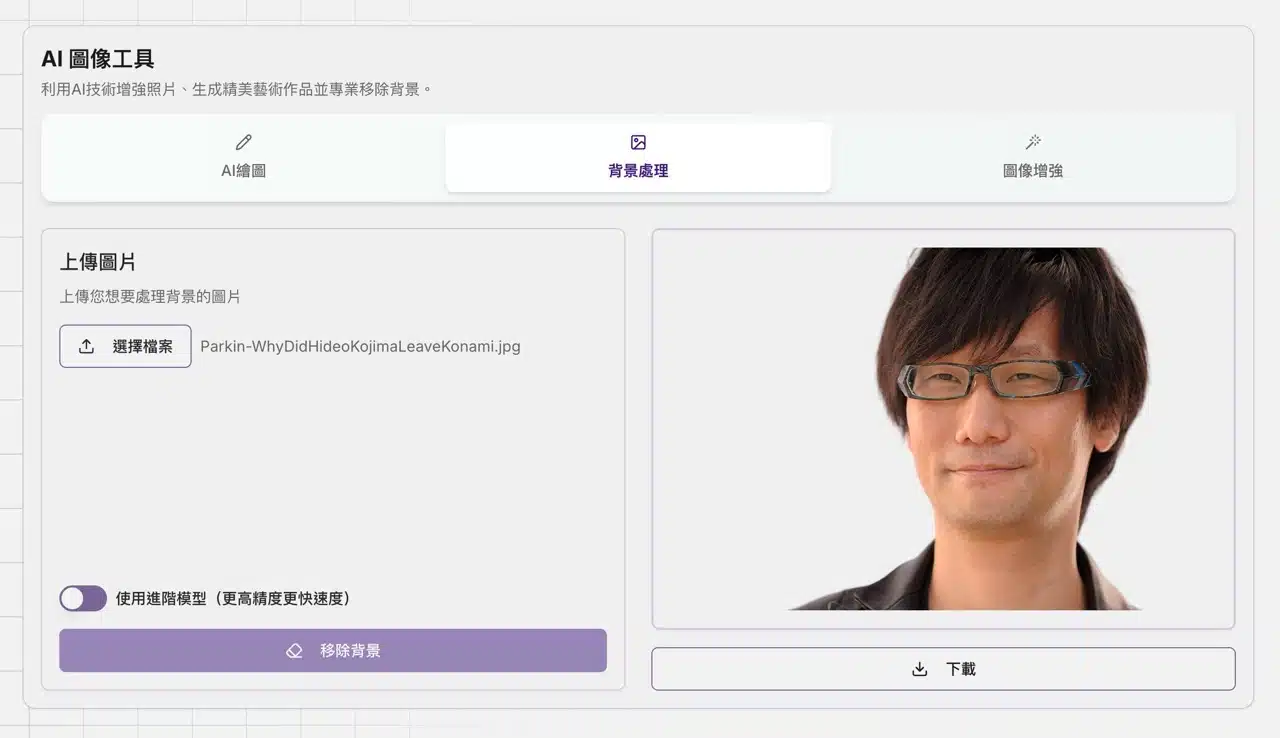
4. Using the Image Enhancement Tool
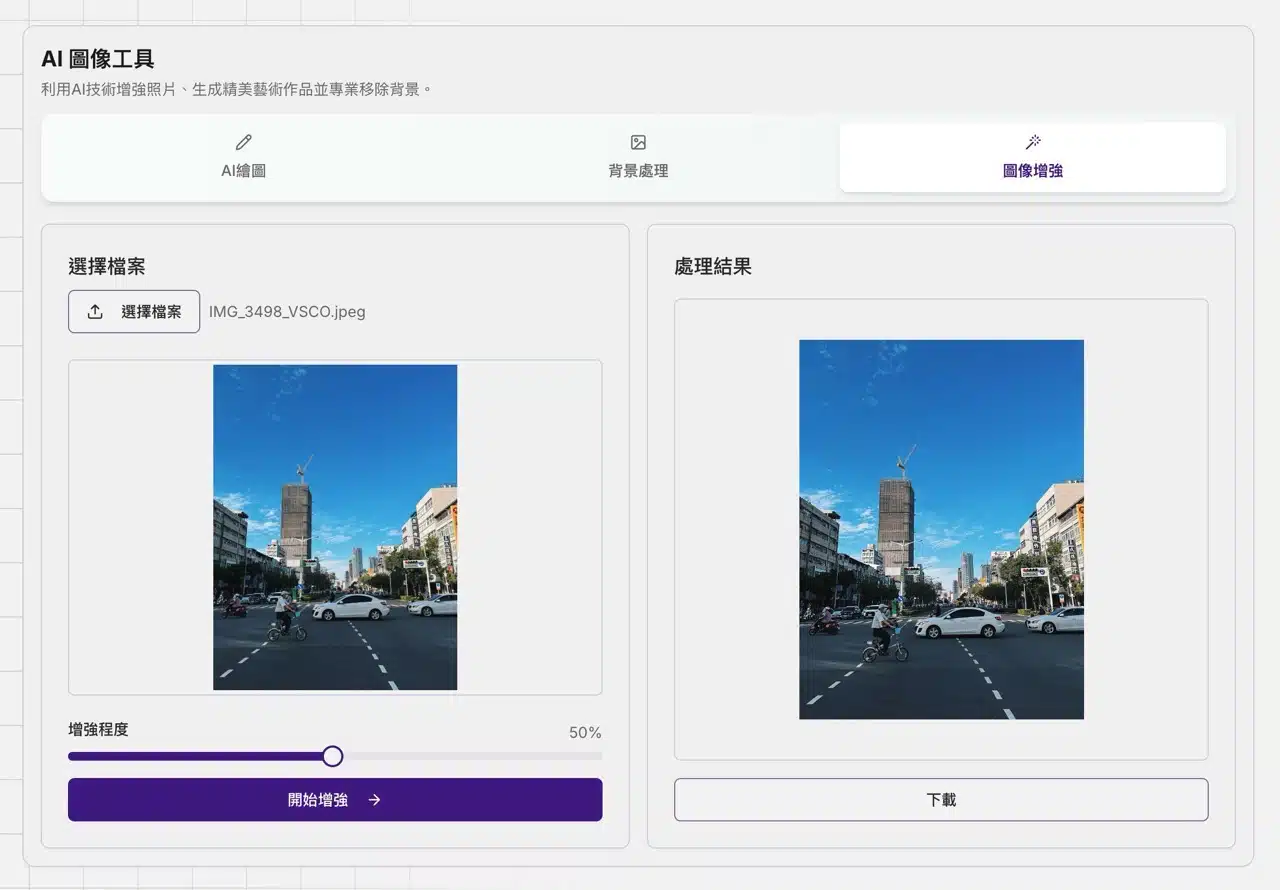
The “Image Enhancement” feature is also highly practical. Select the image file, drag the “Enhancement Level” slider below, and AI will rapidly process the image. Whether you want to boost image quality, fix blurriness, or sharpen details, it's incredibly straightforward.