
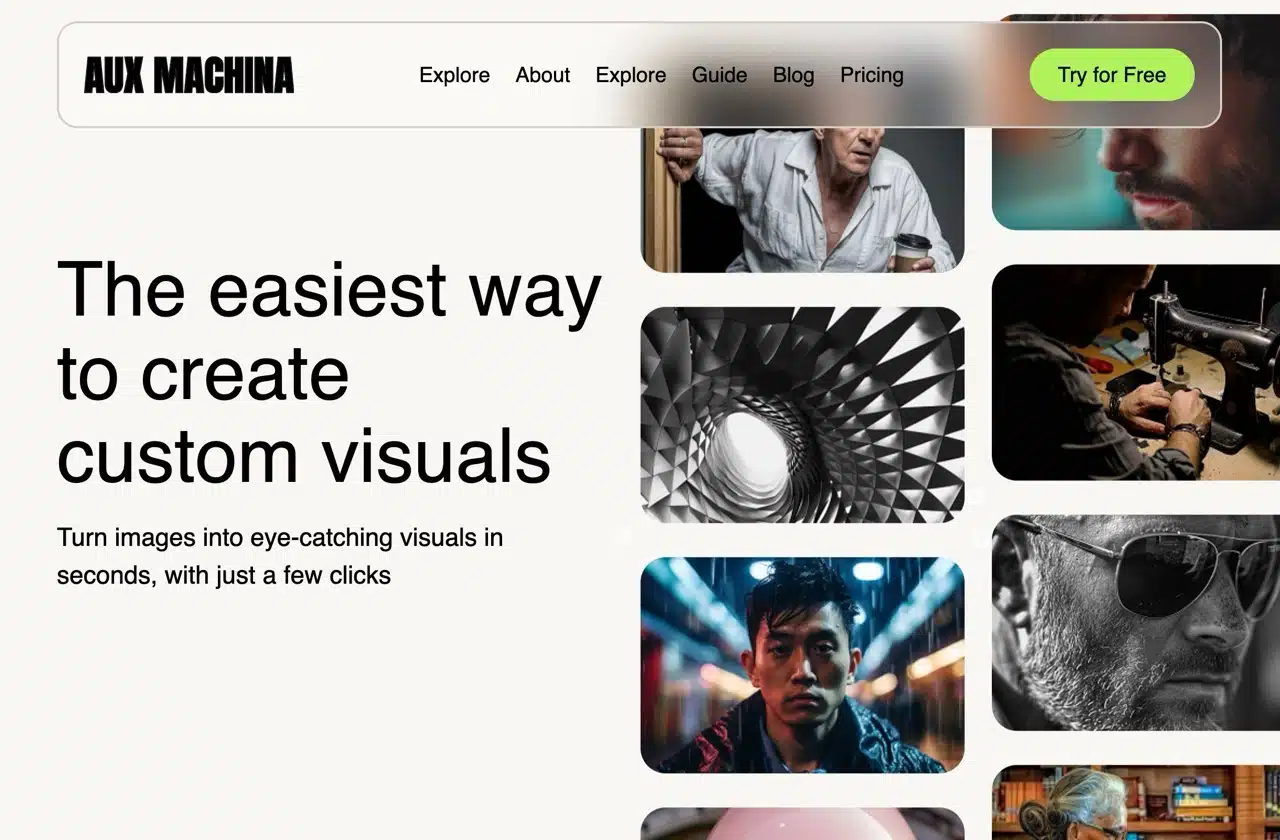
Aux Machina is an AI-powered image generation tool that helps designers, marketers, and content creators quickly and easily create custom visual content. While traditional image generators typically rely on prompts to describe desired images, Aux Machina allows users to upload existing images to create similar outputs. Users can then refine the generated images using textual descriptions, ultimately producing stunning visual effects.
In other words, to generate similar images with AI, I would first use an image-to-text tool, upload the image to obtain a prompt, and then use that prompt to find an AI image generation service to create similar images.
Aux Machina streamlines this process by allowing direct image uploads to quickly generate four similar yet distinct results. Additionally, it enables keyword searches for images online, which can then be imported into Aux Machina to generate analogous visuals.
Aux Machina is also very easy to use. Users must first register an account (free) to generate images under the free trial plan. The daily generation limit is 100 images, which can be used for commercial purposes. For higher generation needs, users can upgrade to the Pro plan or purchase a one-time payment. However, the current pricing structure for the service is not yet fully developed. Interested parties are encouraged to try it out first!
Getting Started Guide: Five Steps to Quickly Master Aux Machina
1. Register an Account and Log In
After opening the Aux Machina website, click “Try for Free” in the top-right corner. You'll then see the registration/login page. We recommend signing up or logging in directly using your Google or Facebook account—no verification required.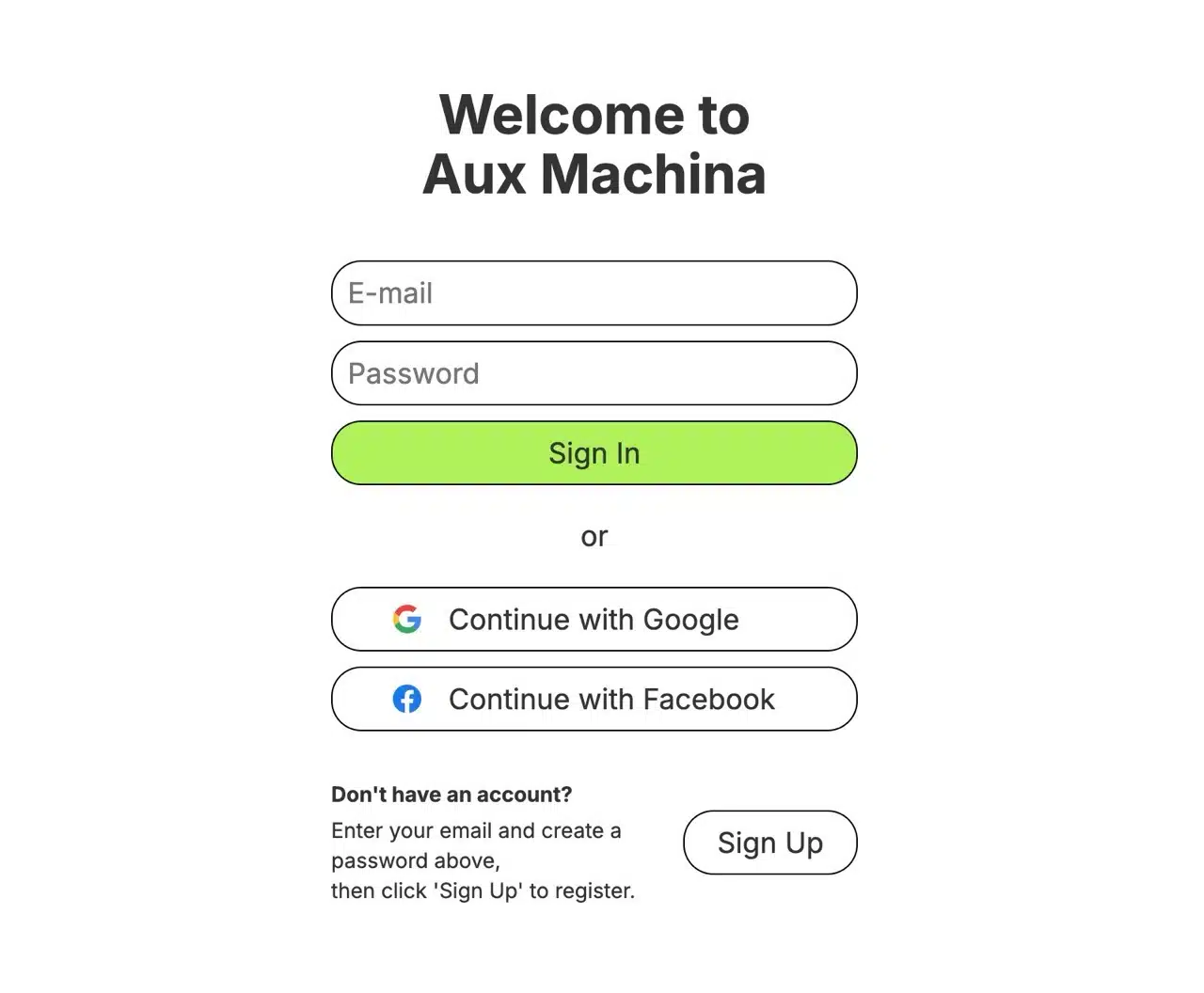
2. Search Images by Keyword
After logging in, you'll see the AI image generator. First, let's cover the basic method: directly enter keywords to search for images online (a list of AI image generator services appears below, but the free plan only allows using Berserq—other services are unavailable).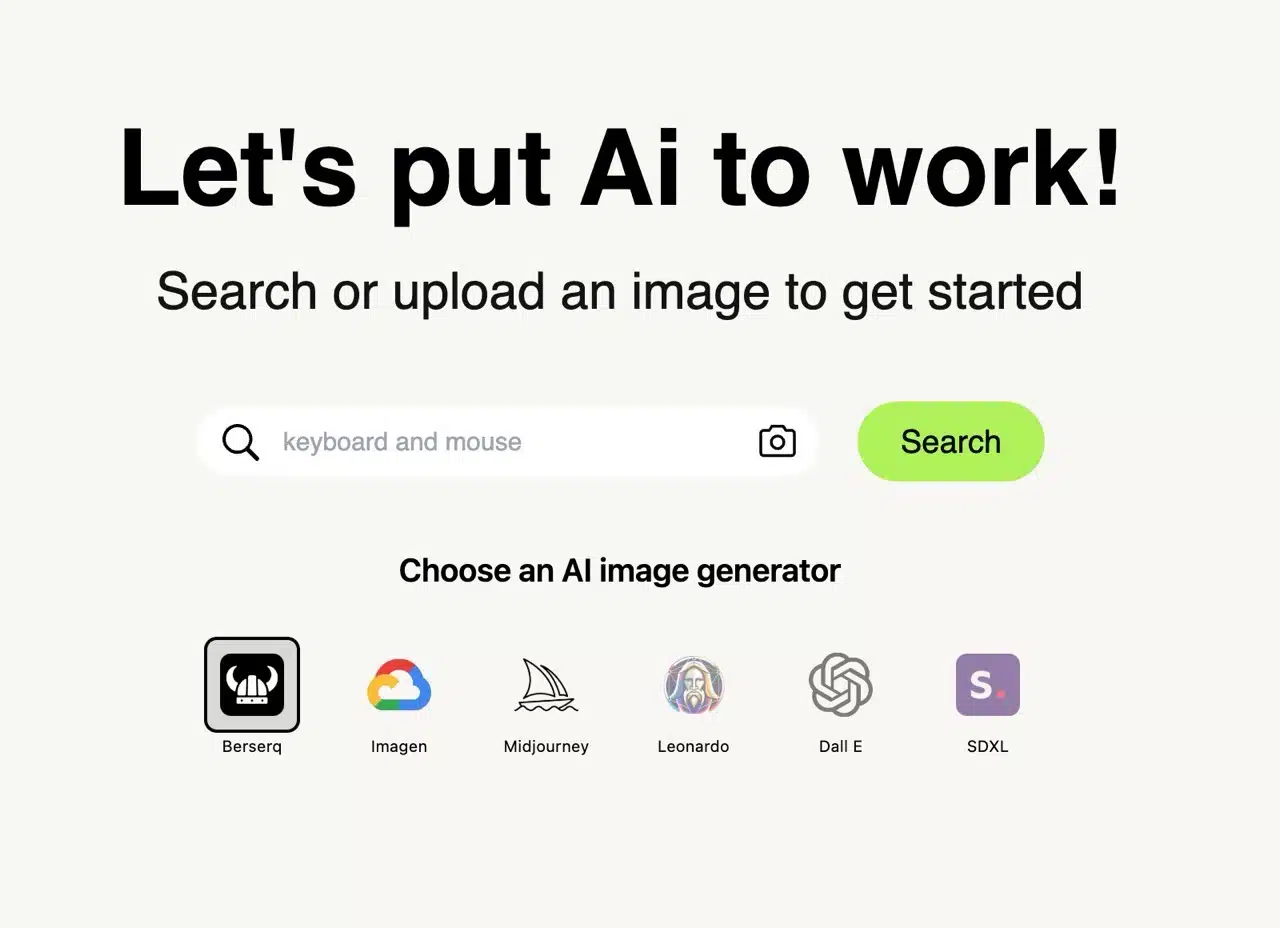 Click the “heart” icon in the top-right corner of an image, then press “Generate” on the toolbar below to create similar images using AI.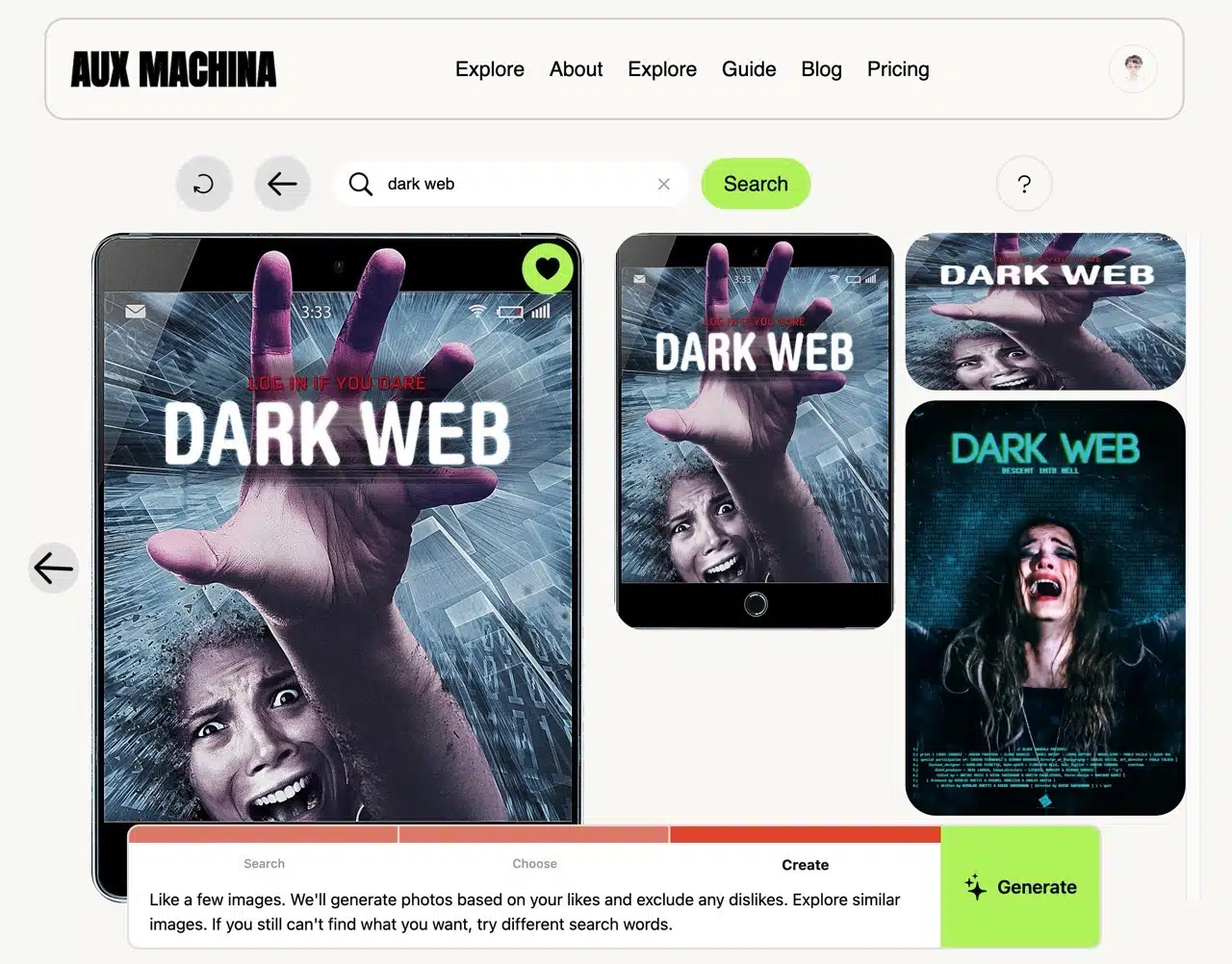
3. Image-to-Image Functionality
The alternative “image-to-image” method involves clicking the ‘camera’ icon to the right of the search field. This opens a drag-and-drop image upload feature supporting five formats: JPEG, PNG, WEBP, AVIF, and JFIF.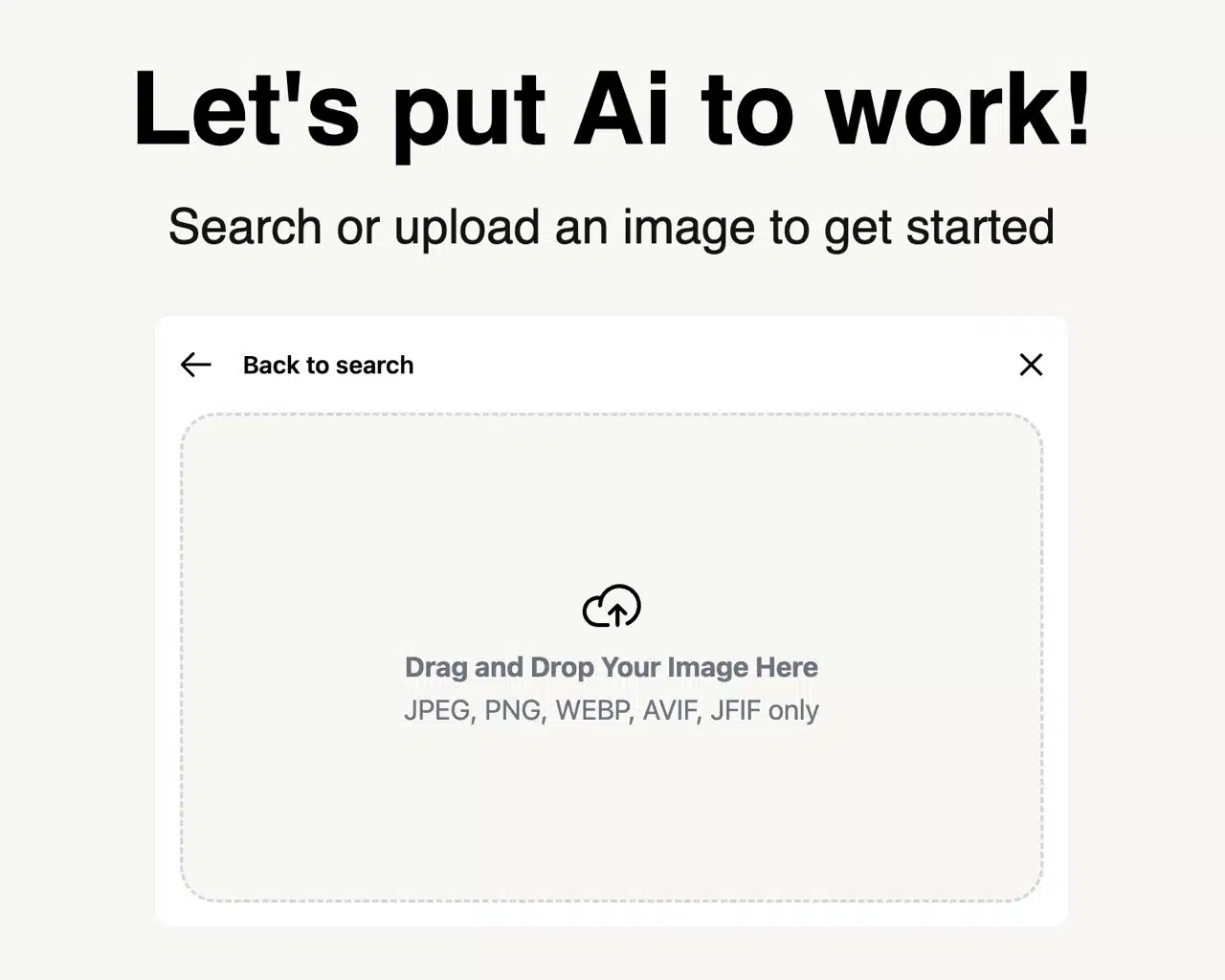 Drag your source image into the upload area and click “Upload Images” to proceed.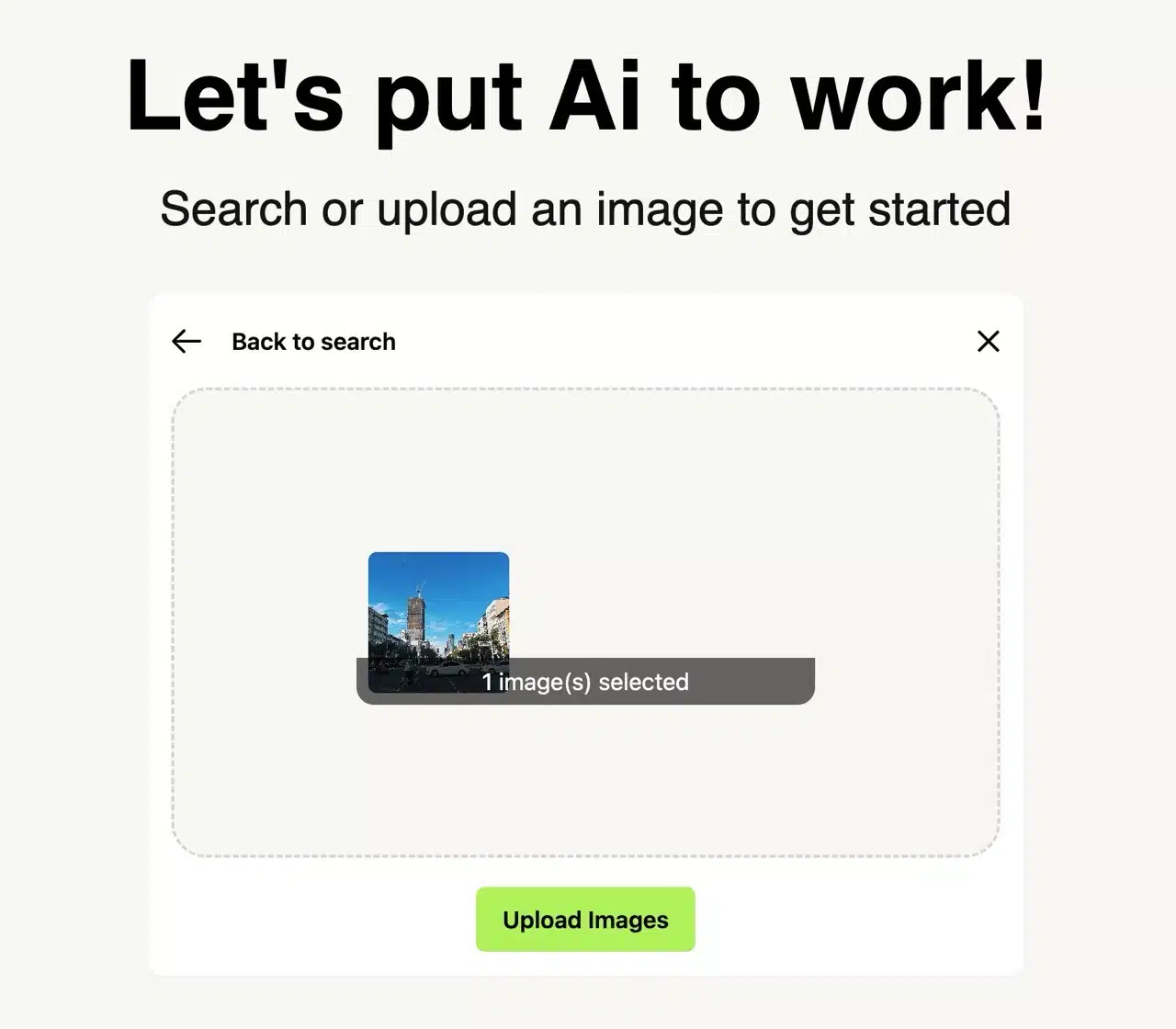
4. Custom Detail Adjustments
Aux Machina will then generate four AI-generated images that are similar yet slightly distinct. 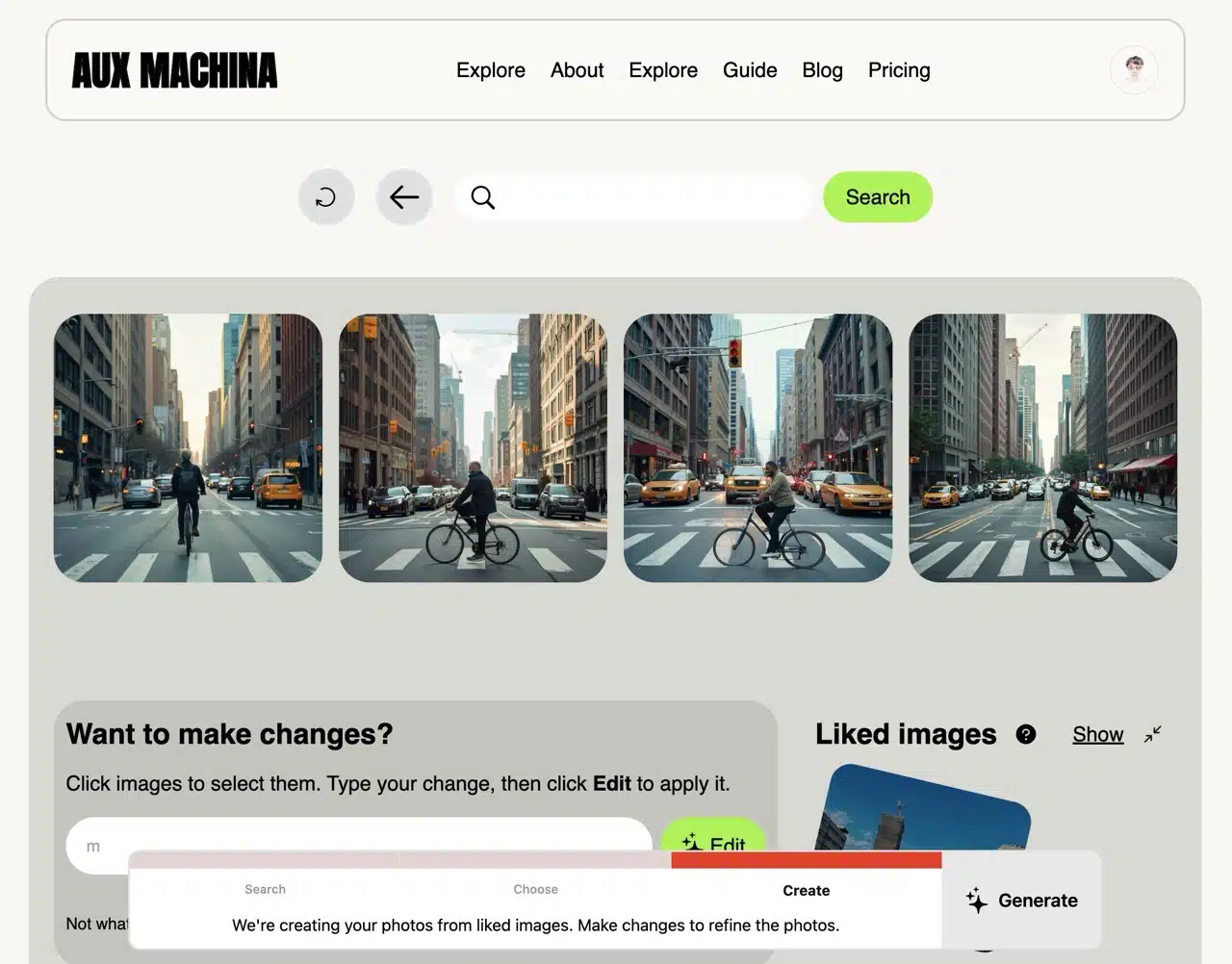 Below, you'll find a “Want to make changes?” feature. After selecting an image, you can input a description to make detailed modifications and edits to the image.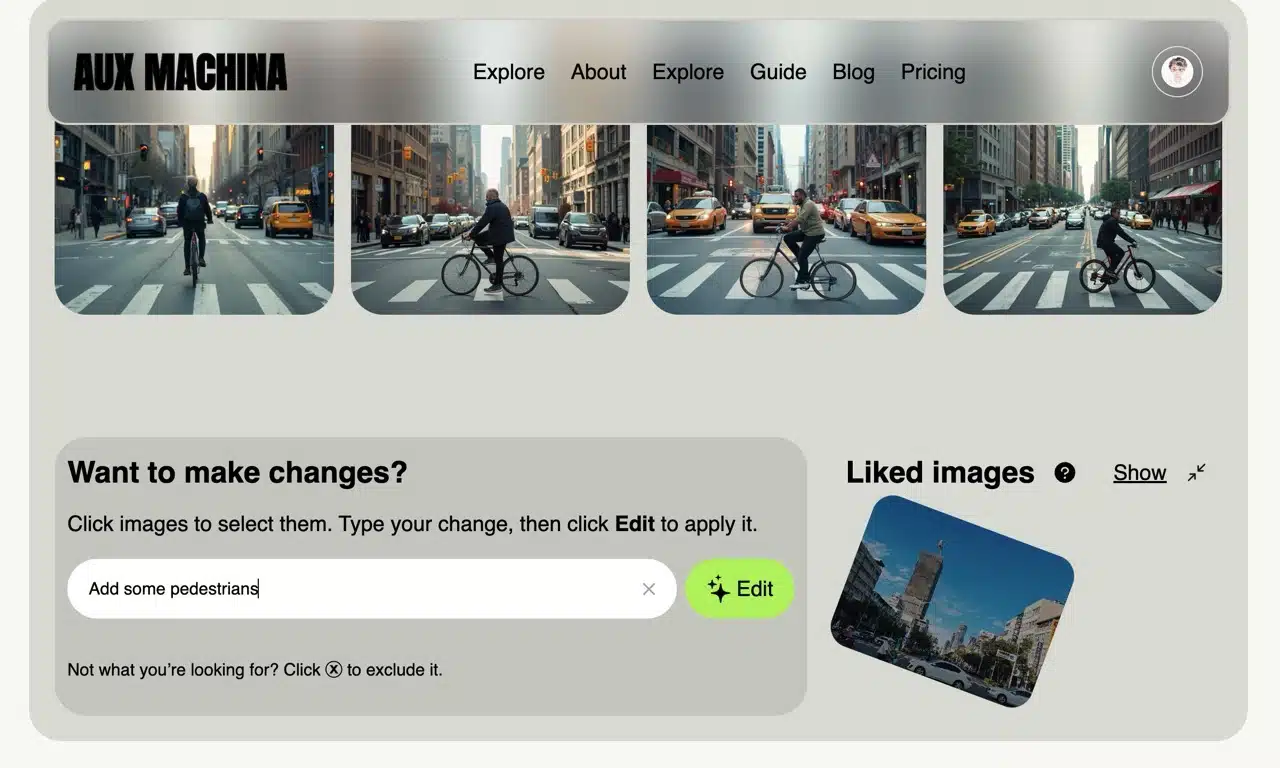
5. Download and Use Images
Hover your cursor over an image and click “Download” in the bottom-right corner to save it. AI-generated image assets are free for both personal and commercial use without requiring attribution or risking copyright infringement. 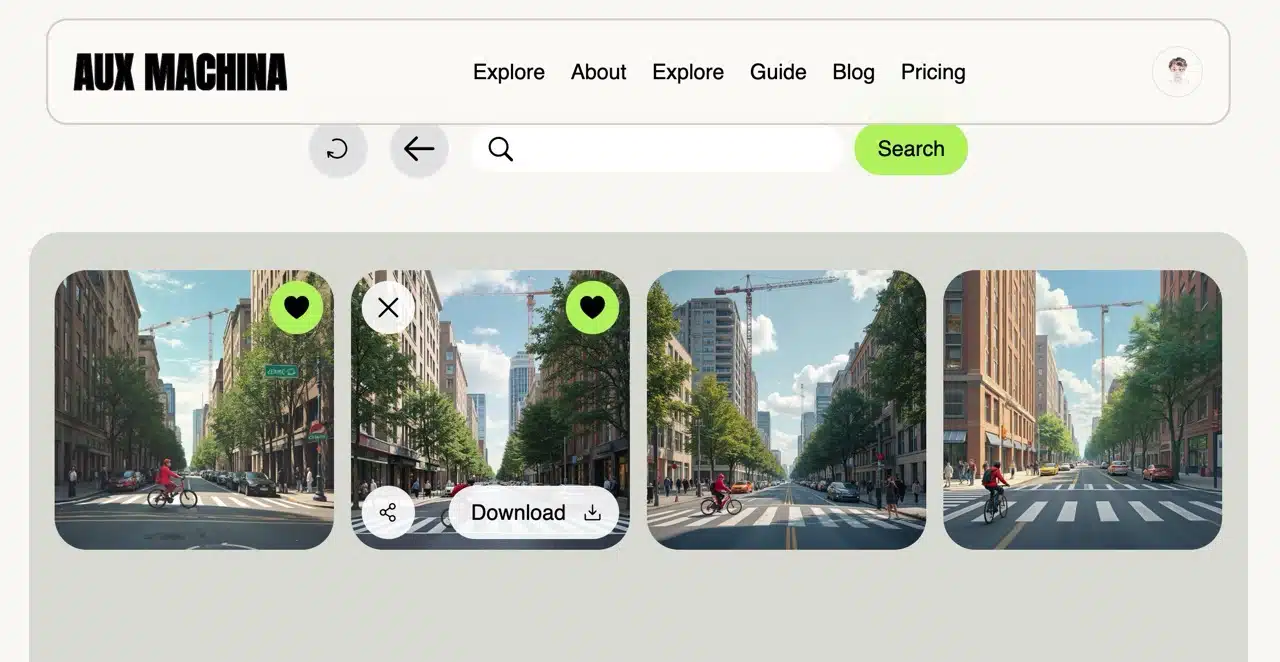 The Aux Machina website mentions plans to add more AI-assisted image tools in the future, such as: background replacement, image transformations, text editing, resolution enhancement, background removal, sketch conversion, magic eraser, or vectorization. However, the current image generator is already quite useful. If you need various image assets, you can use it for generation.