Clipdrop is an online service specializing in various image processing technologies. I've previously covered its features like image enhancement, background replacement, and one-click background removal. Its standout feature is its incredibly simple operation—just upload an image to process it. Even users with zero image editing experience can get started effortlessly.
This article introduces “Clipdrop Reimagine,” an AI tool that generates images from images. By uploading, recognizing, and processing an image, it rapidly creates multiple similar images. This service reminds me of the previously recommended “Aux Machina: An AI-Driven Image Generator, an Essential Efficiency Tool for Designers,” though their underlying principles differ.
Reimagine utilizes the open-source Stability Stable unCLIP model. The generated images resemble the original but differ in details and composition. During generation, the original image undergoes encoding processing, and the generator does not use any pixels from the source image.
According to the pricing details, Clipdrop free users can generate 20 images per 24 hours using Reimagine. However, the free plan does not allow downloading high-resolution HD images, though this poses little issue for general use.
User Guide
1. Try the Demo
After opening the Clipdrop Reimagine website, you can start with a trial. The service offers five different scenario examples, displaying the original image alongside three generated images. The visuals appear quite similar.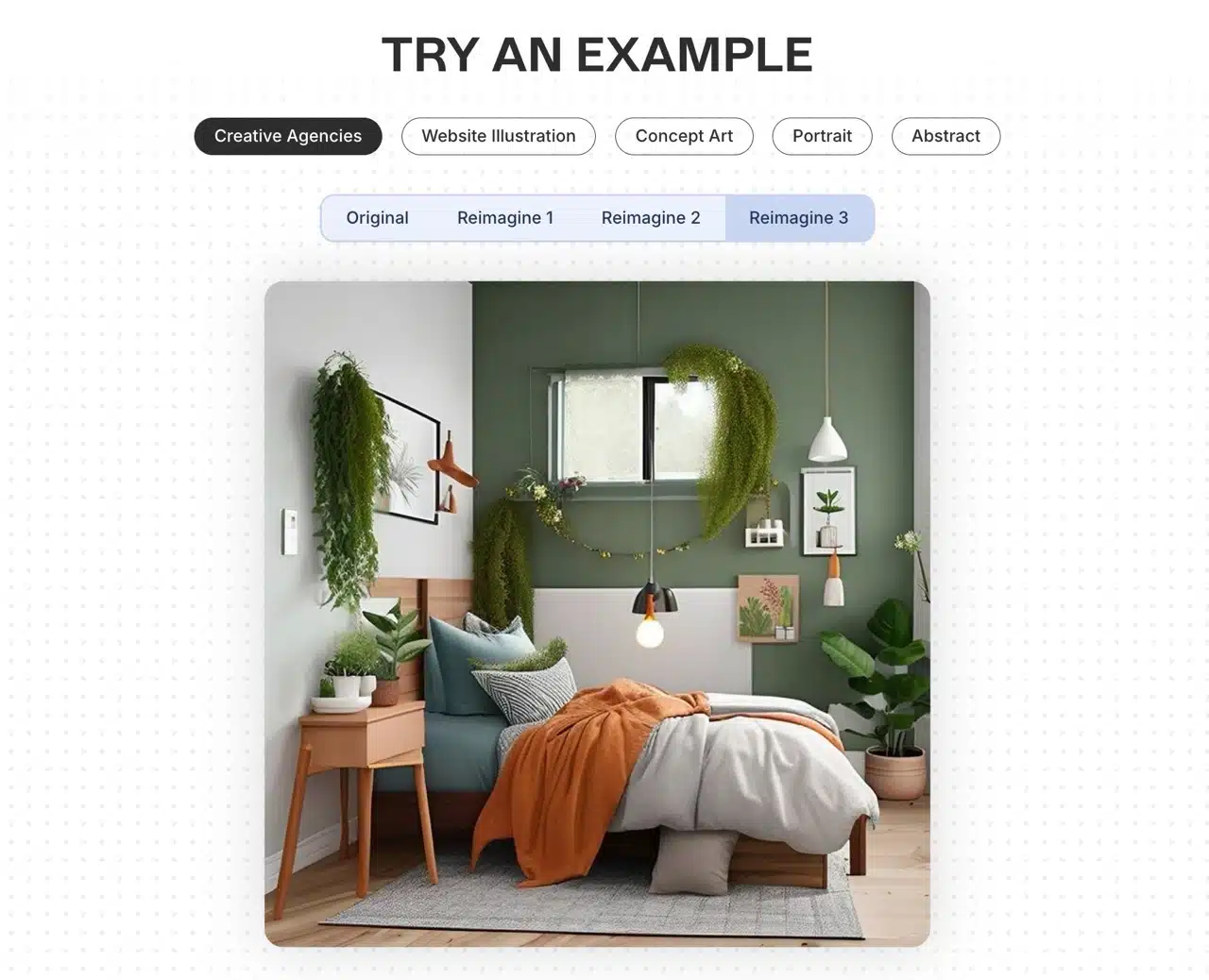
2. Upload Image
To try it out, drag and drop your original image into the upload field on the Reimagine website.
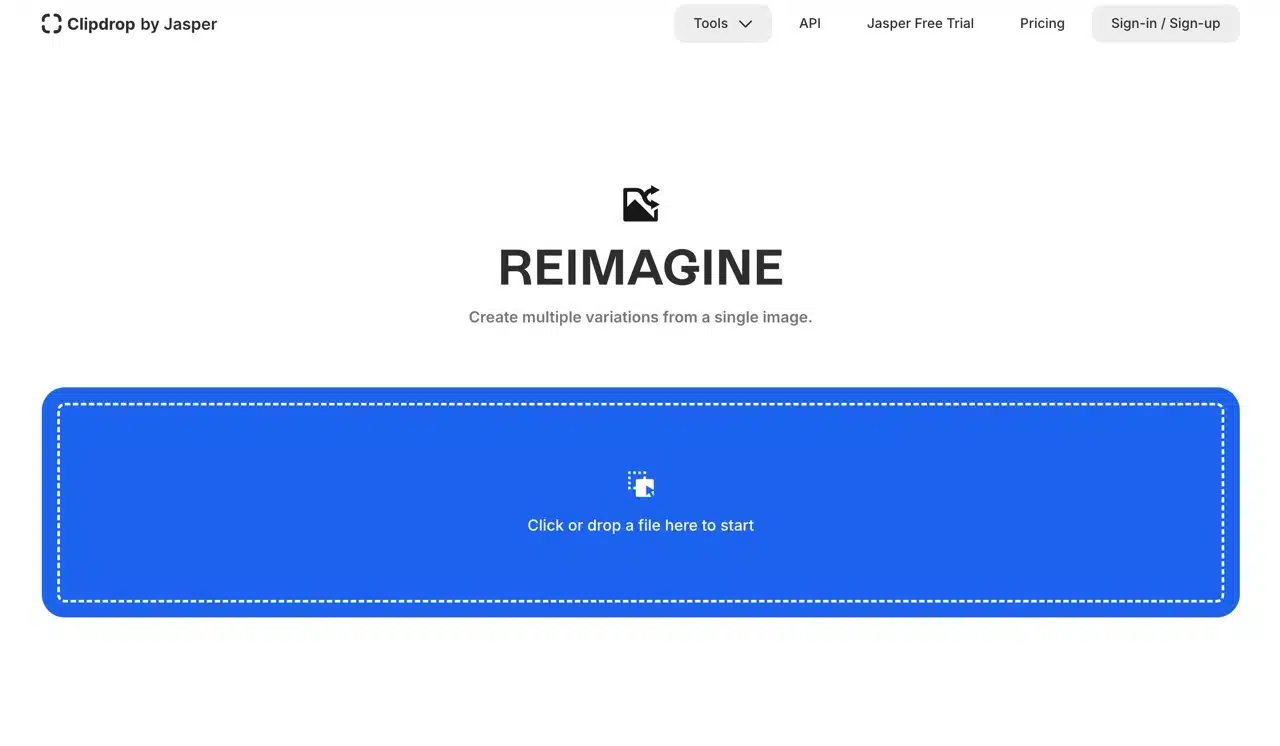
First-time users will see a login prompt; we recommend using Google, Facebook, or Apple accounts for quick sign-in.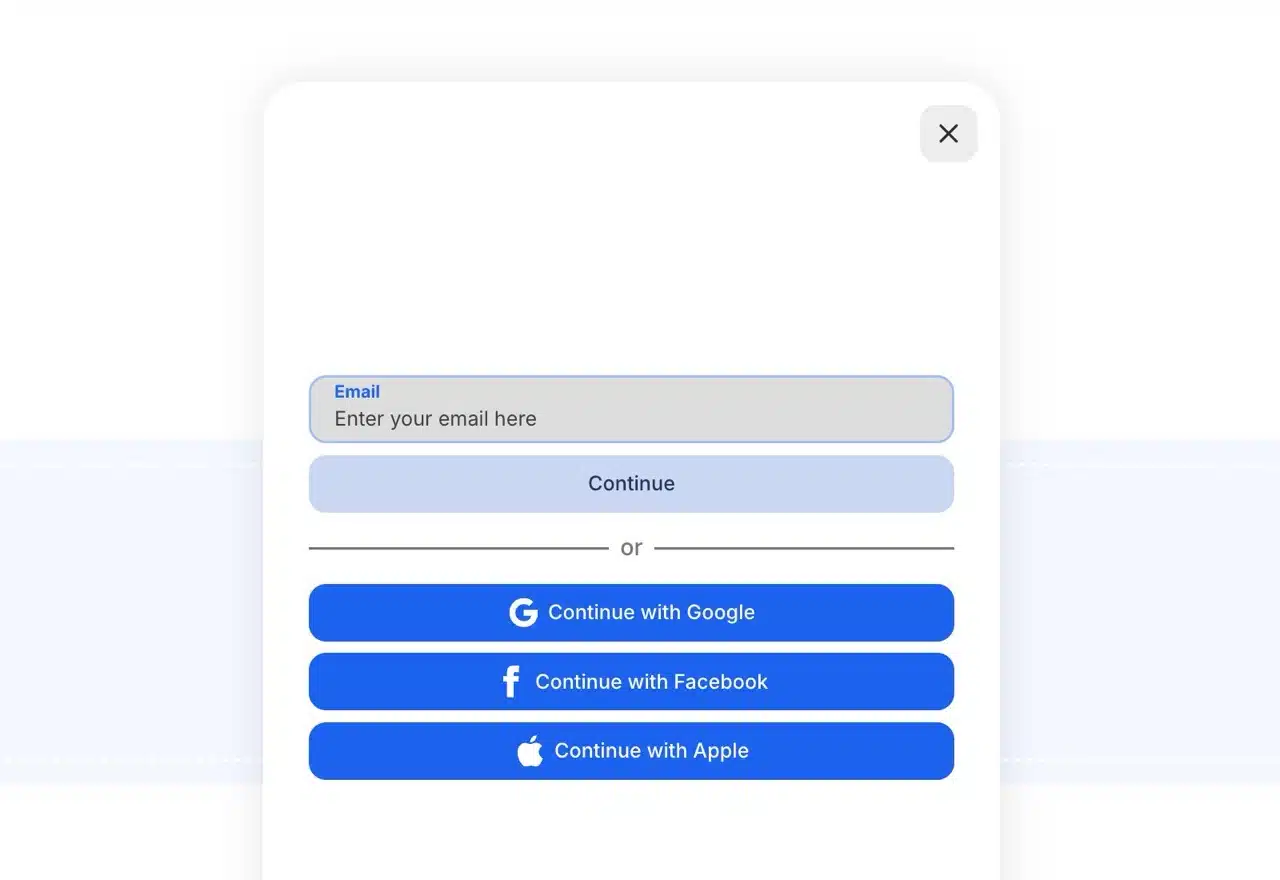
3. Generate Images
Reimagine will then process, analyze, and generate images. It produces three new results each time. Note that the free plan has a limit of 20 images generated per 24 hours.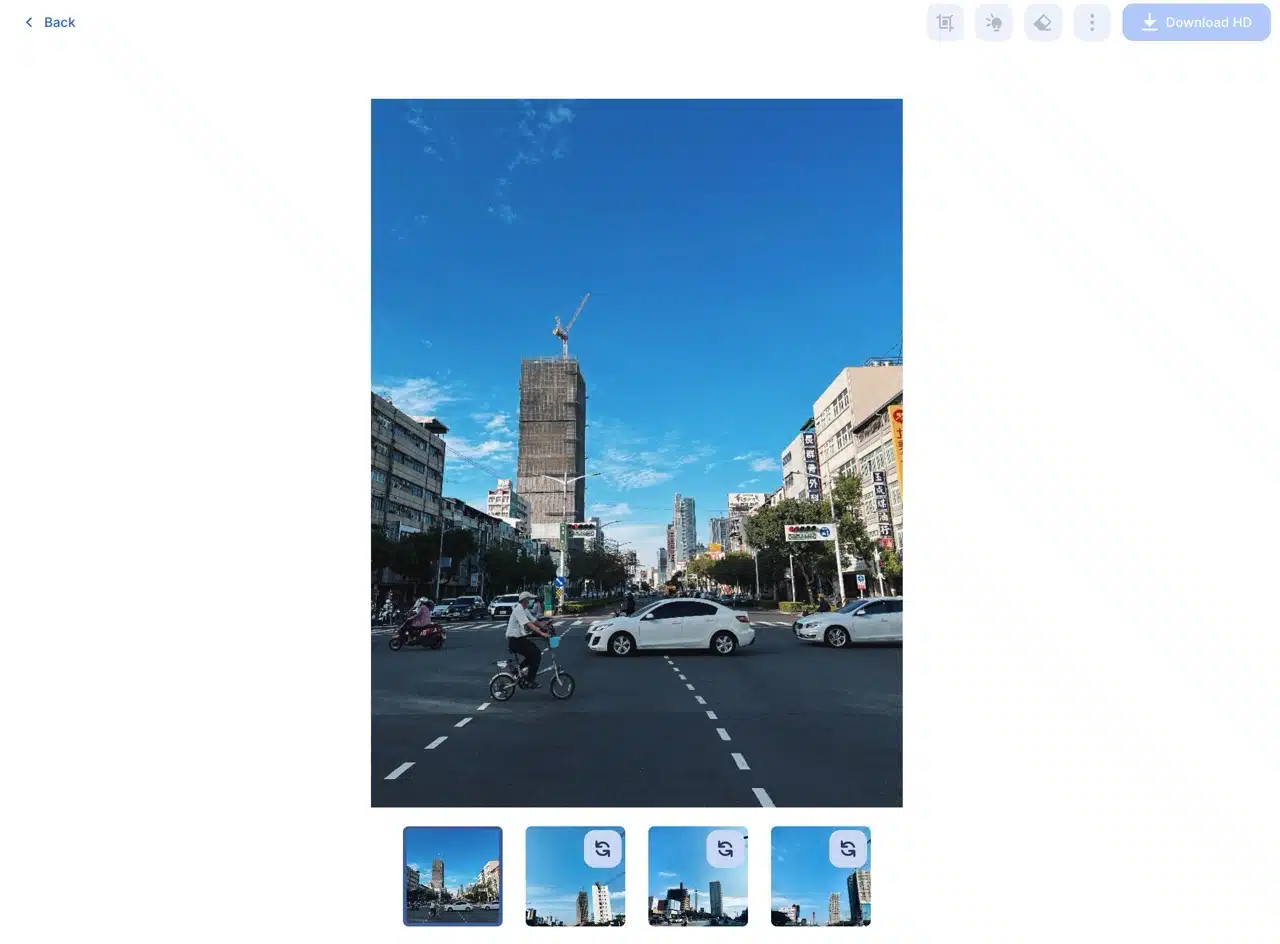
Click any generated image below to view a larger preview. Some results may appear distorted (e.g., warped buildings or unrelated objects). Click “Regenerate” in the top-right corner to modify the image.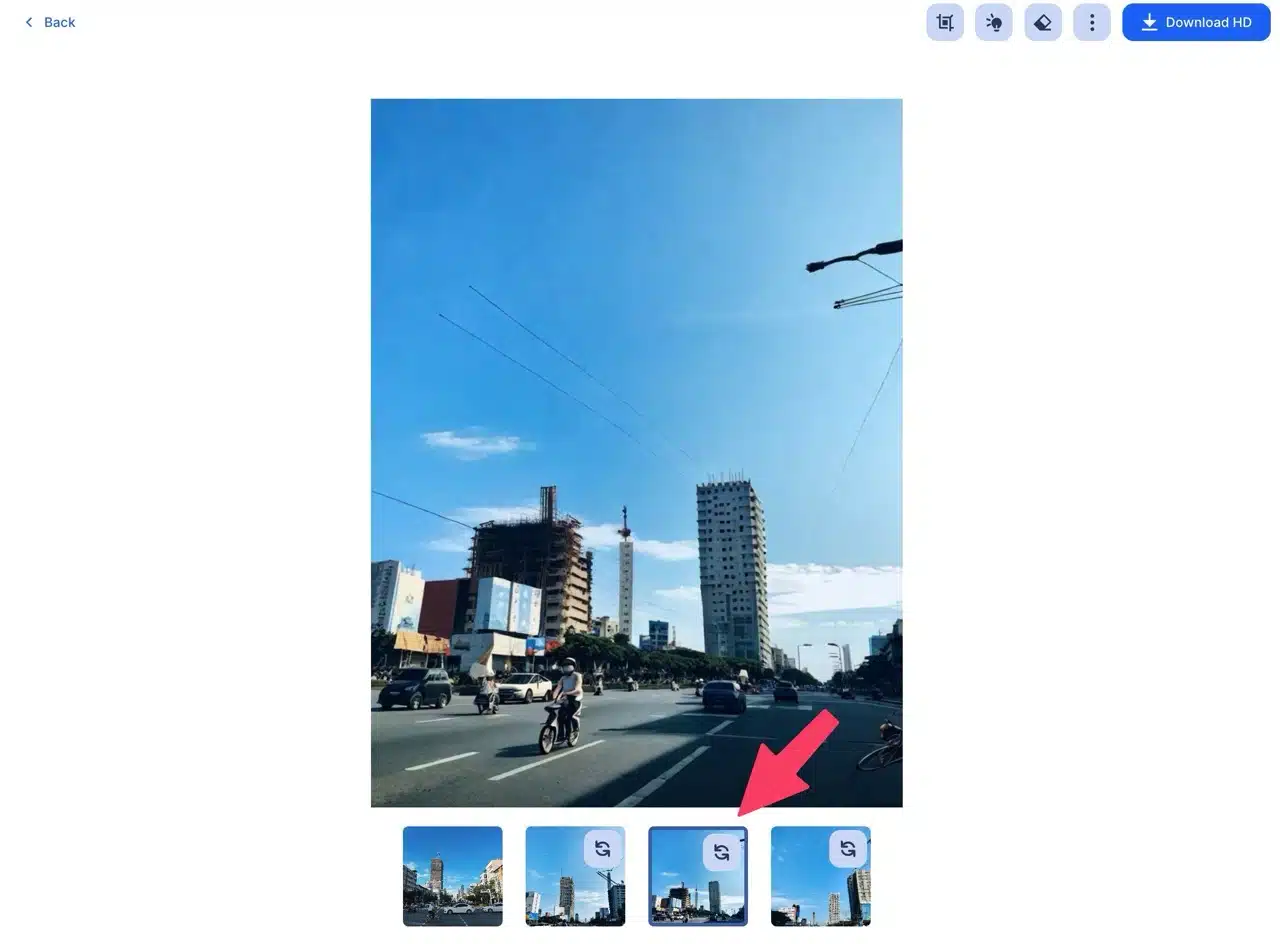
4. Save Images
Finally, right-click on the image and select “Save Image As” to save it.
Important: Do not click the “Download HD” button in the top-right corner. The free plan does not support downloading high-resolution images. Clicking it will display an ad prompting you to subscribe to the Pro plan.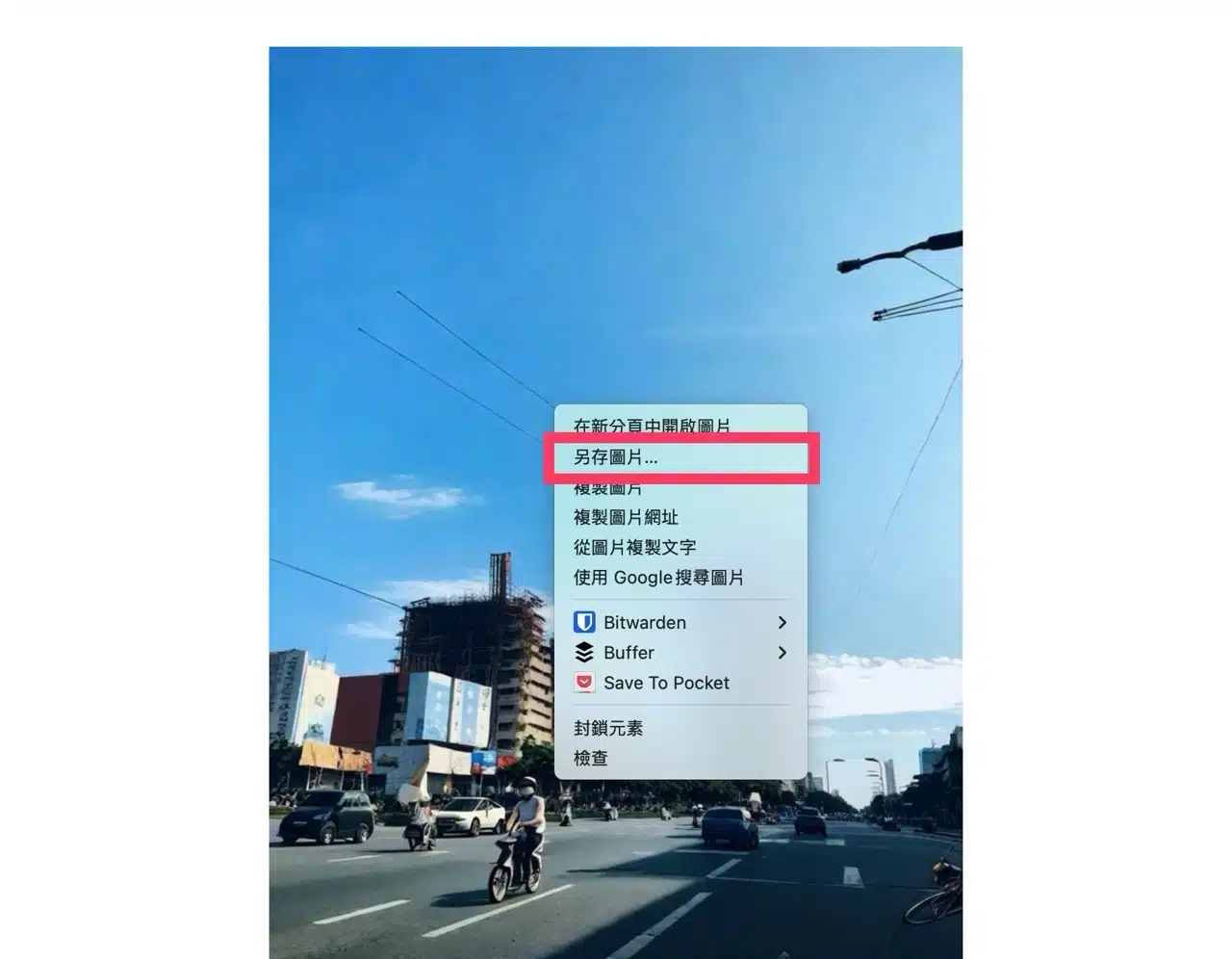
5. Explore More Features
Clipdrop offers both free and paid Pro plans. The free plan has limited quotas and restricted processing capabilities. To obtain high-resolution images or increased quotas, subscribing to the Pro plan is necessary (as these processing workflows incur costs).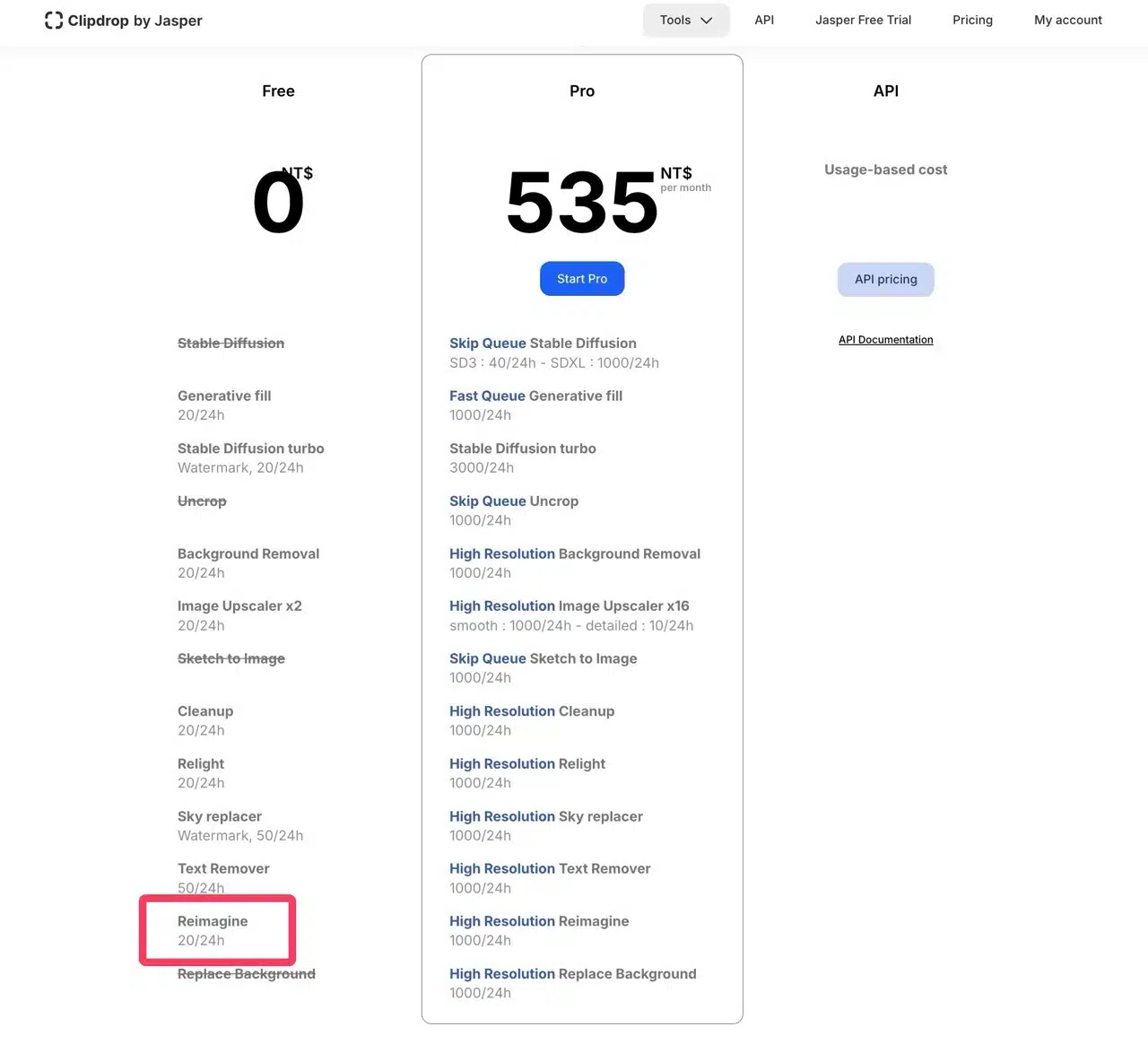
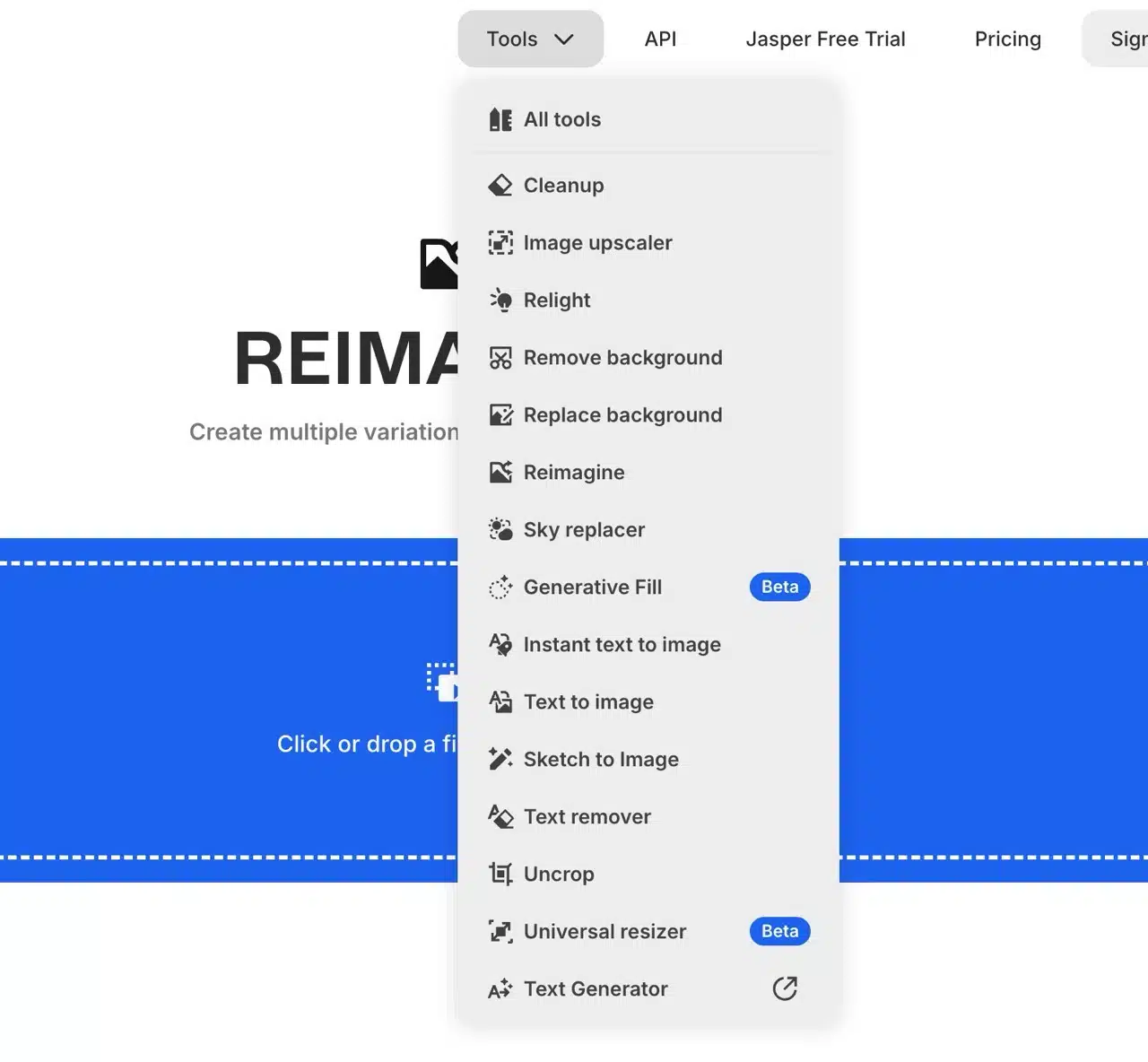
Access various editing tools via the Tools menu at the top of the Clipdrop website, or browse them on the “All tools” page.