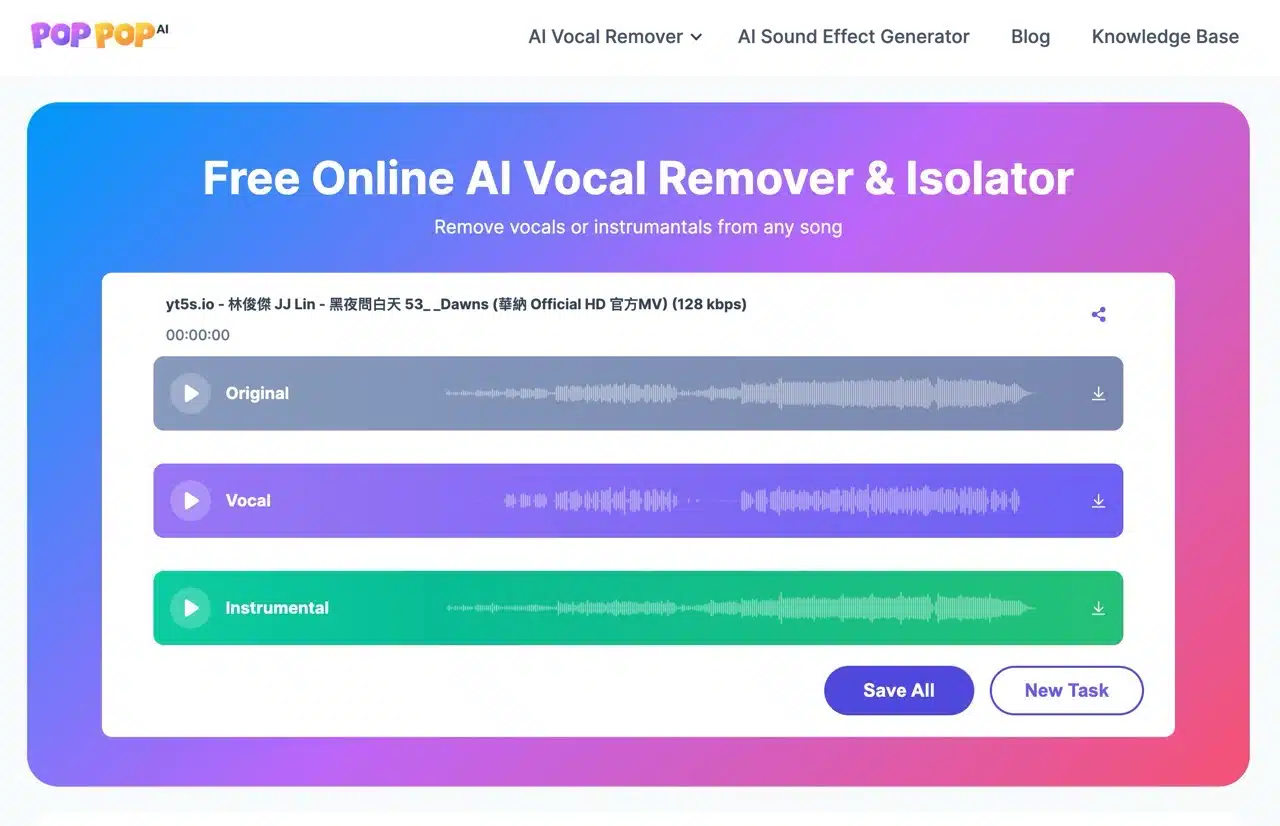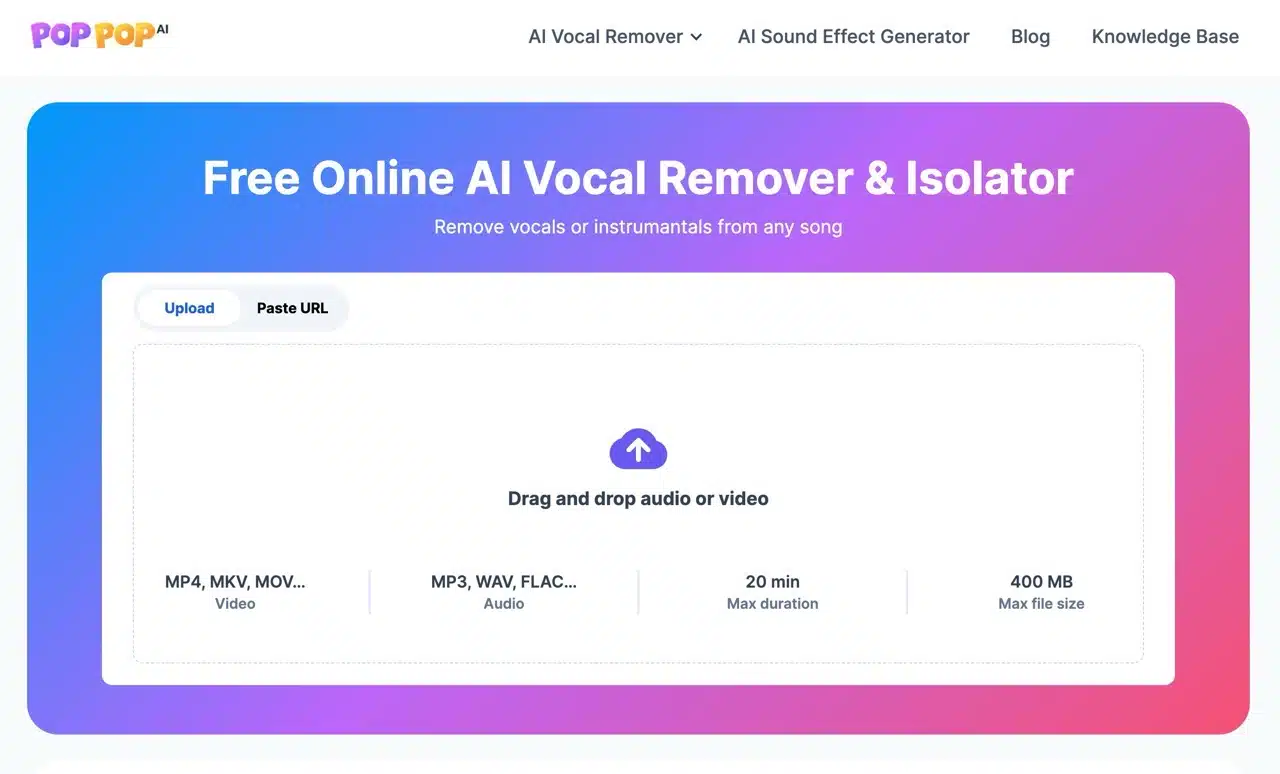
Last month we introduced “PopPop AI: The Free AI Sound Generator That Transforms Descriptions Into Audio,” an AI tool that helps users create sound effects. Now, the same company has launched a new tool called “AI Vocal Remover,” which automatically removes vocals or instrument tracks from music, separating them into distinct audio layers. This is incredibly useful for creating backing tracks for songs! The process is incredibly simple: just upload your music file (or paste a video URL) and it handles the rest automatically, with no complicated settings required. Portable Speaker
According to the instructions, the AI Vocal Remover tool supports MP3, WAV, and FLAC music formats. Notably, it also allows users to directly upload video formats (MP4, MKV, MOV), with music lengths not exceeding 20 minutes and file sizes capped at 400 MB.
So, what projects can tools for removing vocals, converting to backing tracks, or separating audio tracks be used for? The website mentions examples such as: Karaoke and singing practice.
Music production and mixing.
Synthesis and sampling.
Audio editing and podcasting.
Regarding whether processed audio files can be used for commercial purposes, this depends on the copyright of the original song. Please be mindful when using them. Processed music is provided in MP3 format, and there are currently no strict limits on the number of songs that can be processed.
If AI Vocal Remover doesn't meet your needs, you can also read another article titled “Free Vocal Removal Tools: Music to Instrumental Conversion & Instrument Separation Service Recommendations,” which compiles my curated selection of track separation tools.
User Guide
STEP 1
After opening the AI Vocal Remover website, drag and drop your music or video file to upload it. Files must not exceed 400 MB or 20 minutes in length. Processing may take some time after upload.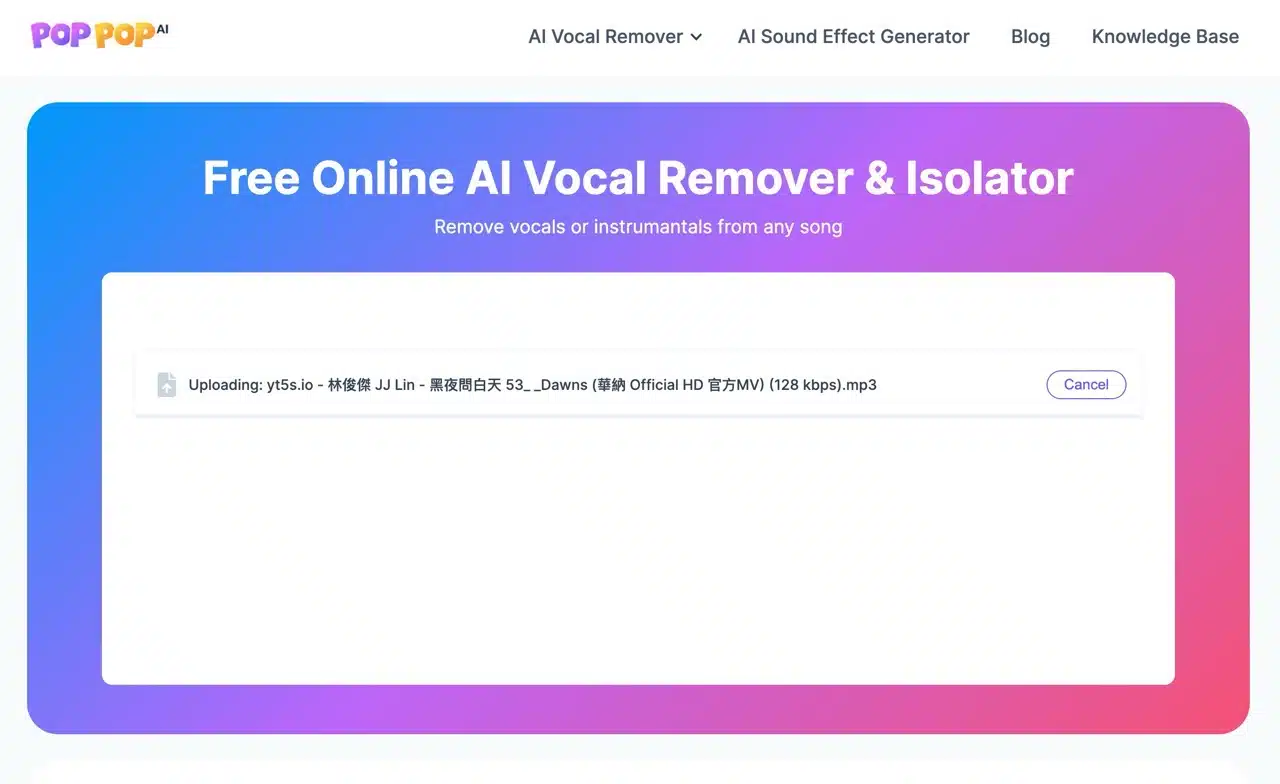
AI Vocal Remover also offers a “Upload via URL” mode. Simply paste the URL from supported services like YouTube, TikTok, X (Twitter), etc., to import video audio. It supports over 1000 websites.
STEP 2
After uploading, allow some time for the AI tool to process the file.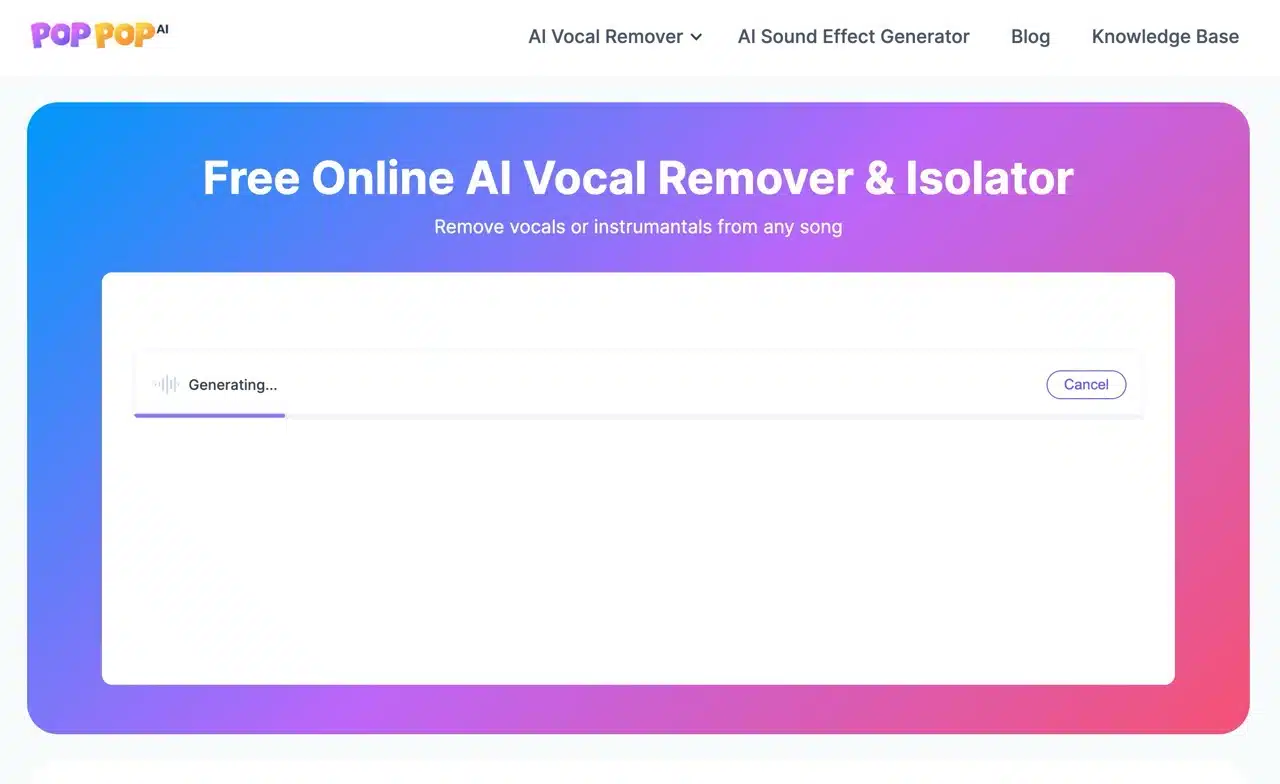
STEP 3
The final results page displays previews and download buttons for different audio tracks. From top to bottom: original audio, pure vocals, and instruments. Click the button next to each track to play it. The far-right button saves the audio as an MP3 file.
Click “Save All” below to download and save all separated audio tracks at once.