Using AI technology to create music is no longer news. Previously recommended tools like Google MusicFX, Suno AI, Stable Audio, and Mubert Render are all AI music generators. They create music segments based on descriptive text or uploaded images, with some assets even usable for commercial purposes. Compared to the traditional practice of paying for licensed materials, this approach is more cost-effective. Moreover, machine-generated music is less likely to overlap with others, offering a slight edge in uniqueness. Portable Speakers
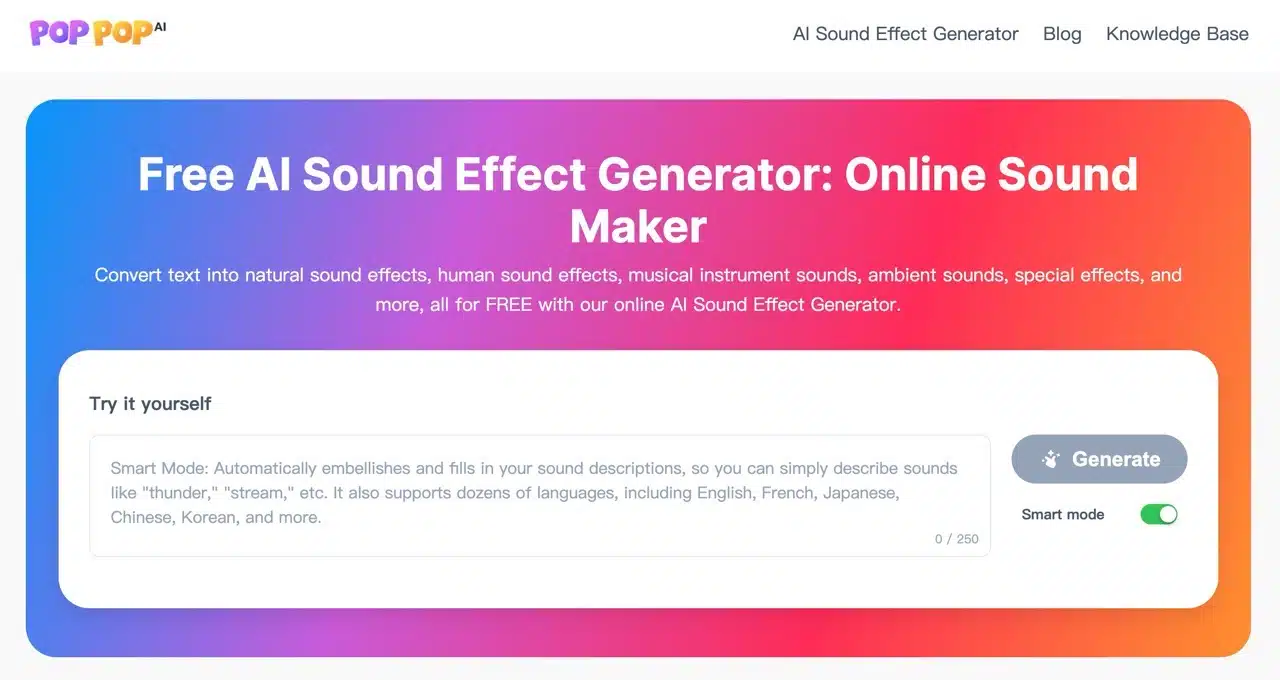
This article recommends “PopPop AI,” a free online AI sound generator. Users input a text description to instantly generate corresponding sound effects—such as applause, rain, traffic noise, or the bustling ambiance of restaurants and cafes. It transforms text into various sound effects within seconds, suitable for videos, game development, or diverse scenarios.
PopPop AI Sound Generator imposes no usage restrictions and requires no registration for immediate access—a significant departure from similar products. Additionally, the PopPop AI Free AI Sound Generator website features numerous sound effect samples. Paired with images, they create an immersive experience—hard to believe these are AI-generated sounds. Future updates will include AI song covers, AI voice generators, and AI voice changers. Whether it will transition to a paid service remains to be seen.
Usage Guide
STEP 1
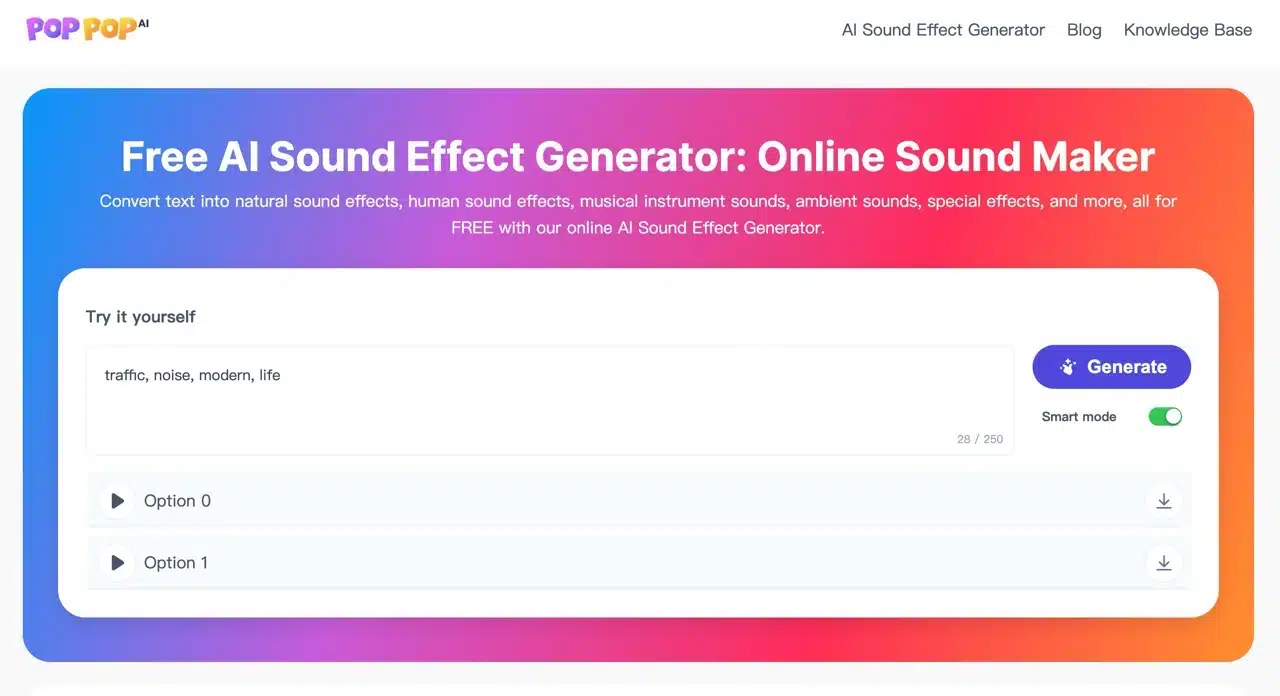
After launching the PopPop AI Music Generator, enter your description directly. When “Smart Mode” is selected on the right, you can use simple words to describe sounds. This mode automatically refines and fills in relevant sound descriptions. You can also input Chinese words, such as keywords like “traffic, noise, big city.” Pressing “Generate” will start producing sound effects.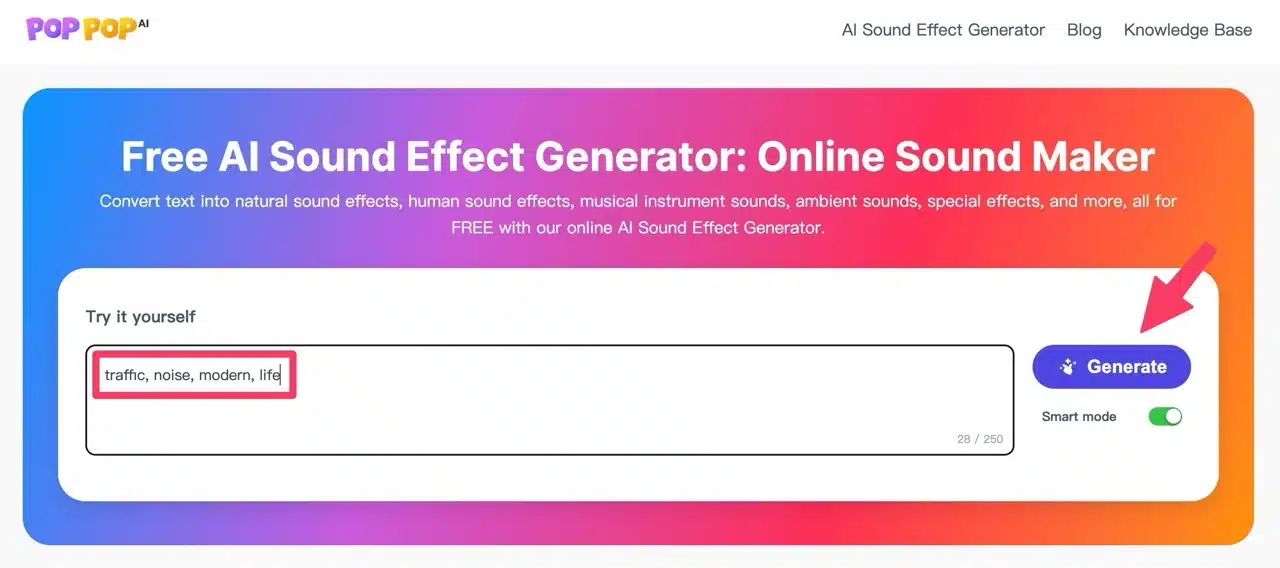
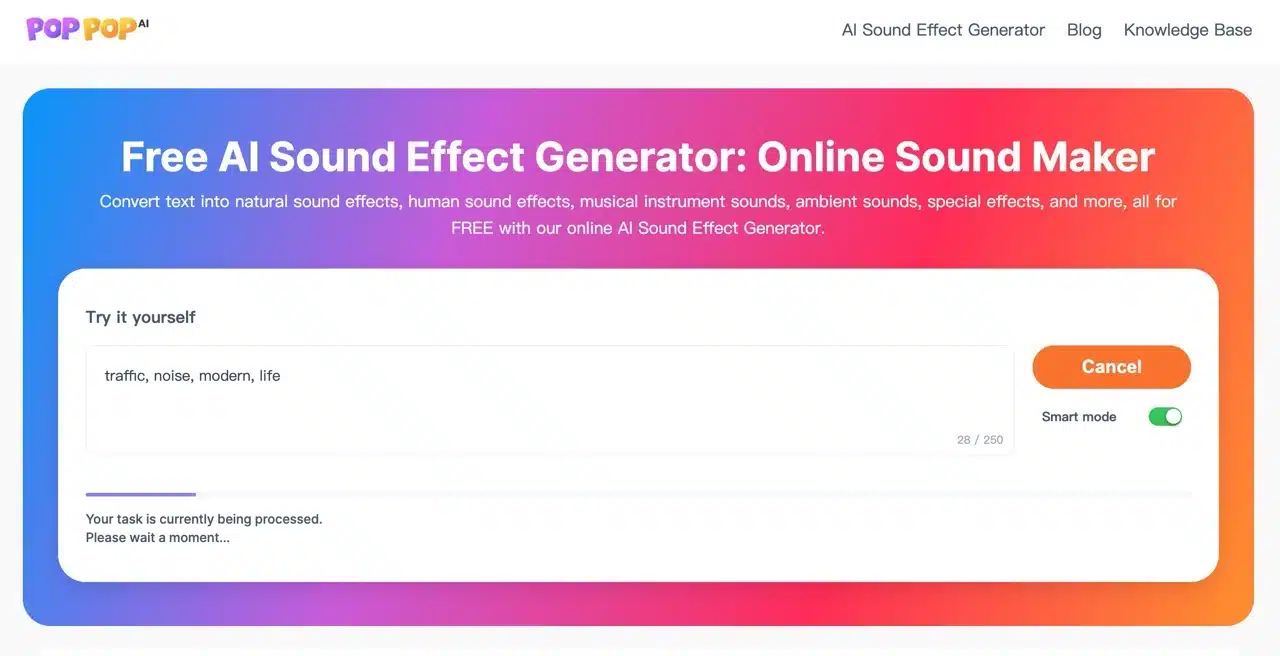
PopPop AI requires some time to process, and the process involves a queue. If others are ahead of you, you'll have to wait longer.
STEP 2
Upon completion, two options will be provided: Option 0 and Option 1. Both can be previewed and downloaded, with slight differences between them.
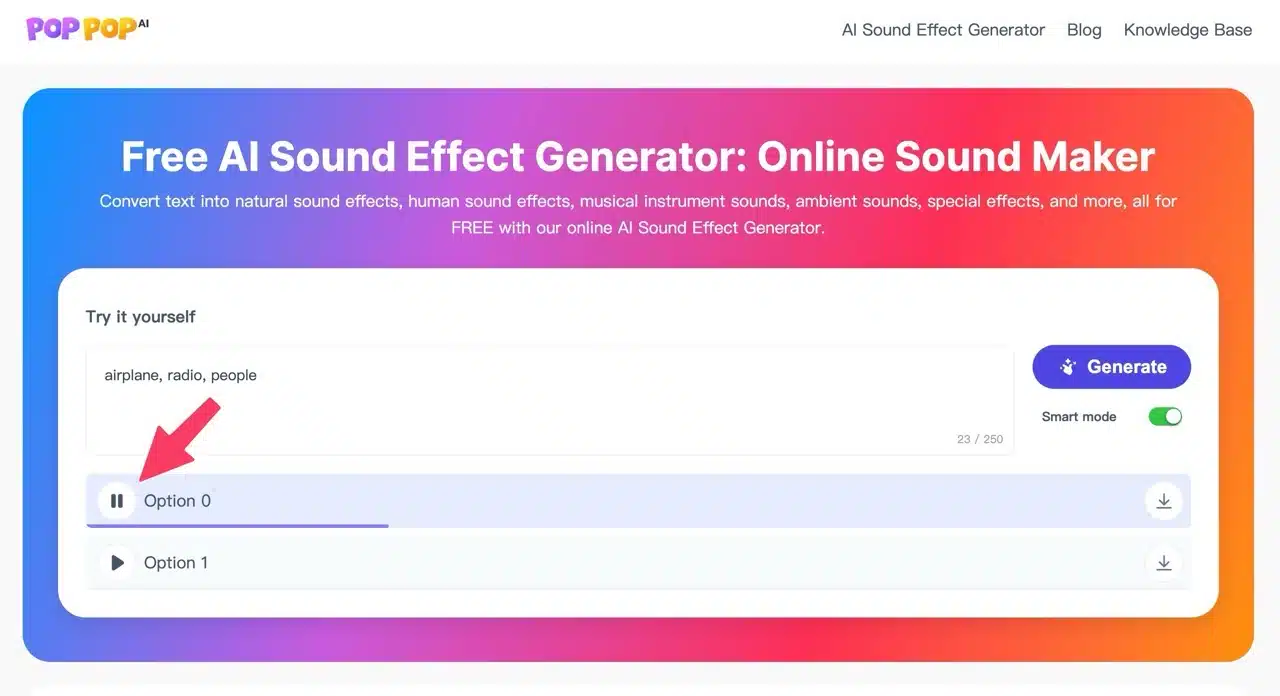
Click the “Play” button in front of the sound effect to preview it.
STEP 3
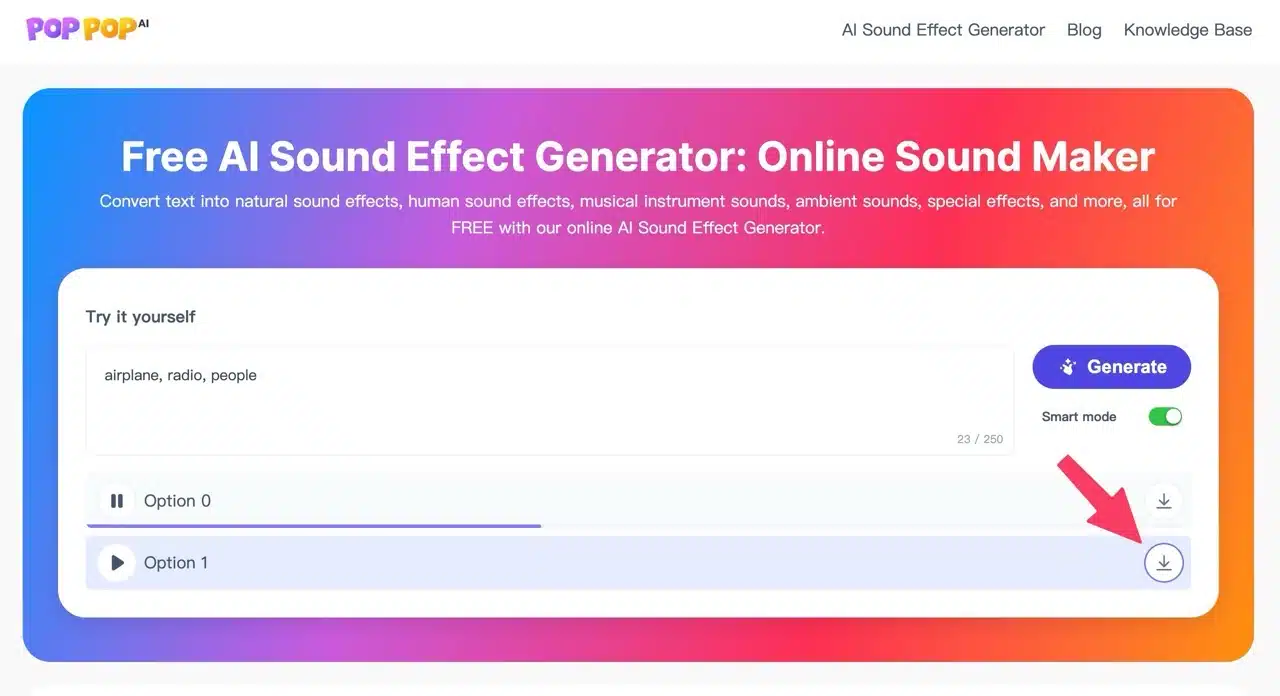
Click the “Download” button at the back to obtain the WAV format audio files. There are no download restrictions; both files can be downloaded.
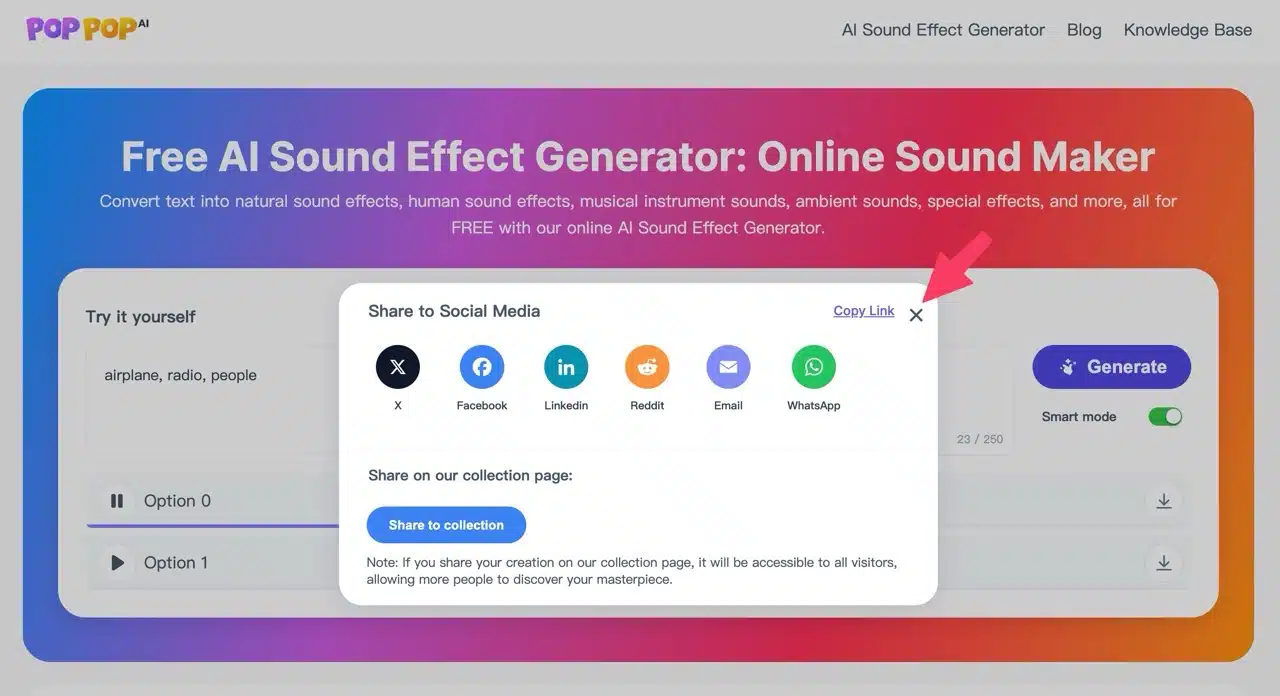
However, the first time you click to download, PopPop AI will display an ad asking if you'd like to share the website on social media. Click “Close,” then select the download button to obtain the sound effect file.
STEP 4
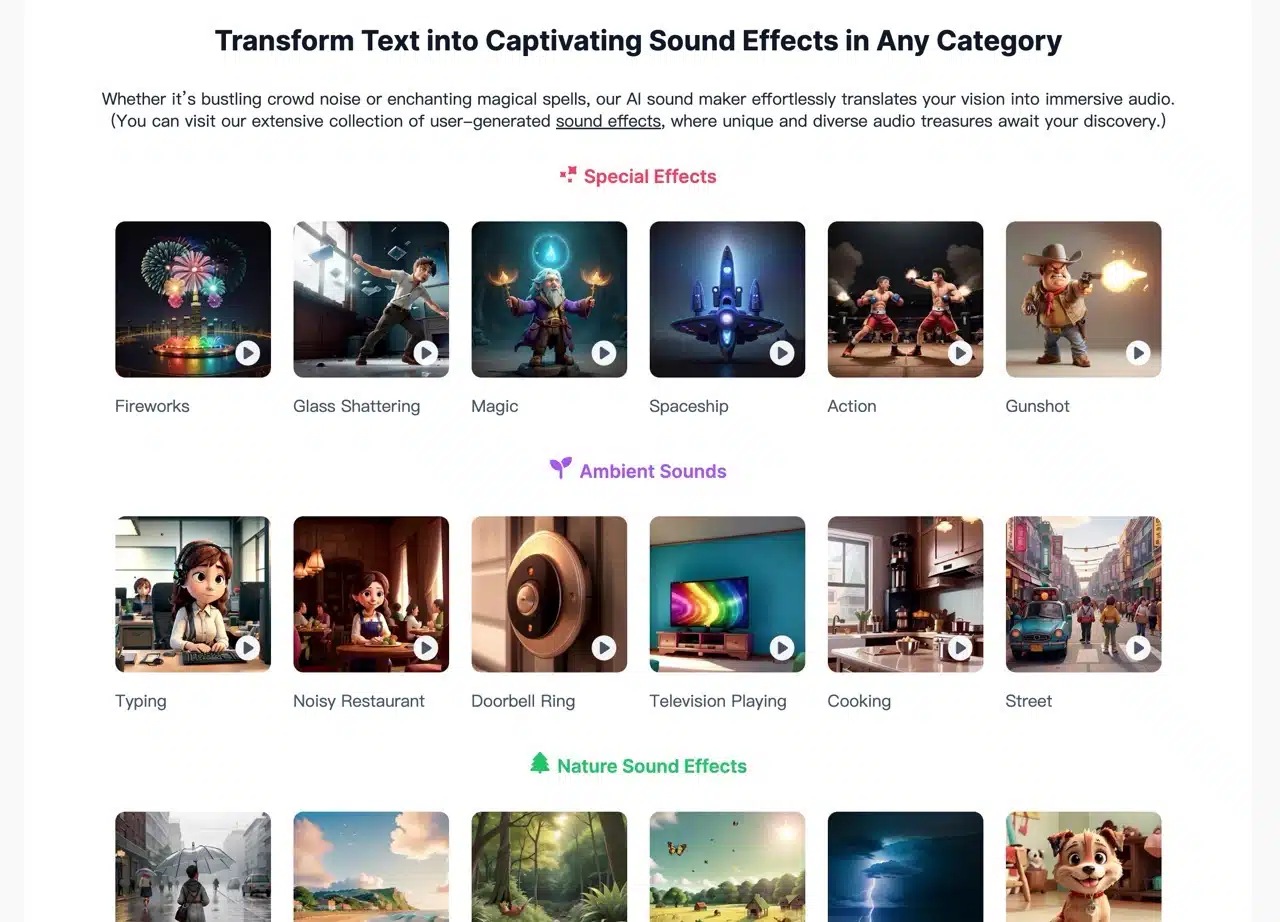
The PopPop AI homepage also features numerous sample sound effects generated by the AI. These are paired with images and keywords. If you're curious about the types of sound effects the AI can create, feel free to give them a listen. You might even find some inspiration here!