
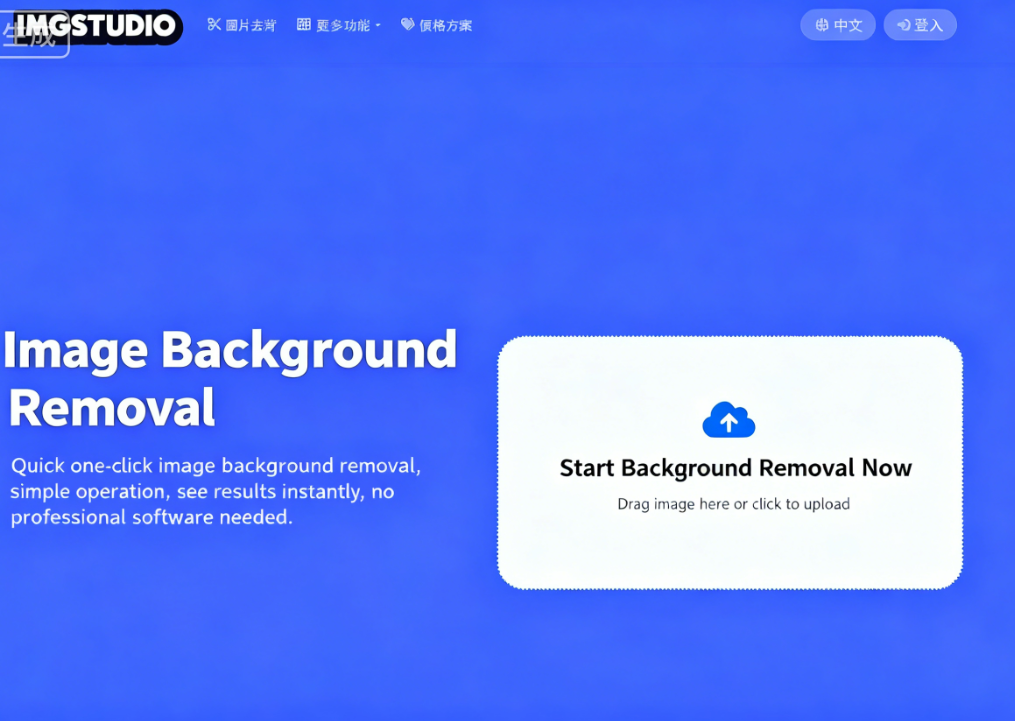
ImgStudio is an online image editing platform developed by Taiwanese creators. Leveraging advanced AI technology, it helps users quickly complete image processing tasks. Key features include: image background removal, background replacement, and image quality enhancement. Operation is extremely simple—just drag and drop your image into the editor for instant results with minimal manual adjustments. The effects are impressive! Sign up now to receive 5 free trial points. Give it a try today!
Points are deducted based on the feature used: 1 point for background removal, 3 points for background replacement, 2 points for quality enhancement, and 12 points for object removal. Supported formats include JPG, PNG, and WebP, with a maximum file size of 5 MB. It's perfect for product photography and portraits alike. The entire process takes just seconds. If you find it useful and meets your needs, consider purchasing points or subscribing.
Additionally, users can invite friends to register and earn extra points for both parties. This should be sufficient for users with low usage.
There are numerous AI image processing services available today, primarily differing in the technologies they employ, pricing, and ease of use. ImgStudio features a fully Chinese interface, making it effortless to use. It simplifies complex image editing tasks through AI, enabling anyone to get started with ease.
ImgStudio Tutorial Steps
1. Open the homepage and use the background removal feature
After opening the ImgStudio homepage, you'll see the image background removal feature. Simply drag and drop your image onto it to let the AI automatically remove the background.
Other tools can be found in the top menu or at the very bottom of the webpage. Except for image background removal, other tools require registration and account login to use.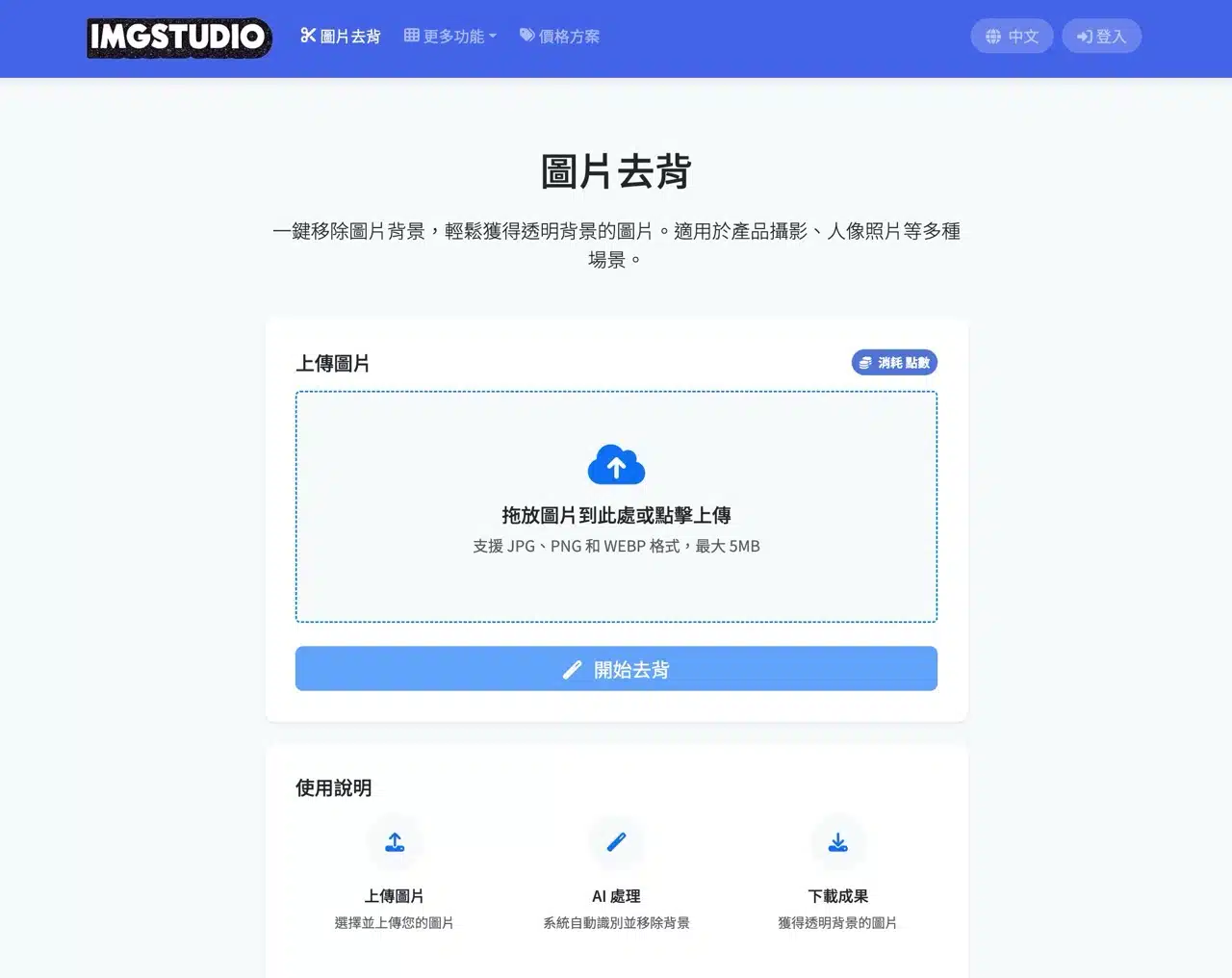
2. Supported Formats and File Limits
The online image background removal tool supports JPG, PNG, and WebP formats, with a maximum file size of 5 MB. After dragging and dropping your image, click “Start Background Removal.”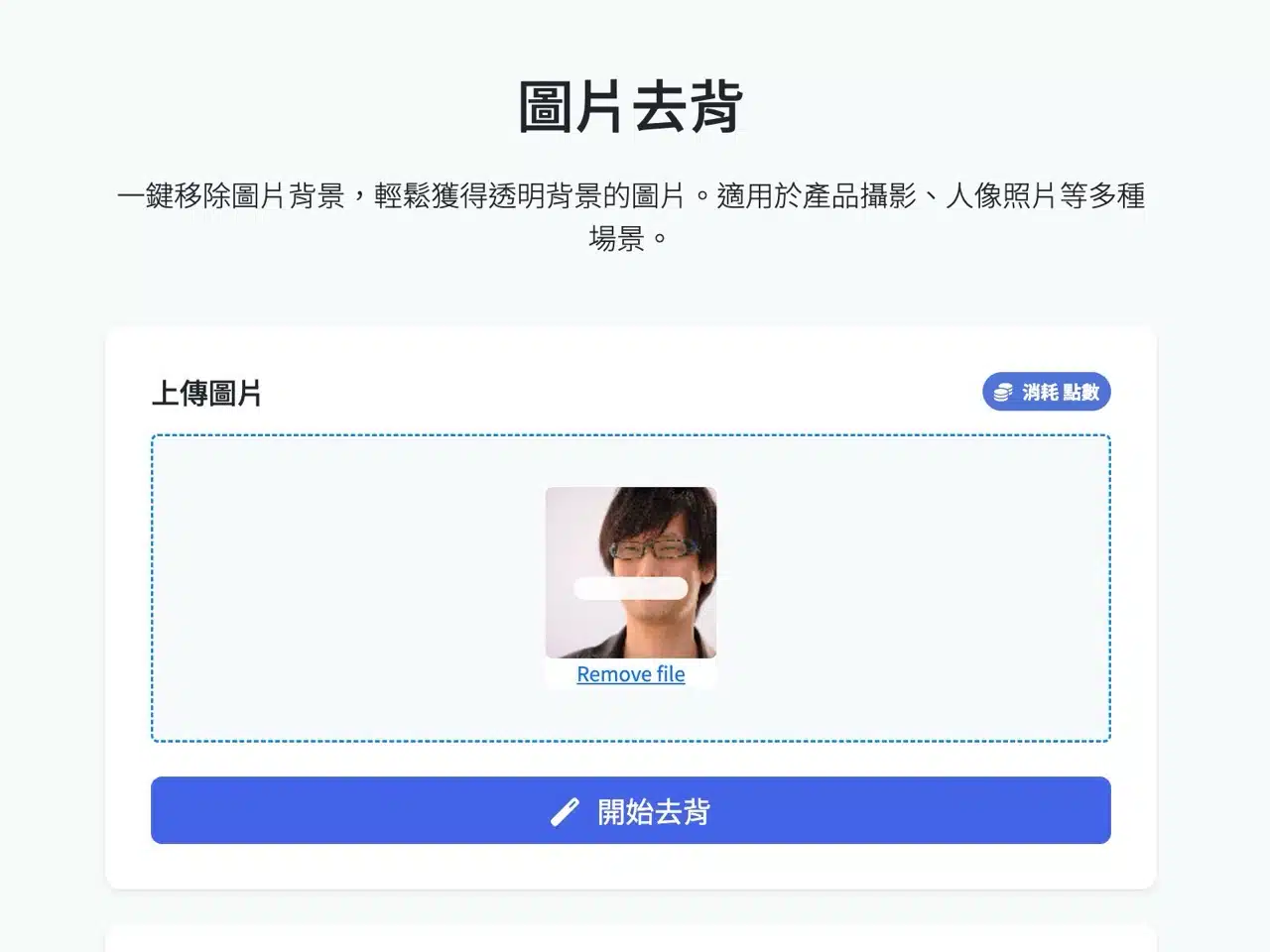
The result will appear shortly after. The entire process is extremely fast, taking only a few seconds.
3. Preview Results and Download Images
After background removal, drag and drop to compare the processed image with the original. Click “Download Image” in the top-right corner to save the image with a transparent background.
Additionally, you can further edit the image from the right panel—for example, create POV images (add text backgrounds) or apply more suitable backgrounds, all generated using AI functionality.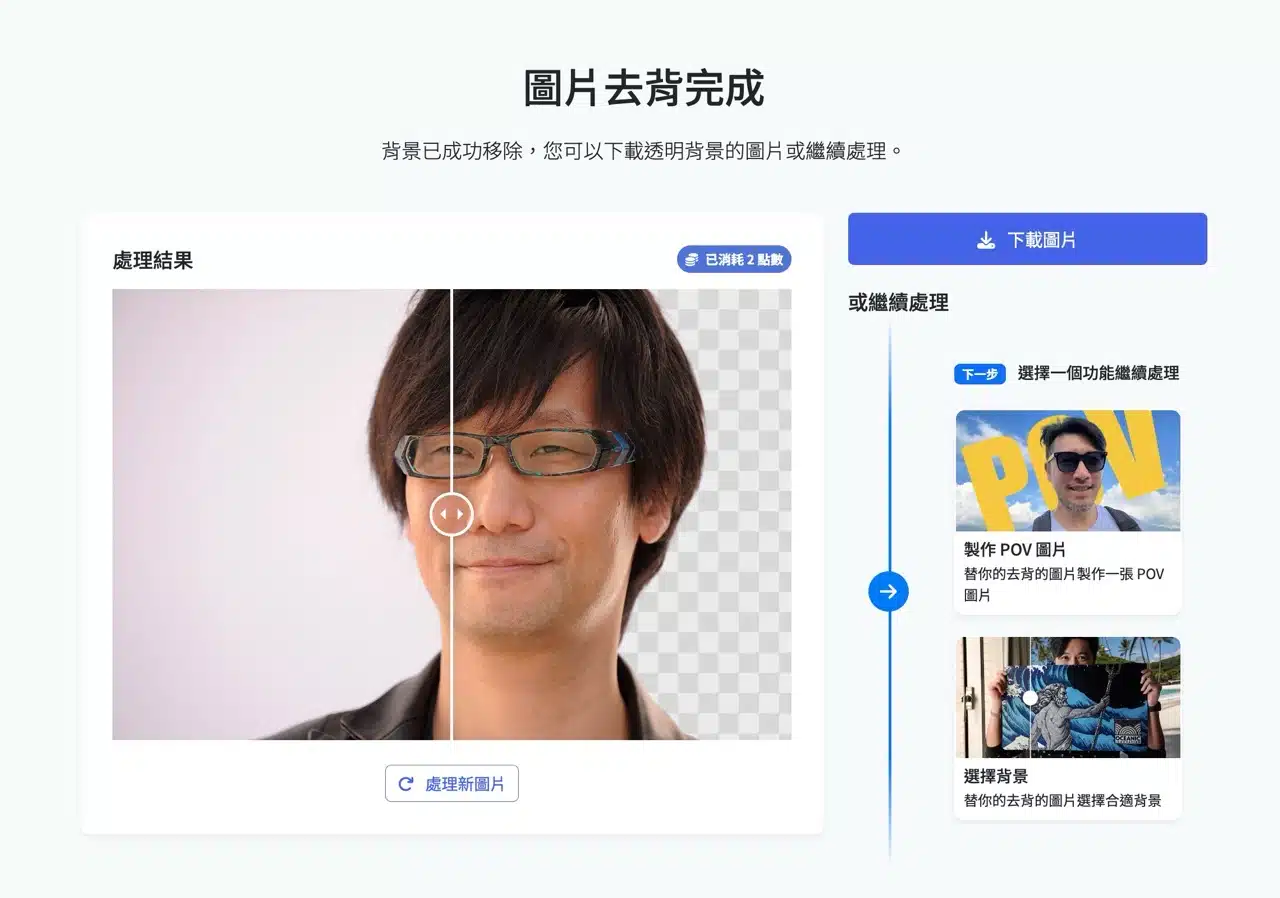
4. Register an Account to Earn Credits, Choose Purchase or Subscription Plans
Registering an ImgStudio account grants you 5 credits for testing features. Referring friends earns both parties extra credits—sufficient for typical usage.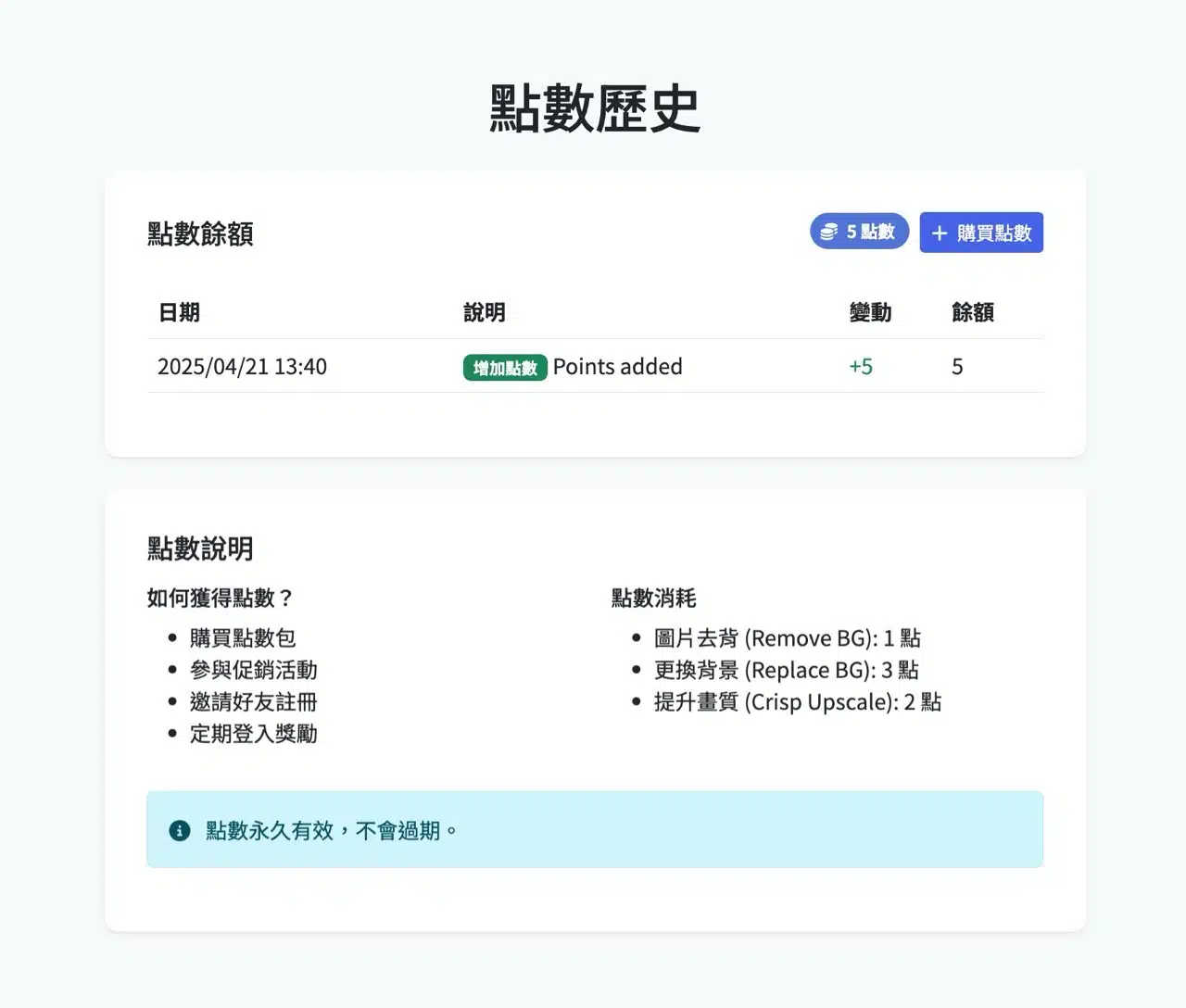
ImgStudio offers two pricing models: purchasing credits or subscribing. Subscribers receive a fixed monthly credit allowance, while individually purchased credits remain valid indefinitely—a key difference from similar services.
Before purchasing, calculate which option best suits your needs for maximum value.
5. POV Image Creation Feature: Adding Text Effect Backgrounds
Another “Create POV Images” feature allows adding text effects to backgrounds, which is relatively uncommon among similar tools.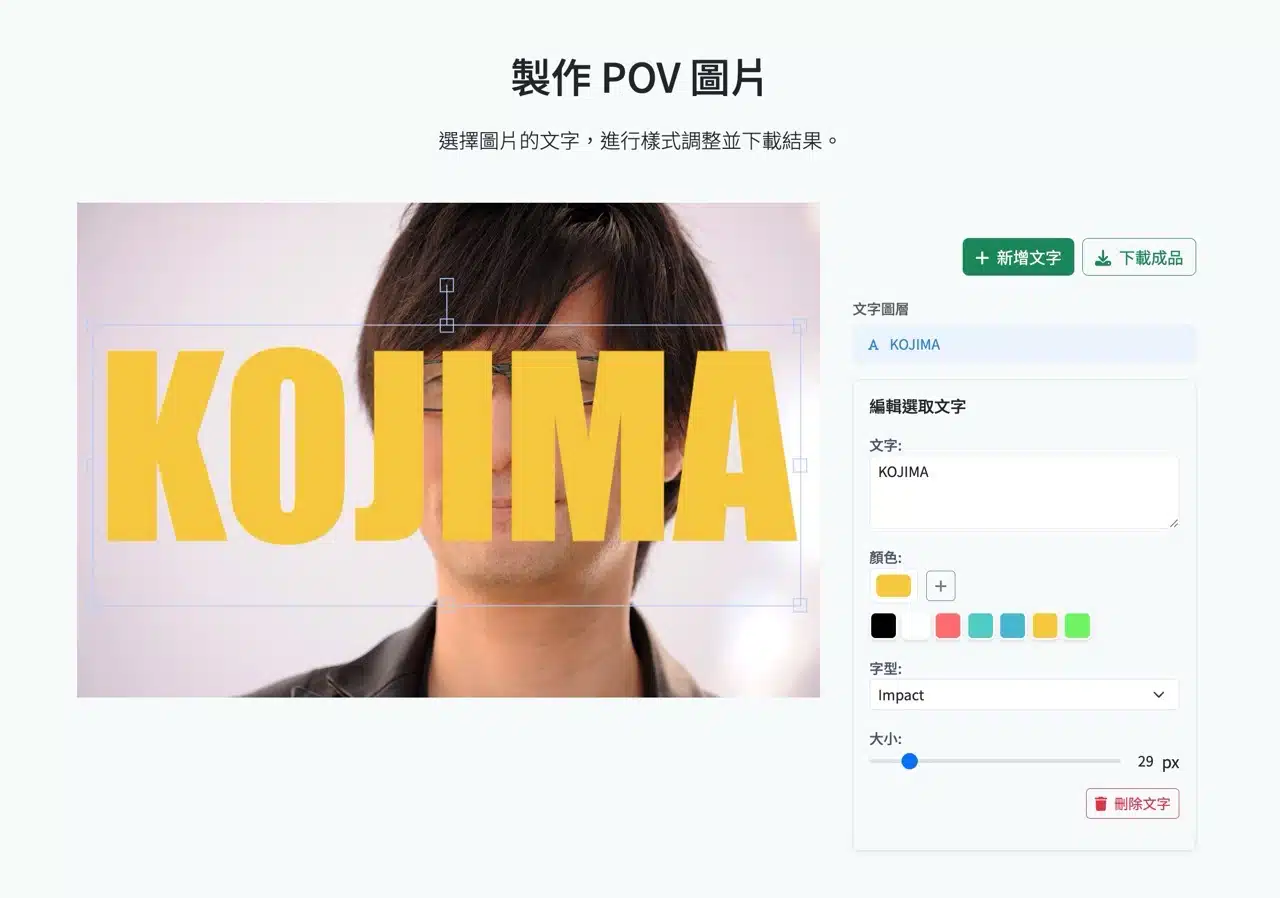
After adding text, adjust its color, font, and size. Clicking the text moves it to the background.  I haven't tested the image enhancement or object removal features, but users who need them can explore them. The operation is straightforward with no overly complex options. All editing can be done directly in your browser. Highly recommended!