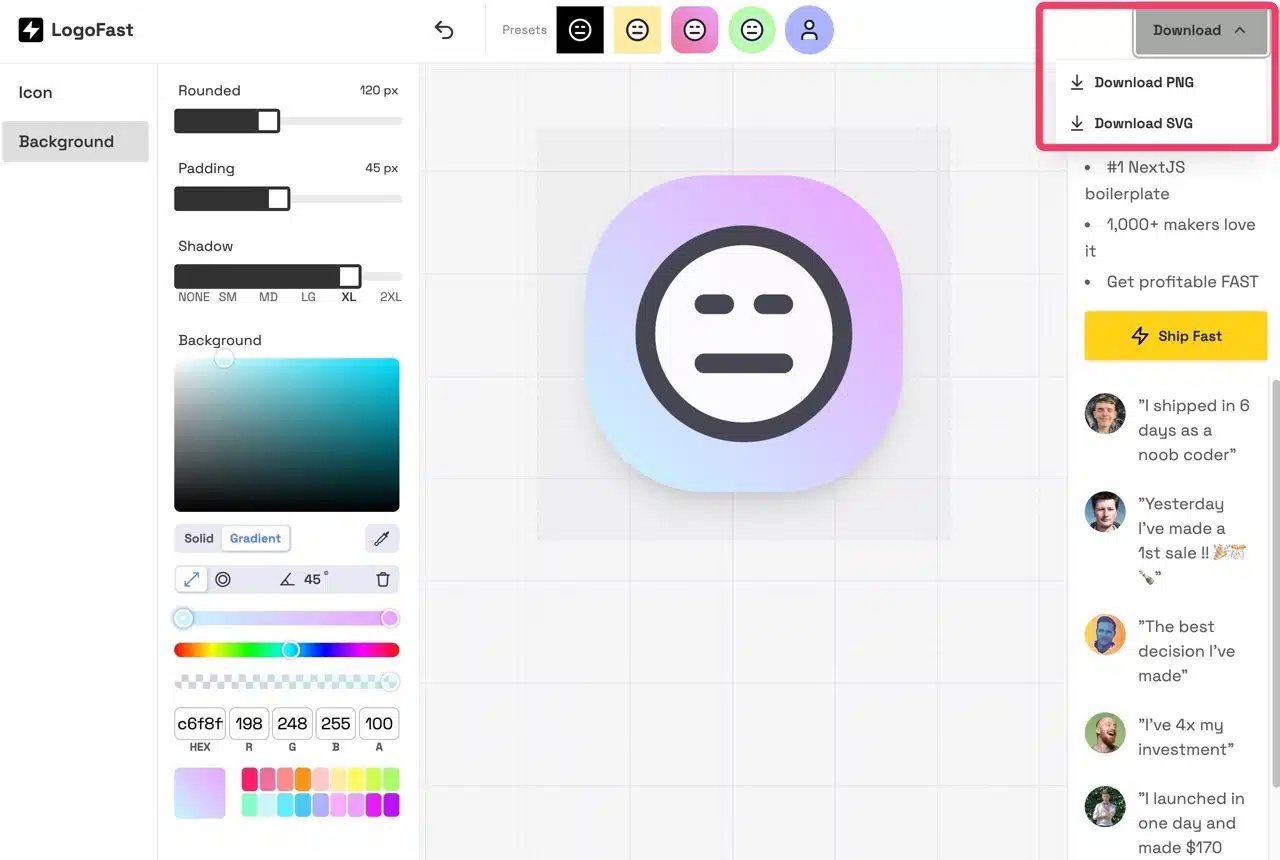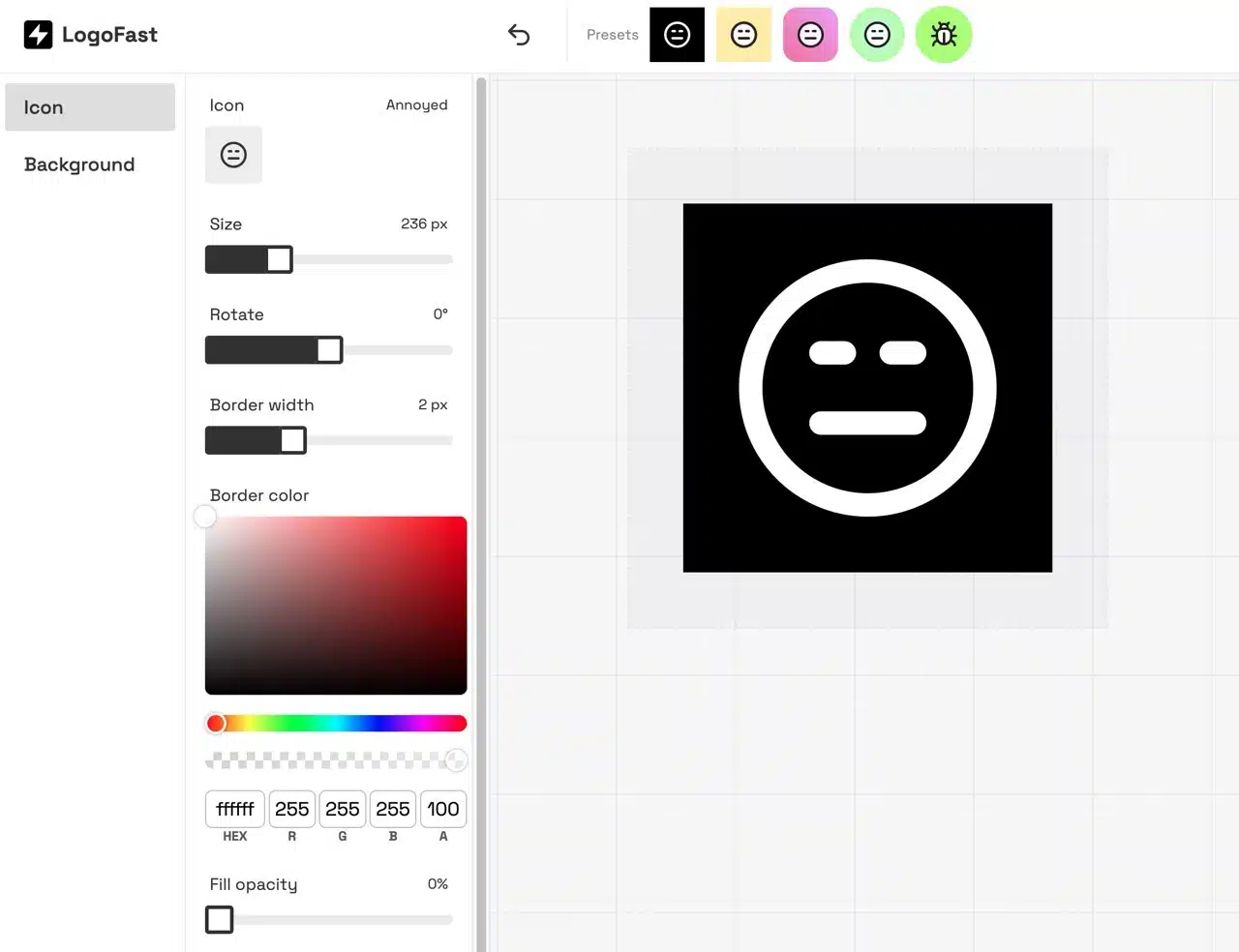
LogoFast is a free logo generator that opens directly in your browser. Simply launch the editing tool to get started. It features Lucide's icon library (over 1,000 designs), allowing you to quickly import selected icons into the editing area. You can also customize logo shape, size, rotation, border width, and color. Background options include rounded corners, fill space, shadows, and gradient colors, enabling users to rapidly create diverse logo designs without any specialized tools.
Upon completion, users can download or export logos in PNG and SVG formats without requiring any account registration.
Another standout feature of LogoFast is its integration of cutting-edge AI technology. Enter a description to generate several viable logo concepts upfront. Users can then fine-tune details using editing tools to rapidly create diverse logos. However, LogoFast's generated designs tend toward square shapes, resembling app icons, and currently lack the ability to add custom text or adjust shapes, indicating several limitations remain. APP Recommendation
Tutorial
STEP 1
Upon opening the LogoFast website, you'll see a simple three-step introduction: select an icon from the library, adjust presets, customize parameters, and finally export the design from the top-right corner—it's that easy!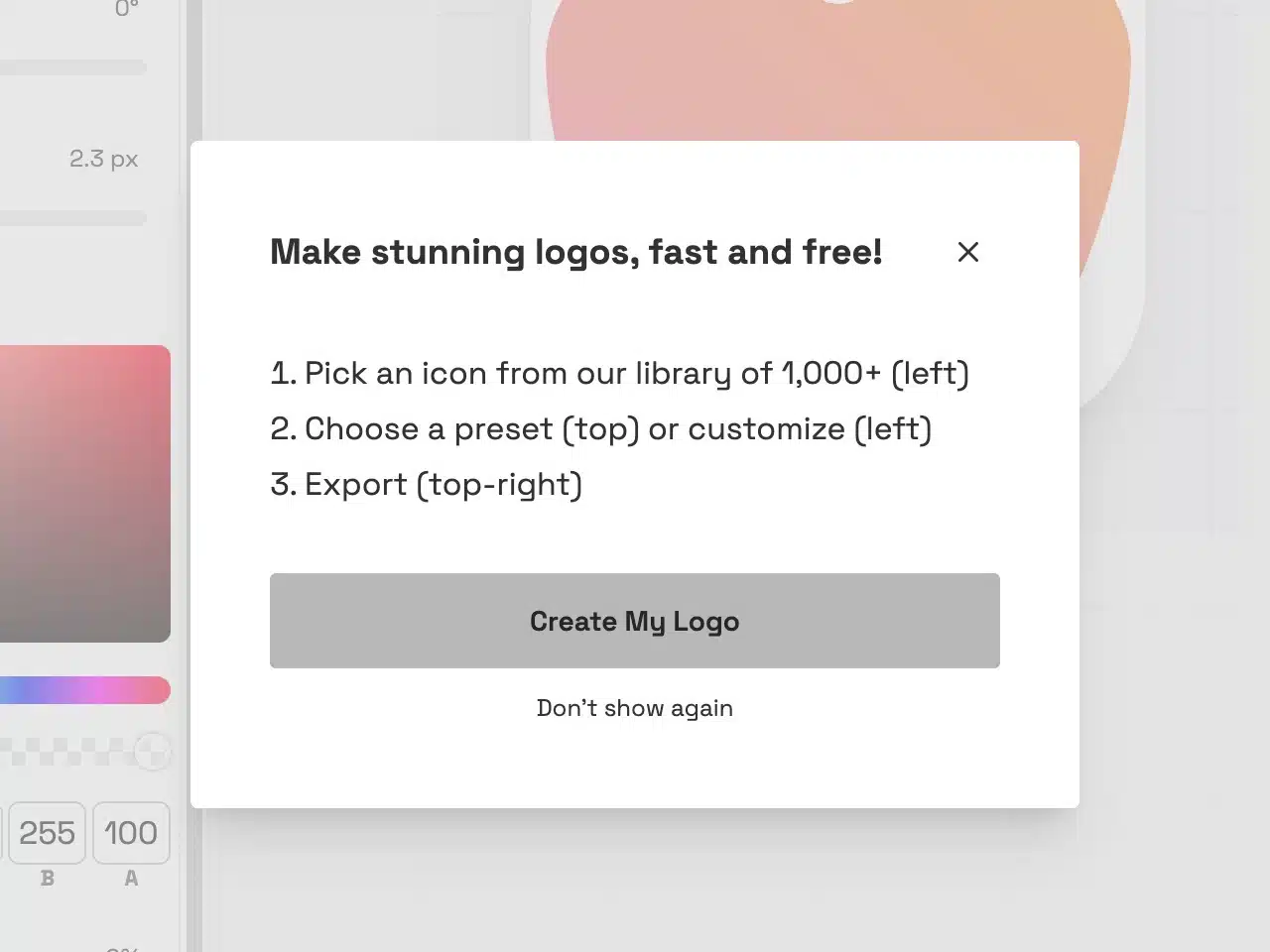
First, choose your desired icon from the “Icon” section in the top-left corner. You can also search directly by entering keywords.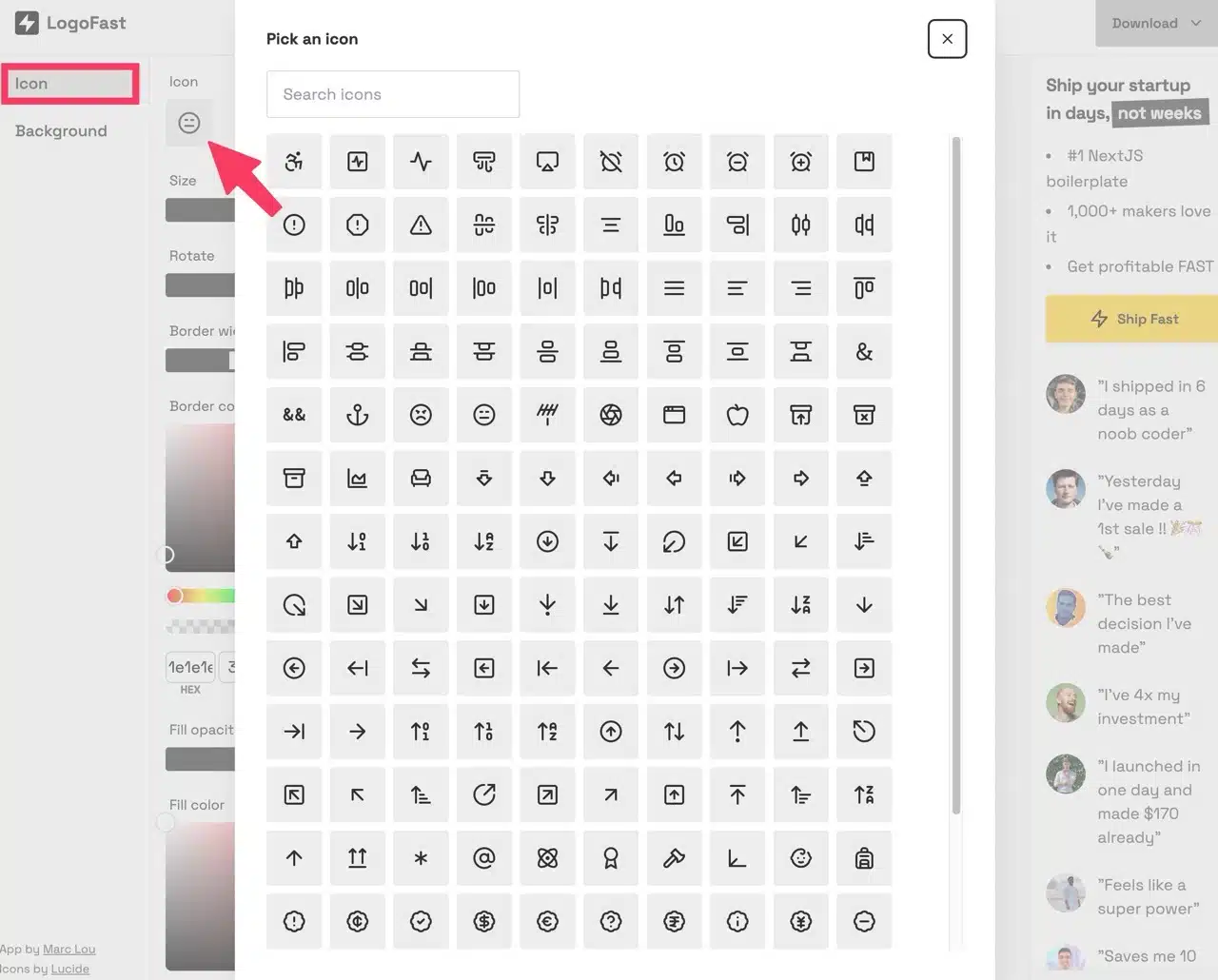
STEP 2
Next, select a preset option from the top “Presets” menu. These pre-configured templates make fine-tuning much easier.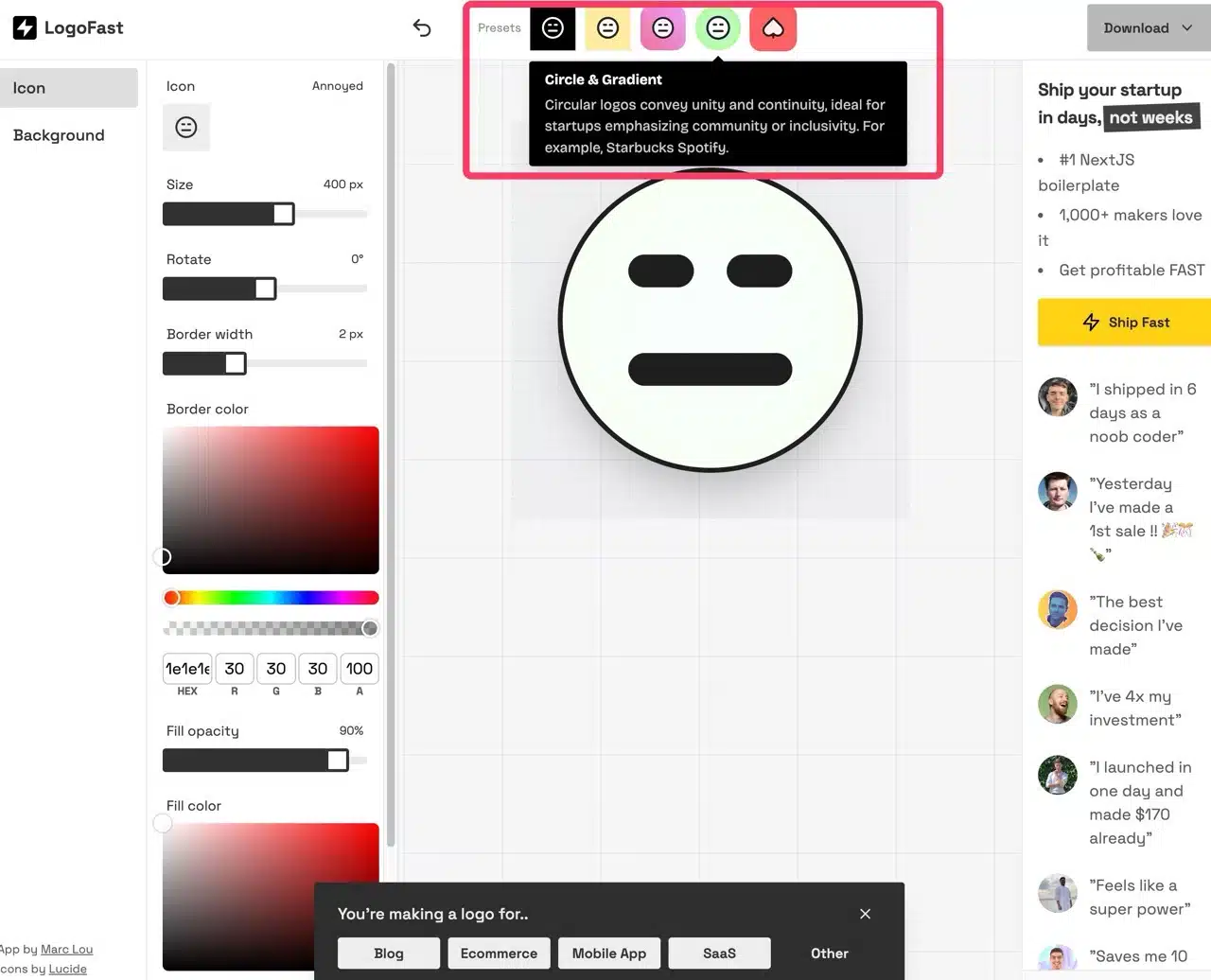
On the far right is an AI tool. Click it, enter your company or industry description, and the AI will quickly generate three viable results. Note that there's a limit on how many times you can generate designs. Generating too many in a short period may temporarily disable the feature.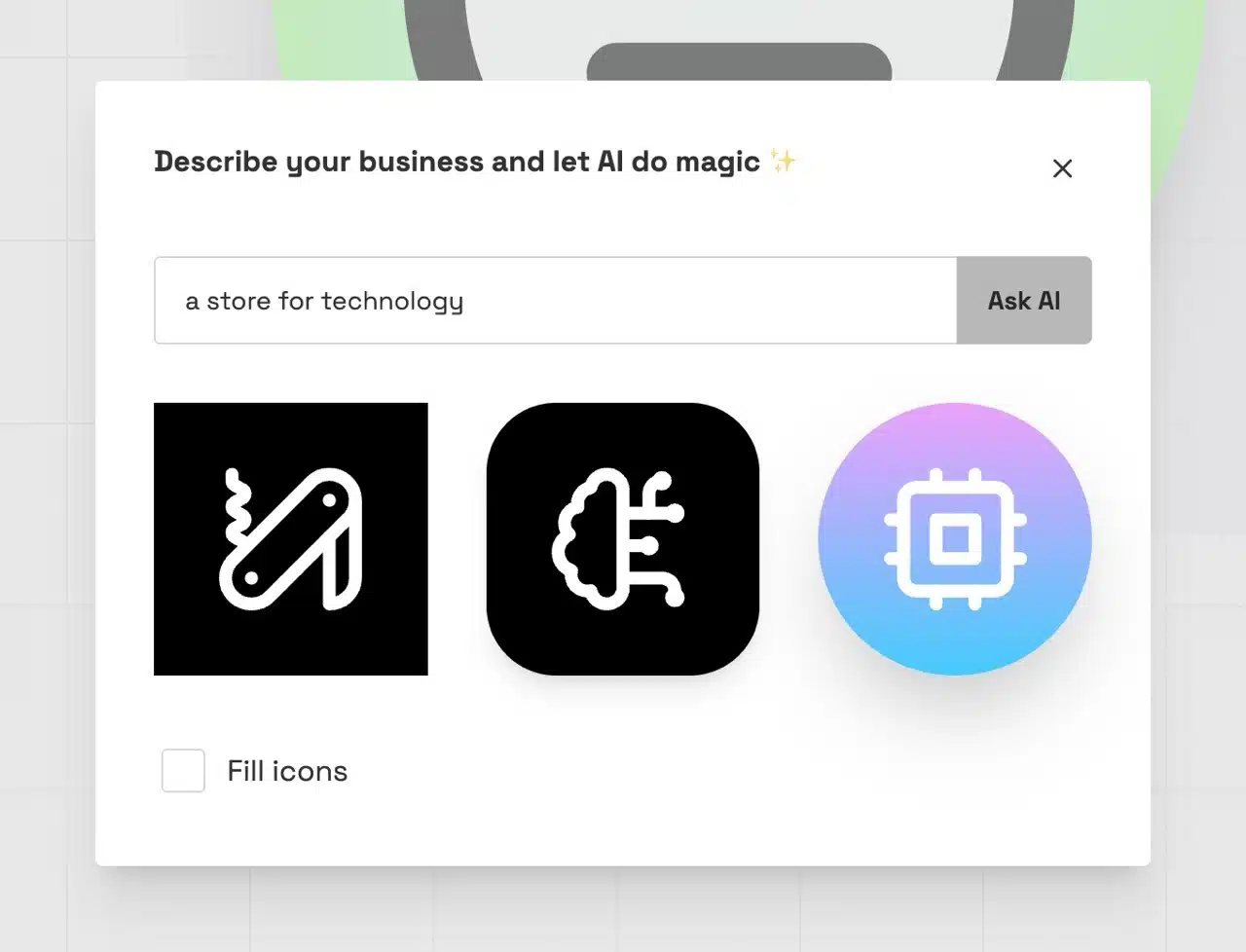
STEP 3
Use the options on the left side of the editor to adjust icon size, rotation angle, border width, border color, transparency, and fill color. All edits appear instantly in the preview on the right. If you're not satisfied, simply click “Undo” at the top to reverse the changes.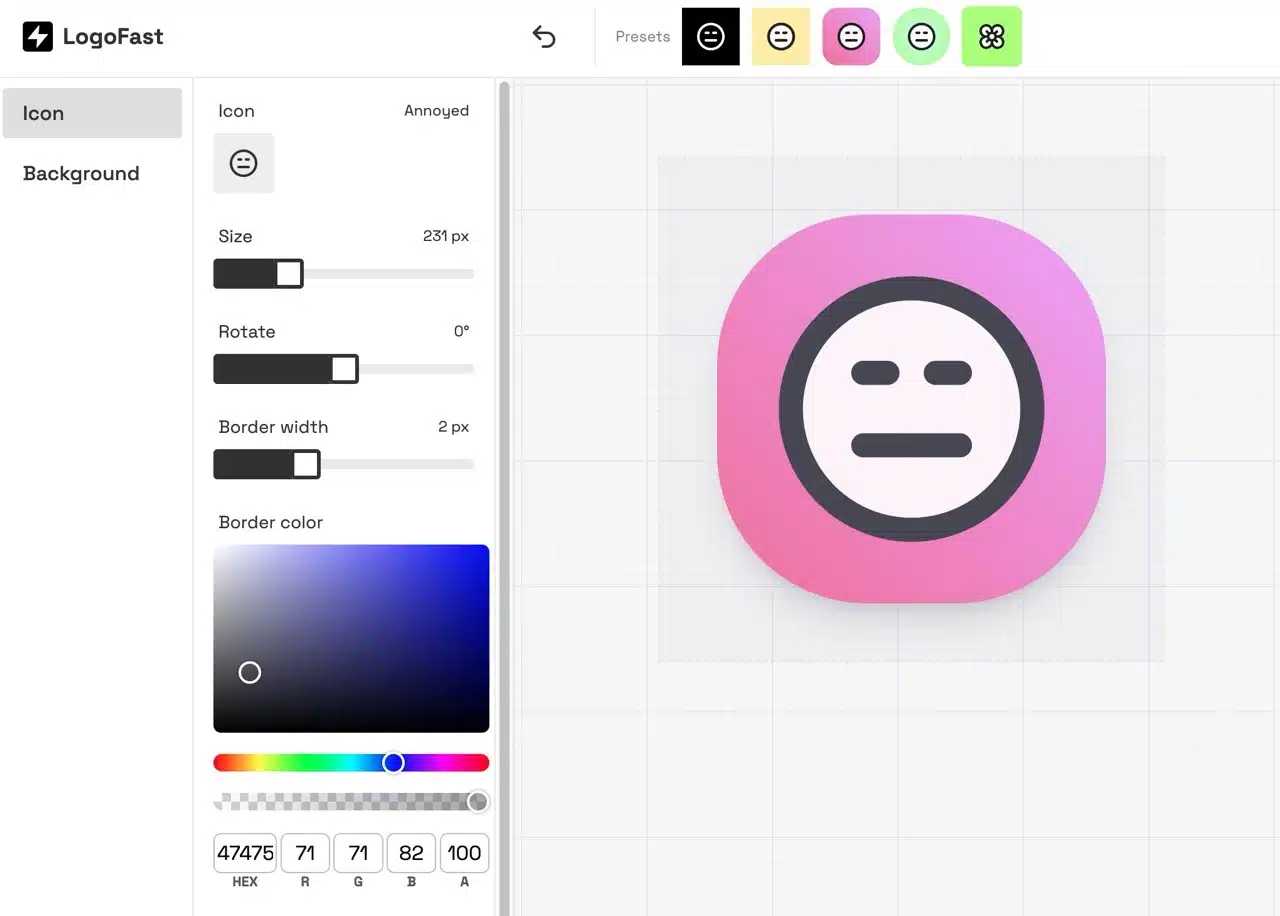
Clicking “Background” in the top-left corner provides additional logo background adjustments, such as rounded corners, fill space, shadows, and gradient colors. You can also set gradient direction and angle. The tool offers several pre-set color options; clicking one quickly applies it to the editor.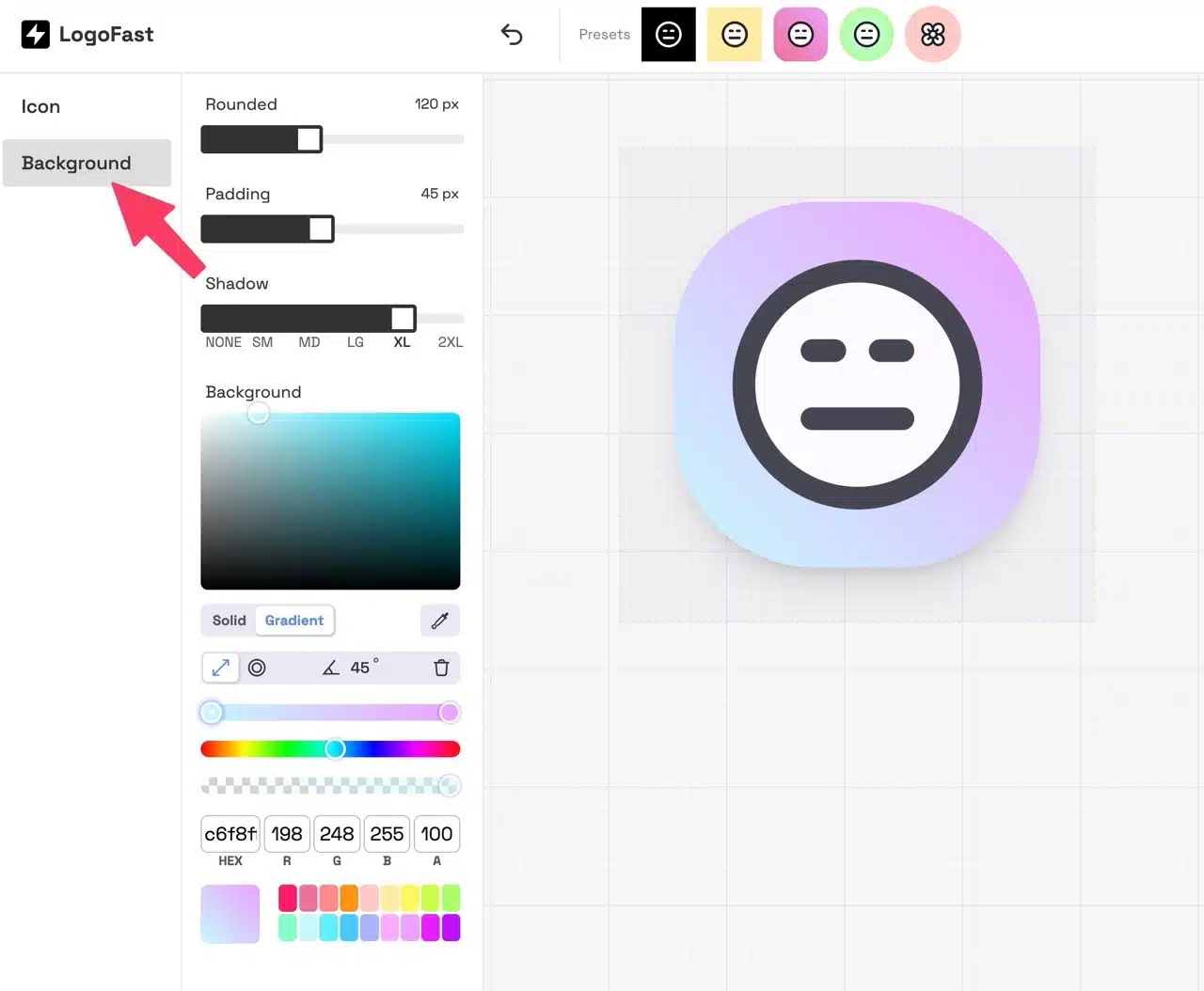
STEP 4
Finally, select “Download” in the top-right corner to save your logo in PNG or SVG format.