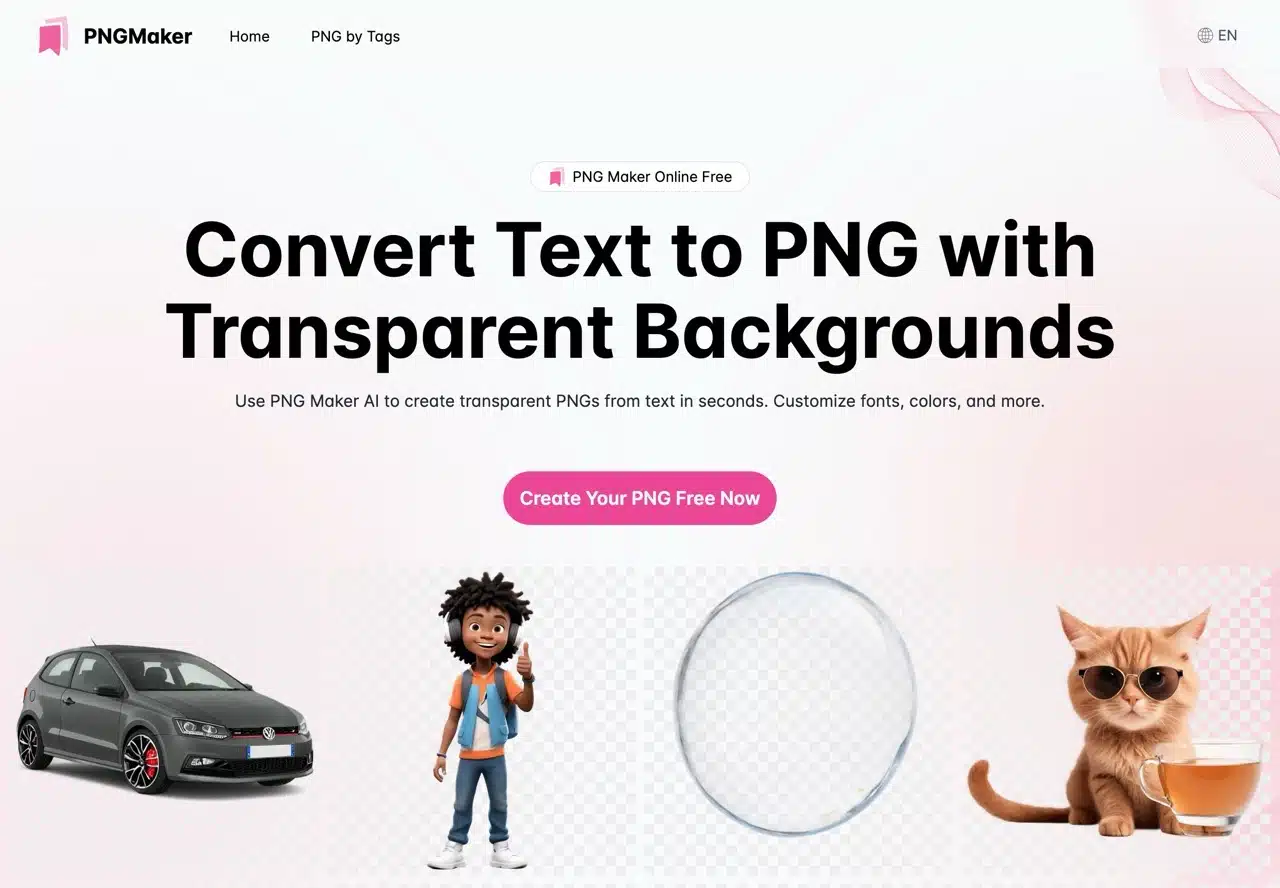
PNG images with transparent backgrounds are frequently used across various scenarios. They integrate seamlessly into designs, creating a natural look without any jarring elements. I've previously introduced numerous websites offering transparent graphic assets, which are straightforward to use—simply browse specific categories, tags, or search keywords to find relevant materials. If needed, you can also use online background removal tools to create them yourself. Simply upload your image, and the service will automatically detect the foreground and background, remove the background, and add a transparent layer to achieve the PNG transparency effect.
This article introduces “PNG Maker,” a unique service that uses AI technology to rapidly convert user-provided text descriptions into transparent background PNG images in just seconds! You can customize the text, colors, or shapes within the image by adjusting the prompt settings. All generated illustrations are free to download and use for personal or commercial purposes.
PNG Maker AI offers numerous advantages: no registration is required, images generate quickly with high accuracy, and if you lack inspiration, the site provides a “PNG by Tags” collection page. This page lists transparent images generated by other users by tag, allowing direct download, use, or copying of prompts for creating your own images—extremely convenient. Another benefit is that PNG Maker generates AI-created assets. Compared to free stock image libraries, the images it produces are more unique and less likely to duplicate content found on other websites. Traditionally, stock image sites mainly offer pre-made images that cannot be customized in detail. PNG Maker uses AI to tailor images specifically to user needs, better meeting diverse scenarios.
Tutorial
STEP
Upon entering the PNG Maker website, you'll see AI-generated transparent images on the homepage. We recommend first clicking the top menu “PNG by Tags” to find tag categories that interest you.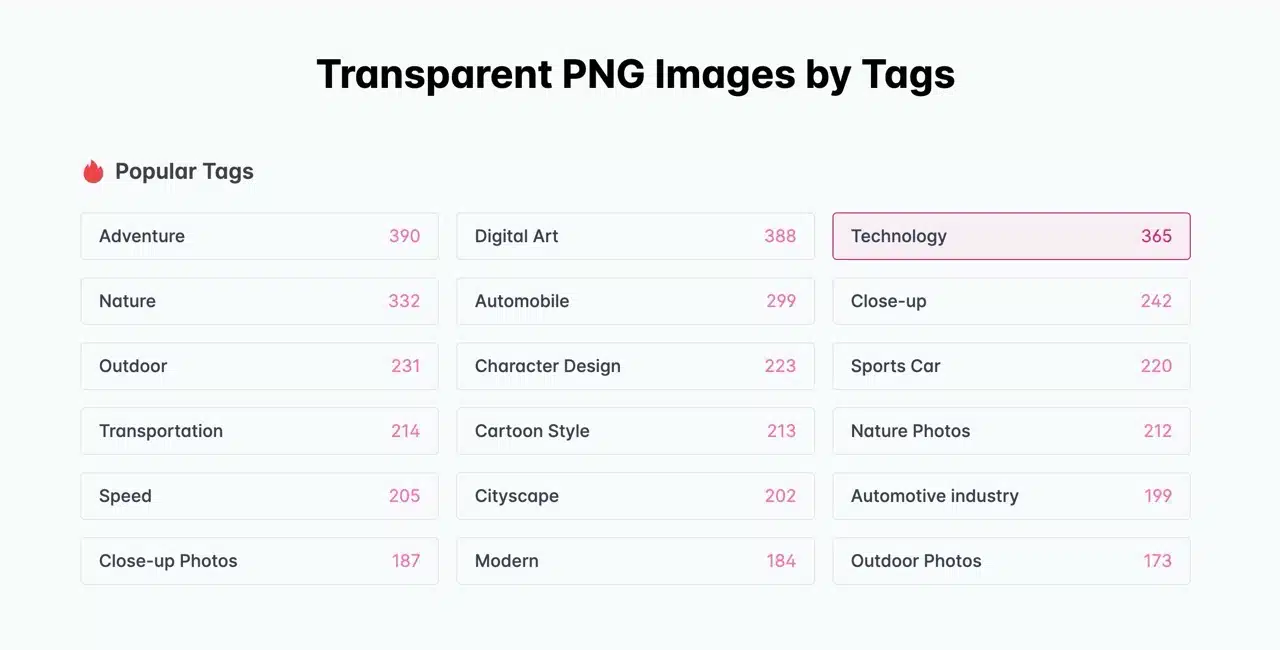 This allows you to discover inspiration from images created by others. When you open any PNG image, you'll see the prompt on the right. You can copy it, edit it yourself, and then use PNG Maker to generate a new image. Of course, you can also click “Download” to save it directly or open it in an editor.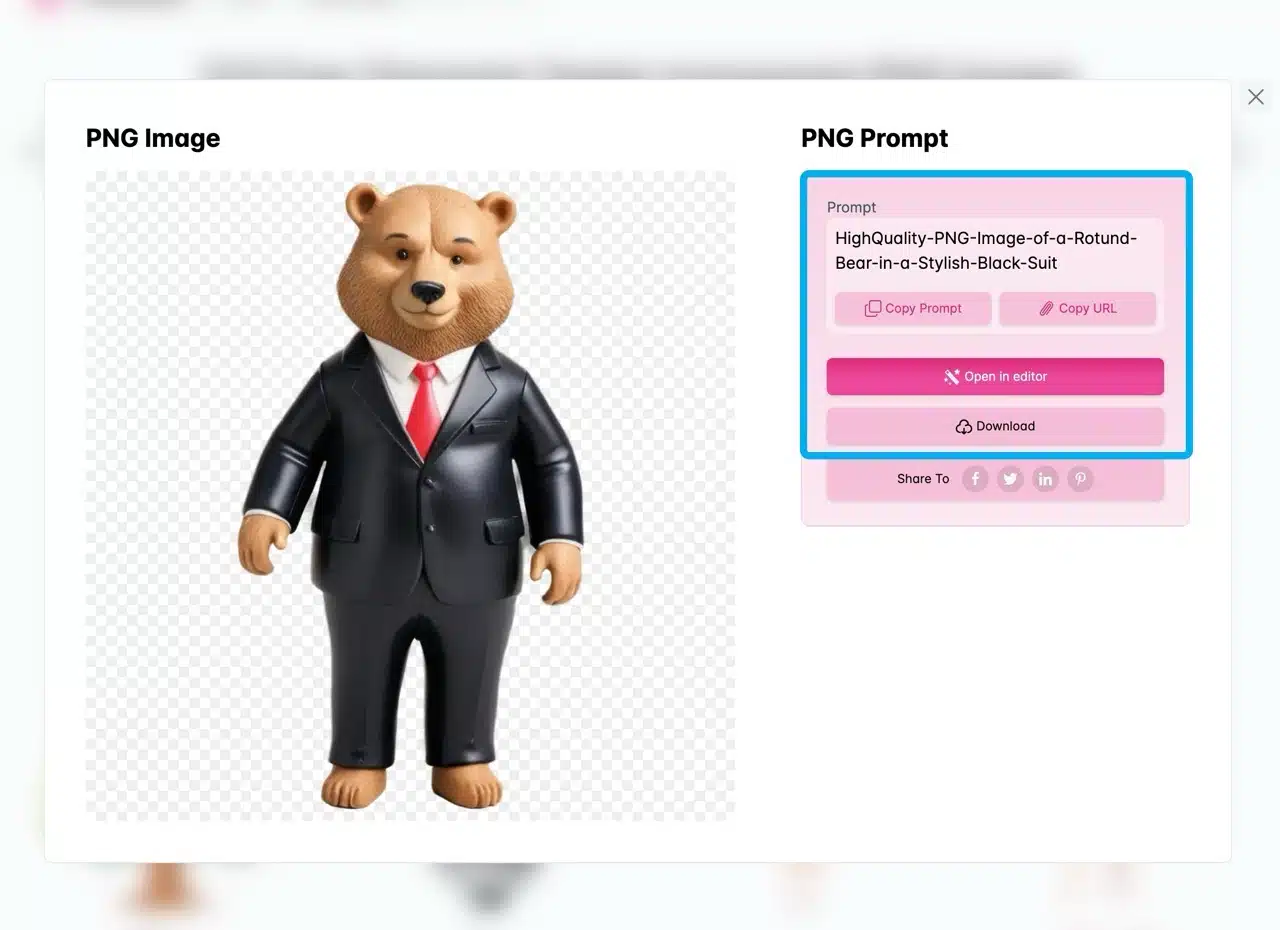
STEP 2
Clicking “Create Your PNG Free Now” on the homepage takes you to the PNGMaker image generator. 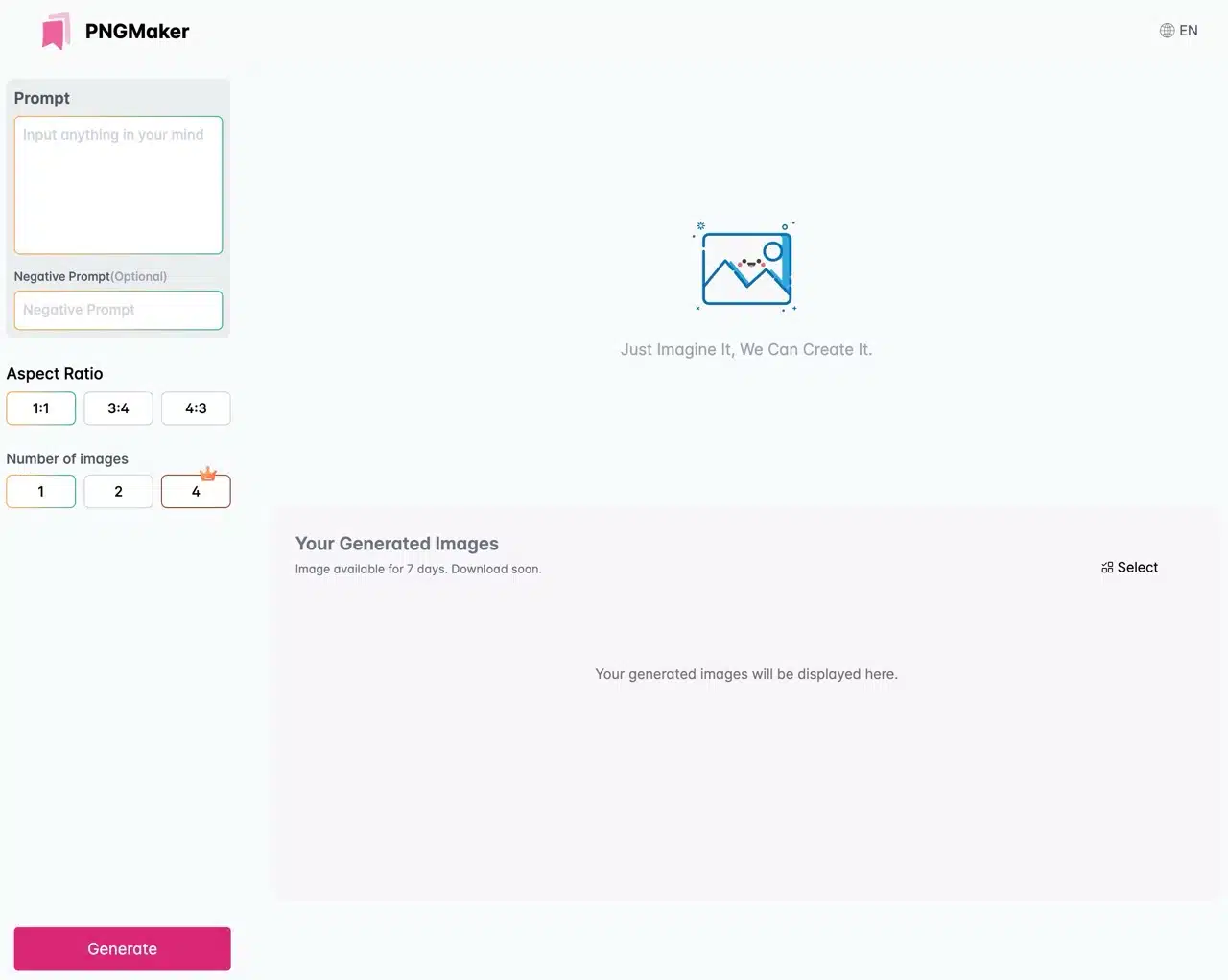 Enter your prompt (in English) in the top-left field and click “Generate.” Images appear within seconds. The generator also offers a negative prompt option, though this field is optional.
Before generating images, preset the aspect ratio with options of 1:1, 3:4, or 4:3. You can choose to generate 1-2 images per session. Generating two images allows comparison to find the most satisfactory option. Generating four images at once requires a paid subscription.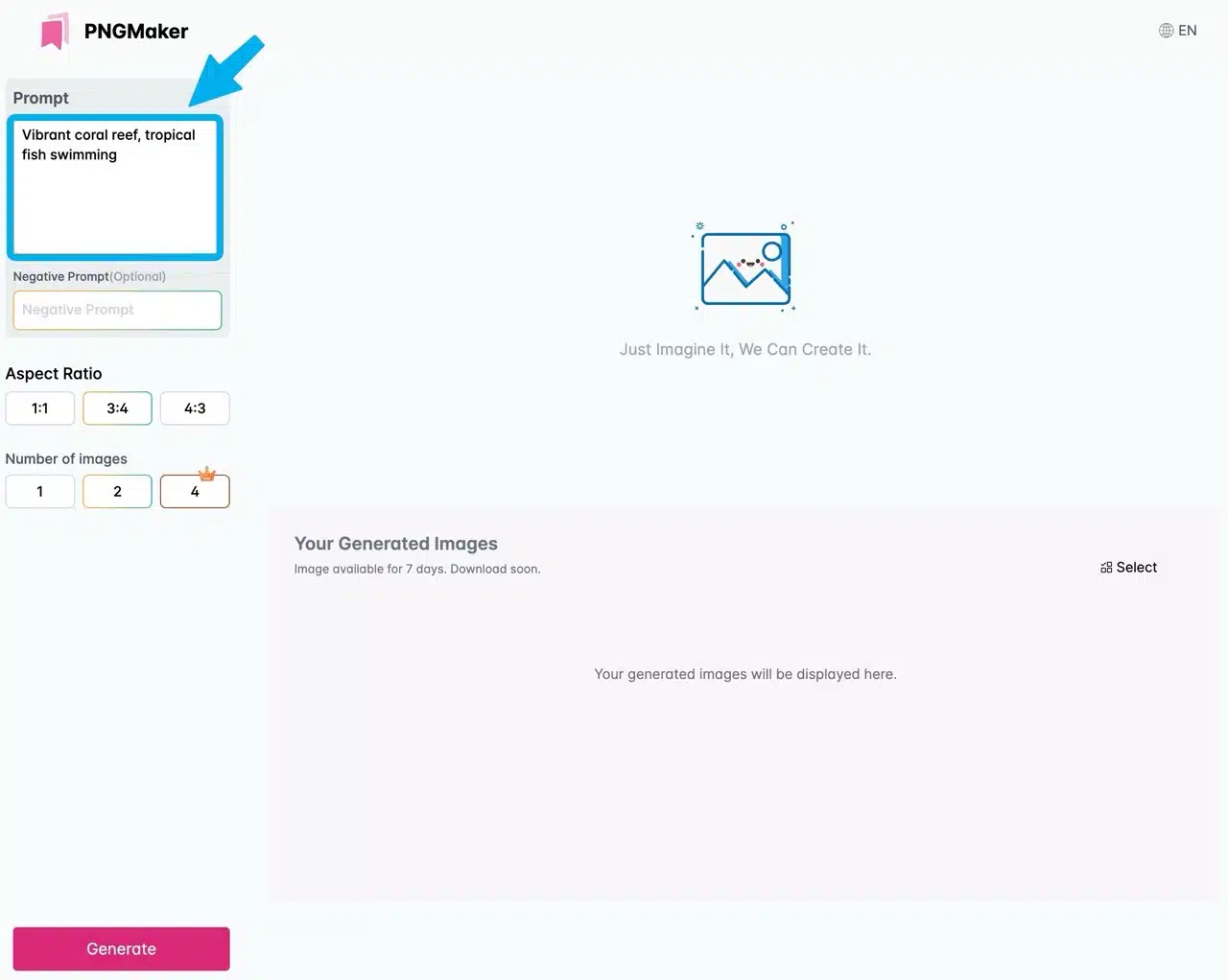
STEP 3
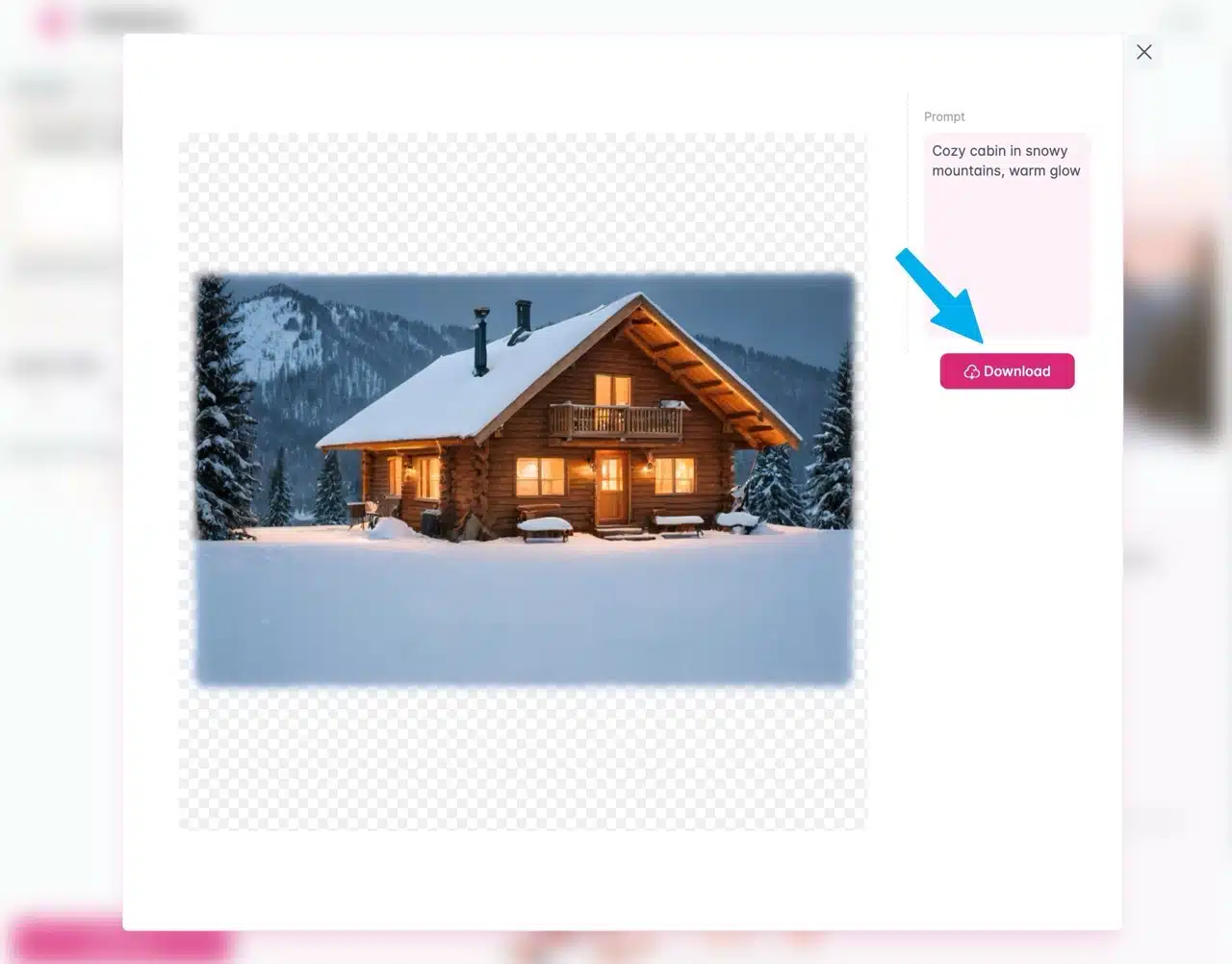
The generated PNG images with transparent backgrounds will appear on the right. Clicking one will open a larger preview.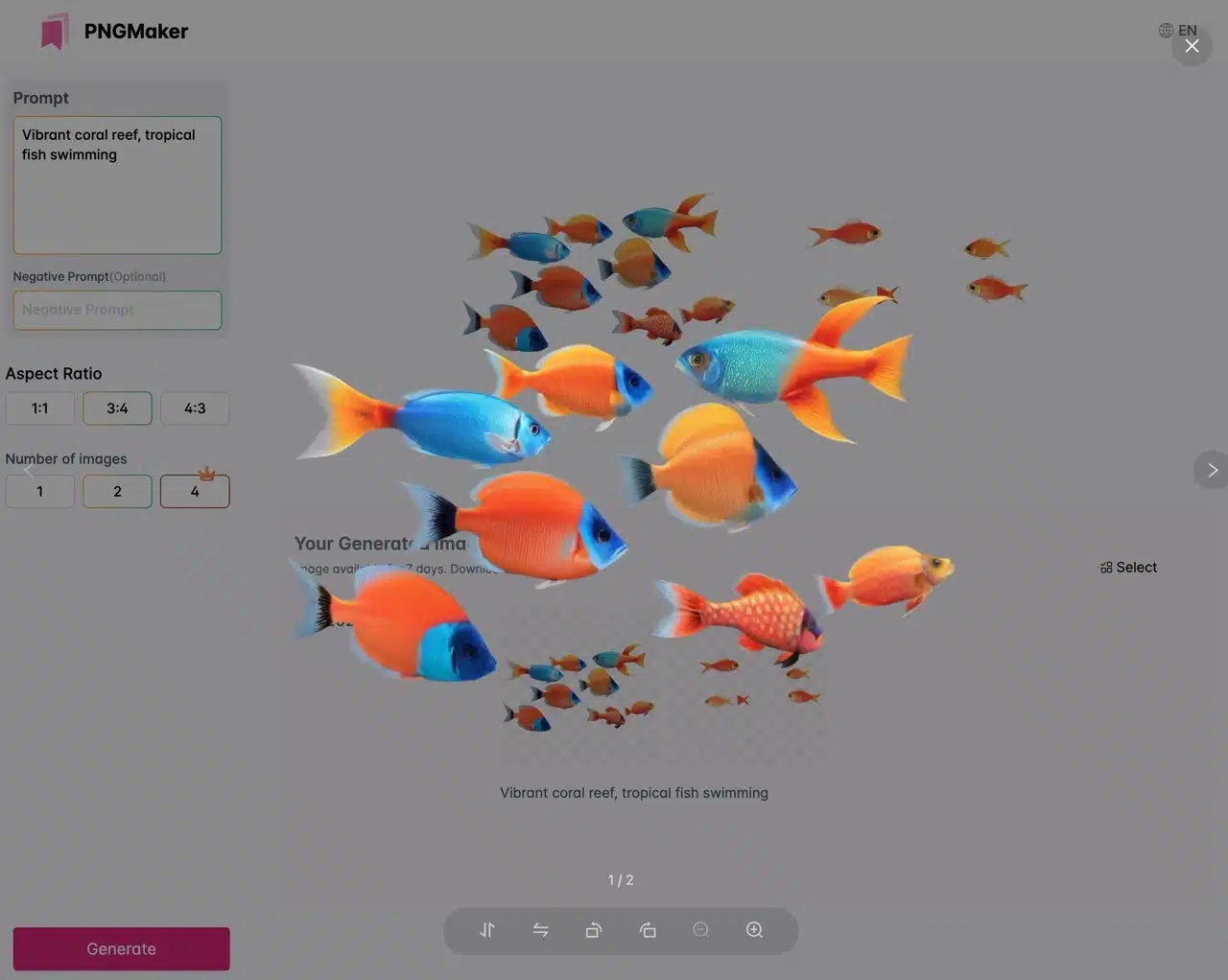
STEP 4
Note that generated images are only saved for seven days. After this period, they expire and must be regenerated.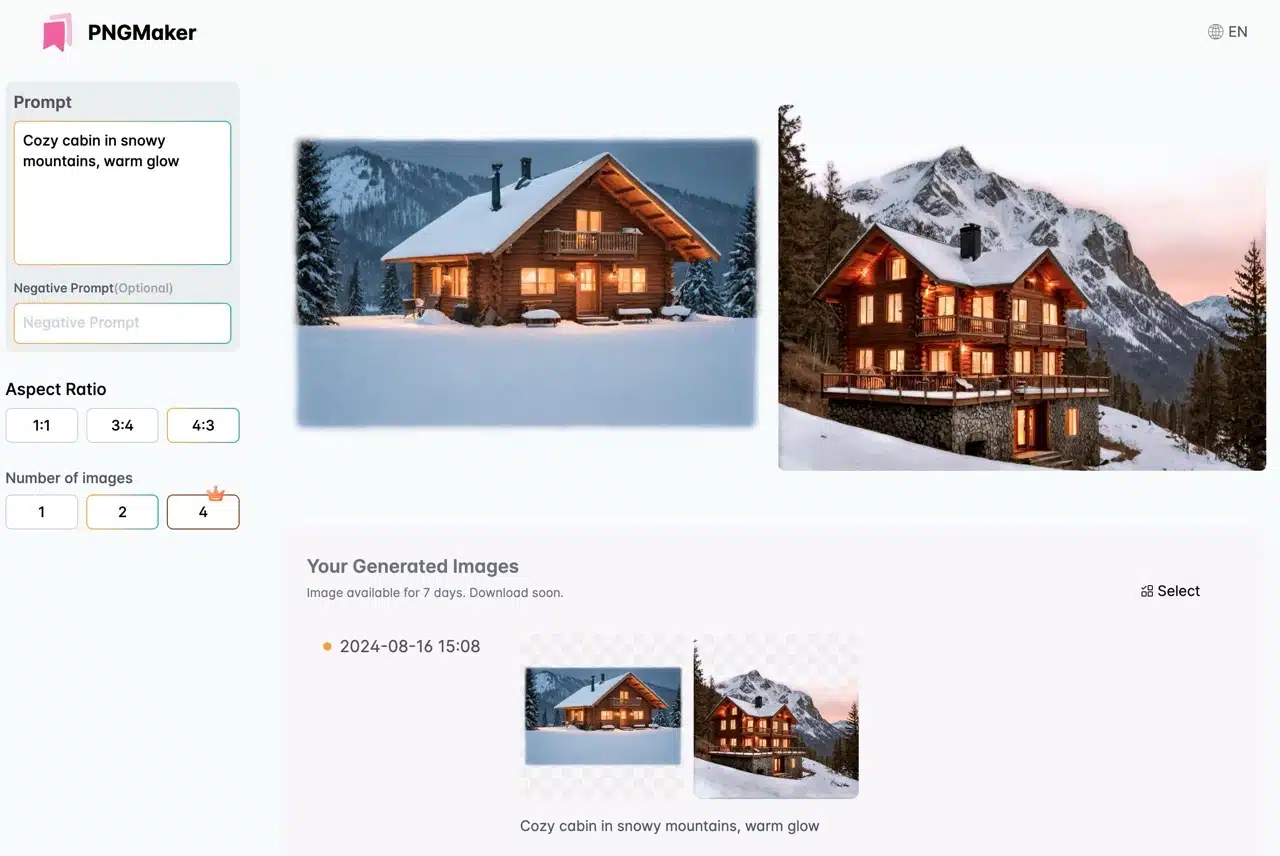
Click an image to open its larger preview. From the right side, select “Download” to save the image in PNG format.