Using AI technology to quickly separate vocals from music tracks and extract instrumentals is now remarkably straightforward, achievable in a short time with excellent results! Previously, I compiled a list titled “Free Vocal Removal Tools: Services for Converting Music to Instrumental Tracks and Extracting Separate Instrument Sounds,” which introduced several similar online tools. After users upload audio files, these tools swiftly separate different track contents. Beyond basic vocal and instrumental tracks, some can further dissect individual instruments.
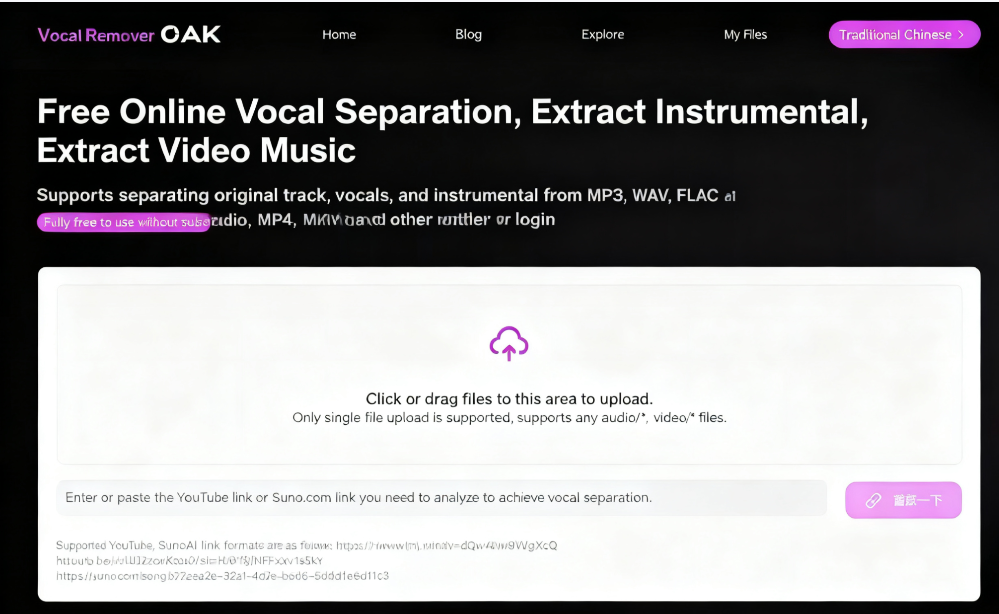
This article introduces “Vocal Remover Oak,” a free online tool for vocal separation and backing track conversion. It supports MP3, WAV, FLAC audio files, as well as MP4 and MKV video formats. What sets it apart from other services is its ability to extract audio from videos and convert it into separate backing tracks and vocal tracks. The entire process takes just seconds—fast and precise. Even better, users can enjoy free access without needing to register or log in to an account (And of course, no app downloads are required). APP Recommendation
Additionally, Vocal Remover Oak supports directly pasting YouTube or Suno.com URLs to remove vocals from online videos. It swiftly separates videos into three parts: original song, vocals, and instrumental track. Thus, it also functions perfectly as a video-to-MP3 download tool. For more similar services, refer to “Recommended Free Online YouTube to MP3 Tools and Download Guide.”
Test Vocal Separation Example
Upon opening Vocal Remover Oak, the interface defaults to Traditional Chinese. Switch languages via the top-right corner. Scroll down to find the “Vocal Separation Example” section—click play here to preview the effect.
After uploading and automatic processing, each music or video file is split into three parts: original audio, vocal track, and background music.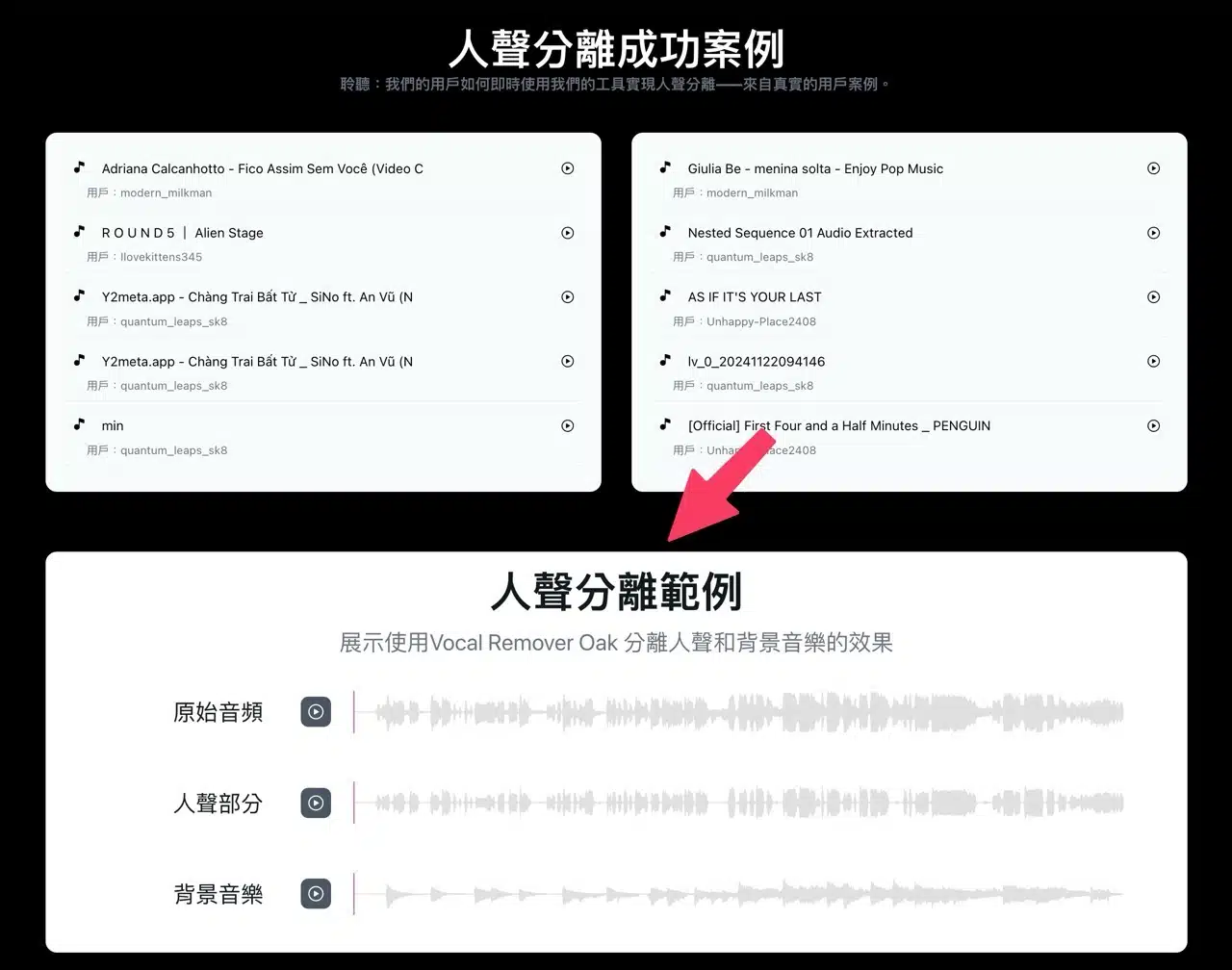
User Guide
1. Upload music or video. Portable speaker
Drag files from the top of Vocal Remover Oak into the upload area. Below, you can paste URLs to quickly convert to instrumental tracks or download audio files. Supported platforms include YouTube and Suno.com links (I tested this and it works correctly; occasionally a black screen may appear, but simply try again).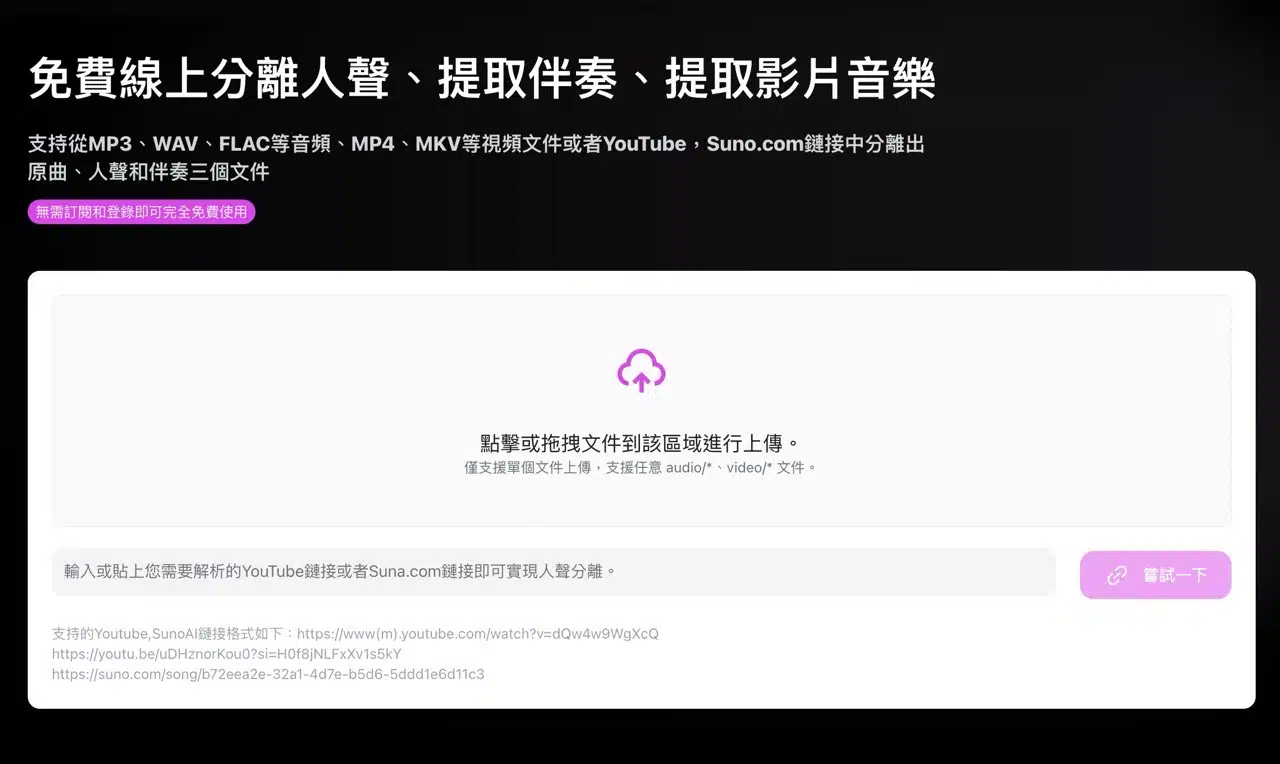 After uploading, allow a short processing queue time. The entire process typically completes within seconds.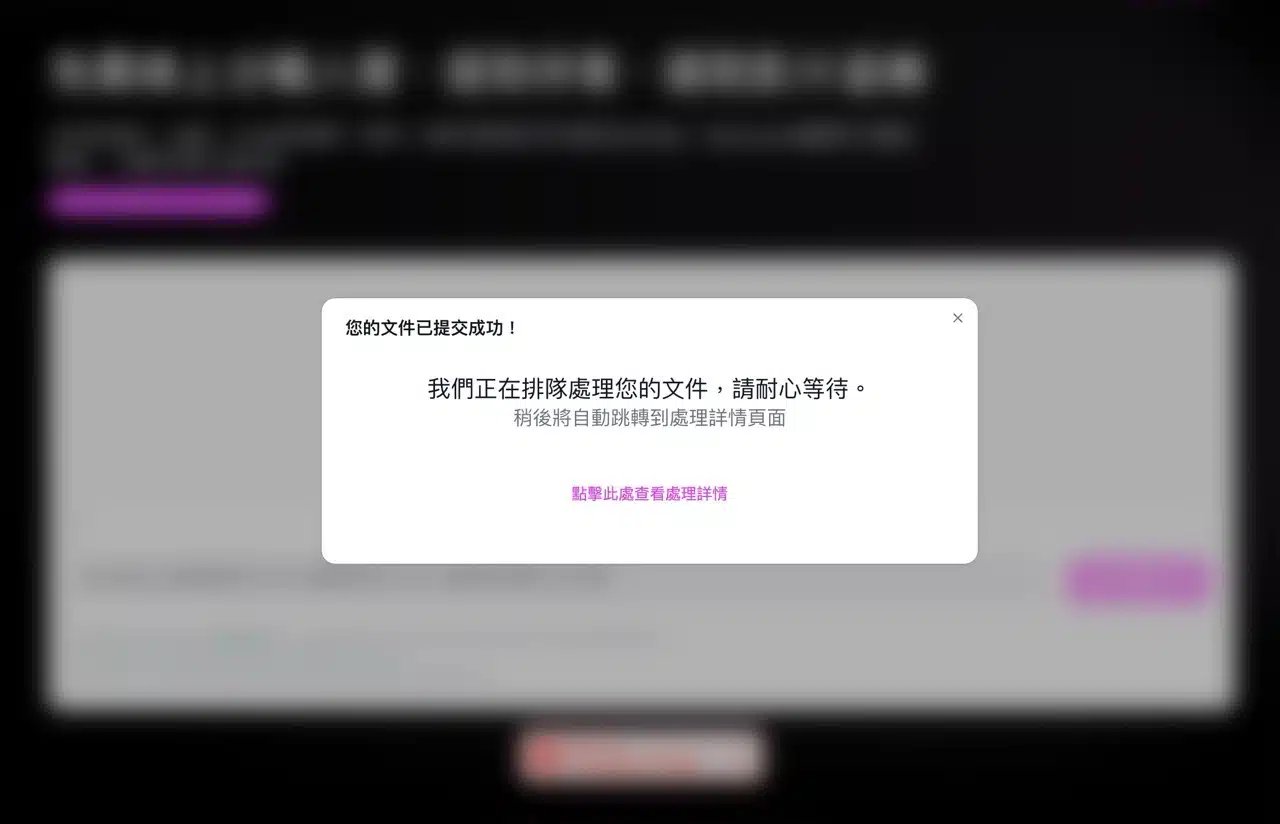
2. Preview the converted track online.
The results page displays three players: top to bottom, Original Music, Vocals, and Instrumental. If you uploaded an audio file, the top player will show the original music.
If the upload is a video format or a video extracted from YouTube/Suno.com converted to backing track, the top player will offer the original music for download—essentially converting video to MP3.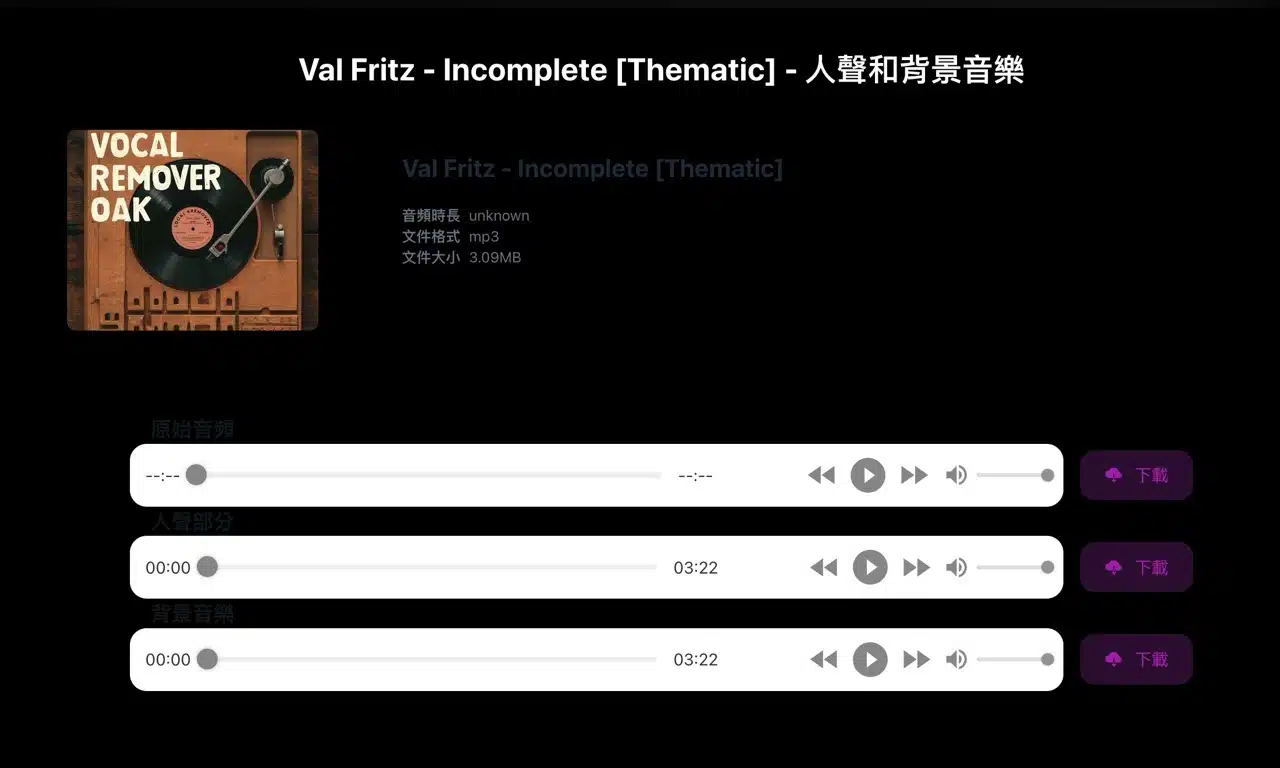
Clicking any player previews the result online. The bottom two players display vocals and background music (backing track) respectively. Portable Speaker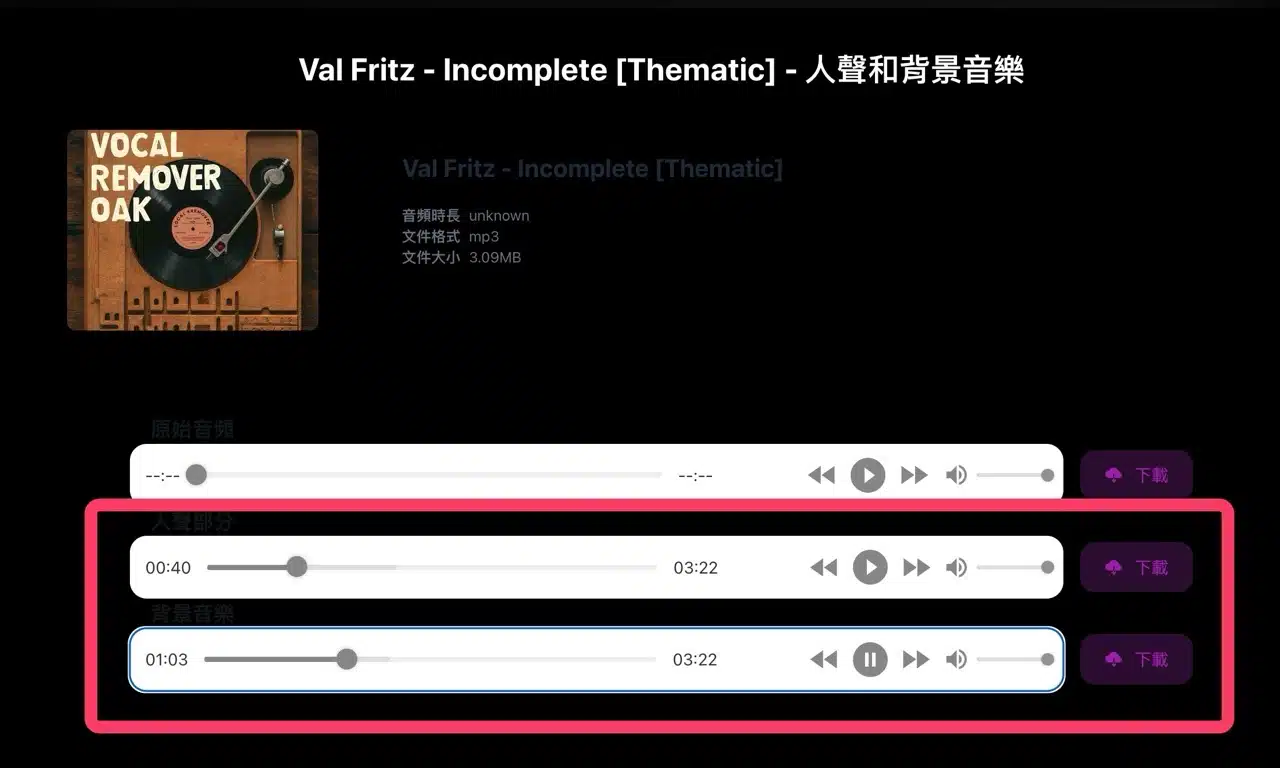
3. Download the backing track or vocal MP3 file.
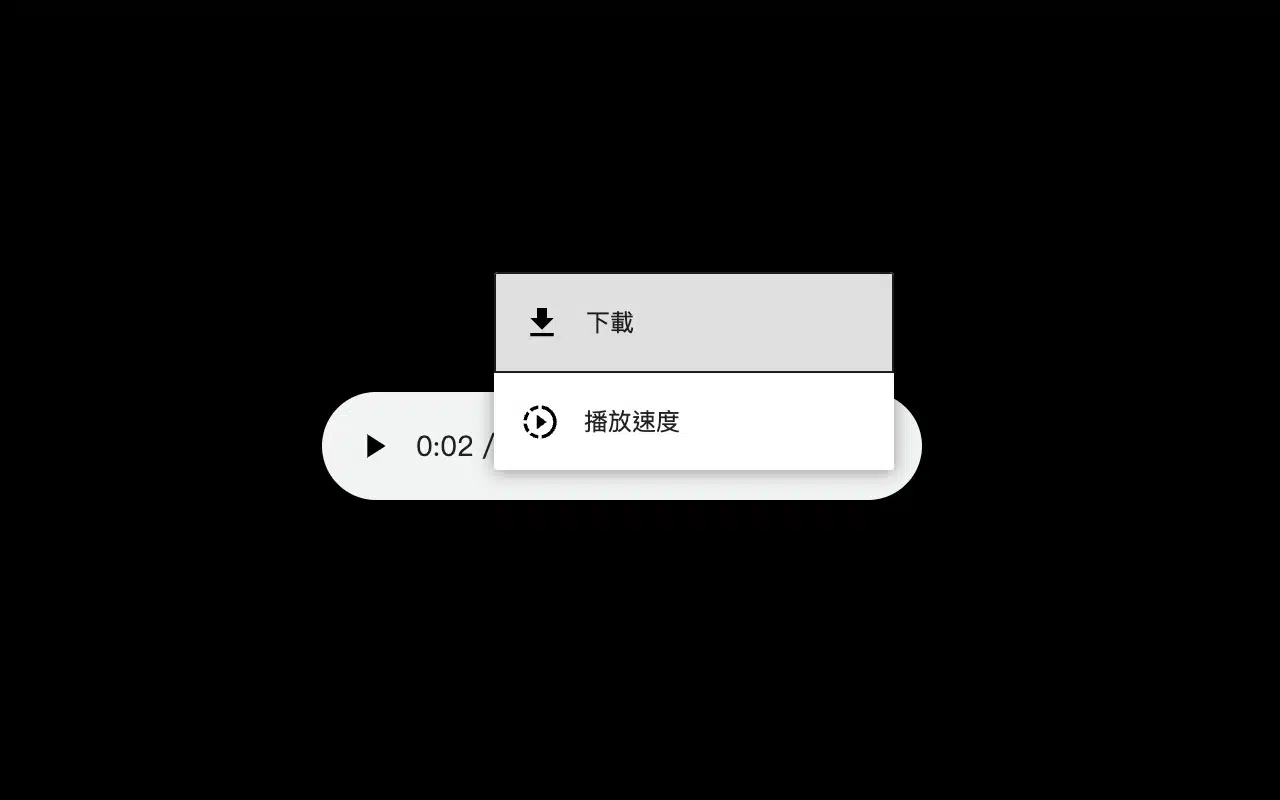
Click the “Download” button to save the audio file as an MP3. 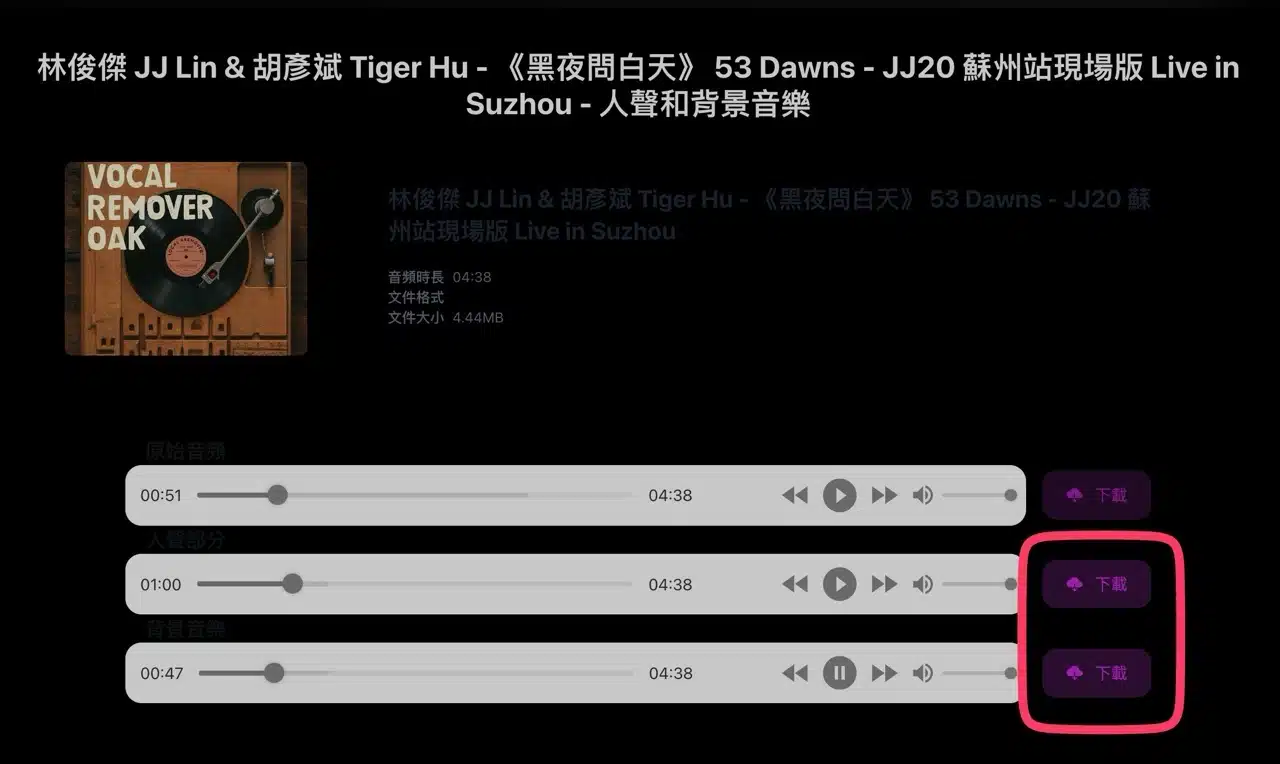 If the player opens directly in your browser, click the menu on the right and select “Download” to obtain the file.