ColorMuse is an AI photo editing service designed for simplicity and ease of use. It offers a free trial without registration or credit card binding. When generating images, it supports Chinese and various other languages, delivering fast speeds and high accuracy! ColorMuse utilizes Gemini 2.0's native image generation capabilities. Google opened this API to developers in March this year, enabling direct integration to generate diverse images. If you're interested, give it a try.
ColorMuse converts text into images. Simply input a description of the desired photo to quickly generate content. You can also upload photos to change colors, clothing, or replicate scenes. All commands can be given in Chinese to direct the AI for editing tasks.
Currently, this service offers a free trial. A $2 monthly subscription is required to save generated images and conversation history. However, it remains usable without payment. It's likely that more restrictions will be added in the future (after all, integrating services incurs costs, and perpetual free access seems unlikely). Generated images can be saved directly by right-clicking.
User Guide
1. Start Your Free Trial
After opening the ColorMuse website, click “Start a free trial.”
2. Choose to Log In or Use Temporary Chat Mode
ColorMuse offers either persistent chat (requiring registration and login) or temporary chat. Persistent chat saves conversation history like most AI chat tools, while temporary chat requires no account registration but disappears when you leave the page or close your browser.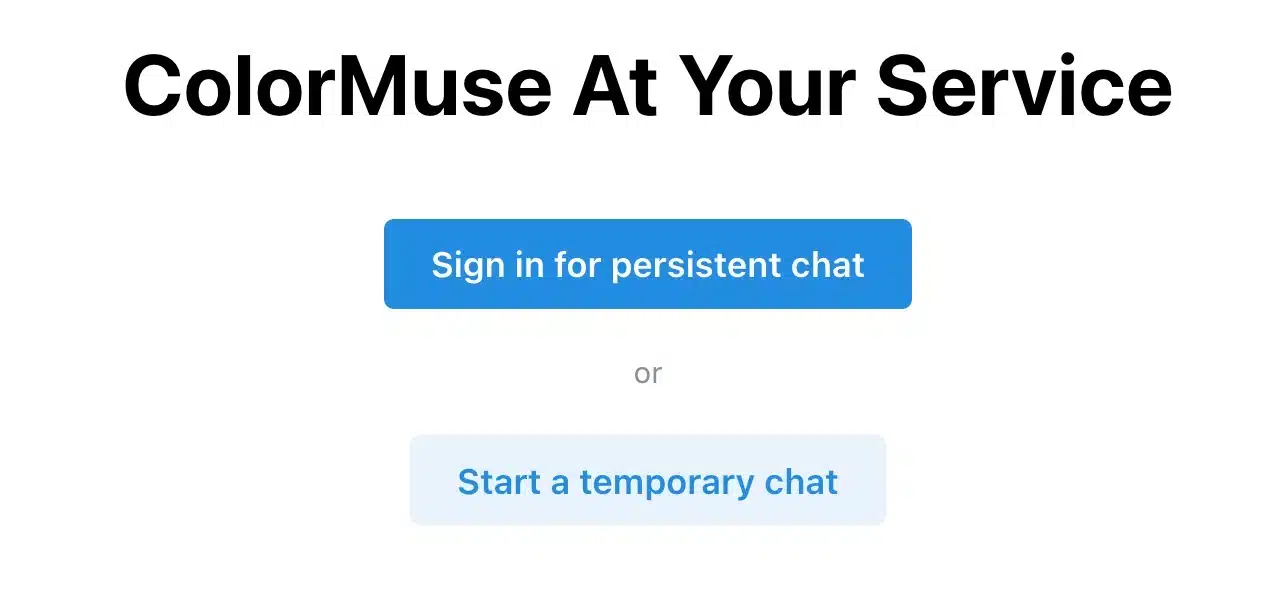
3. Enter prompts to generate images quickly
The image below was created using ColorMuse's temporary chat mode. It generates images very quickly, typically within seconds, and correctly recognizes Chinese input.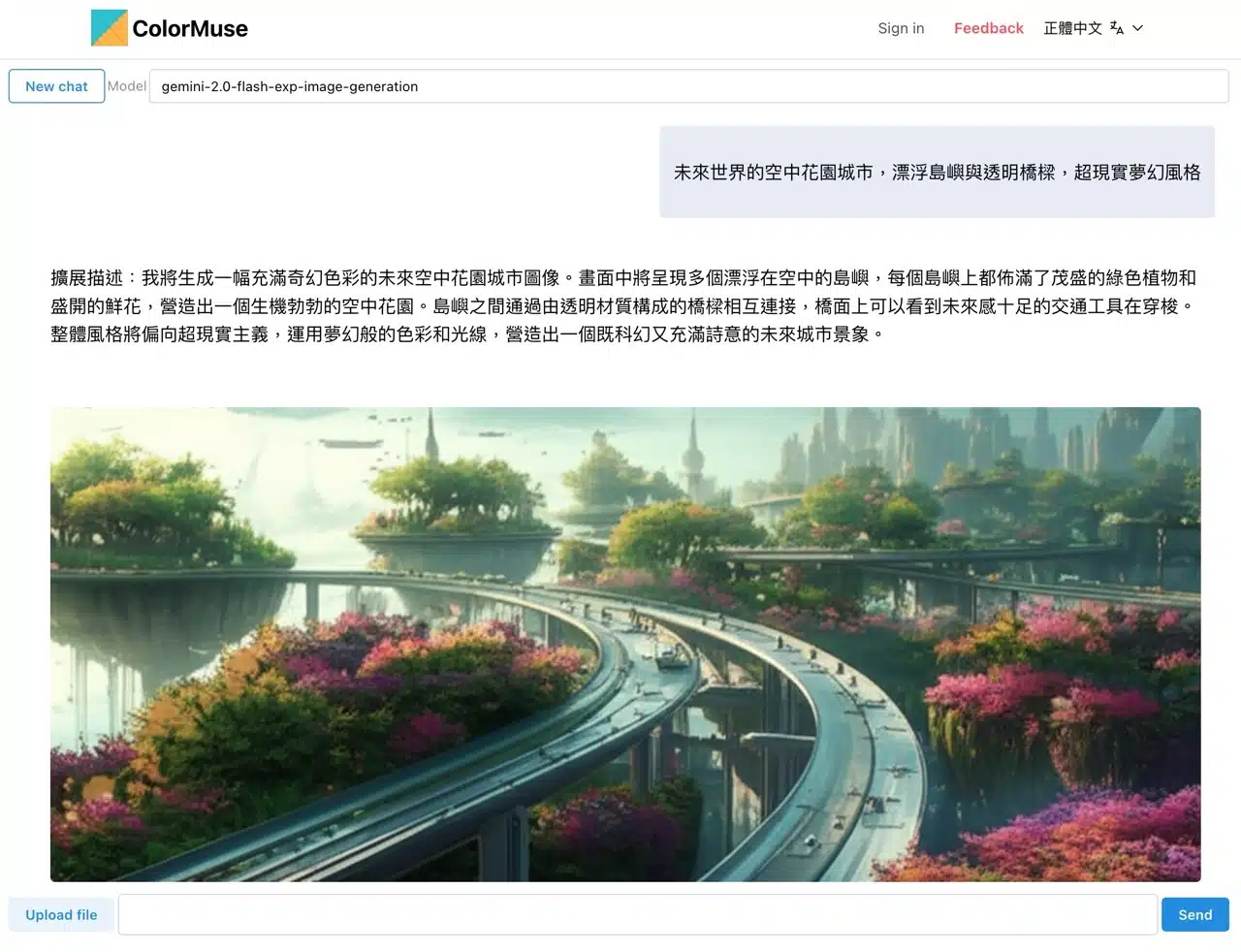
Generated images feature various styles. Adding more descriptive details and rules to your prompts allows you to create images that better match your needs. Right-click directly on the image and select “Save Image As” to download and save it.
Perhaps due to the free version limitations, ColorMuse's image resolution is relatively low, and occasional errors may occur.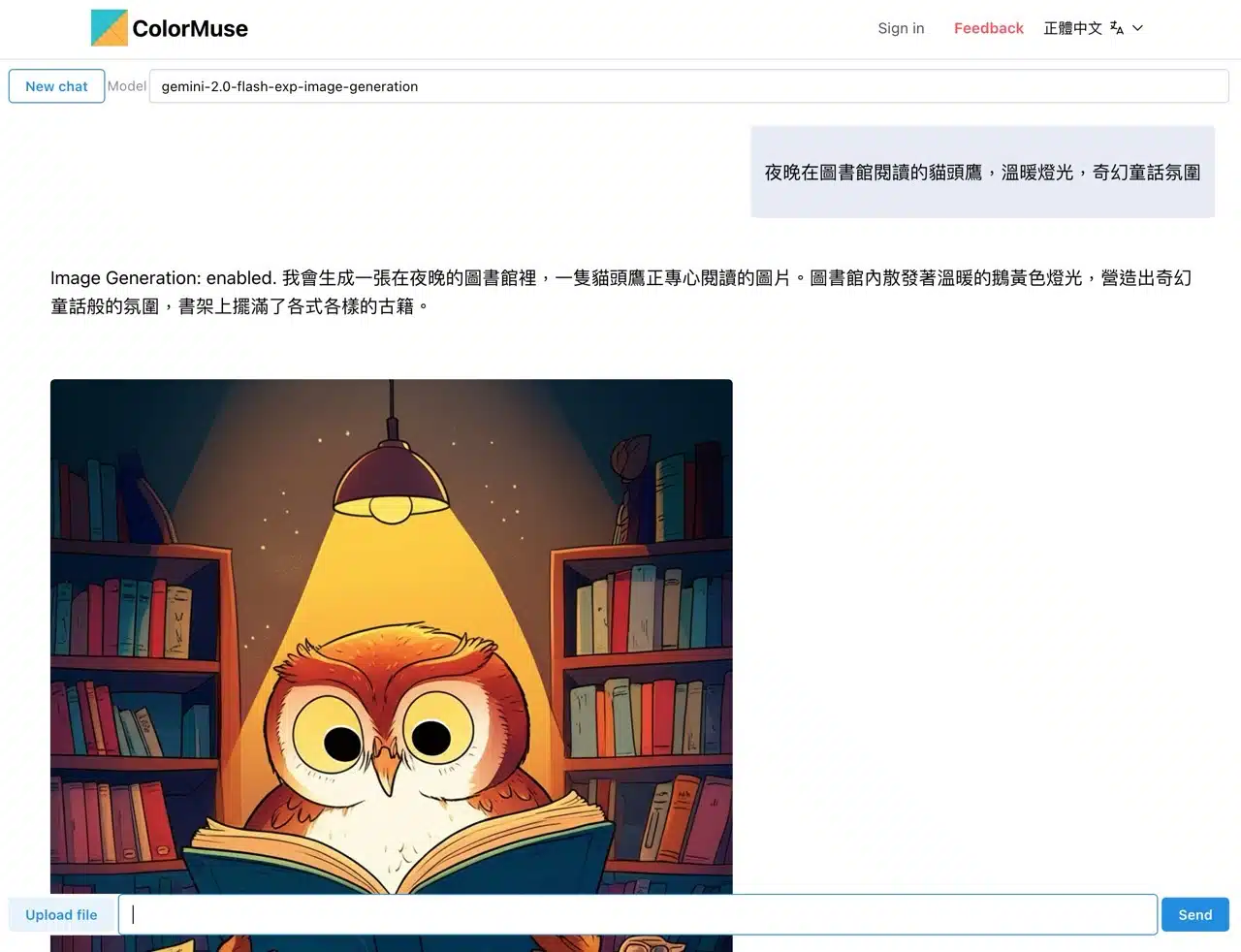
4. Upload Images for AI Editing
Click “Upload file” to select the image you wish to edit. Then input your command to send it to the AI for processing—such as color replacement, scene duplication, and more.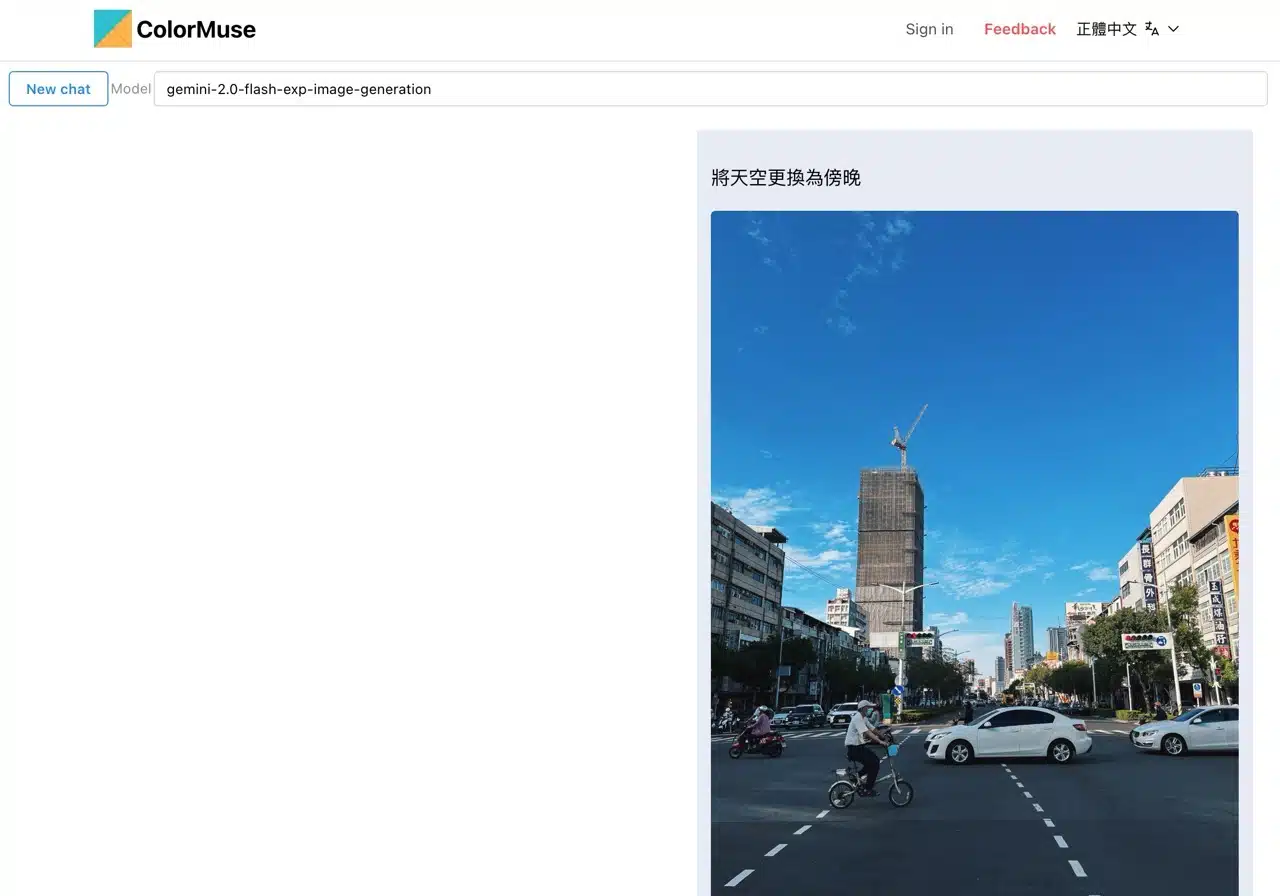
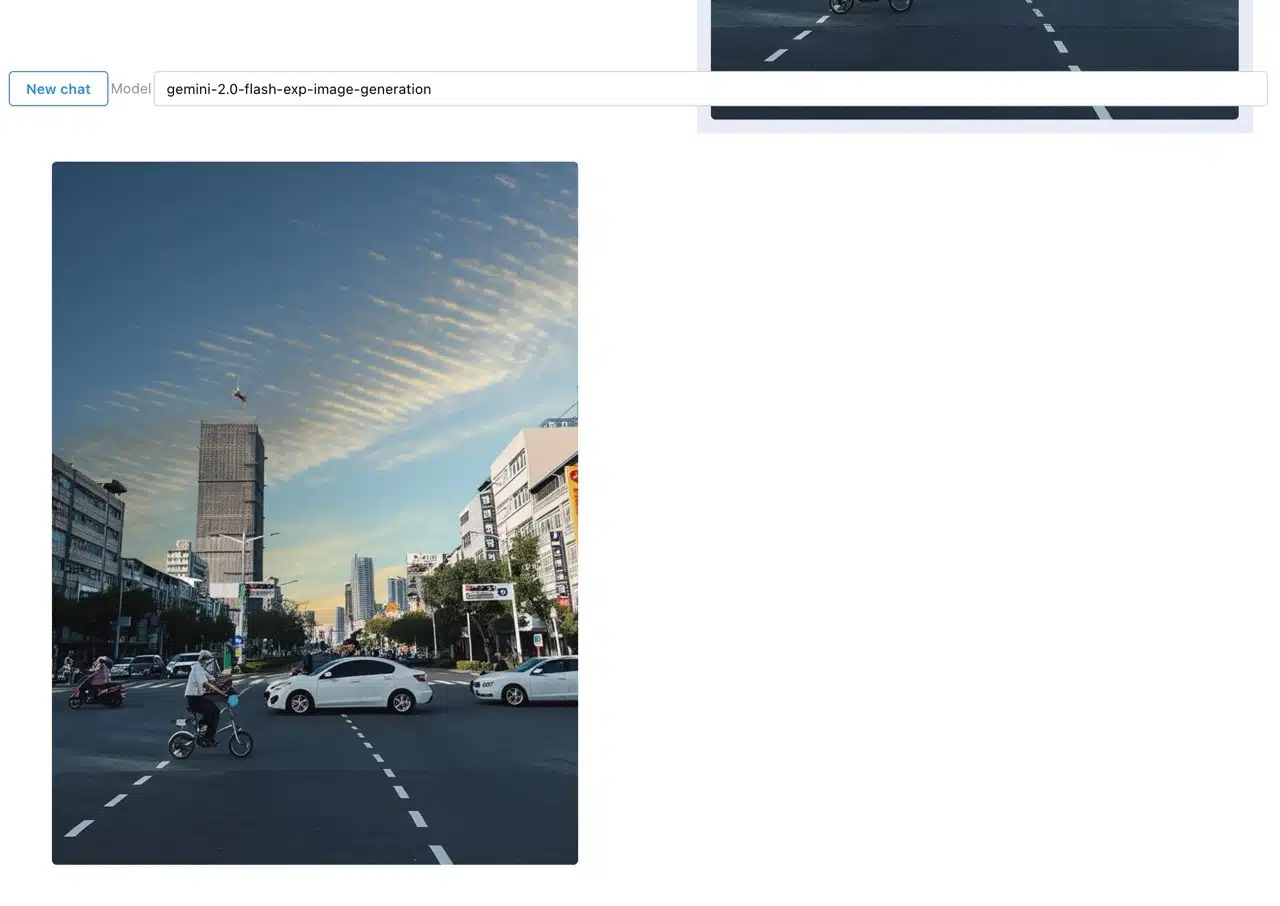
It must be said that ColorMuse is very simple to operate. More importantly, it supports Chinese prompts, allowing you to directly instruct the AI for editing without any additional settings. For instance, I uploaded a photo taken during the day and asked the AI to replace the sky with a sunset scene. It processed the image in just a few seconds.