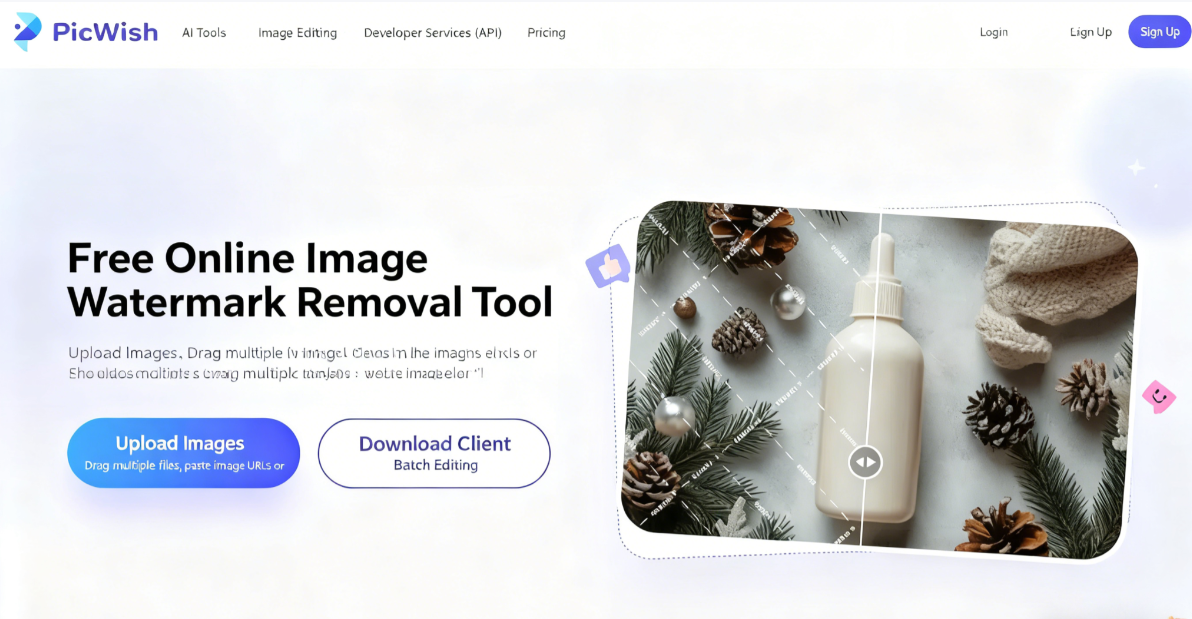
PicWish is a company renowned for its online photo background removal tool, later expanding into various image editing and AI tools (many similar service providers exist, following nearly identical development paths). For instance, lossless image enlargement is a common feature used to increase image size and resolution without distortion. If you have any image editing needs, you can explore their website—most services offer a free trial with a certain credit allowance.
This article highlights another practical feature from PicWish: the “Free Online Watermark Removal Tool.” It swiftly identifies watermark locations within photos, leveraging AI technology for rapid removal while intelligently restoring colors to ensure the processed image appears seamless!
Similar to the watermark removal feature I previously recommended, simply upload your image and it completes in seconds. No technical expertise or additional software installation is required—complex image processing is accomplished with a single click.
PicWish Watermark Removal Tool supports JPG, PNG, WEPB, JFIF, and other formats. Its editing mode offers both AI-powered automatic processing and manual editing options for greater flexibility. The free plan provides five high-resolution photo downloads daily, making it highly user-friendly for occasional or light users.
PicWish Watermark Removal Tool Tutorial
1. Upload Images and Select Mode
After opening the PicWish online watermark removal tool, click “Upload Image” to select the image file you want to edit, or simply drag and drop the image onto the website. Batch processing is supported, allowing you to upload multiple photos at once.
You'll then see two processing modes: AI Text Removal and Manual Removal. Click “Start Processing” to automatically detect watermarks or text using AI technology.
2. Manually Fine-Tune for Optimal Results
If the automatic processing isn't satisfactory, switch to “Manual Removal” mode from the top-left corner. Manually mark any watermarks that weren't fully removed, then click “Process” again to adjust details.
3. Log in and complete processing
During operation, PicWish will prompt you to log in or register. You can sign in using your Google, Facebook, or Apple account. After logging in, the PicWish watermark removal tool will begin processing your images.
4. Flexibly use editing tools
Basic manual removal tools include brush, selection, lasso, and eraser. You can adjust brush size. Essentially, mark the watermark area (no need for precision—just mark it). For example, the arrow in the image below indicates the marked area, which will appear in a different color.
Quick tools include text recognition and object detection, though I encountered error messages during testing.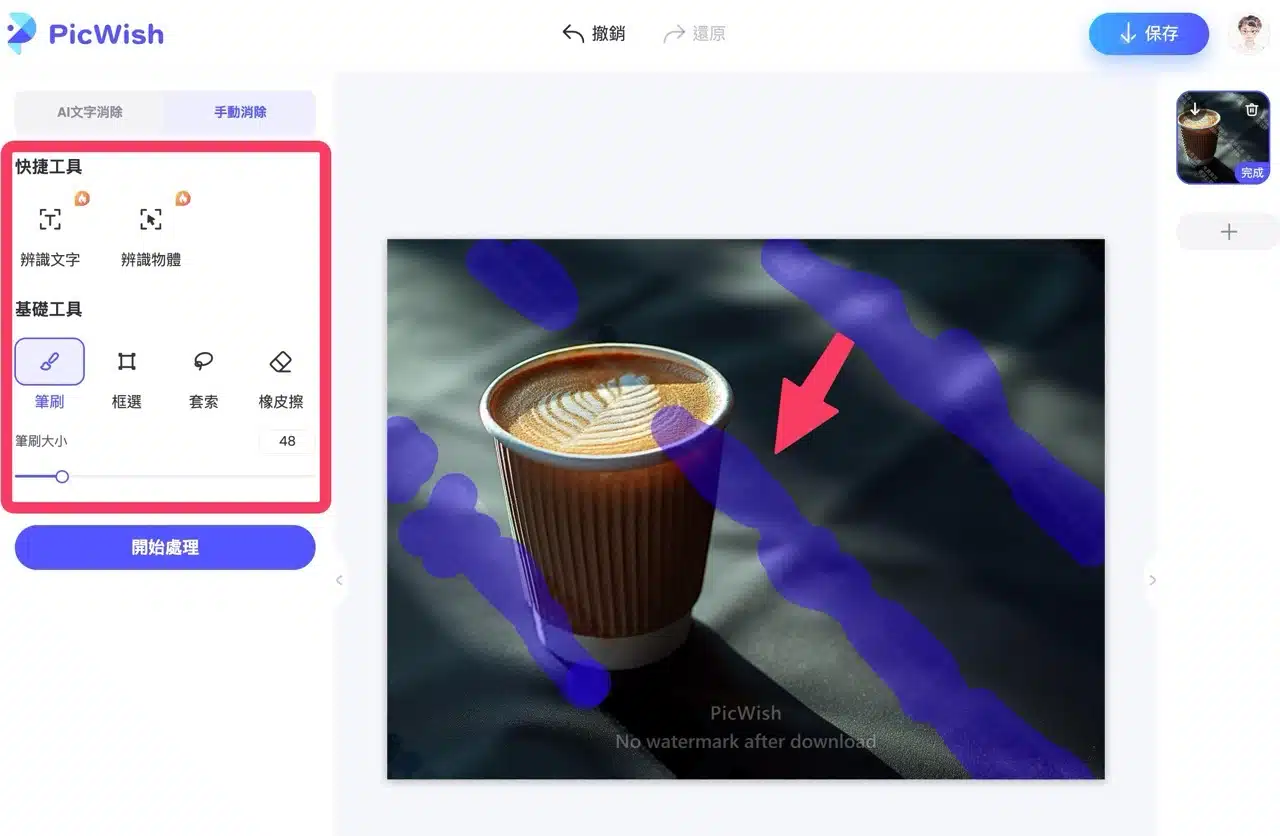
Clicking “Process” reanalyzes and identifies the photo, removing potential watermark areas. If unsatisfied with results, click “Undo” at the top to revert to the previous step.
The PicWish watermark below the preview image will disappear after downloading the processed photo.
5. Save and Download the Processed Image
Finally, click “Save” in the top-right corner to download the image in JPG or PNG format. The free plan offers a daily quota of 5 high-resolution images. If you need to process more images than this limit, you can only download them in standard resolution. To access full functionality and increase your available image download quota, consider upgrading to a paid plan.