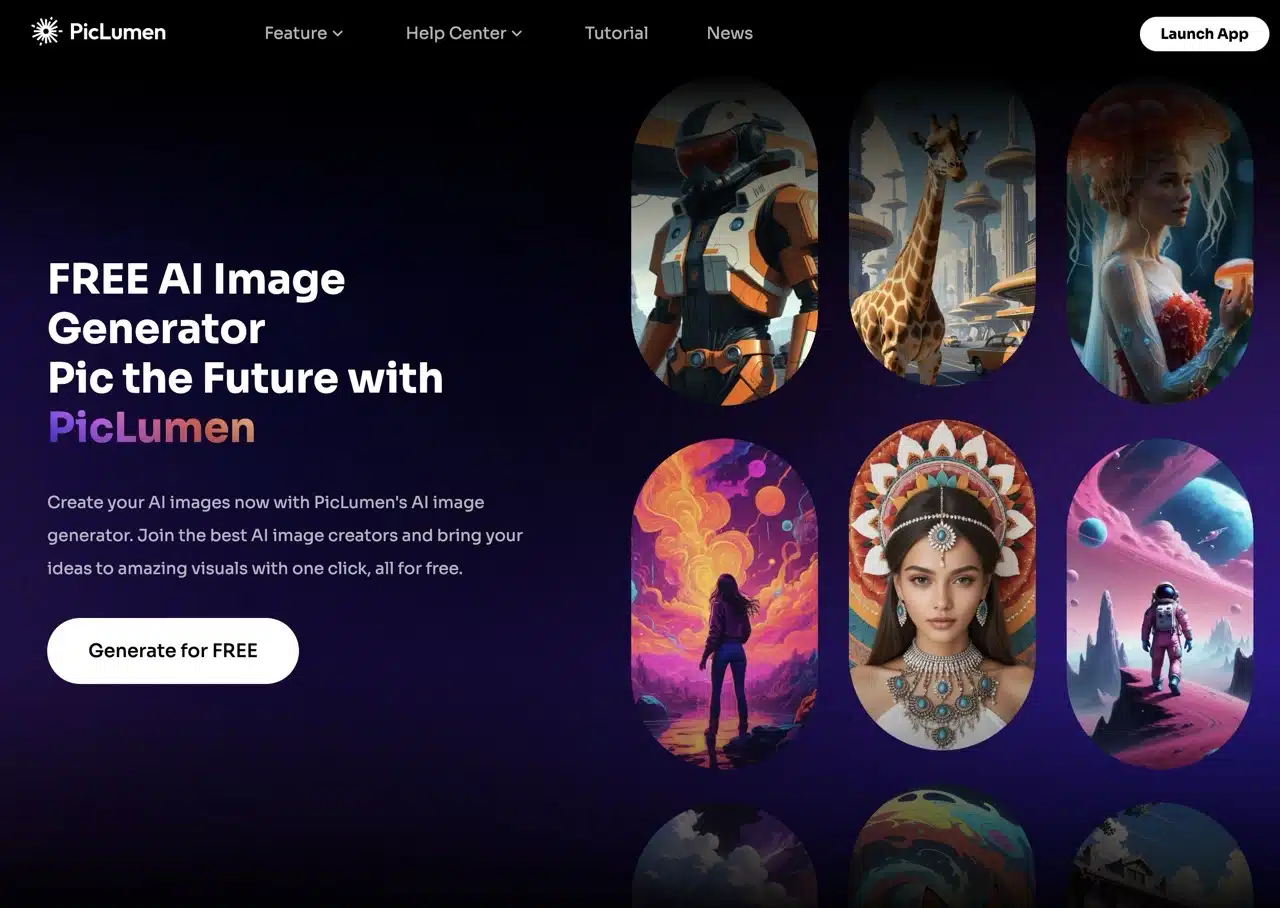
PicLumen offers a comprehensive suite of AI-powered photo editing and image generation tools. After free registration, users can input prompts via the console to generate diverse images, selecting different image models, aspect ratios, quality levels, or fine-tuning various details. Additionally, PicLumen integrates AI background removal and editing tools, delivering highly advanced, fast, and user-friendly image generation capabilities.
AI-generated image assets are freely usable for both personal and commercial purposes without requiring additional licensing fees. The generated images appear highly realistic, and virtually any image type can be produced. However, note that only images you generate yourself may be used commercially. Images created by others can serve as references but cannot be used directly (minor modifications are permitted).
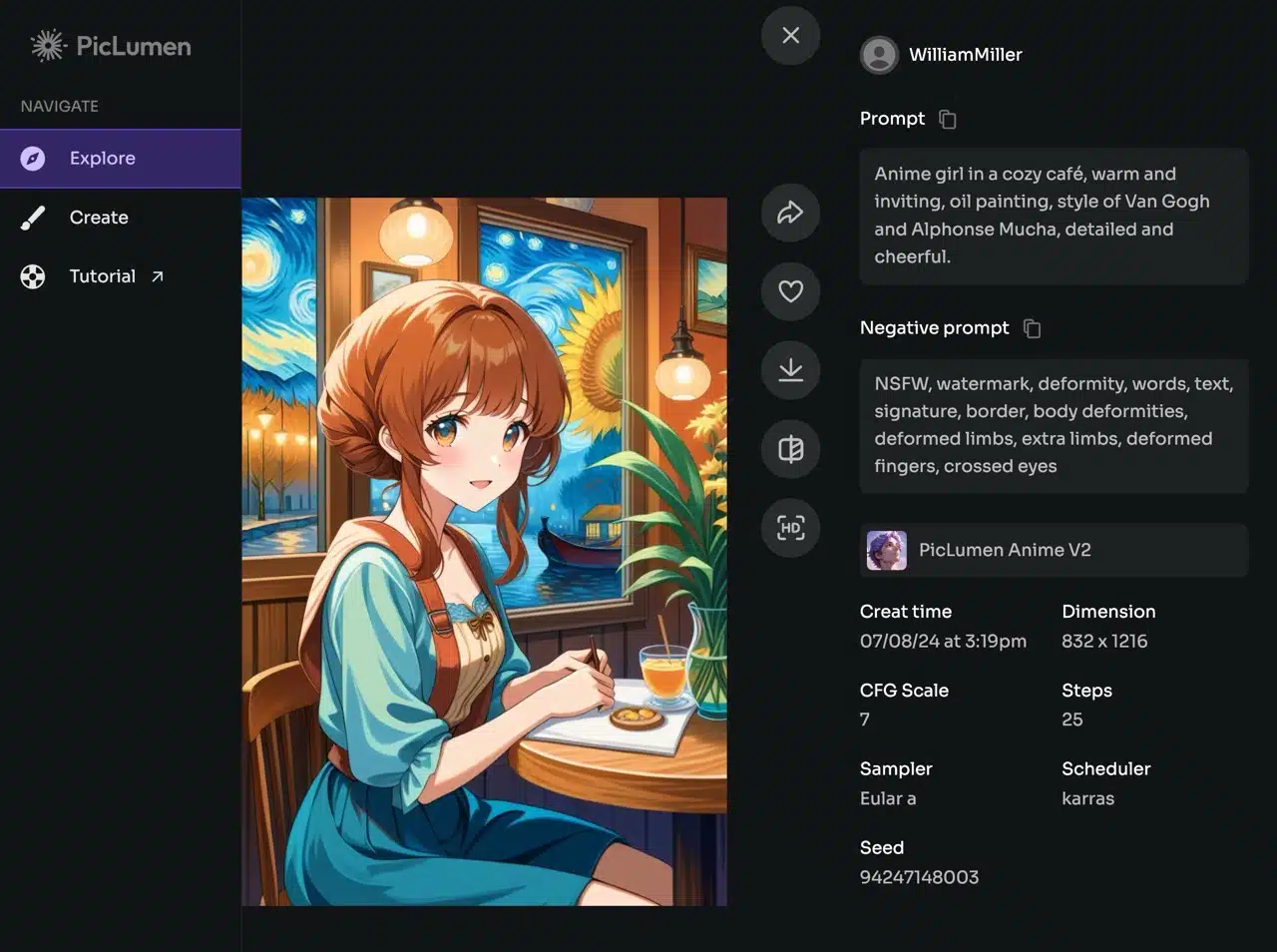
Like most AI image generator services, PicLumen offers an “Explore” feature. Here, you can view images created by other users, access their prompts, reverse prompts, and parameters, or “remix” images. If you're lacking inspiration, browsing the Explore page to see the prompts and parameters used by others is a great starting point.
Another recommended approach is to use tools that convert images into prompts, then apply these prompts to generate images with PicLumen. These tools include:
Image to Prompt: Effortlessly convert images into AI-generated image prompts
CLIP Interrogator: Analyze images with AI to easily generate perfect image prompts
Image To Prompt: Use AI to recognize images, upload them, and quickly generate prompts
Can images generated by PicLumen be used for commercial purposes?
According to the information provided on PicLumen's support center page, images generated by PicLumen can be used for both personal and commercial purposes. However, please note the following important points:
PicLumen's Rights: PicLumen retains worldwide, perpetual rights to use, copy, reproduce, process, adapt, modify, publish, transmit, create derivative works, publicly display, publicly perform, sublicense, and distribute images and text prompts submitted to the service, or any assets generated by the service at the user's instruction.
Using Your Own Generated Images: You may only use images you personally generate for commercial purposes. Public images generated by others may be used for reference but not directly for commercial purposes.
Responsibility for lawful use: Users are responsible for ensuring their use of generated images does not infringe upon the rights of others. PicLumen does not claim ownership of generated images and makes no warranties or representations regarding the originality or legality of their commercial use. PicLumen encourages users to review local laws and regulations pertaining to their intended image usage.
User Guide
STEP 1
After opening the PicLumen website, click the “Generate for Free” button on the homepage to access the login/registration page. You must register an account to use the service, or you can quickly sign in using your Google account.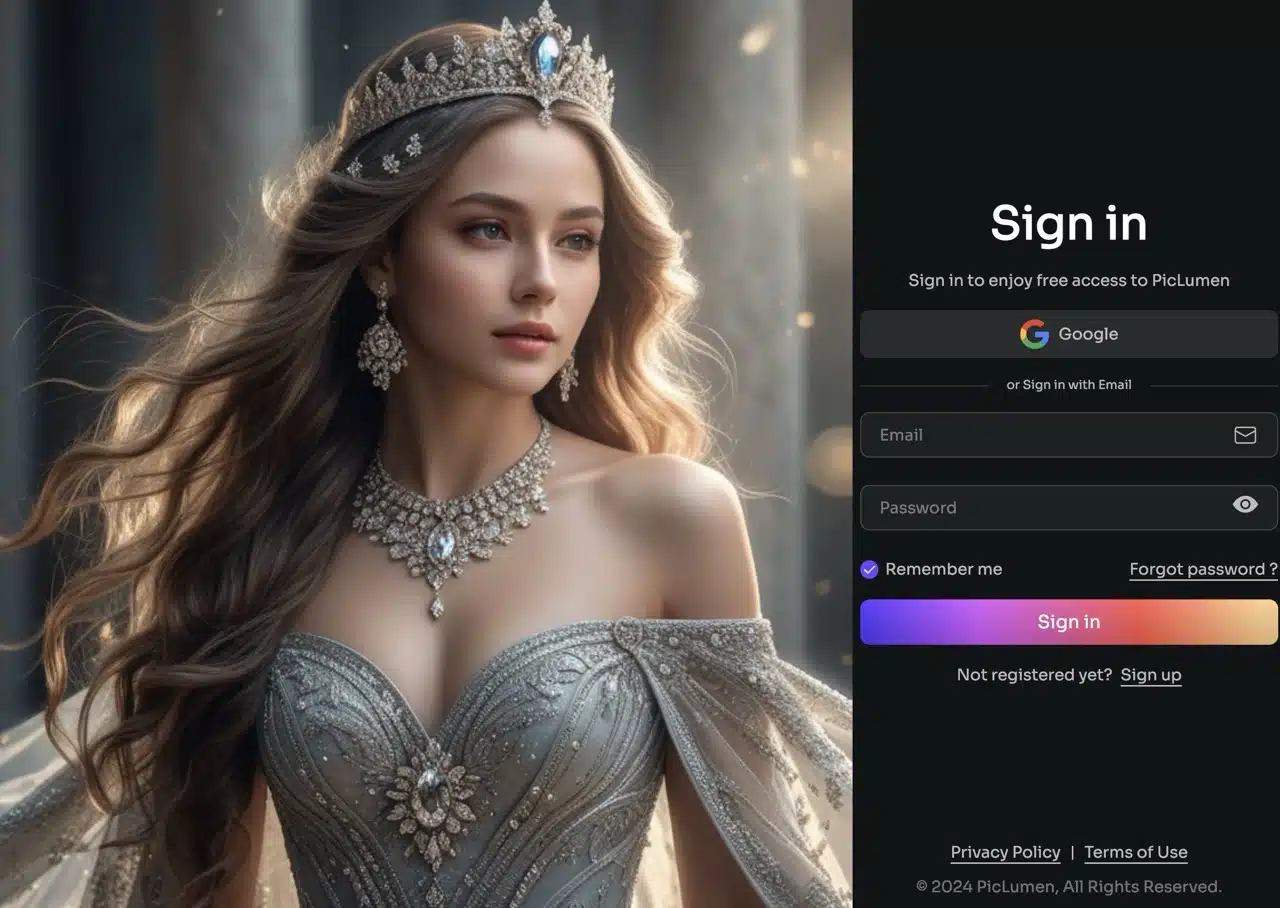
After logging in, you'll see the “Explore” page, which displays images generated by other users using PicLumen AI. Clicking on an image reveals its prompt and related details.
To generate your own images, click “Create” in the top-left corner to access the image creation tool.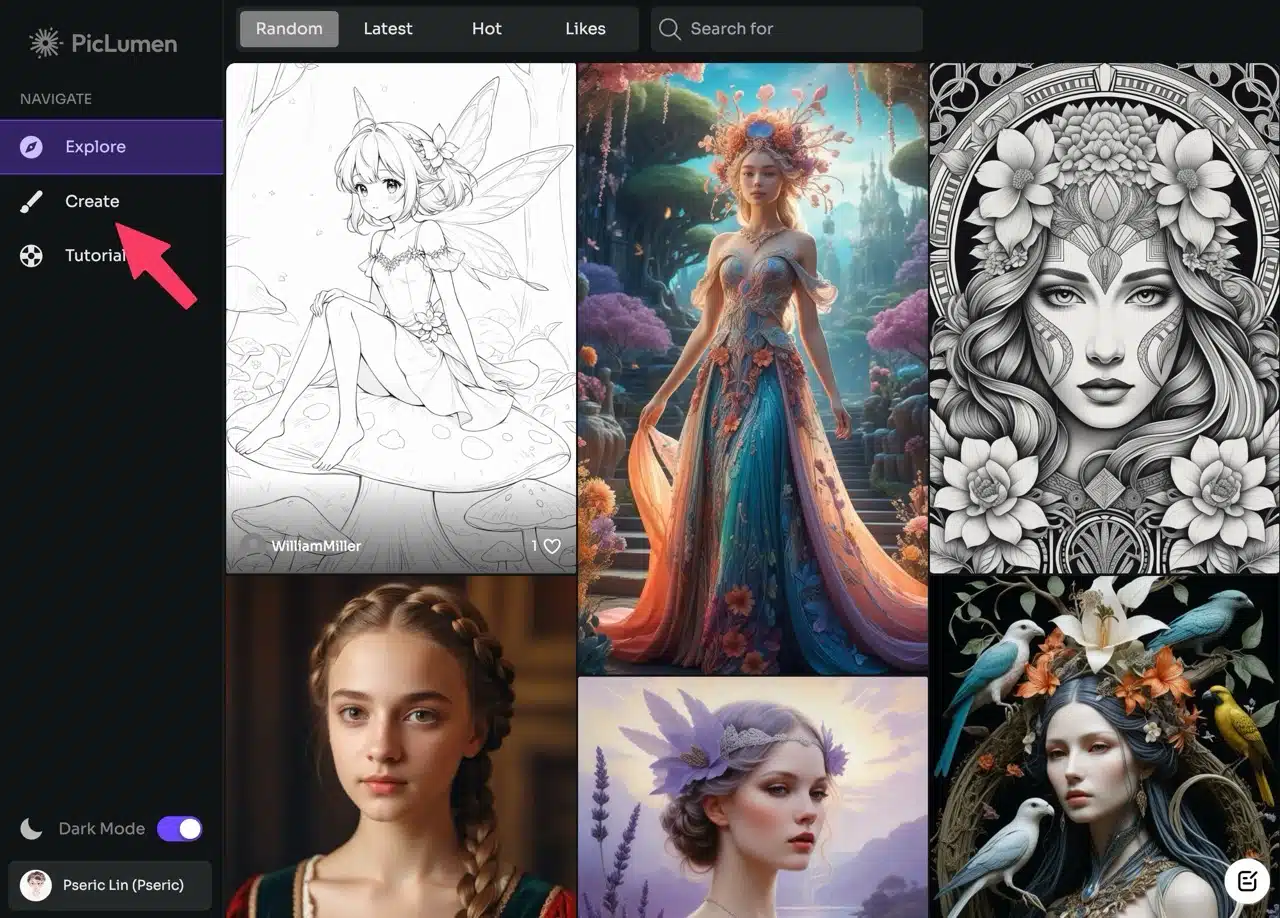
STEP 2
Above the generator are several adjustable options, including the AI image model, image aspect ratio, image quality, and the number of images generated per session (up to four).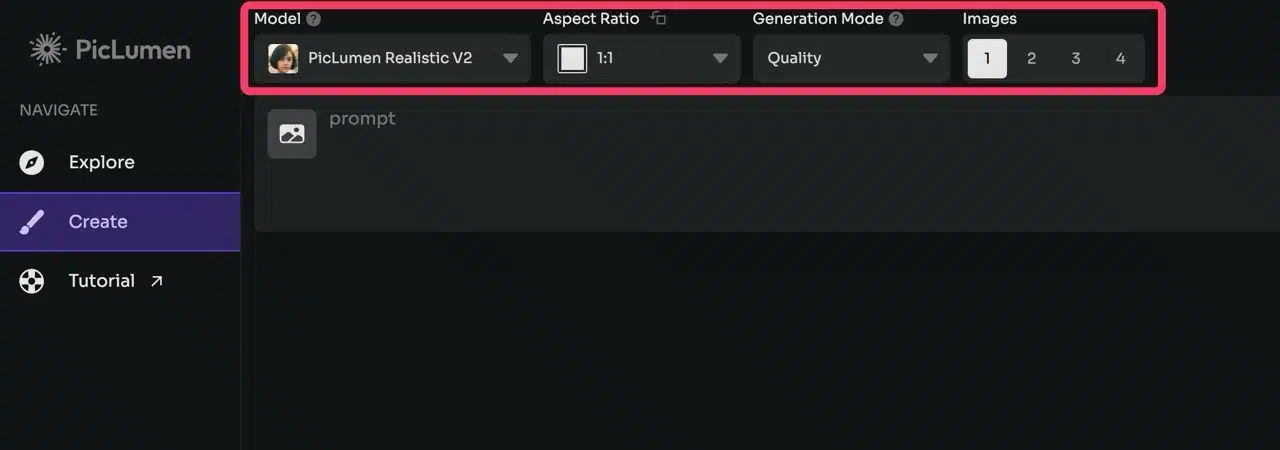
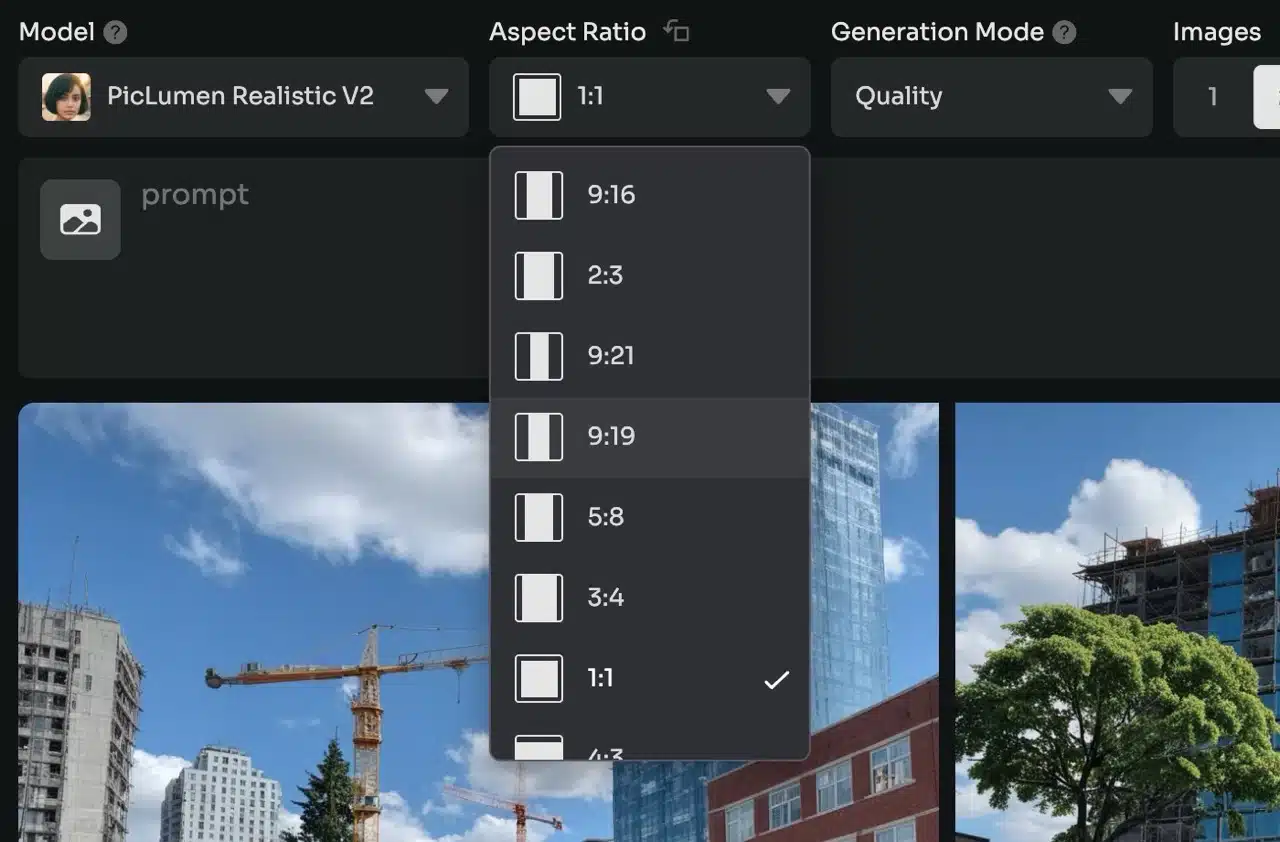
The Aspect Ratio feature is incredibly useful—once you've selected your desired image proportions in advance, you won't need to crop or edit them later.
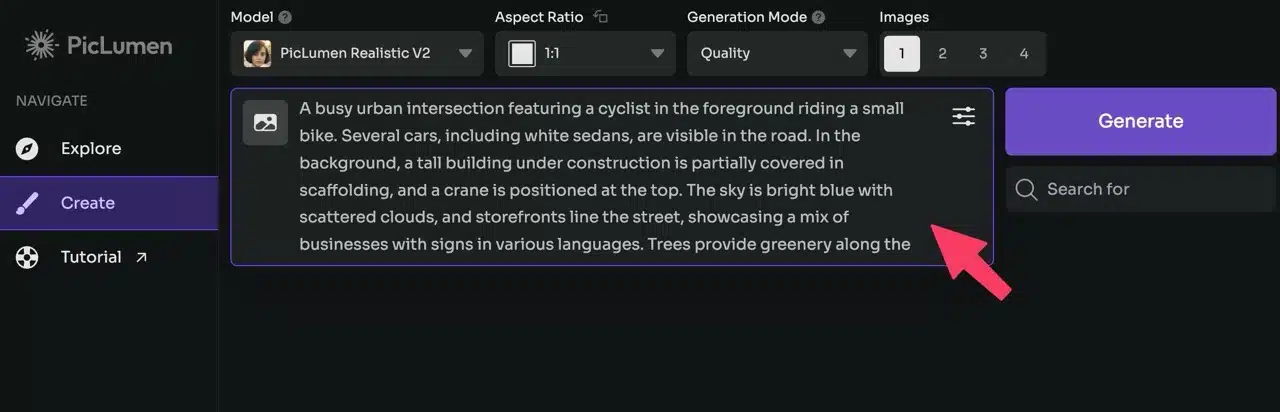
After entering your prompt, click “Generate” on the right to start creating images. It's very fast—results appear in under a minute.
There's also an option in the upper-right corner of the prompt field where you can configure reverse prompts, CFG Scale, Steps, and Seed.
STEP 3
PicLumen generates 1-4 image results at once. They may appear somewhat similar (yet distinct). If unsatisfied, you can fine-tune the prompt or switch to a different image AI model to generate new images.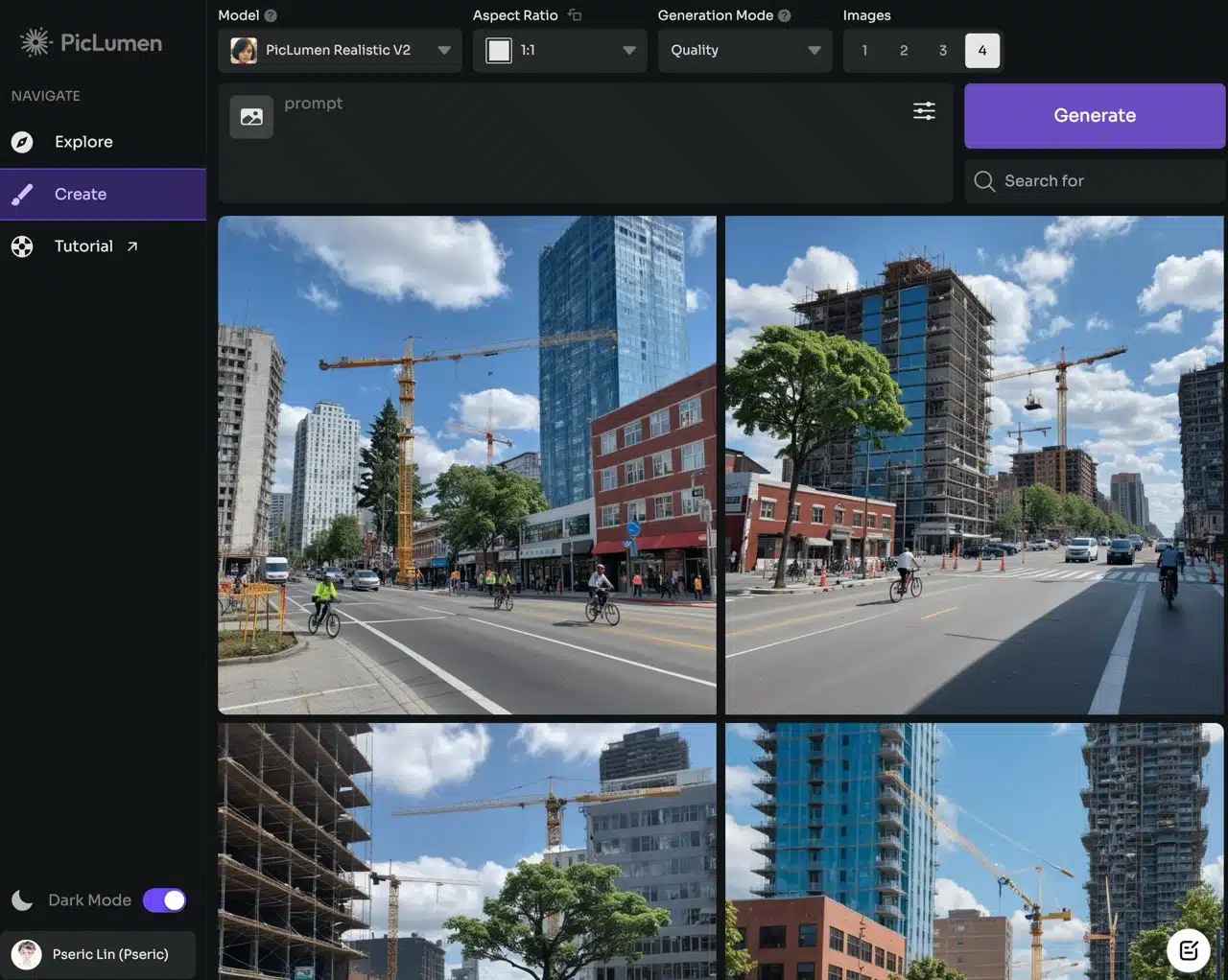
STEP 4
Clicking on an image will open its details page. From the buttons in the middle, you can download the image, use AI to remove the background, or apply AI upscaling (as circled in red in the image below).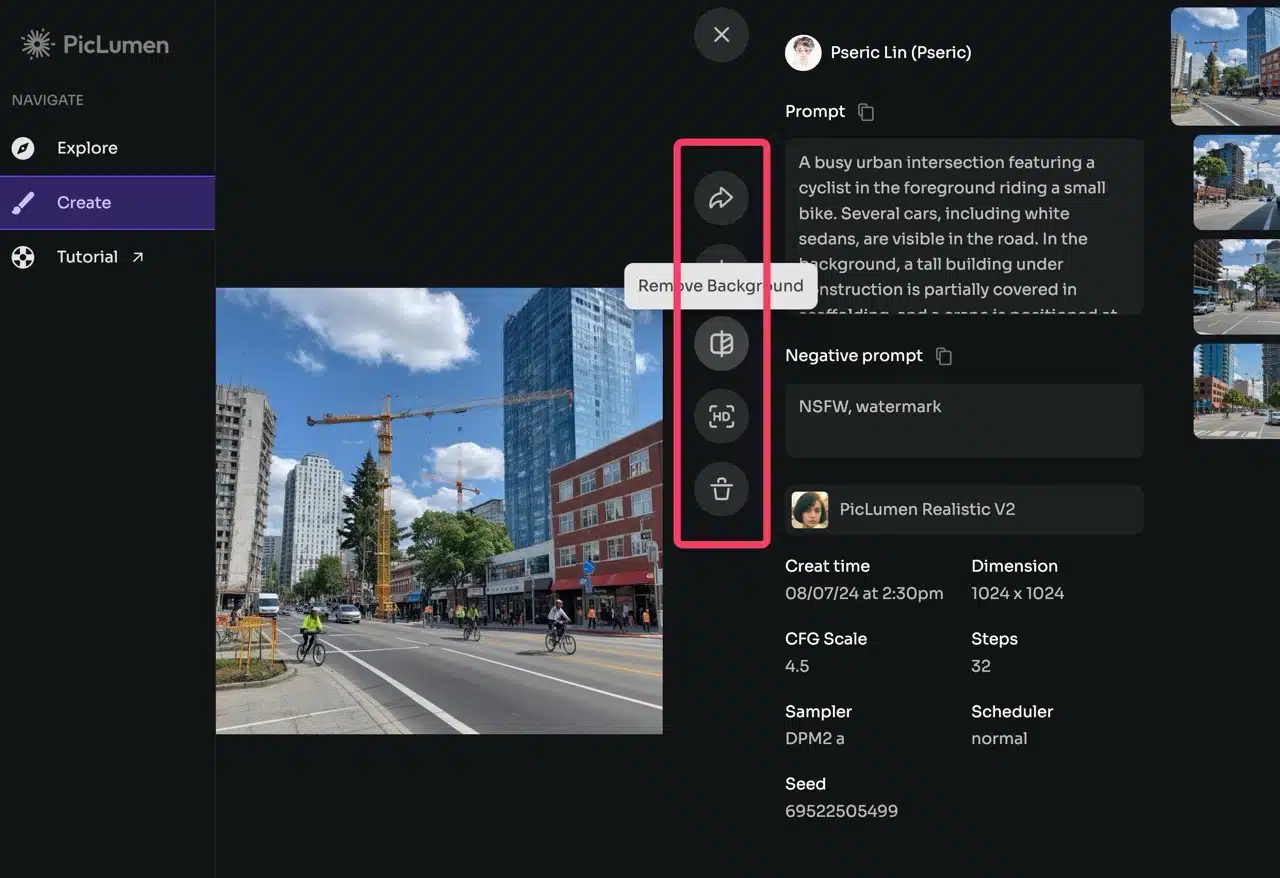
PicLumen can also remove backgrounds from images directly using AI, eliminating the need for manual background removal while delivering outstanding results! By the way, I've also written an article titled “Online Background Removal Tools: 38 Free Online Tools Recommended with Tutorials.” Friends who need to edit images can give it a try.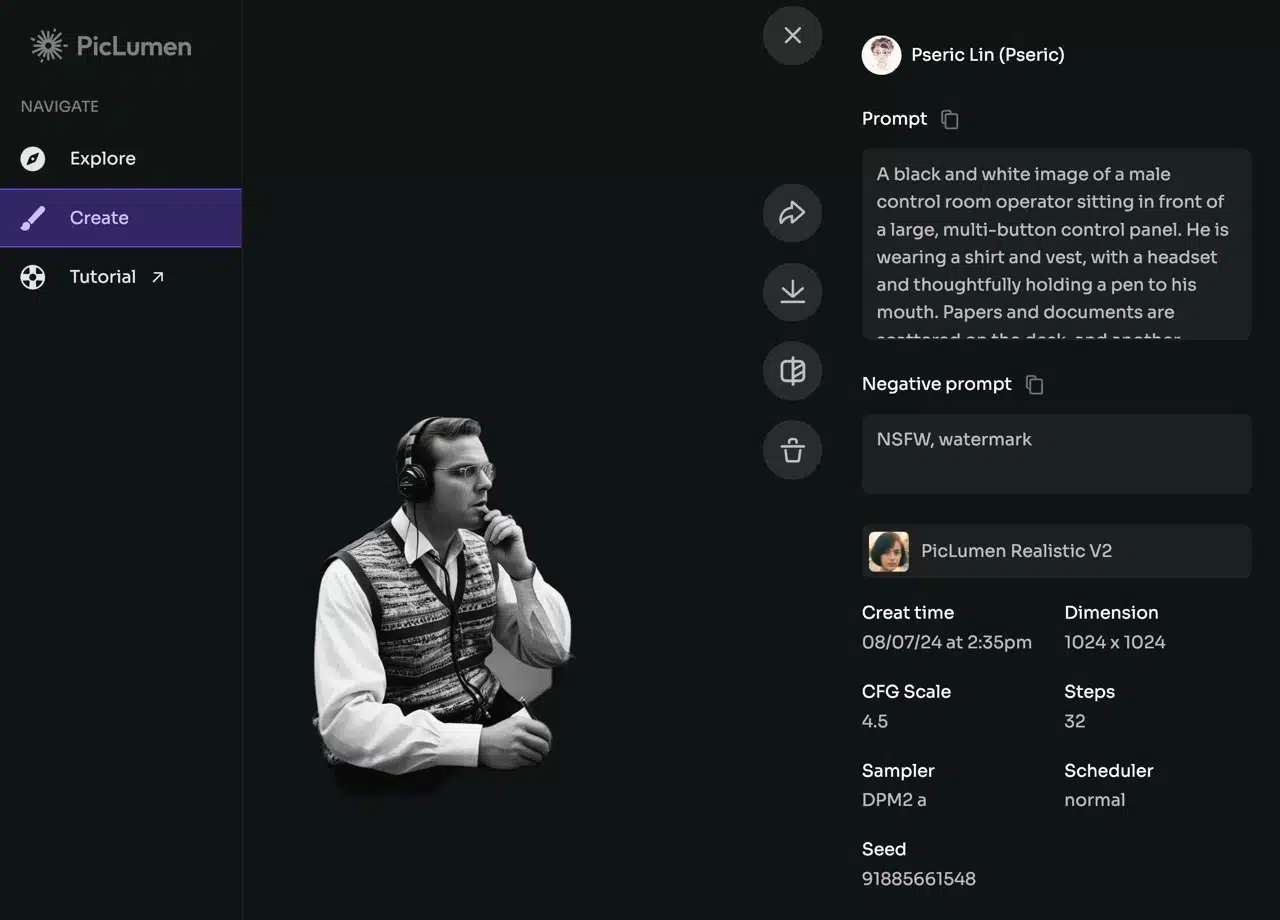
STEP 5
As mentioned earlier, PicLumen also lets you view images created by others. Click “Explore” in the top-left corner to discover more images. What's impressive is that PicLumen can generate assets in various styles. You can see the prompts and related options directly on the detailed information page. With a bit of research and tweaking, you can create highly professional images too!
When browsing the Explore page, click on AI images created by other users. A “Remix” button in the bottom-right corner will quickly import the relevant information into the AI generator.