Nero AI offers a suite of image editing tools, including common functions like image enlargement, enhancement, photo restoration, lossless compression, background removal, and background replacement. All these features can be accessed directly within your browser without requiring additional downloads or installations, making it relatively convenient and user-friendly. Upload images through the interactive interface, set relevant options, and effortlessly obtain the edited results. Even for quick use, the process remains straightforward.
Free Online AI Image Enlargement & Enhancement Feature Overview
This article introduces the free “Nero AI Online Lossless Image Enlargement” tool. This service enables one-click image and photo enlargement, completing enhancement in seconds. Users require no manual editing—the entire process is automated!
Similar to common lossless enlargement features, Nero employs AI technology to rapidly redraw images, thereby enhancing resolution (avoiding distortion or blurring caused by direct scaling). Users can also select their preferred AI enlargement model, identify the most suitable one, and enable facial enhancement for superior results.
Nero AI Online Image Lossless Enlargement Tutorial
1. Upload an image or select a sample image to start editing.
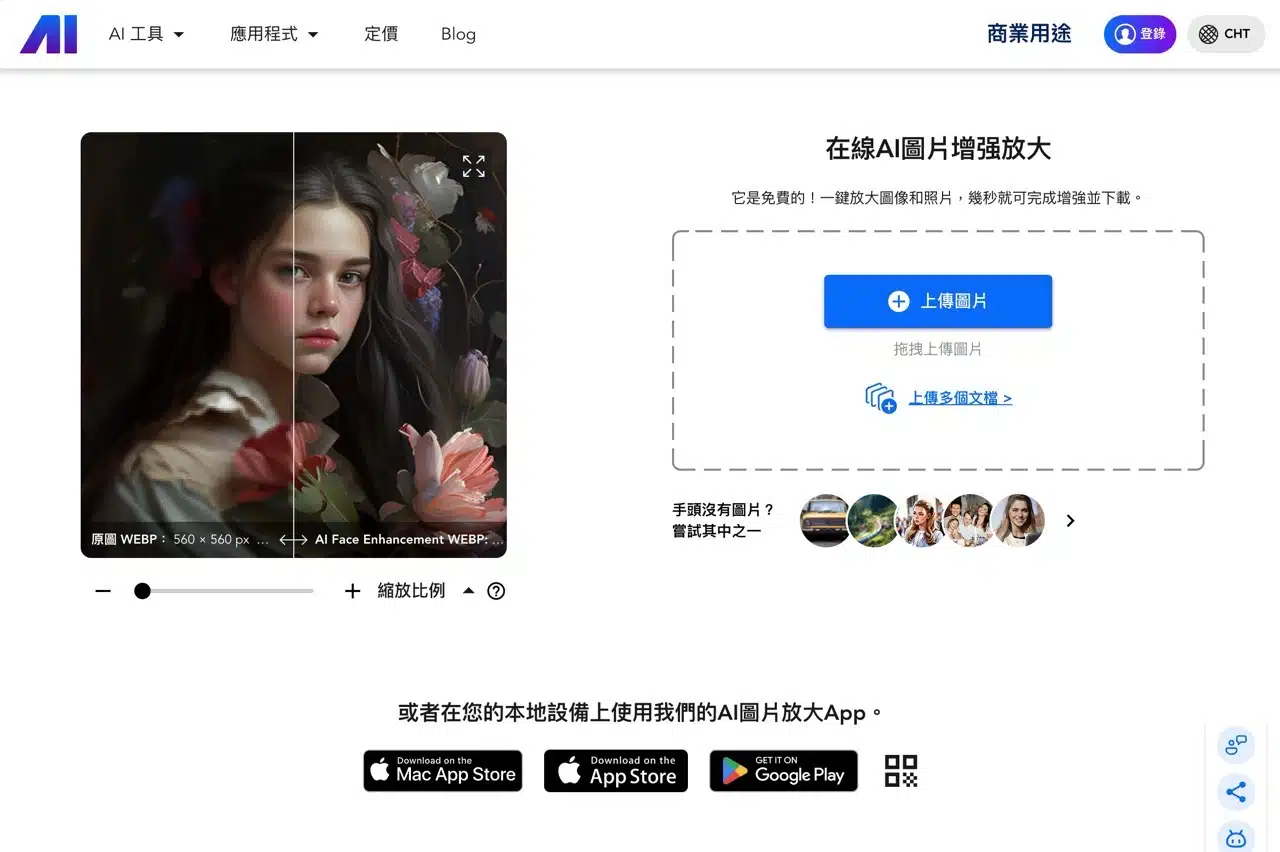
After opening the Nero AI online image enhancement tool, you'll see the upload field. Simply click “Upload Image,” select the image file you want to enlarge and enhance, or drag and drop the image onto the website—both methods work for uploading and processing.
If you wish to test the Nero AI tool, the website also provides sample images. Click to quickly load them into the editor.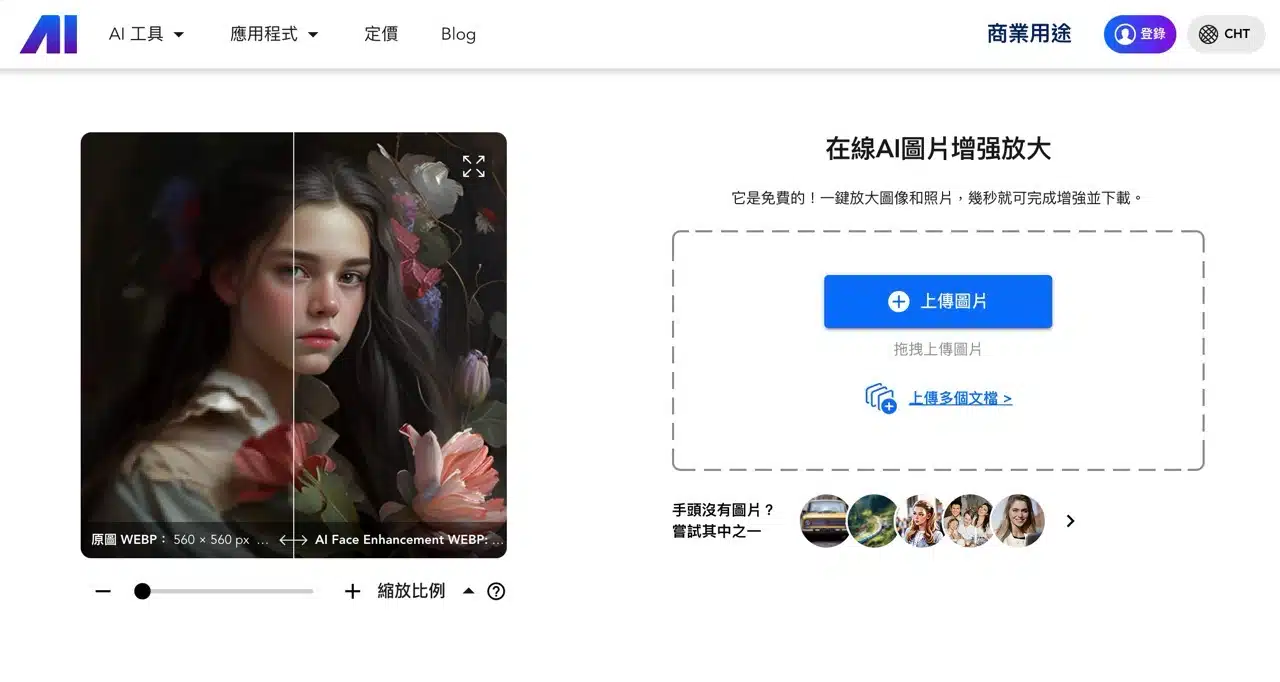
2. Select the appropriate AI upscaling model
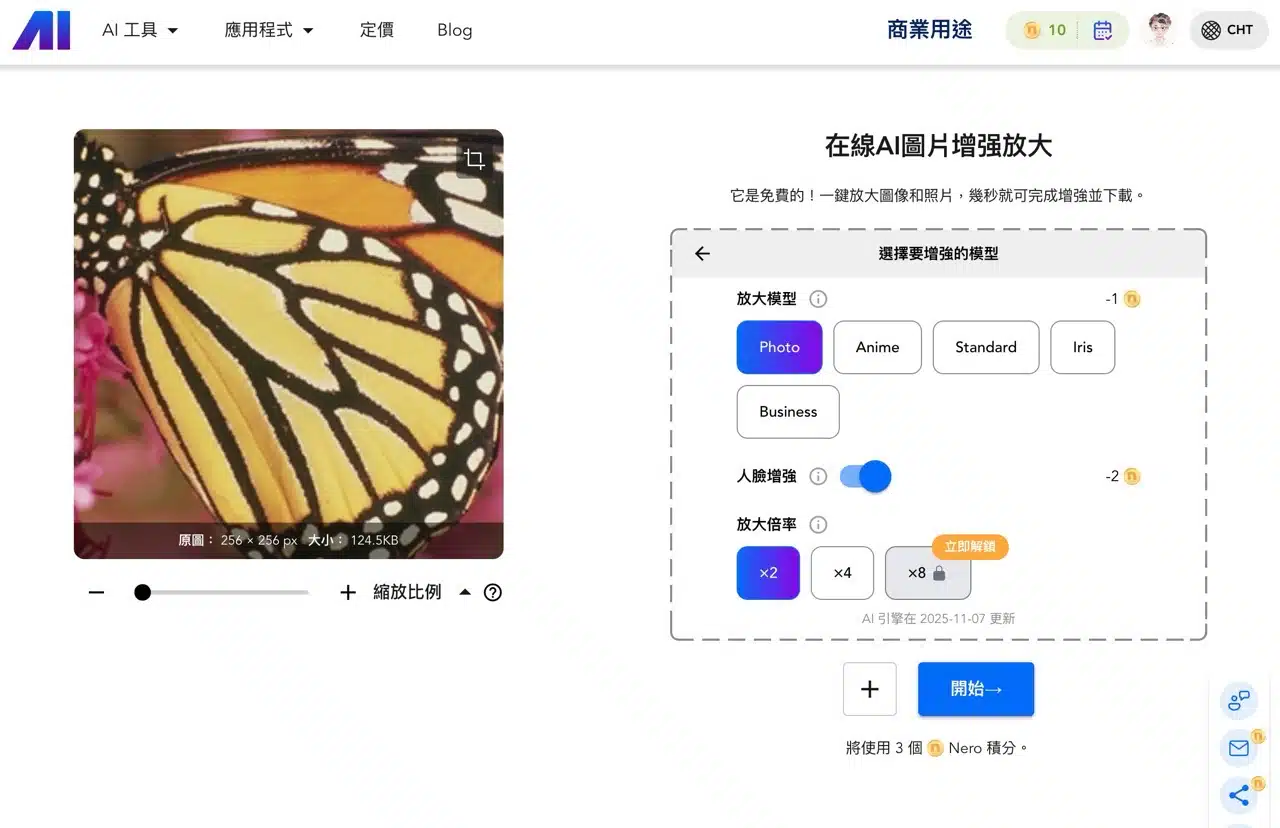
Next, choose “Upscaling Model” from the right-hand editing options. Refer to the following guidelines to select the optimal model for best results:
Photo: Images of people, nature, architecture, etc., captured by mobile phones or digital cameras.
Anime: Suitable for AI art, illustrations, paintings, and cartoons.
Standard: Ideal for landscapes, city skylines, and other snapshots.
Iris: Emphasizes high-contrast details like eyes, fur, hair, feathers, etc.
Business: Text, real estate images, digital art, product photos, etc.
3. Set Face Enhancement and Select Magnification Level
The Face Enhancement feature can be enabled or disabled as needed. If the image being enlarged does not contain a person, this feature does not need to be activated.
Select the desired resolution magnification from the “Magnification Level” options below: 2x, 4x, or up to 8x (though 8x requires a paid upgrade to unlock).
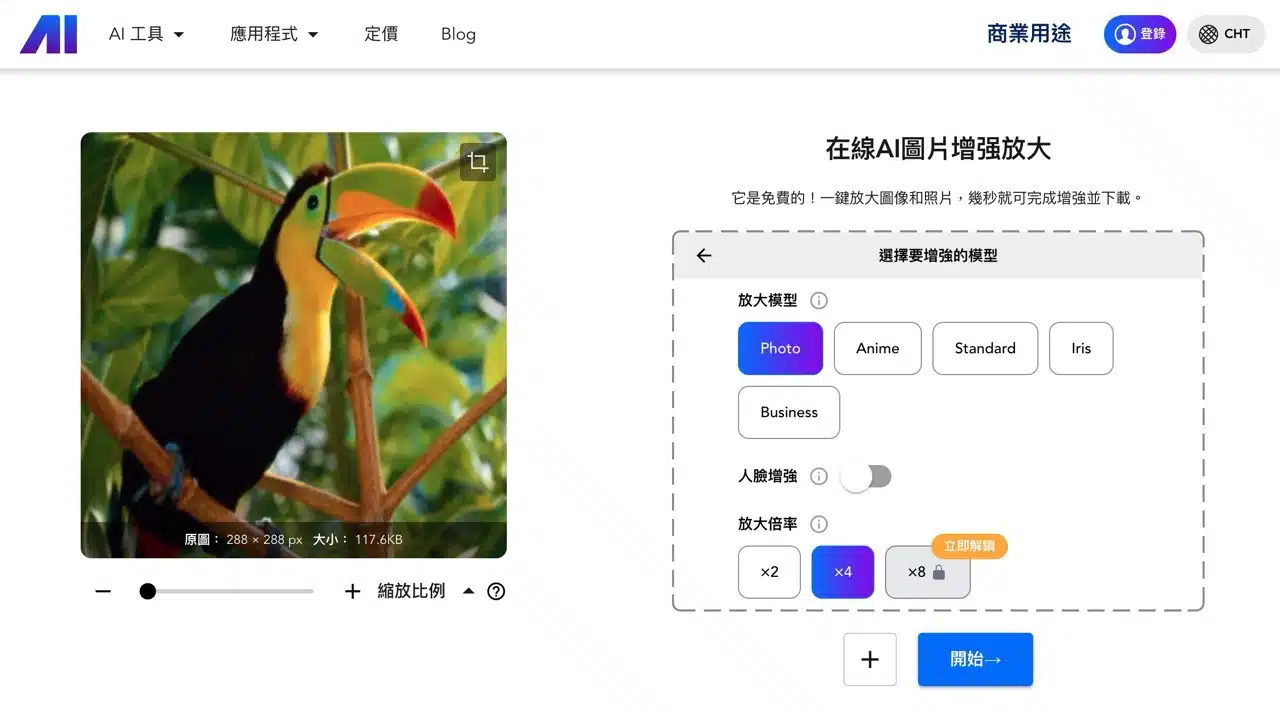
Click “Start” at the bottom to initiate AI-powered image enhancement and enlargement.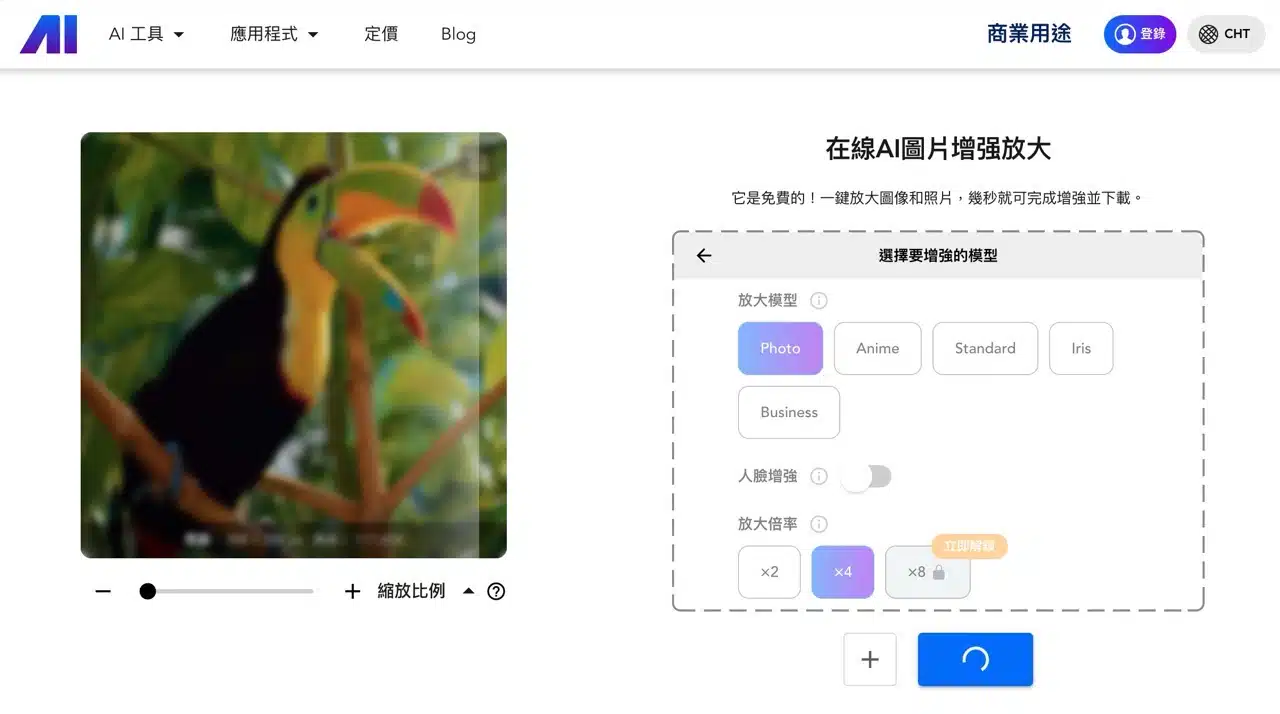
4. Compare details and download the saved image
Nero AI processes quickly, completing image enlargement in seconds (slightly longer with the Business enlargement model). Use the online comparison tool to examine detail differences between the original and enlarged images. Click “Download” to save the image.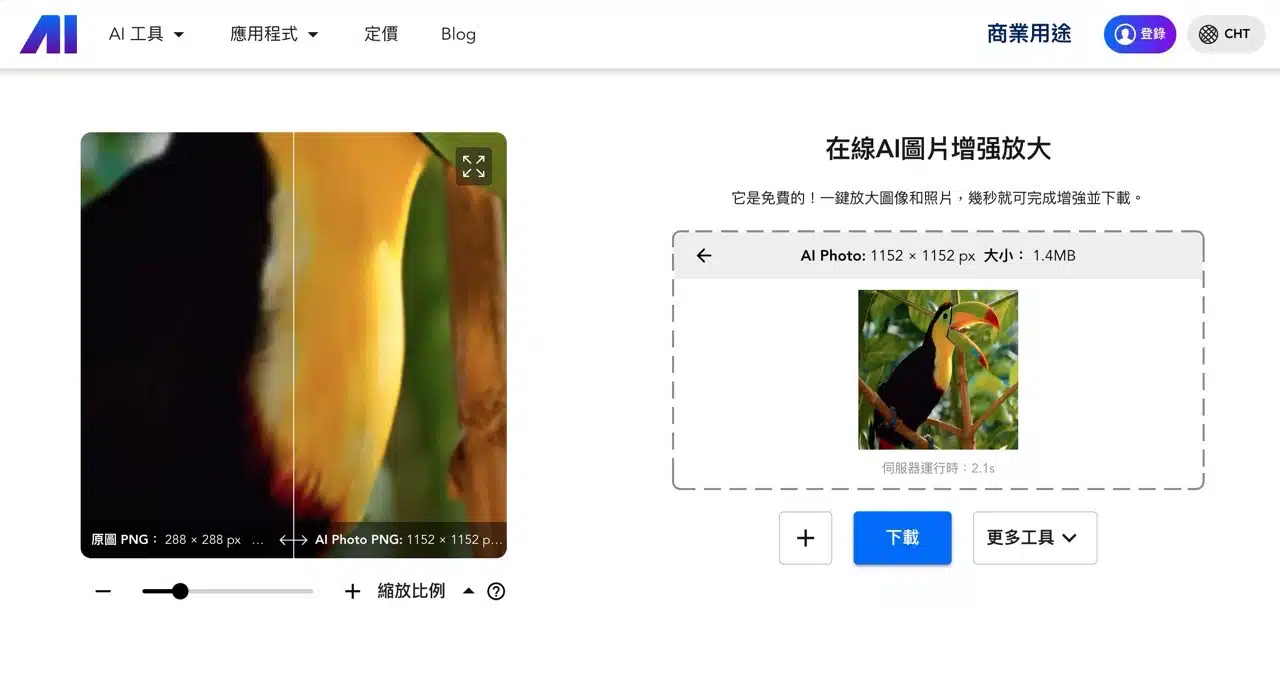
5. Explore additional Nero AI tools
Access more Nero AI features via “More Tools” in the bottom-right corner, including background removal, noise reduction, photo restoration, and lossless compression.
6. Register an account to claim free credits
First-time users will see a welcome offer upon opening Nero AI. Register for free to receive additional image processing credits.
Sign up using your Google, Facebook, or other accounts. Once logged in, Nero Points will appear in the top-right corner. Use these points to access more Nero features for free (though different functions and options deduct varying amounts). Subscribing to the newsletter also earns you extra rewards.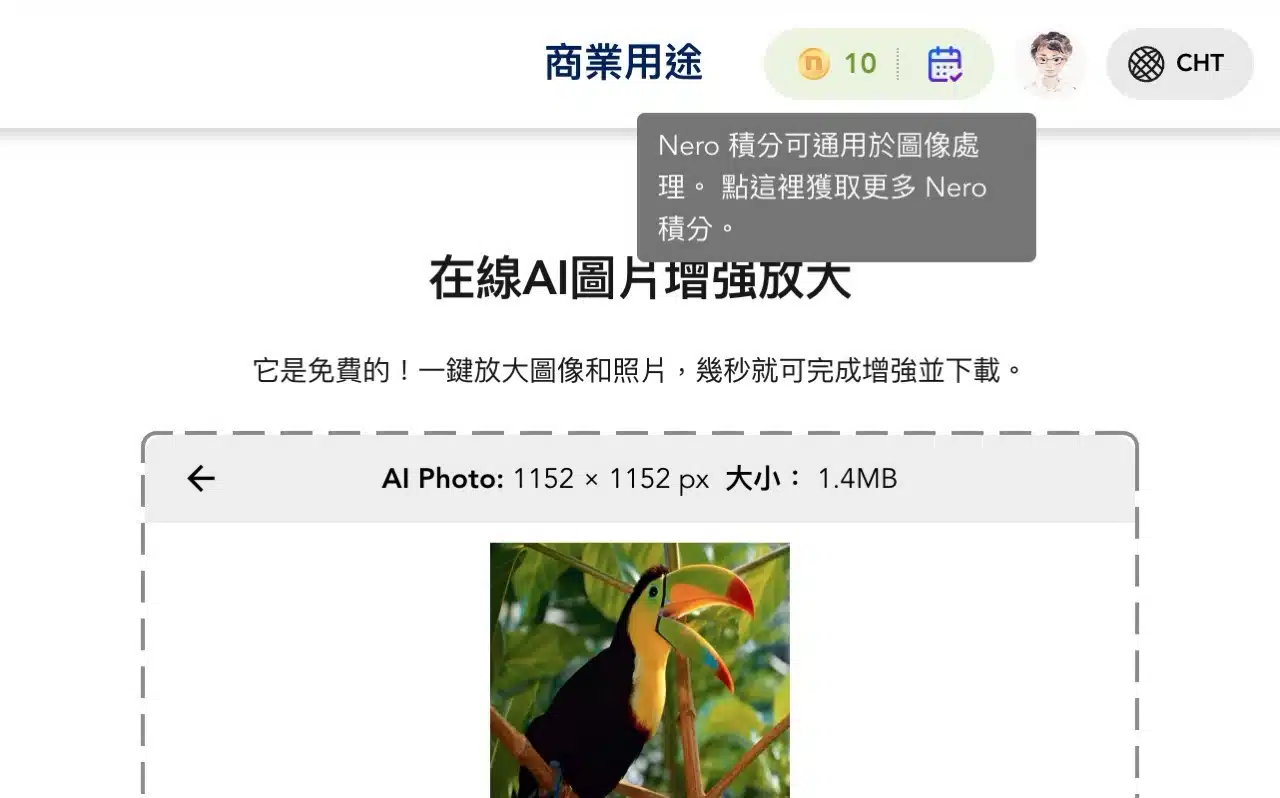
When exceeding free usage limits, users may register to continue accessing features. Registered accounts display point deductions for each tool option—e.g., model enlargement costs one point, facial enhancement costs two points. Each processing session deducts points. If available points are insufficient, users will be prompted to purchase credits or upgrade plans.