AI tools can rapidly accomplish numerous tasks. For instance, the common image background removal feature uses trained models to swiftly identify the subject and background within an image, automatically removing the background portion. Alternatively, it can erase unwanted elements from an image and then retouch the colors to achieve a natural-looking result. It must be said that today's digital tools possess remarkably powerful capabilities. By effectively utilizing various tools, you can save significant time and substantially reduce the difficulty of many editing tasks.
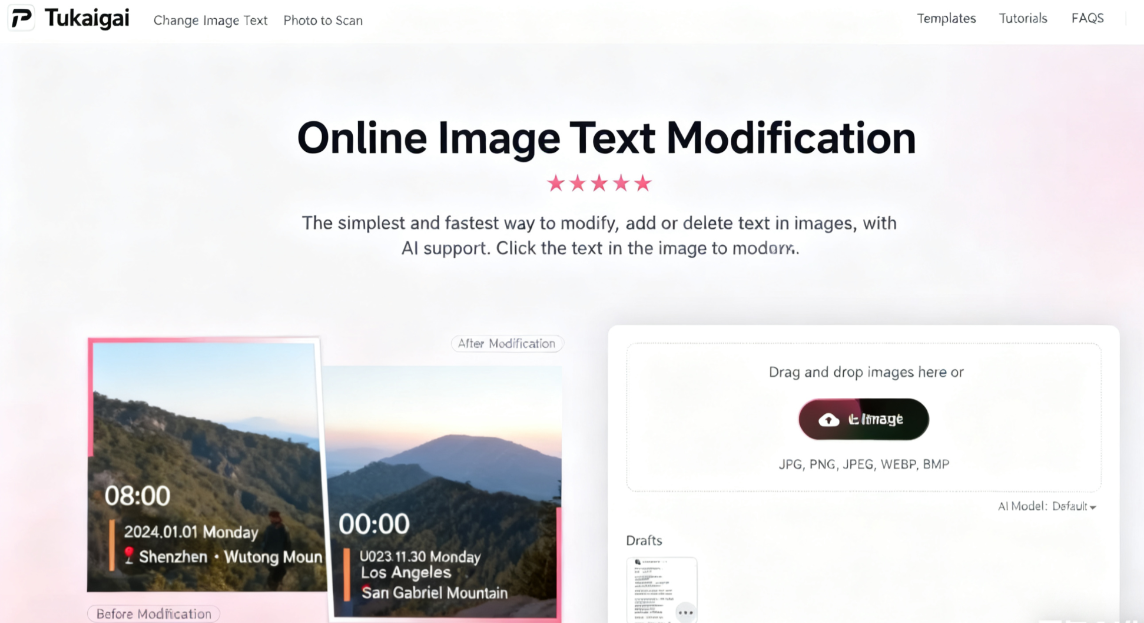
This article introduces “TuGaiGai,” a relatively uncommon image editing tool. It allows users to quickly modify text on images online without downloading or installing any applications. After uploading an image, AI automatically recognizes the text content, enabling users to edit specific text segments (e.g., adding more text or deleting specific words). Even those unfamiliar with graphic design software can master it quickly! APP Recommendation
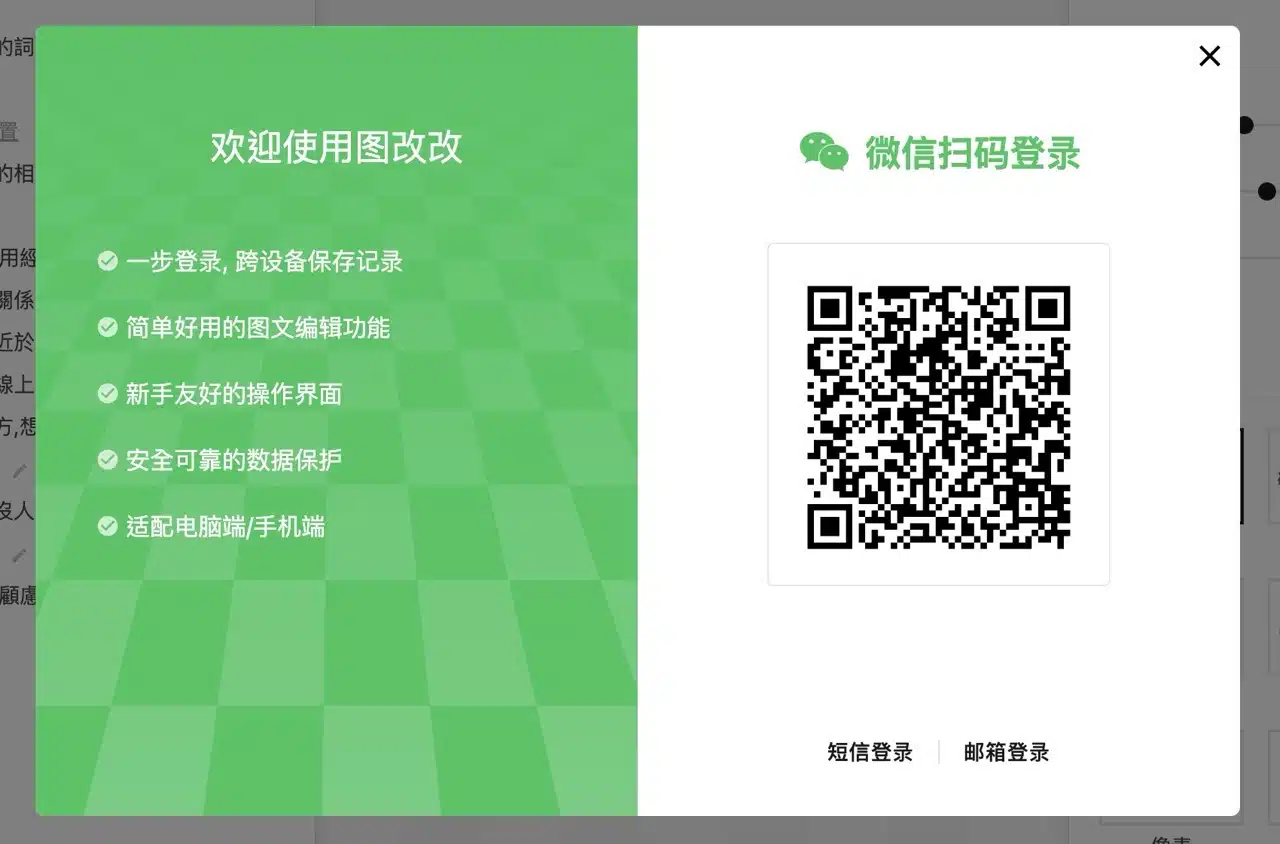
Beyond editing text, “TuGaiGai” also offers features like adding stamps and applying filters. When editing text, you can choose different fonts, upload custom fonts, adjust styles and positions, or add special effects. Note that to export edited images, you must first log in to WeChat (meaning the WeChat app must be installed on your phone) and and scan a QR code to unlock the download function. This service is completely free at the time of writing this introduction.
User Guide
STEP 1
After opening the “TuGaiGai” website, you'll see the image upload function on the right. It supports JPG, PNG, JPEG, WEBP, and BMP formats, with a maximum image size of 2560×2560 pixels. Images exceeding this size will be automatically compressed. Keep the AI model at its default setting. If needed, you can manually adjust the recognition capabilities for different languages to achieve more accurate results.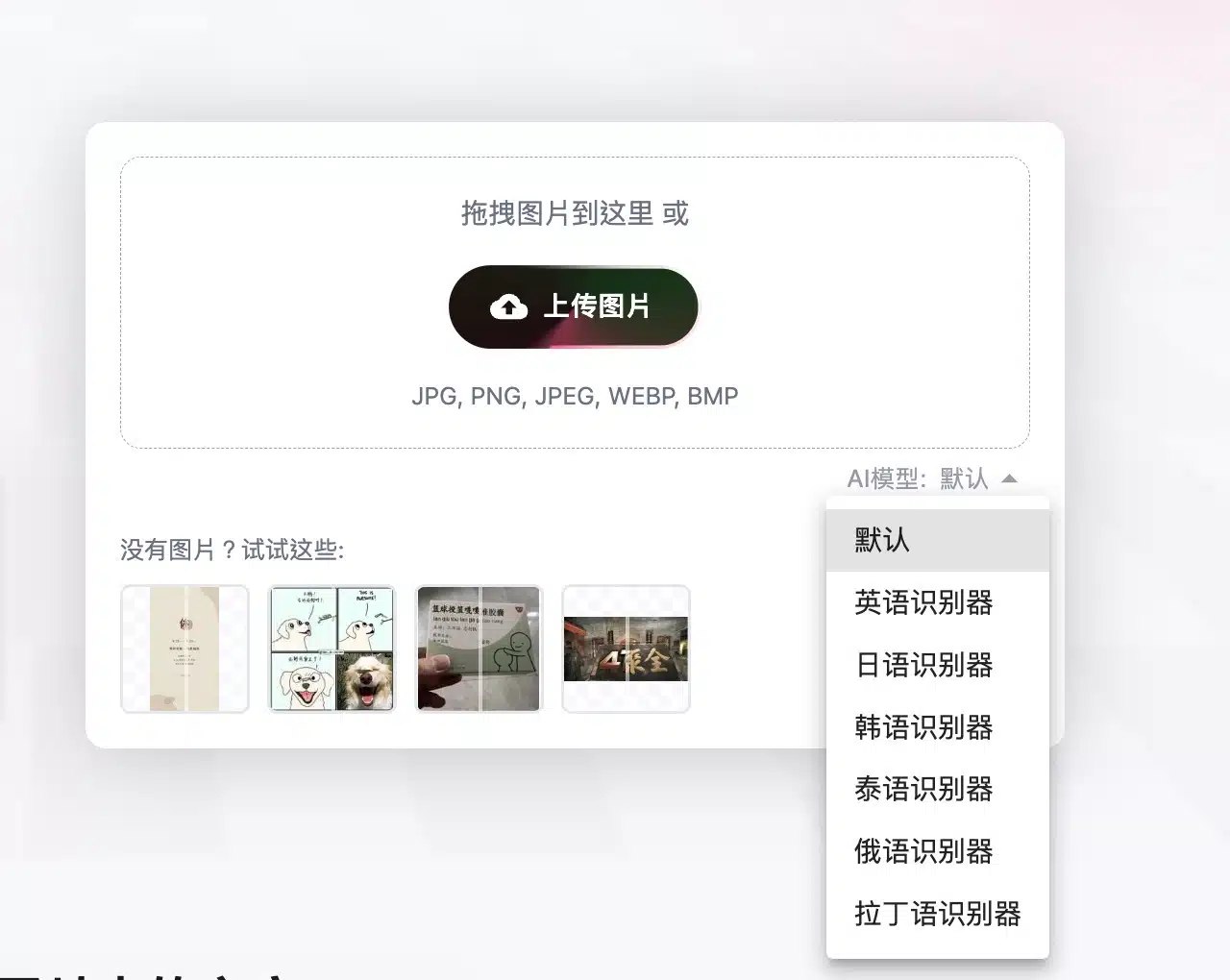
STEP 2
After uploading, allow time for content scanning.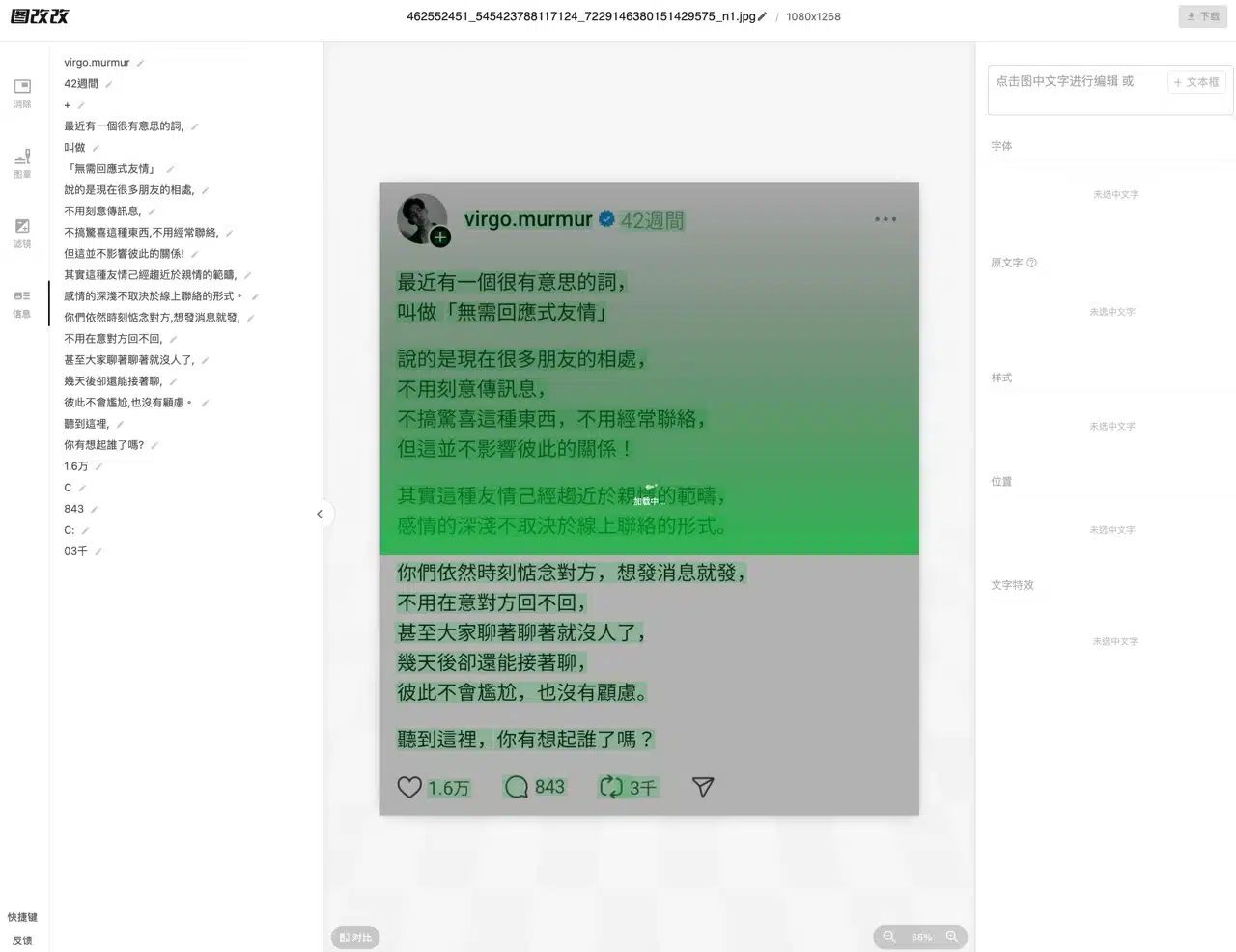 Once complete, scanned results will appear on the left—these are the text elements recognized from the image, similar to OCR functionality.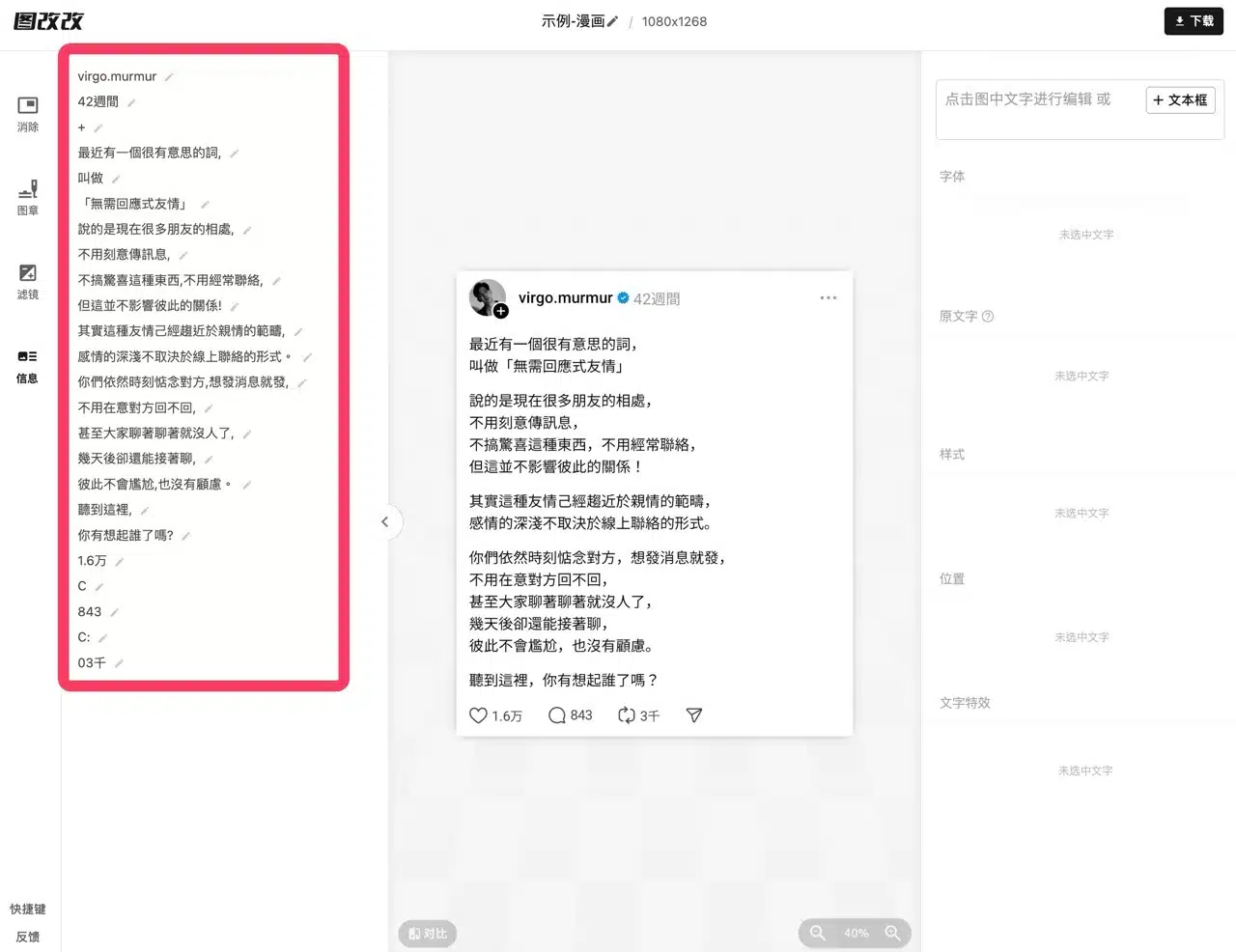
STEP 3
Directly click on the text paragraph you wish to edit within the image (or select the edit icon from the scanned results on the left). After selection, modify the content directly in the top-right corner. Changes will instantly appear in the image. You can also adjust the font, text removal mode, and style (text size, color, position, etc.). The advantage is that any editing operation is immediately reflected in the editor. 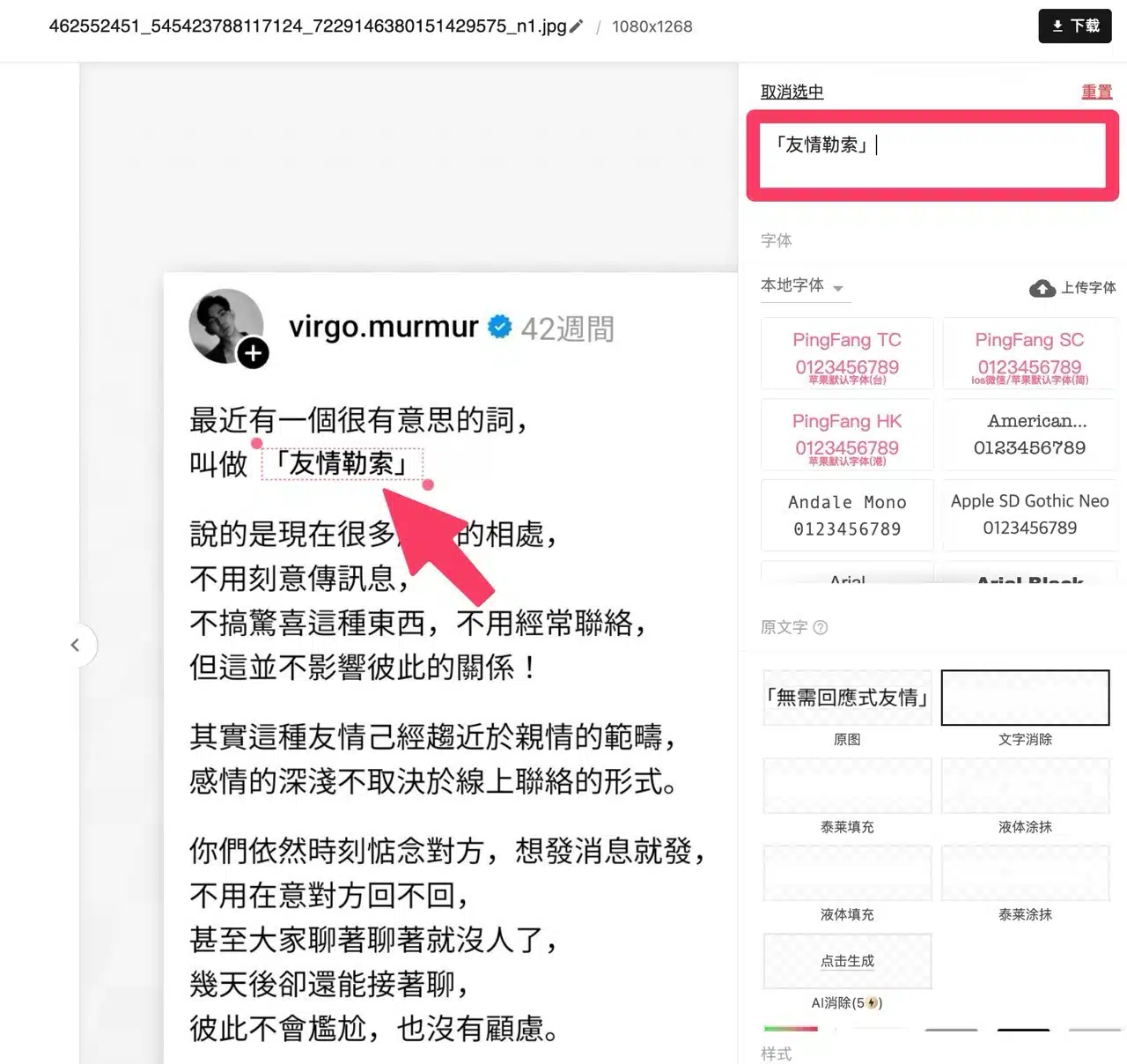 The service offers a wide range of font options, such as black font, artistic font, handwriting font, regular script, Song font, sans-serif, serif, and handwritten fonts. To ensure consistent appearance after modifications, identical fonts must be used. However, since all fonts provided by “TuGaiGai” are free, you can manually upload your own font files via the “Upload Font” feature in the top-right corner of the font selection panel. This allows you to apply custom fonts to edited content.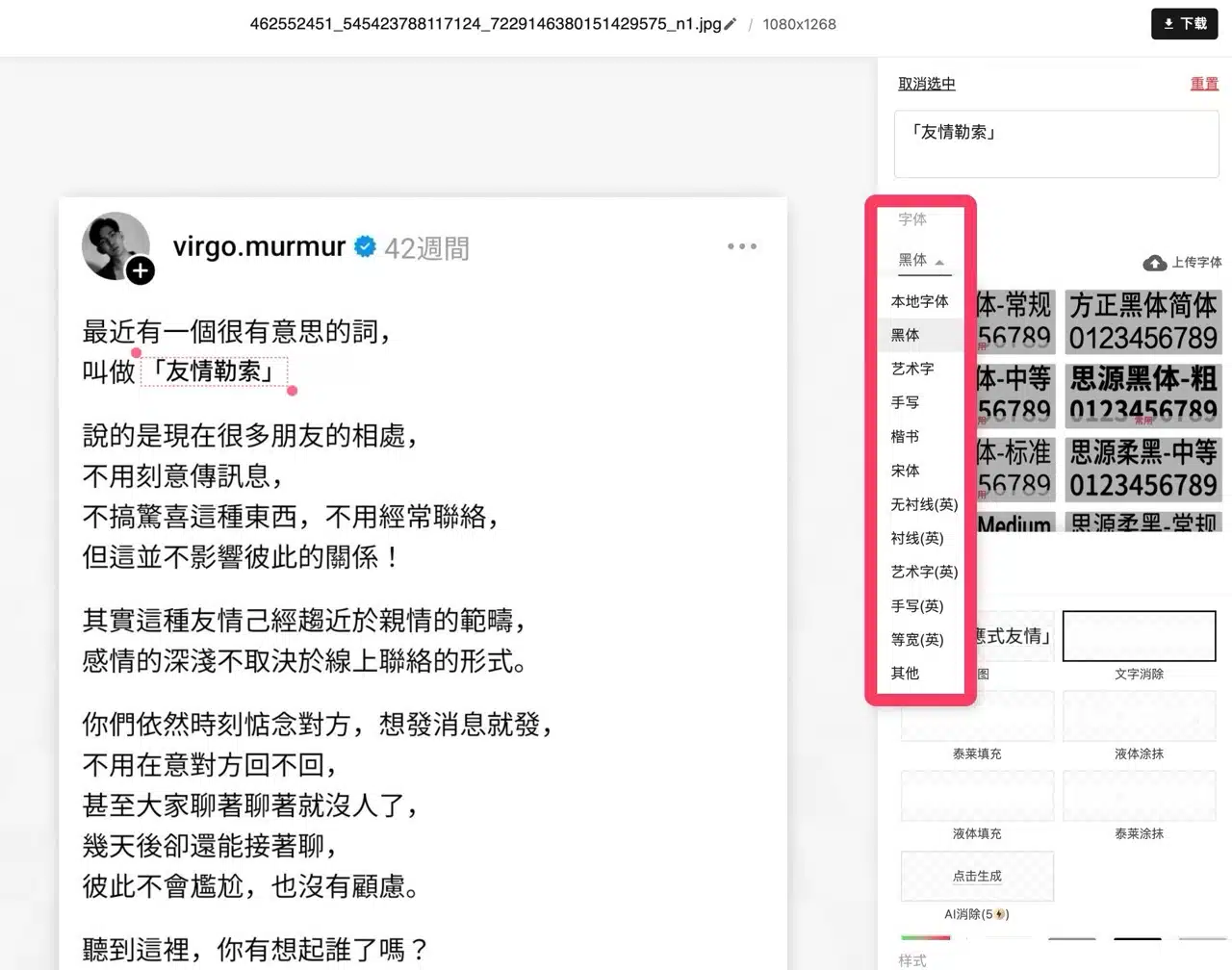
STEP 4
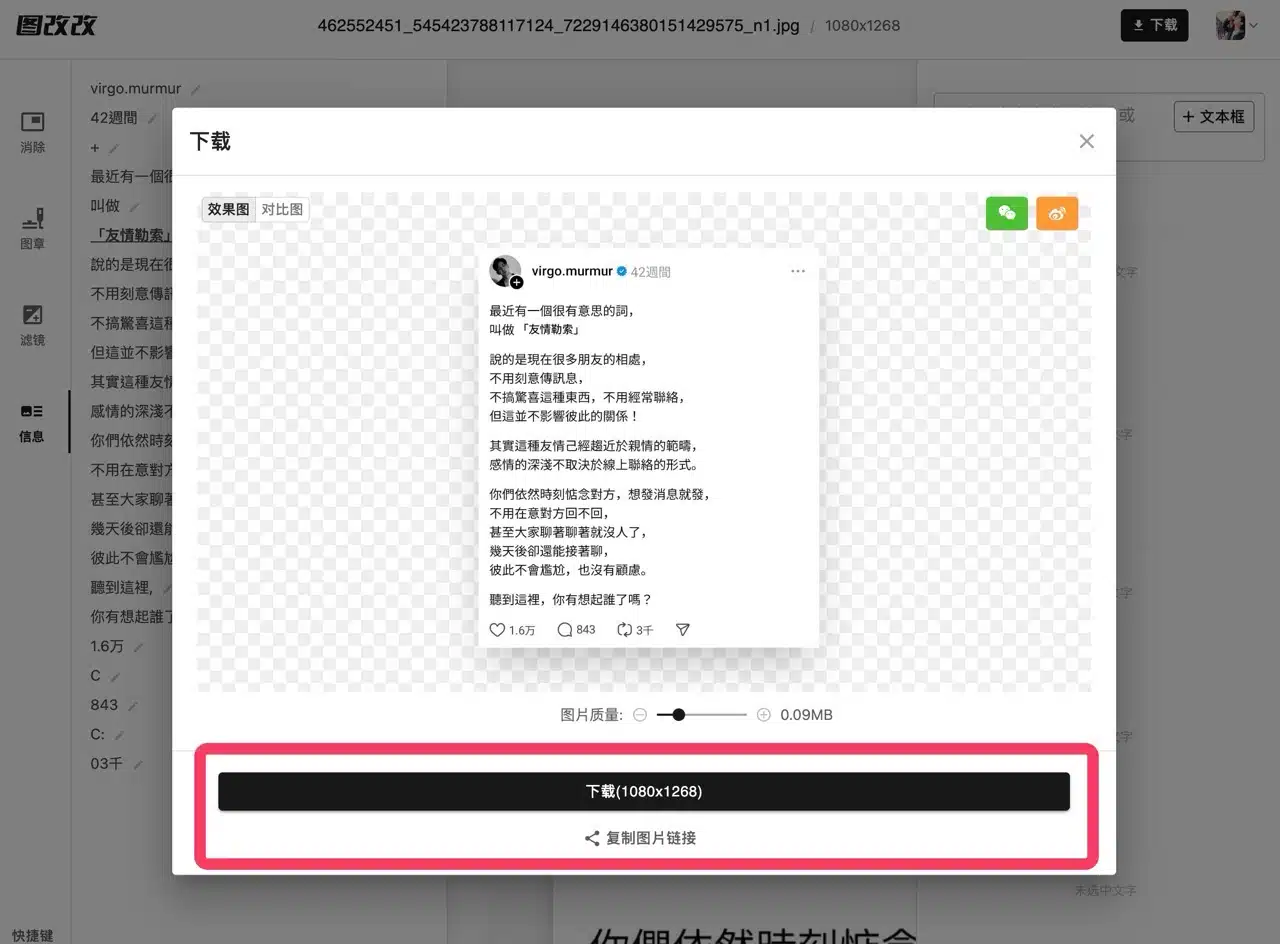
After editing, click “Download” in the top-right corner to access the image saving function.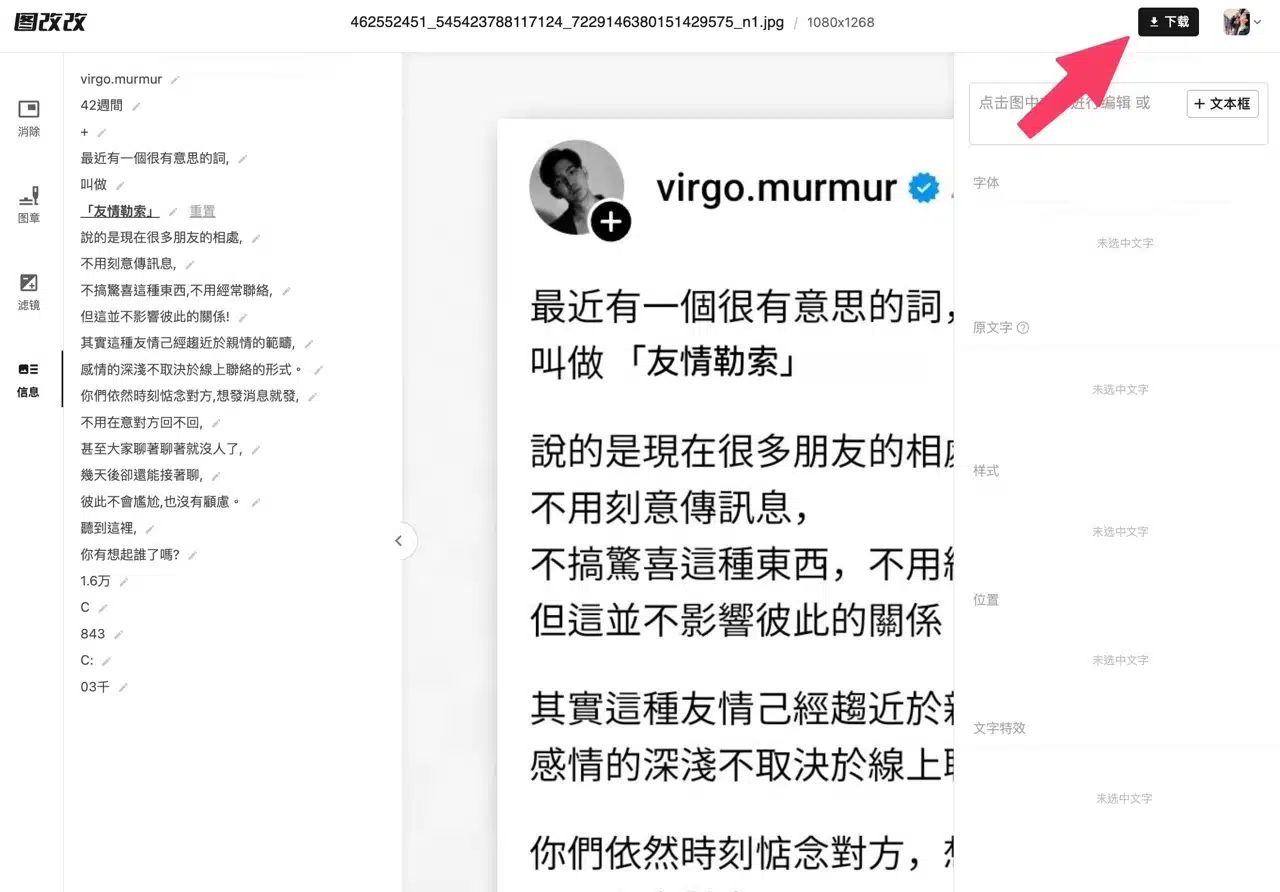 Before downloading, the following screen will appear. You must log in via WeChat QR code scanning. Open WeChat, select the scan function, and scan the QR code to complete login. During this process, a prompt will appear authorizing the third-party application to use WeChat. Return to “TuGaiGai” and click the download button in the top-right corner to save the image. Before downloading, you can adjust the image quality.
 Locate the download option below to obtain the image file or directly copy the image link.