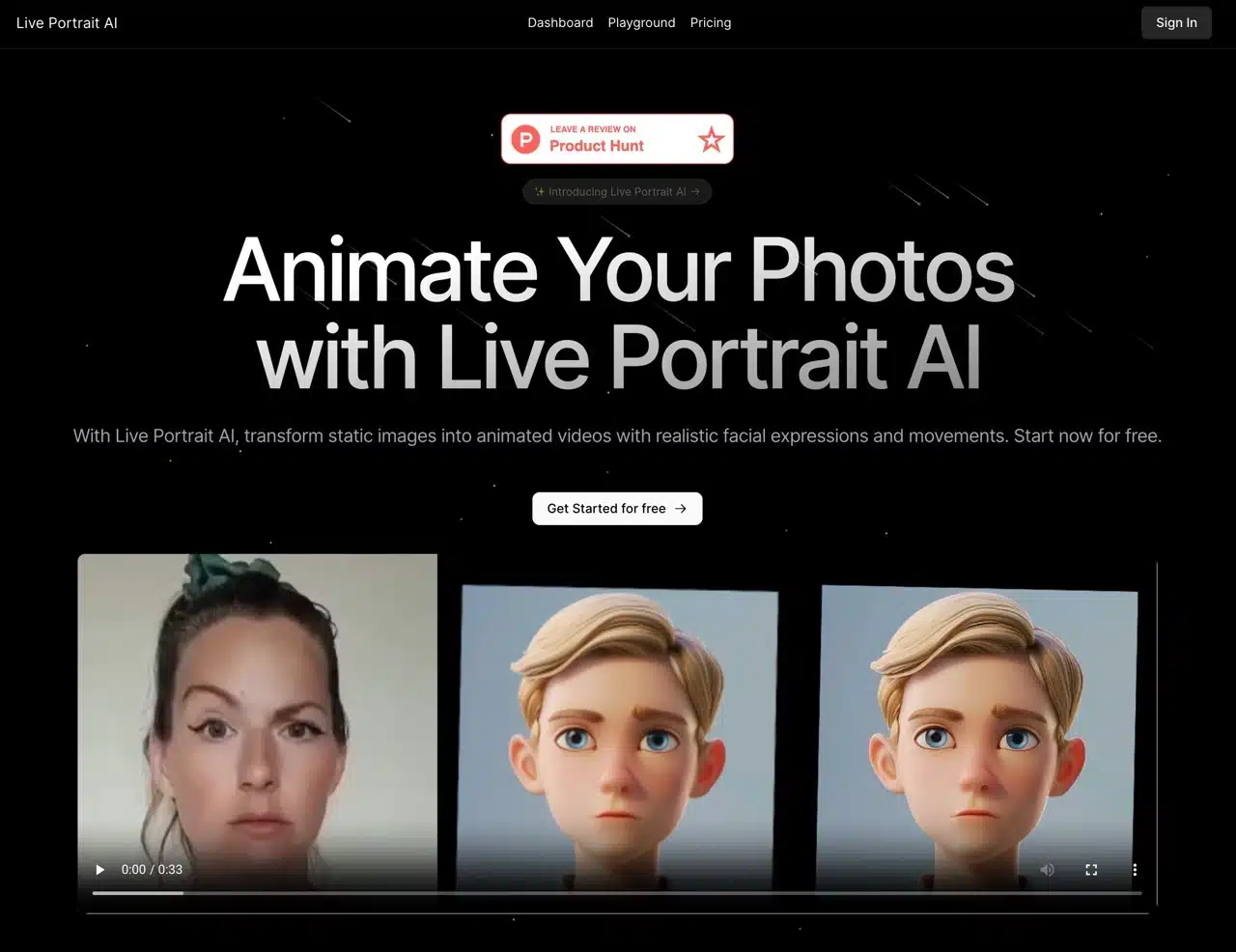
Recently, I've often seen people in old photos come to life—and it turns out this is also done using AI tools! With “Live Portrait AI,” you can transform static photos into animated videos featuring lifelike facial expressions and body movements. The entire process takes just about a minute to complete, and the results look remarkably natural. All users need to do is prepare the static photo and video they want to use, and this magical tool automatically blends them into a new video.
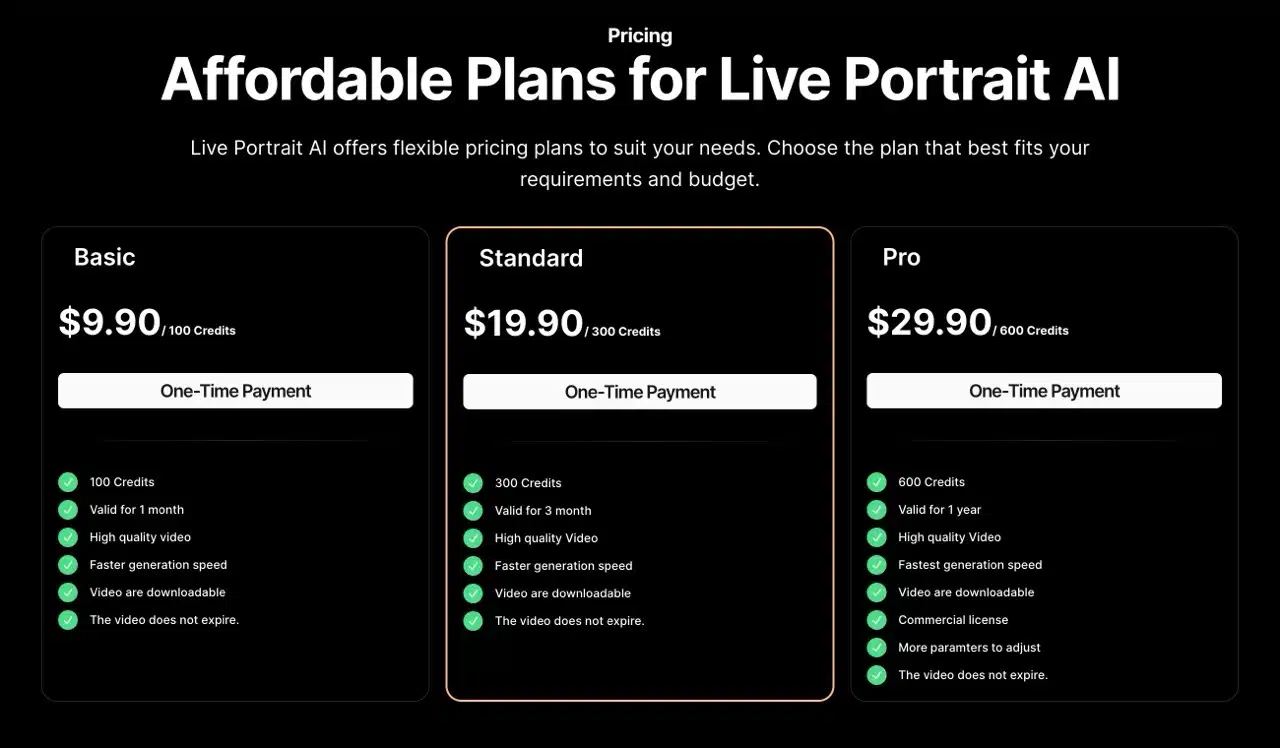
The Live Portrait AI homepage showcases some sample results that look truly incredible! This service isn't entirely free—each video creation costs two credits. After registration, you get one free video synthesis. If you run out of credits, you'll need to purchase more, available in packages of 100, 300, and 600 credits, starting at $9.90 USD. The more credits you buy, the lower the unit price.
Note that credits have an expiration date. Beyond that, generated videos feature high resolution and fast production times, with no expiration. Free videos must be downloaded within one hour; otherwise, they're automatically deleted by the system.
Next, I'll briefly demonstrate how to use Live Portrait AI, along with an animated video I created using this service.
Tutorial
STEP 1
After entering the Live Portrait AI website, you can find the free trial feature under “Playground.” However, the site notes that due to limited server resources, this is for testing purposes only and stability isn't guaranteed. So if you don't want to wait too long, I recommend registering an account directly!
Click “Sign In” in the top-right corner and log in using your Google account or email address. First-time users receive 2 credits.
After logging into the dashboard, you'll see two panels: upload your static photo on the left and select video actions on the right. Live Portrait AI provides pre-made examples. For video actions, focus on “facial expressions”—using solid-color backgrounds may improve AI recognition accuracy.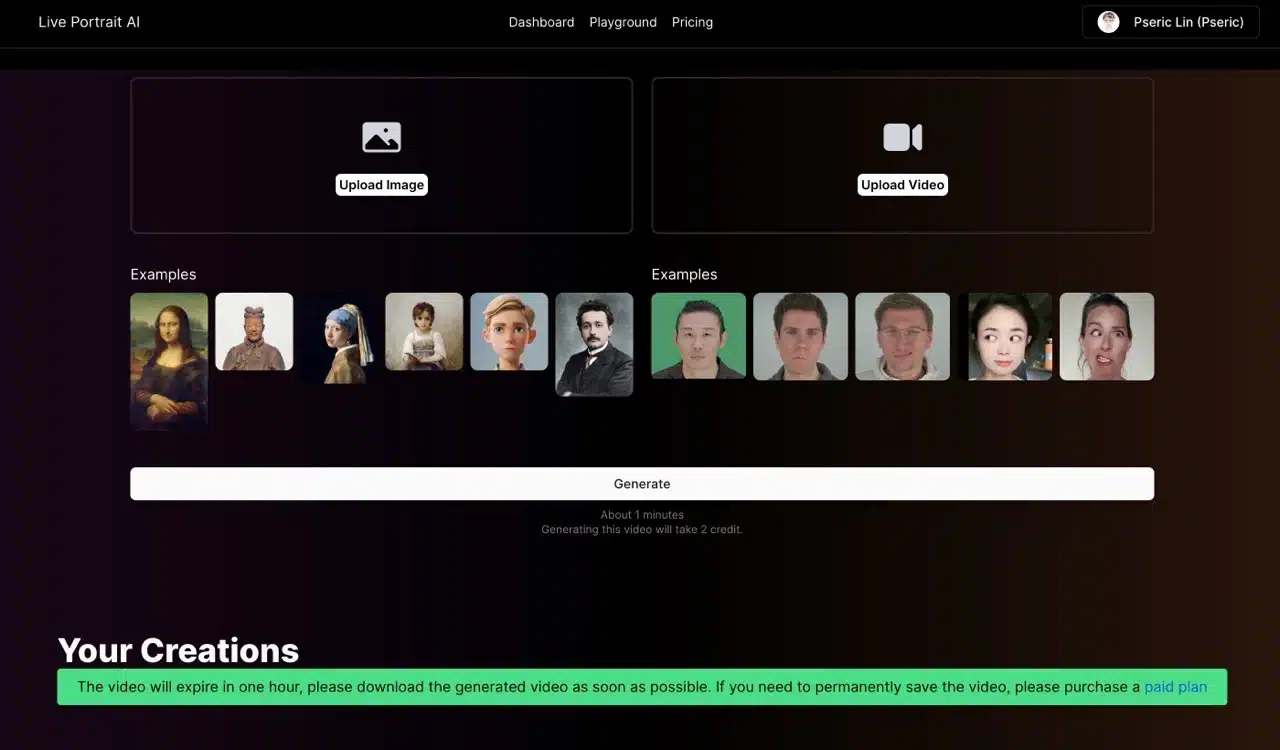
STEP 2
After uploading your static photo, the next step is to select a video animation from the right panel. You can click “Upload Video” to upload your own recording or directly choose from the sample videos below. For example, I selected a video of someone making funny faces.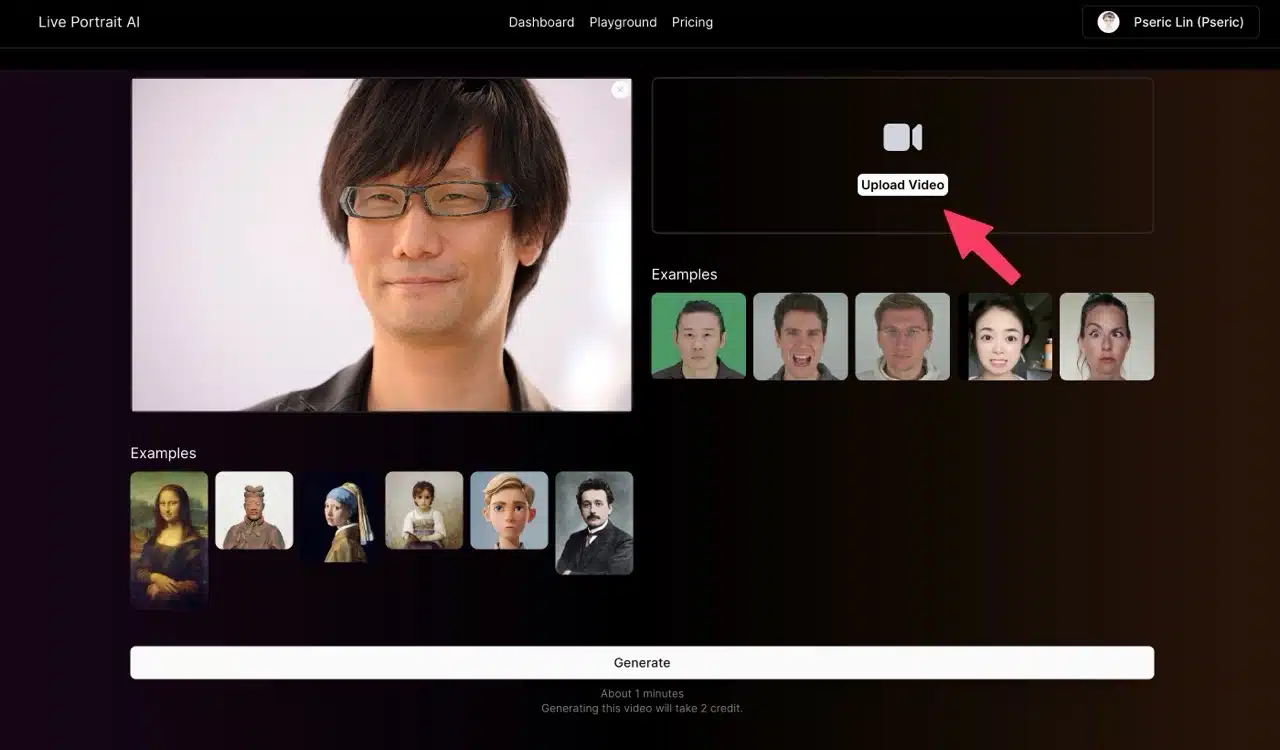
STEP 3
Once everything is ready, click “Generate” below to start synthesizing the video. Note that each operation deducts credits. Generation takes about a minute or less, so it won't take too long. After registration, you only receive two credits. Basically, after testing, you'll need to purchase additional credits to generate more videos.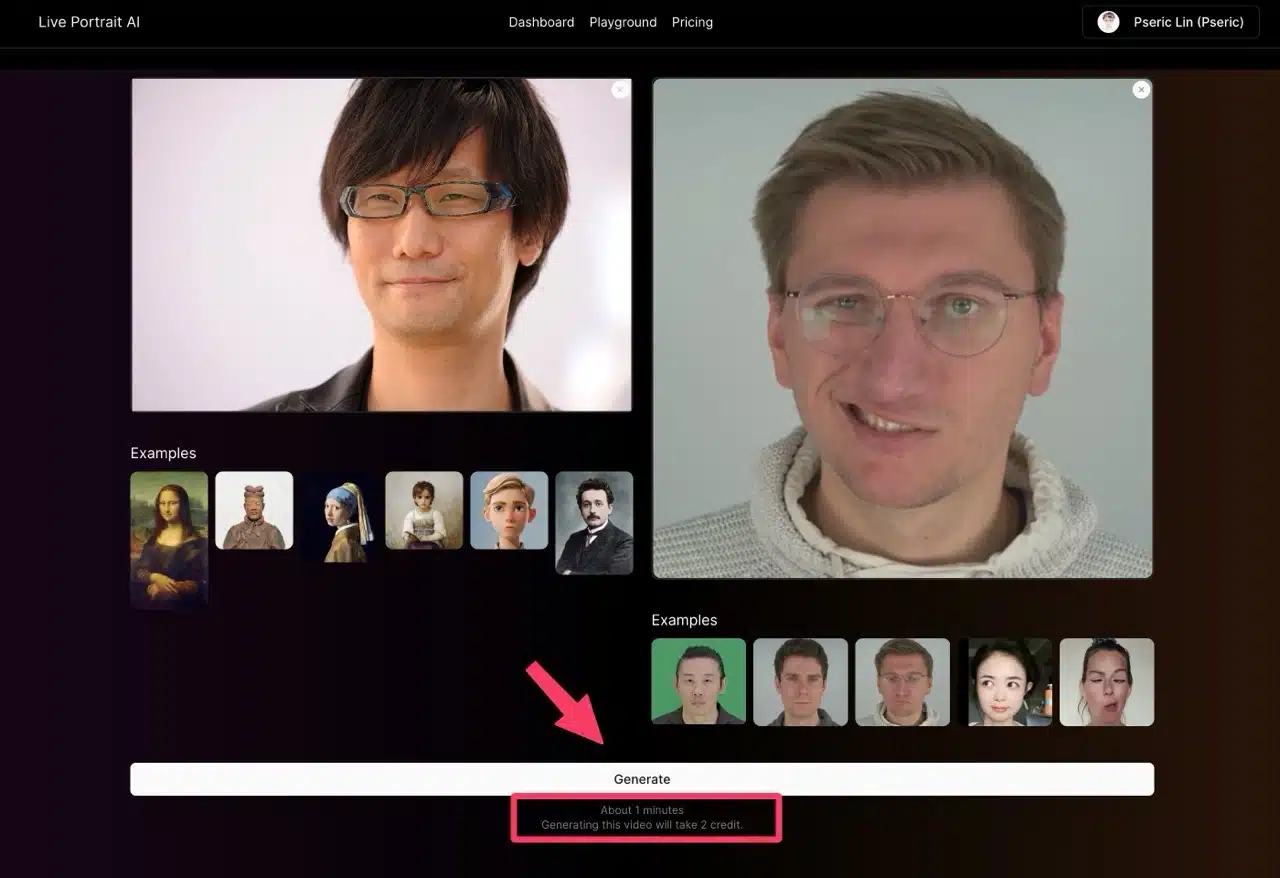
STEP 4
AI-generated videos appear below the console. Free user videos expire after one hour. Remember to promptly click the menu in the bottom-right corner and select “Download” after generation to save the video to your device (video format: .MP4).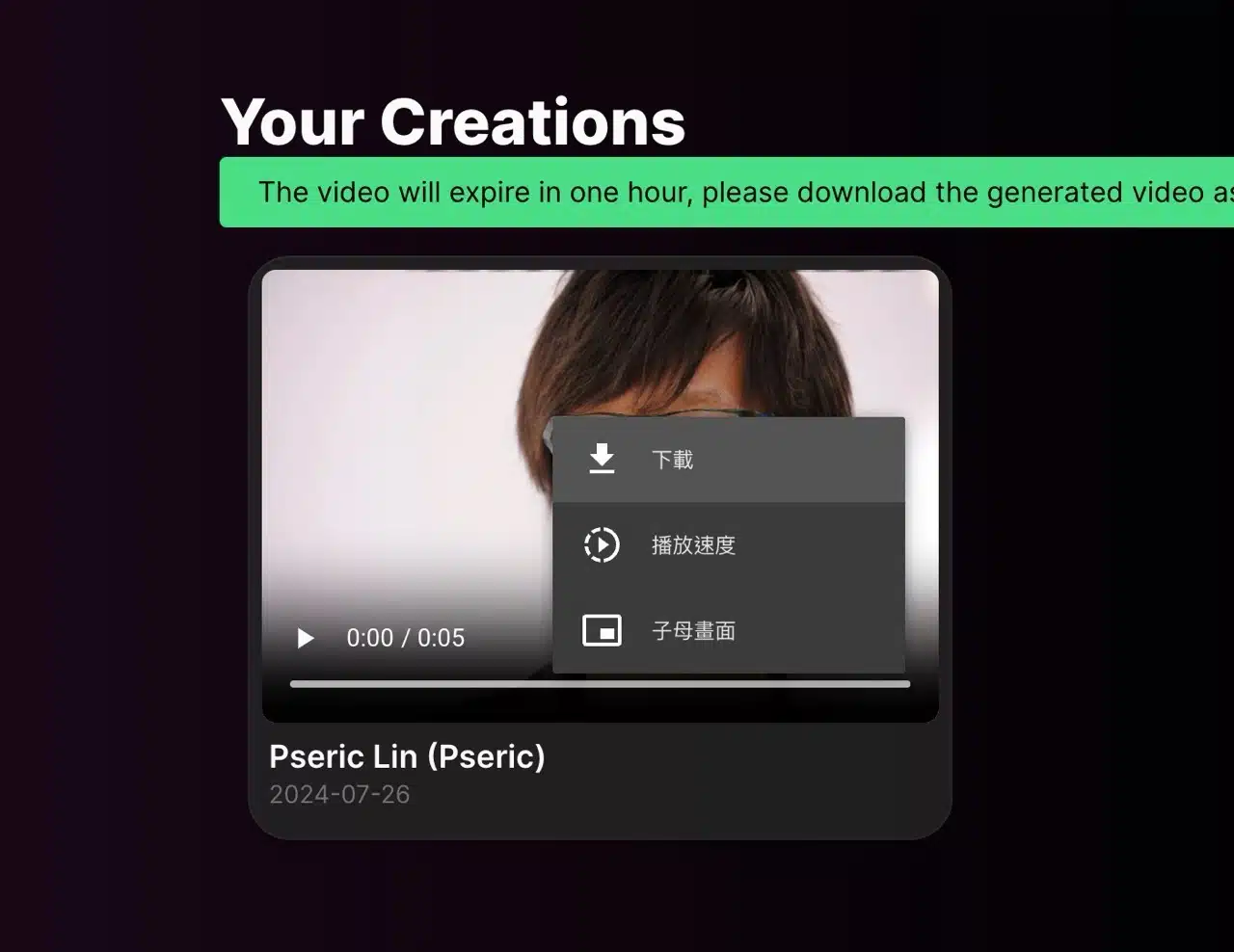 Live Portrait AI's pricing is straightforward: it operates on a credit-based system. The minimum 100 credits cost $9.90 USD. Since each video generation deducts two credits, even the most affordable plan allows for 50 video creations—quite economical!
However, purchased Live Portrait AI credits are not permanent and have expiration dates. For example, the cheapest plan is valid for only one month, while the most expensive 600-credit plan lasts for one year. Note that unused credits expire and cannot be carried over. Additionally, the Pro plan offers commercial licensing; videos created under standard plans cannot be used for commercial purposes.