You've surely heard of FakeApp, the once wildly popular “face-swapping” application. Using AI-powered “deepfake” technology, it can seamlessly replace faces in photos or videos with others, achieving near-perfect results that are almost impossible to detect. If you're curious to try similar face-swapping tools, numerous companies are now researching related technologies. Many offer online services requiring no additional software downloads or installations, with pricing based on video duration or photo quantity. APP Recommendation
Recently, another company called Fakeface has emerged online, offering face-swapping tools. Its main selling point is enabling users to easily and quickly create personalized face-swapped videos, photos, and GIFs while maintaining high image and video quality. The entire process is incredibly fast, with face-swapping speeds up to five times faster than other similar services!
Users simply upload the video or photo they want to swap faces in, then upload the new face. The two are then processed together for a quick face swap.
Fakeface avoids overly complex editing settings, automating everything. Users don't need to wait in front of the screen, and processing continues even offline (videos/photos upload to remote servers). Completed files are stored for seven days and can be previewed online anytime.
While Fakeface isn't a free service, users receive 60 credits upon registration. This equates to one minute of video or 30 photos (each photo deducts 2 credits). Additional credits can be purchased for extended video limits, dedicated processing power, or increased concurrent task capacity. Detailed pricing is available on Fakeface's pricing page.
User Guide
STEP 1
After opening the Fakeface website, first click “Free Faceswap” to enter the face-swapping editor. Click “Sign in” in the bottom-right corner to log in to your account. For first-time users, locate “Sign Up” in the bottom-right corner to register an account.
Note: Logging in or registering with a Google account grants 60 free credits. Registering with an email address only provides 30 credits.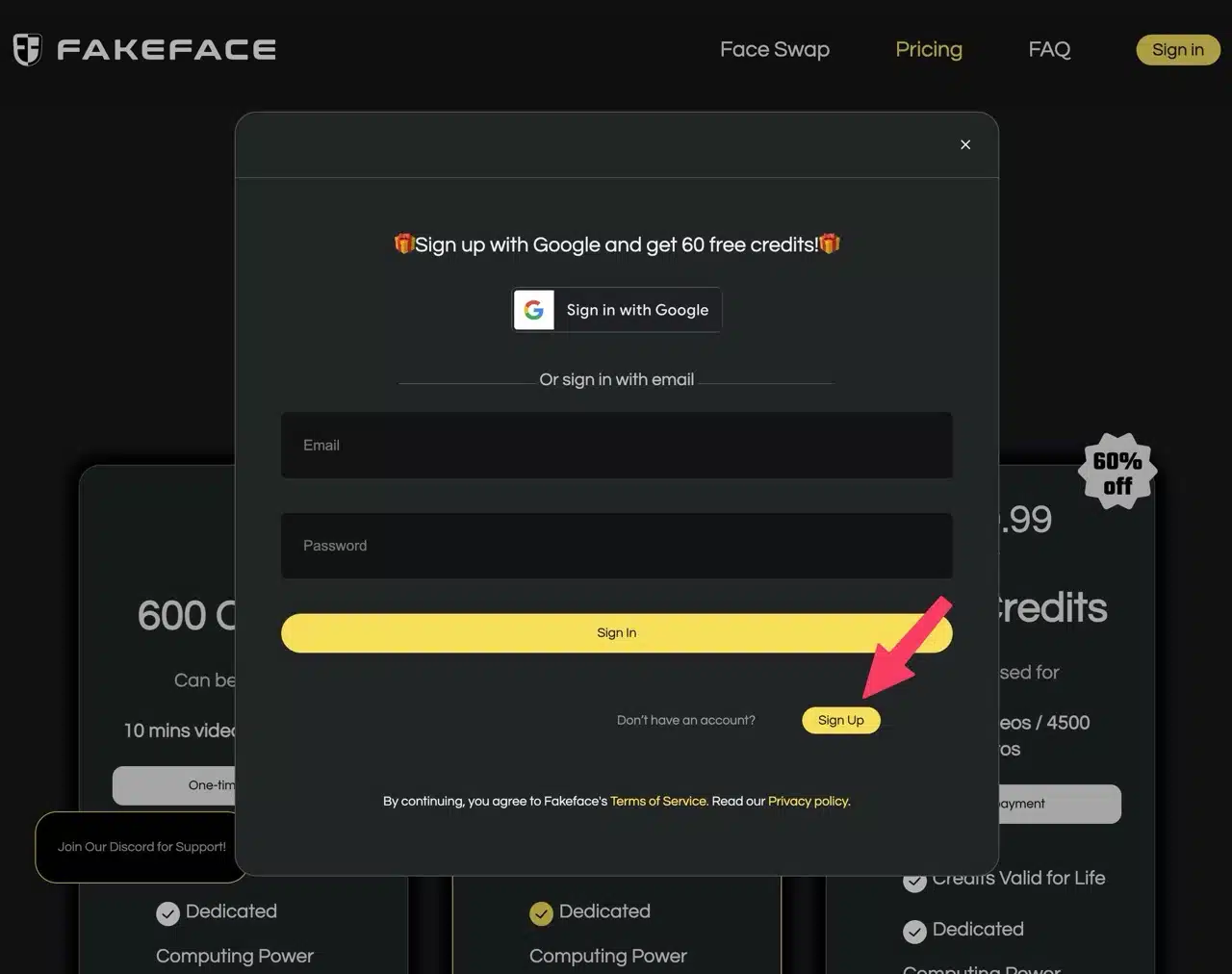
After registration, a prompt confirming your free credits will appear.
STEP 2
Your account settings in the top-right corner will display your 60 credits. This allows you to swap faces on 30 photos or one minute of video (each second of video consumes one credit).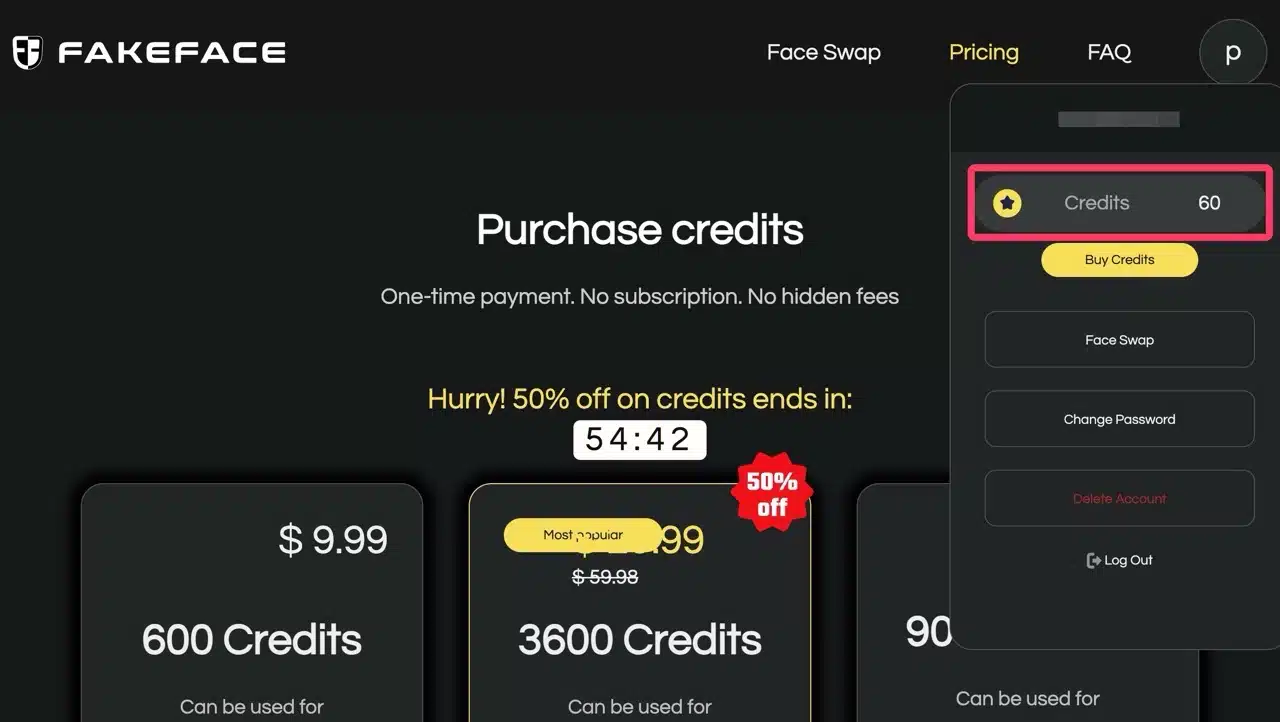
STEP 3
Click “Face Swap” to open the face-swapping editor. Though it looks complex, it's actually straightforward. The left side is divided into three main sections:
Face Swap: The primary editing area for face swapping.
My Creations: Your face-swapped videos, photos, or GIFs will appear here.
My Uploads: Uploaded files reside here. You can delete them without losing points.
Tap “Upload File” below to upload the photo or video you want to swap faces on.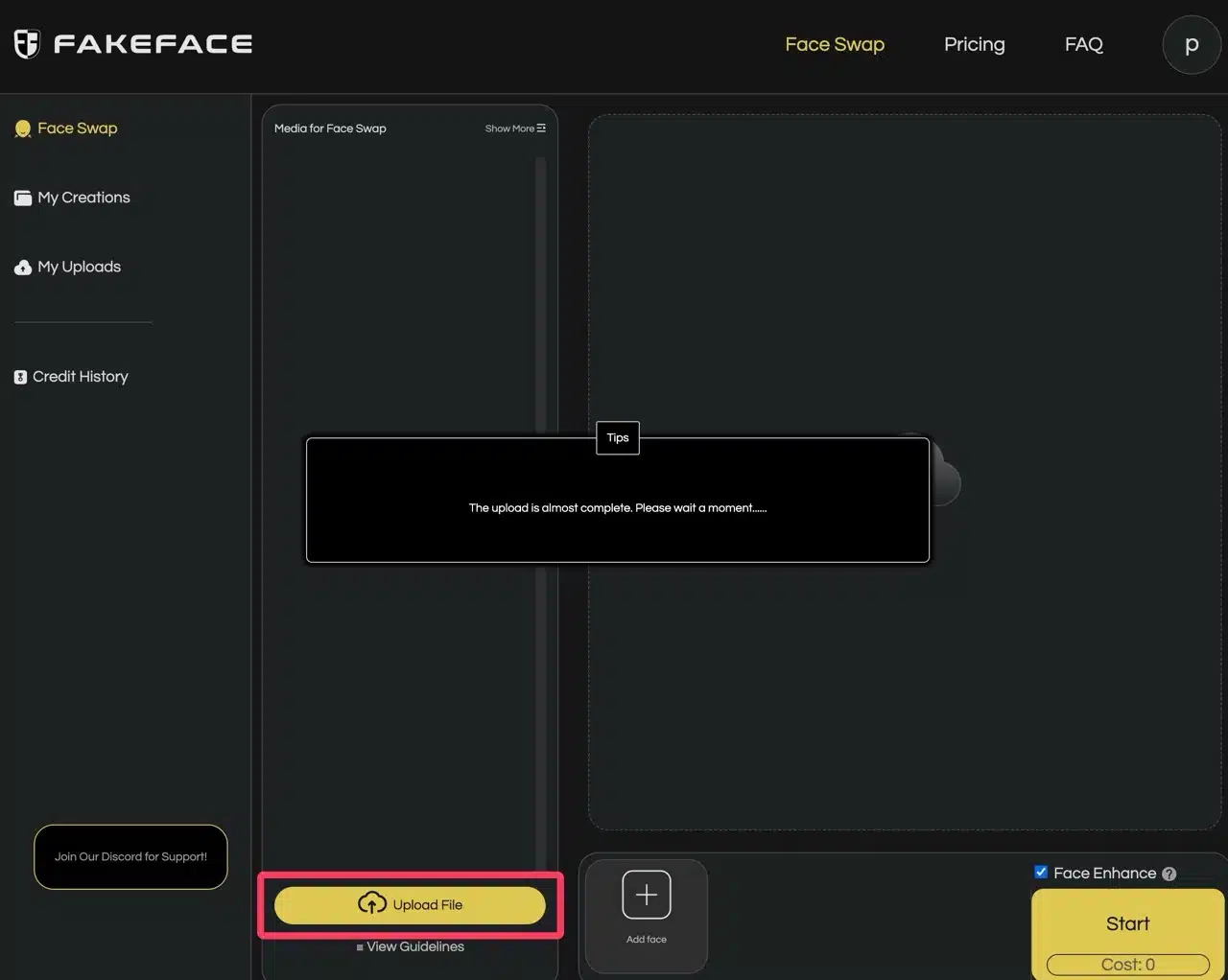 Once uploaded, it will appear in the middle section labeled “Media for Face Swap”—the media file area used for face swapping.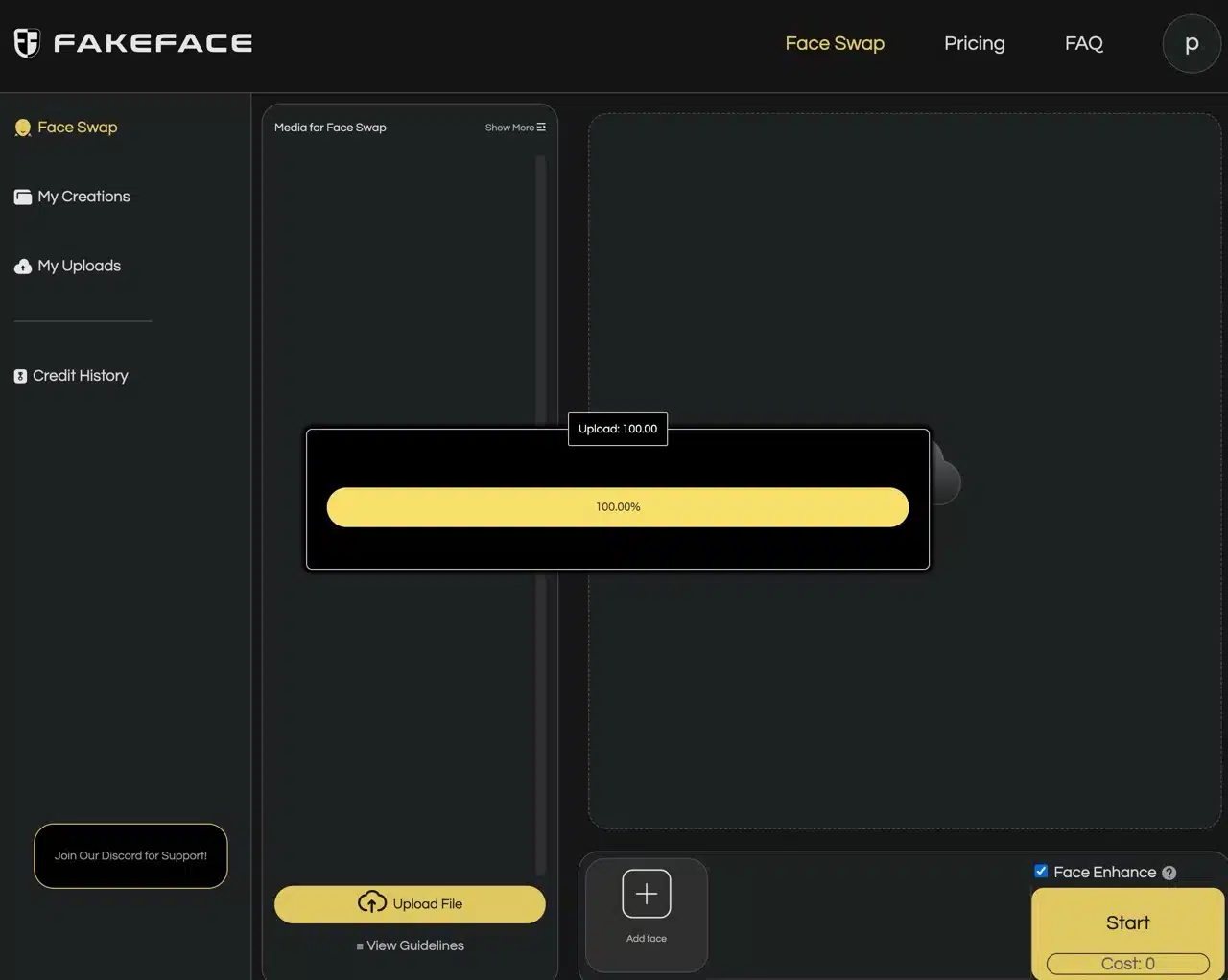
STEP 4
Next, click the “Add face” button on the right (as indicated by the arrow in the image below) to upload the new face for replacement. 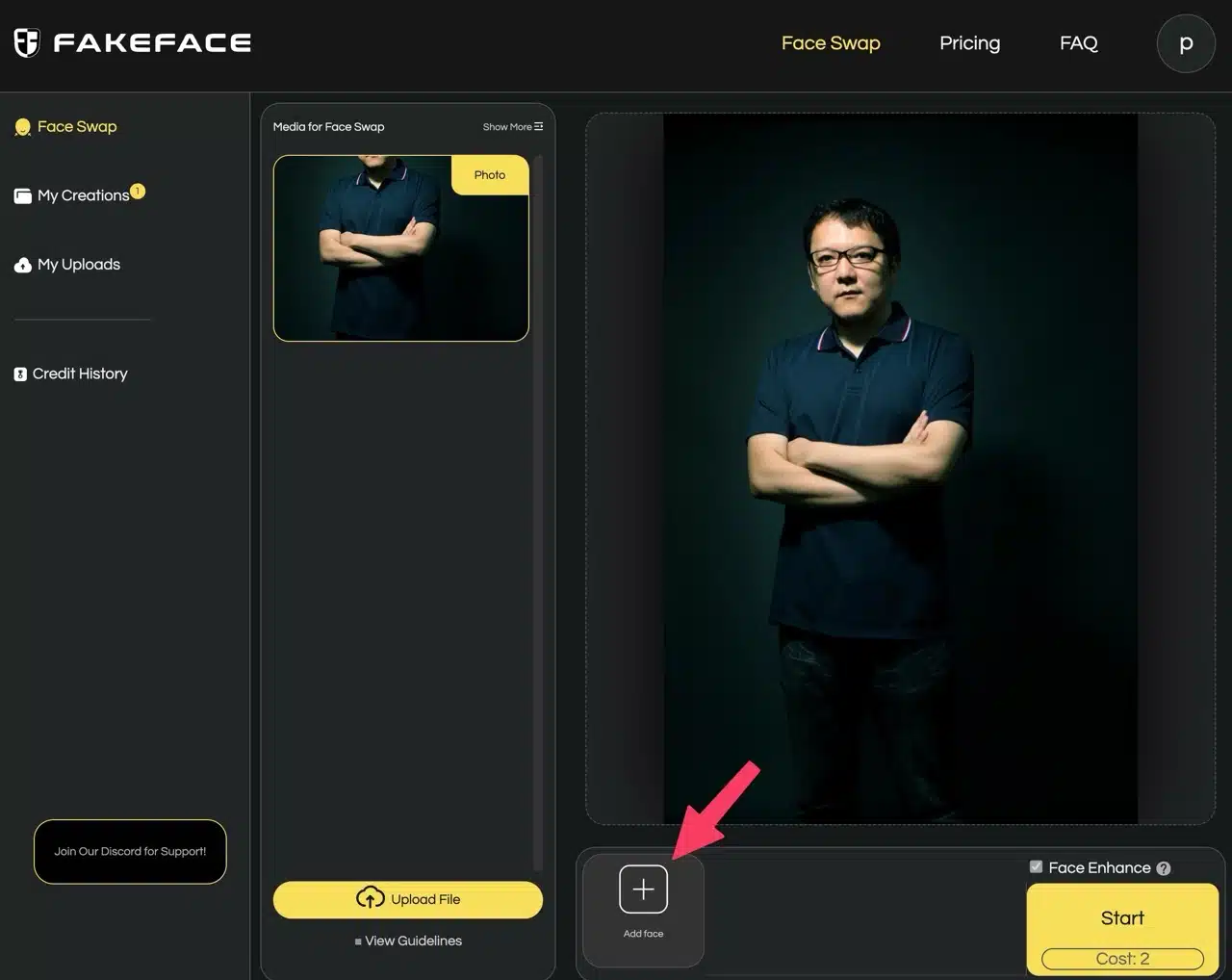 The points deducted for this editing operation will be displayed in the bottom right corner. You can check “Face Enhance” to achieve better face swap results. For videos, 2 points will be deducted per second. For photos and GIFs, this option does not incur additional point deductions.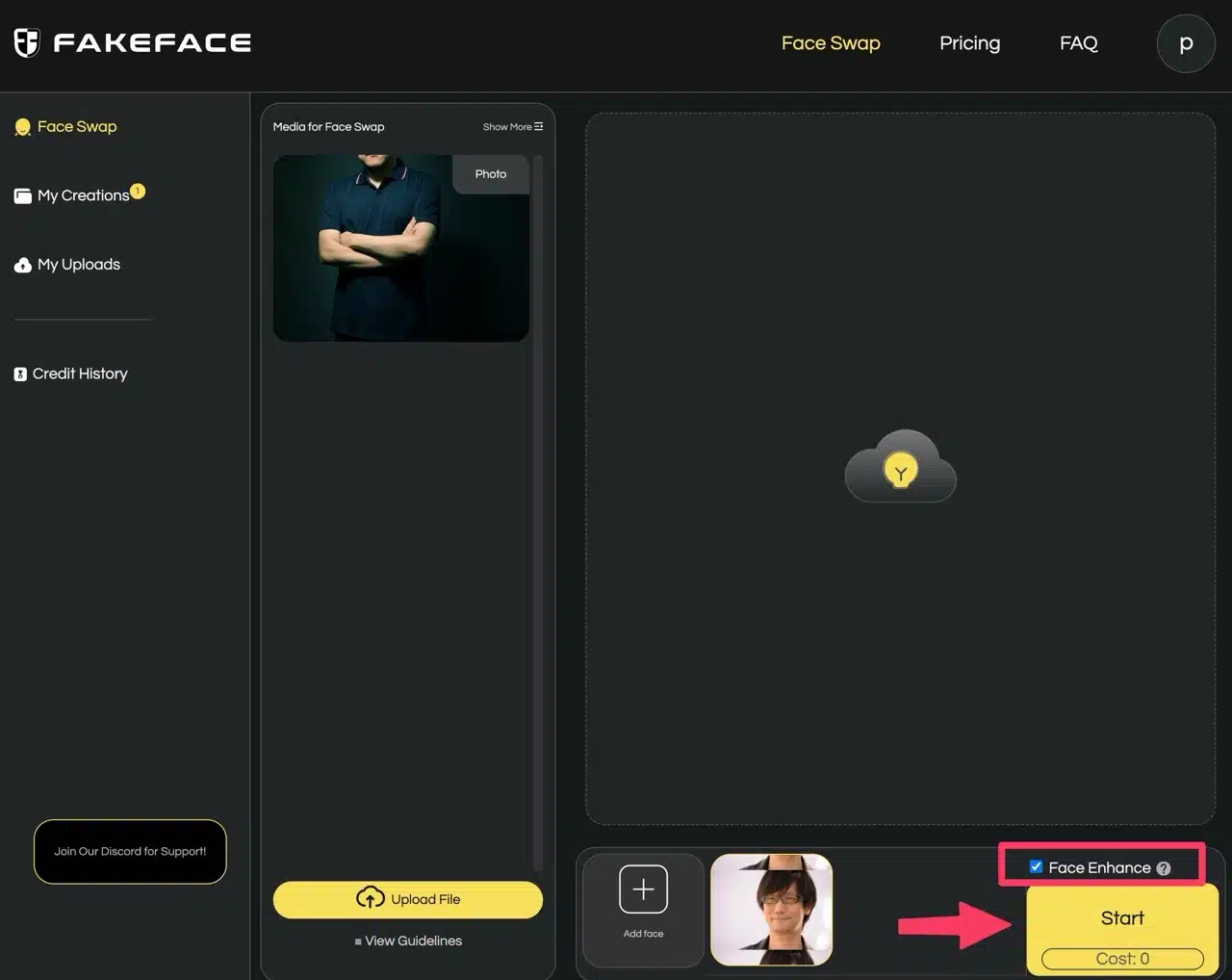
STEP 5
Finally, the selected original file and replacement face photo will be displayed, along with the total points deducted for this operation. If everything looks correct, click “Start” to begin editing. Note that once started, the process cannot be paused, and points will be deducted immediately.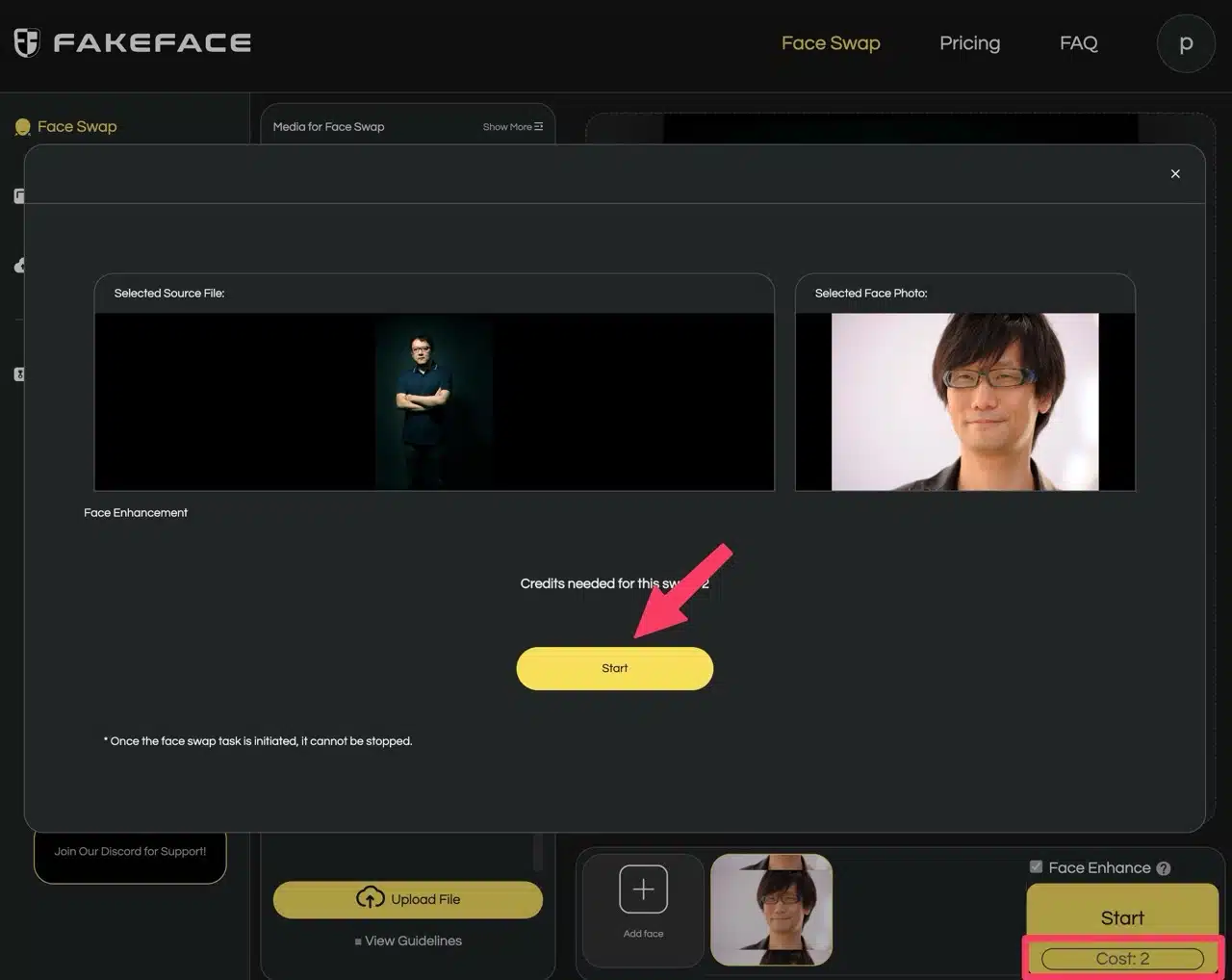
STEP 6
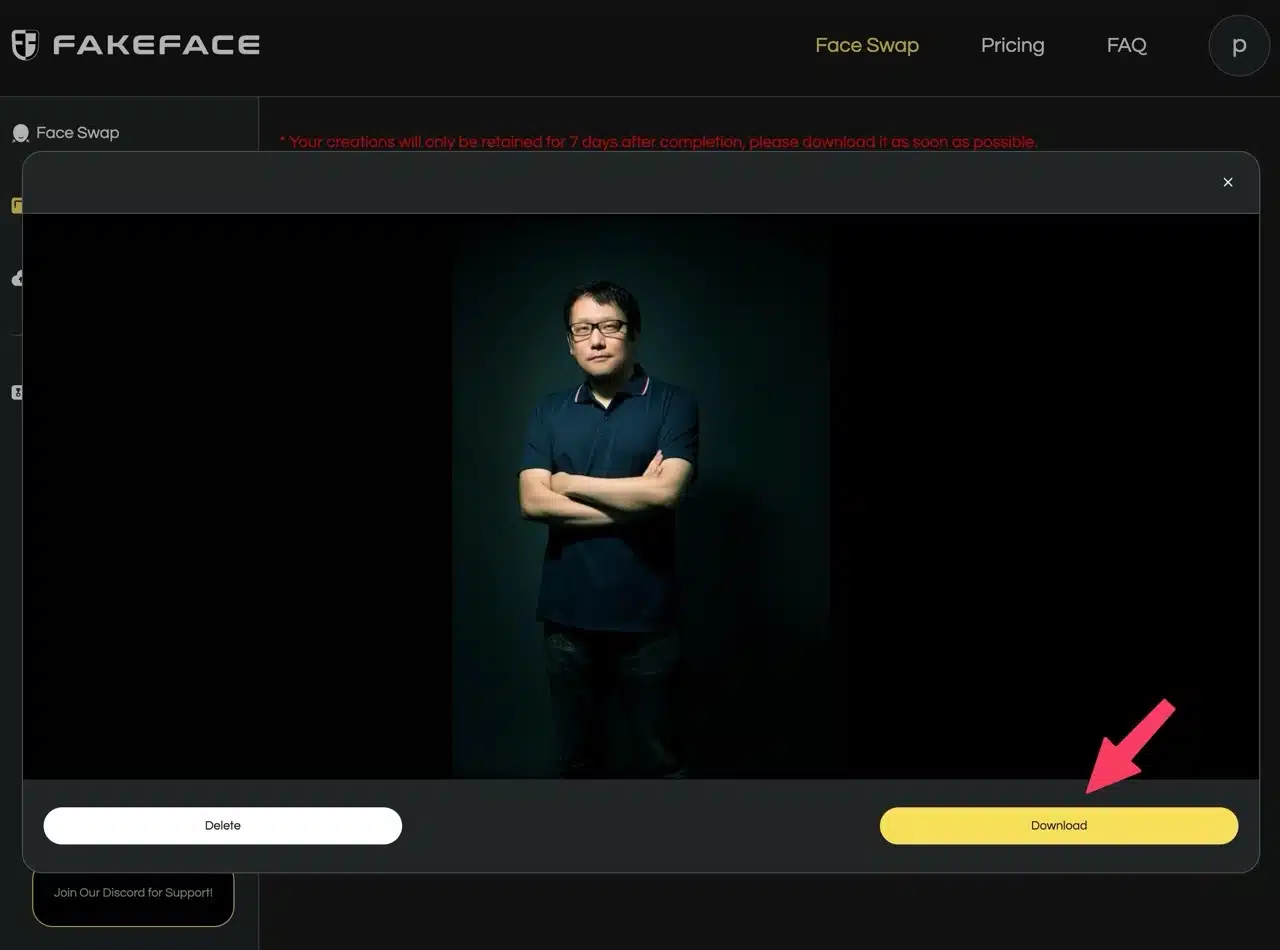
The processing progress will be displayed. Click “My Creations” on the left to view photos, videos, or GIFs edited with Fakeface. The entire process is remarkably fast—editing a photo typically takes only about one minute to complete. After completion, click “Download” to save the replaced file. The file will also be stored in Fakeface, but only for seven days.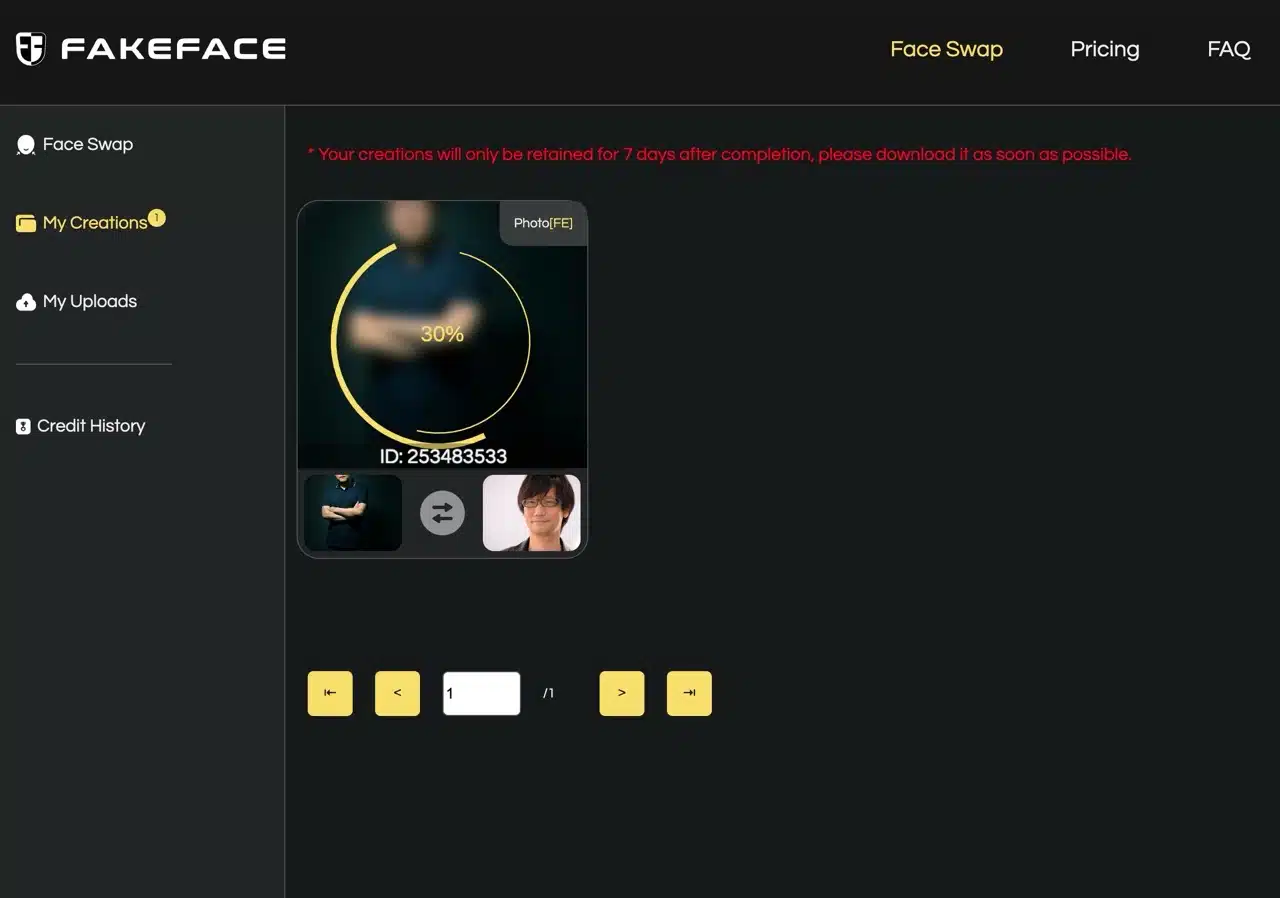 After this period, you'll need to repeat the process, so it's recommended to download and save your work immediately upon completion.